Per-Group Layouts, One Click to Switch
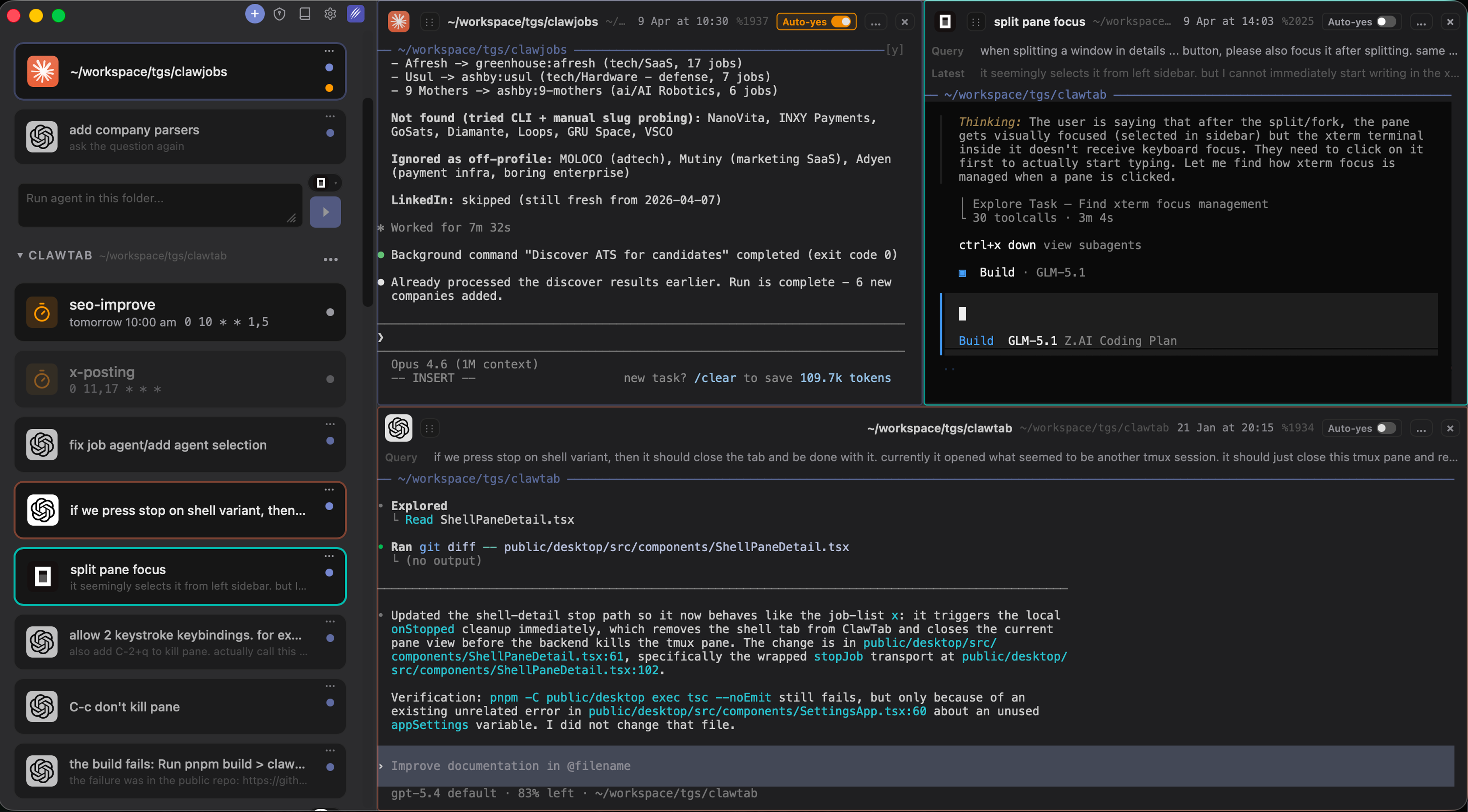
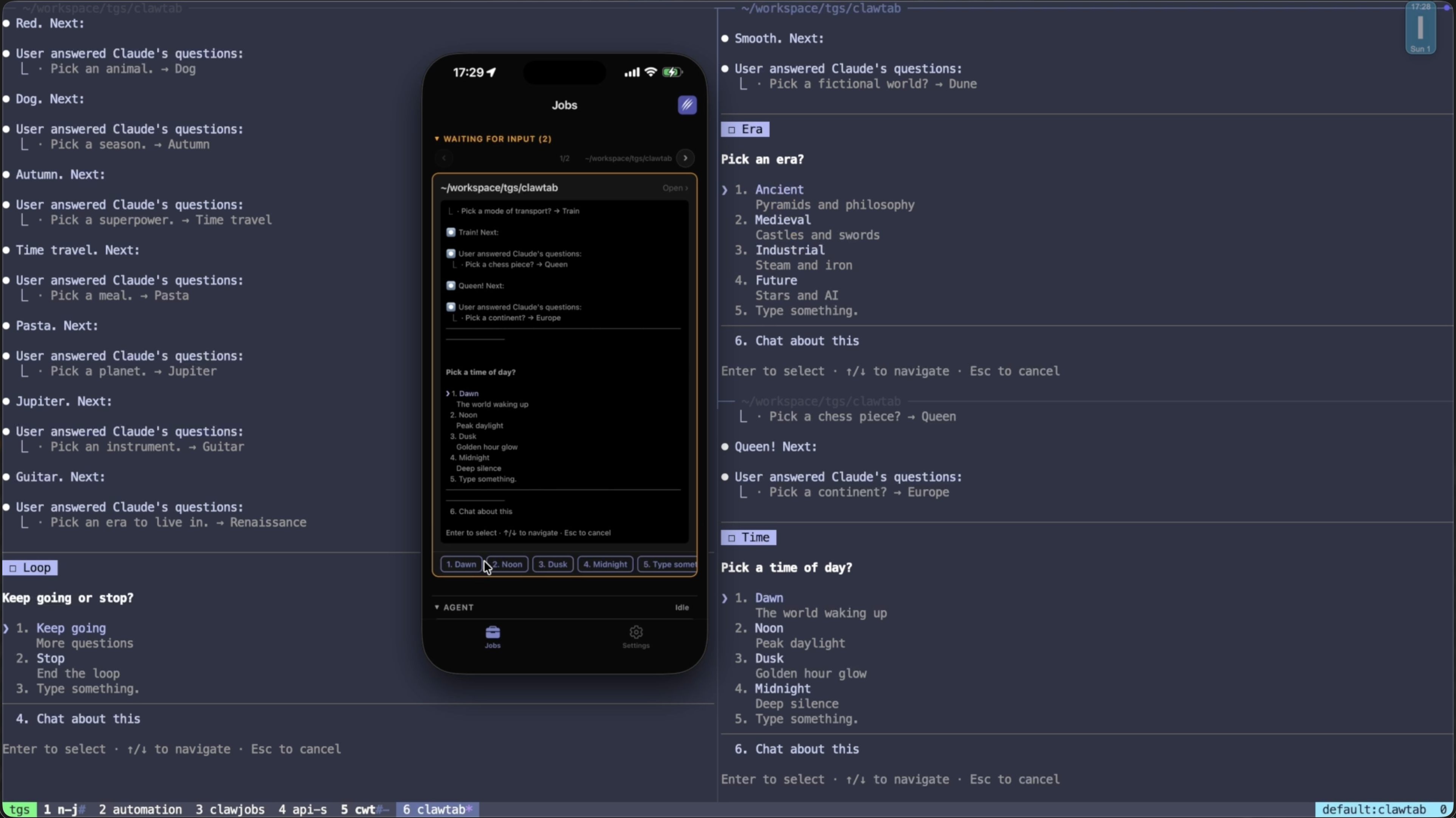
ClawTab's sidebar already lets you organize jobs, shells, and detected agent processes into named groups. As of this release, every group is now its own workspace - an independent split tree with its own focused pane and its own layout. Click a different group header in the sidebar and the terminal area switches to that group's saved layout.
Before this release, ClawTab had one split tree. If you had three parallel agents laid out side by side for one project and you wanted to jump to a different project, you had to tear down the layout, open new panes, and rebuild - or suffer through a cramped single view cycling through panes.
Workspaces fix this by giving each sidebar group its own persistent layout:
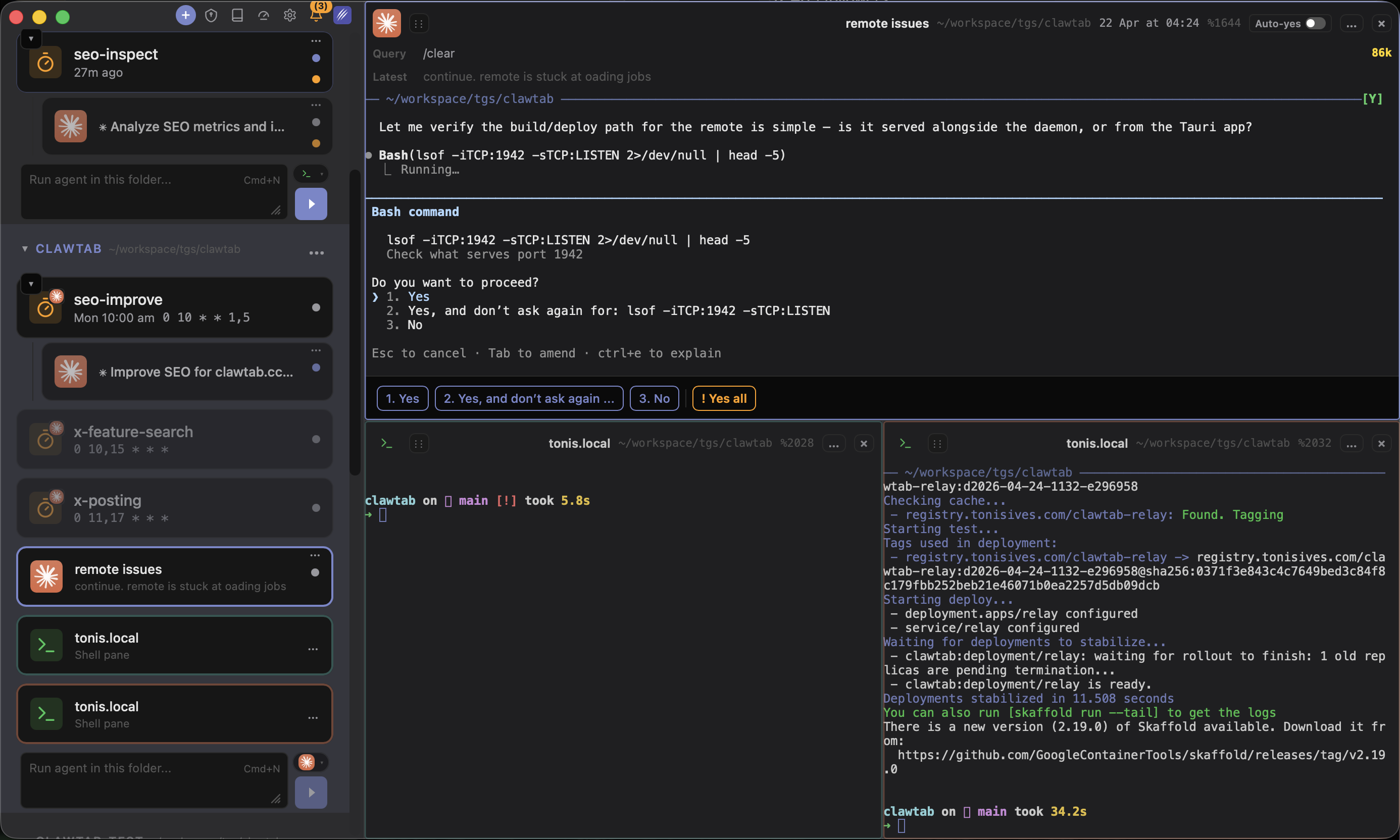
- Per-group split tree - the horizontal/vertical splits you set up in seo-inspect are remembered independently from the splits in remote issues. Switch groups, the layout swaps.
- Per-group focused pane - each workspace remembers which pane you had focused last. No hunting for where your cursor was.
- Single-pane mode is per-group too - if you collapse a workspace down to one full-screen pane, that choice is remembered for that workspace only.
- No remount on switch - xterm terminals and their PTYs are reparented in the DOM, not unmounted and recreated. Your tmux session, scrollback, running agents, and pending input all survive the switch.
The screenshot below shows four workspaces in the sidebar: seo-inspect, CLAWTAB, remote issues (active, highlighted), and tonis.local. Each has its own layout. Switching is a single click on the group header.
How It Works Under the Hood
Each workspace stores three pieces of state, keyed by group name:
- Split tree - the nested horizontal and vertical splits that define the pane layout.
- Focused leaf id - which pane inside the tree was active.
- Single pane content - what to show when the workspace is in single-pane mode.
State is persisted to localStorage under clawtab_ws:{id}:tree, :focused, and :single. A top-level index (clawtab_ws_index) tracks which workspaces exist and which one is active.
Four invariants keep the system coherent:
- A given pane id appears in at most one workspace tree.
- A given job or agent appears in at most one workspace tree.
- The active workspace's focused leaf always references a real pane, or is null.
- Dragging a pane across workspaces is a move, not a copy.
The fifth and most important invariant: the underlying xterm instance and PTY connection live in a module-level registry, refcounted and indexed by pane id. Switching workspaces reparents the terminal's DOM container into the newly-active detail pane. Your running agent never knows the switch happened.
Cross-Workspace Drag and Drop
You can drag a job or shell from one workspace's layout into another. The behavior is a move, not a copy - the source workspace loses the pane, the target workspace gains it. This upholds the "each pane in one workspace at a time" invariant, so you never end up with two split trees fighting over the same PTY.
Two quality-of-life touches make this usable:
- Hover-to-activate. While dragging, hover over a different group header in the sidebar for a moment and that workspace becomes active. You can drop the pane into its layout immediately, without a two-step "switch, then drag" dance.
- Dedup on drop. If the target workspace already contains the same content, the drop becomes a focus-only operation instead of creating a duplicate pane.
Combined with parallel agent swarms, this makes it practical to have one workspace per project with its own swarm, and shuffle agents between projects as priorities shift.
Focus History Spans Workspaces
ClawTab keeps a focus history stack that records every pane activation, tagged with the workspace it belongs to. Back and forward navigation walks the stack across workspaces - if you were focused on a pane in seo-inspect, switched to remote issues, focused a pane there, and hit back, ClawTab switches back to seo-inspect and restores the old focused pane.
The command palette (⌘P) searches panes across every workspace, not just the active one. Selecting a match activates the owning workspace and focuses the pane in a single action.
Like tmux Sessions, Plus Everything ClawTab Already Gives You
If you already use tmux sessions to keep separate layouts per project, workspaces will feel familiar - that's essentially what they are. The difference is that you get every ClawTab feature on top of the bare tmux session model:
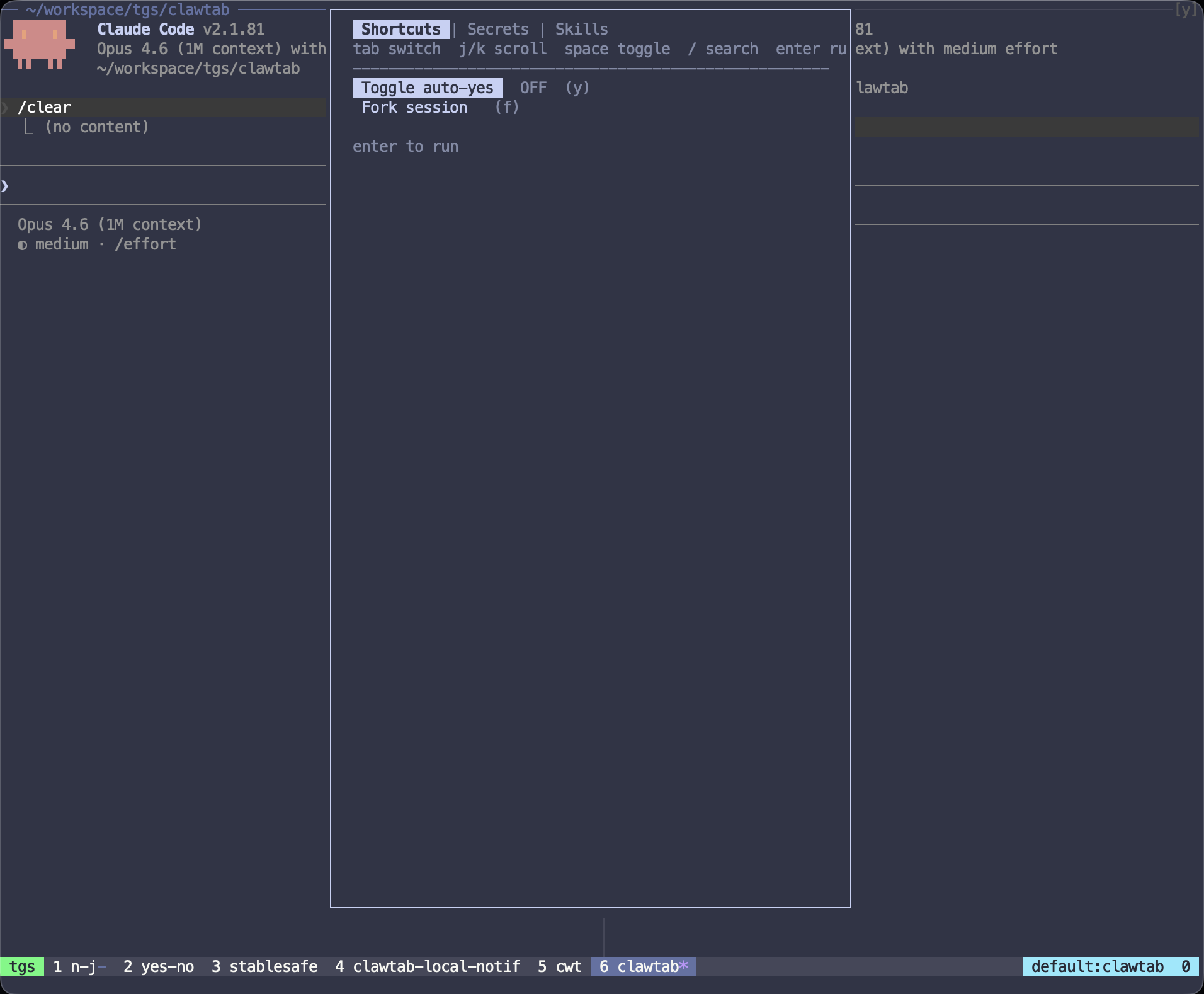
- Per-pane auto-yes - accept Claude Code permission prompts automatically, toggled independently on each pane inside a workspace.
- First query, last query, and session start time for every agent in the sidebar, so you know what each pane is working on without reading its scrollback. See the v0.3 release notes for details.
- Secrets injection directly into panes from macOS Keychain or gopass, without typing credentials into tmux.
- Cron scheduling - workspaces persist across reboots, so scheduled jobs land back in the group you set them up in.
- Phone control - the iOS app and remote.clawtab.cc both reflect the active workspace and let you switch between them remotely. The layout you see on your phone matches the layout on the desktop.
- Multi-provider - a single workspace can host Claude Code, Codex, and OpenCode panes side by side.
Workspaces are the organizational layer you already wanted out of tmux, wired into the rest of ClawTab so every other feature works per-workspace for free.
Migration
If you were using ClawTab before this release, your existing split layout is automatically migrated to a default workspace on first launch. Nothing is lost. The old desktop_split_tree, desktop_split_tree_focused_leaf, and desktop_single_pane_content keys in localStorage are read once, written into the new clawtab_ws:default:* keys, and then cleared.
Creating a new workspace is implicit - the first time you focus a pane that belongs to a different group, that group becomes its own workspace. No UI to set up, no config to edit.
Getting the Update
Update via Homebrew:
brew upgrade --cask tonisives/tap/clawtabOr grab the latest release from GitHub releases. Workspaces are enabled for everyone - no flag, no opt-in.