
Quick Start
Prerequisites
- macOS
- tmux installed
- Claude Code CLI (for Claude/Folder jobs)
Installation
Homebrew (recommended)
brew install --cask tonisives/tap/clawtab
This installs the clawtab GUI app, cwtctl CLI, and cwttui terminal UI.
Build from source
pnpm install
cargo tauri build
Both methods produce three binaries:
| Binary | Purpose |
|---|---|
clawtab |
GUI app (Tauri window) |
cwtctl |
CLI for headless control |
cwttui |
Terminal UI (ratatui) |
Setup Wizard
On first launch, the setup wizard walks through:
- Tools -- Detects installed tools (editors, terminals, tmux, claude, gopass, aerospace)
- Notifications -- Choose notification target: ClawTab App (push), Telegram (bot), or skip
- Hello World -- Creates and runs a test job to verify the setup
- Web Browse -- Creates an AI job that fetches Hacker News
- Done -- Saves
settings.yaml, marks setup complete
The wizard auto-detects tools and shows version + path for each. Missing tools can be installed via Homebrew directly from the UI.
Creating Your First Job
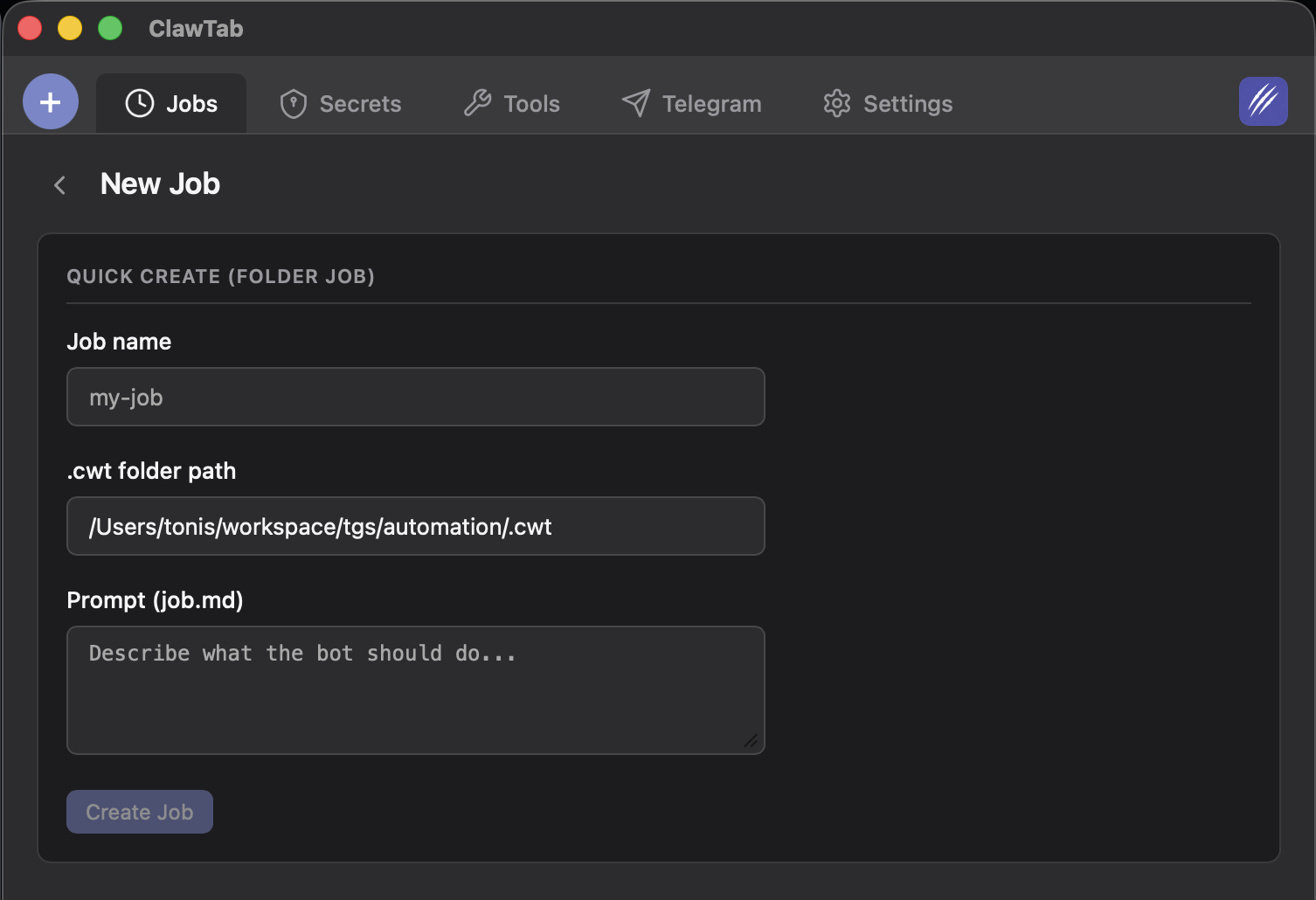
Binary job (run a script)
- Open the Jobs panel
- Click "New Job"
- Set type to Binary
- Set path to your script (e.g.,
/path/to/backup.sh) - Choose a weekly calendar recurrence or set a cron expression (e.g.,
0 0 * * *for daily at midnight) - Save
Claude job (run a prompt)
- Set type to Claude
- Set path to a text file containing your prompt
- The prompt file content is passed to
claudevia$(cat /path/to/prompt.txt) - Runs inside a tmux window named
cwt-<project>
Folder job (project-based AI agent)
- In ClawTab, click "New Job" and set type to Folder
- Browse to your project root
- Enter a Job Name (e.g., "deploy", "lint")
- Edit
job.mdwith your agent instructions (stored at~/.config/clawtab/jobs/<slug>/<job-name>/job.md) - Optionally add shared context in
~/.config/clawtab/jobs/<slug>/context.md(applies to all jobs in the project) - The job runs Claude from the project root with context inlined from central config
All job files (config, prompts, context) are stored centrally at ~/.config/clawtab/jobs/.
Scheduled agent job from the CLI
In a project directory, run cwtctl jobs create for an interactive form. Enter the name and a cron expression or one-time date, then write the job description in nvim. The command joins the nearest configured group whose project folder contains the current directory. If none matches, it creates a group from the directory name.
You can also supply the fields directly:
cwtctl jobs create --name daily-review --cron '0 9 * * *' --description-file review.md
cwtctl jobs create --name follow-up --at '2026-10-02 09:00' --description 'Check the results'
cat task.md | cwtctl jobs create --name task --at '2026-10-02T09:00:00+07:00' --description-stdin
--at takes a future local date and time or RFC 3339 timestamp. A one-time job removes its config after the agent starts by default, while the tmux pane and run history remain available. Pass --keep-config to retain a disabled job. See CLI & TUI for details.
Running a Job
- GUI: Click "Run Now" on any job
- CLI:
cwtctl jobs run <group>/<name> - TUI: Select job, press
r - Telegram: Send
/run <name>to your bot - Schedule: Automatically triggered by the job's cron expression, calendar recurrence, or one-time date
Checking Status
cwtctl jobs status
Status values: idle, running, success, failed, paused.