The terminal is your workspace.
Run Claude Code, Codex, OpenCode, and shells in real tmux panes. ClawTab adds agent status, schedules, and remote access around the sessions you already use.
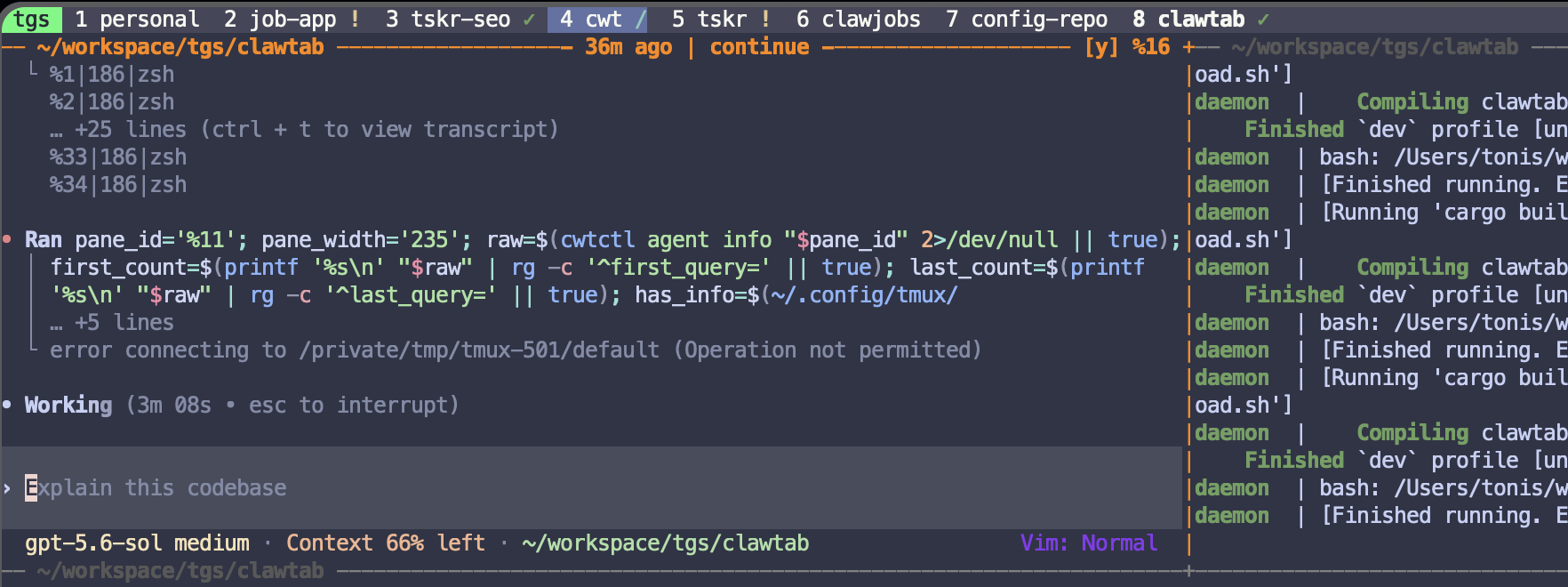
Keep the same pane
Processes, working directories, terminal history, and pane IDs stay in tmux. Open a pane from the terminal, desktop app, or Remote without starting another agent.
See which agent needs you
The tmux plugin shows working, asking, and idle states. Task titles and first and latest queries help you find the right session.
Use terminal controls
Manage jobs with cwtctl, use the tmux menu and sidebar, fork sessions, search skills, and toggle auto-yes for an individual pane.
A daemon that keeps working.
The headless daemon handles schedules, agent discovery, question detection, auto-yes, notifications, and relay connections. Closing the desktop window leaves that work running.
On macOS, launchd supervises the service. Linux hosts use a systemd user service. The desktop app, cwtctl, and Remote all connect to the same daemon.
Restarting the daemon leaves separate tmux sessions alive. Rebooting the host ends running processes; the daemon and scheduled jobs follow the host’s startup configuration.
Install ClawTabStart the macOS service
cwtctl daemon install
cwtctl daemon status
Manage jobs from the terminal
cwtctl jobs list
cwtctl jobs run my-project/review
Add the tmux plugin.
The plugin adds controls to your existing tmux setup. Open the ClawTab menu over a pane, fork an agent conversation, or open that pane in the desktop app.
Use the plugin path from your ClawTab source checkout in ~/.tmux.conf, then reload the file.
Read the tmux setup guide or read how the daemon and tmux fit together.
# In ~/.tmux.conf
run-shell /path/to/clawtab/tmux-clawtab/clawtab.tmux

# Reload your configuration
tmux source-file ~/.tmux.conf- prefix + E
- ClawTab menu
- prefix + y
- Toggle auto-yes
- prefix + f
- Fork the session
- prefix + o
- Open in desktop