Introduction
You can schedule OpenCode with an operating-system scheduler, a community plugin, or ClawTab. OpenCode supplies the agent; the surrounding scheduler decides when to start it and how you will inspect the run.
ClawTab now lets you choose OpenCode directly when creating a job: cwtctl jobs create --provider opencode. Add --cron for a recurring task or --at for a one-time run. An optional --model pins the model as well, so the job does not accidentally follow a later change to your default agent.
This guide compares the three paths, then builds a daily repository-review job. ClawTab is particularly useful when you want a scheduled agent to remain visible in tmux and accessible from your phone alongside Codex or Claude Code.
What OpenCode provides, and what adds the schedule
The current OpenCode CLI reference documents opencode run for noninteractive prompts. It does not list a built-in schedule command. A cron entry can invoke that command, or a plugin can manage the timer for you.
The community opencode-scheduler plugin uses operating-system scheduling and wraps opencode run. Its README documents project-scoped jobs, logs, no-overlap supervision, and optional timeouts on supported platforms. Those are useful capabilities; scheduling alone is not a reason to replace it.
| Approach | Good fit | What you manage |
|---|---|---|
Cron plus opencode run | A small task that should run headlessly and exit | Executable paths, environment, output files, failures, and overlapping runs |
| OpenCode scheduler plugin | Scheduling from inside OpenCode with its plugin tools | Plugin installation, platform support, and the plugin's logs and job settings |
| ClawTab scheduled job | OpenCode in a visible tmux session, with desktop and phone access across agent CLIs | A running ClawTab daemon and host, provider authentication, and each job's permissions |
Choose based on how you want to operate the run. A headless script can be the simpler choice. ClawTab becomes useful when the terminal session, follow-up questions, and other local agents belong in the same workspace.
A minimal OpenCode cron job
A system cron job can call OpenCode directly. The example below uses placeholder paths: replace them with your project, executable, and an existing writable log directory. Test the command as the same user before adding the schedule. Cron generally starts with a smaller environment than your interactive shell.
This runs at 09:00 in the scheduler's configured timezone. It illustrates the mechanism, without adding a lock, timeout, or missed-run recovery. Those need separate configuration if the task requires them.
# Add to your user crontab after replacing the paths.
0 9 * * * cd /absolute/path/to/project && /absolute/path/to/opencode run "Summarize recent commits without changing files" >> /absolute/path/to/logs/review.log 2>&1
Prepare the host and check your cwtctl version
Install and authenticate OpenCode on the machine that will run the job. Verify it works in your project, and choose a model returned by opencode models if you want an explicit model. ClawTab selects the CLI; it does not supply that CLI's model access.
--provider and --model were added to jobs create on October 6, 2026. Check the help output below. If your installed release does not list them, update cwtctl from a build containing this change, or create the job and select OpenCode in ClawTab's job settings. The CLI reference and current source document the flags.
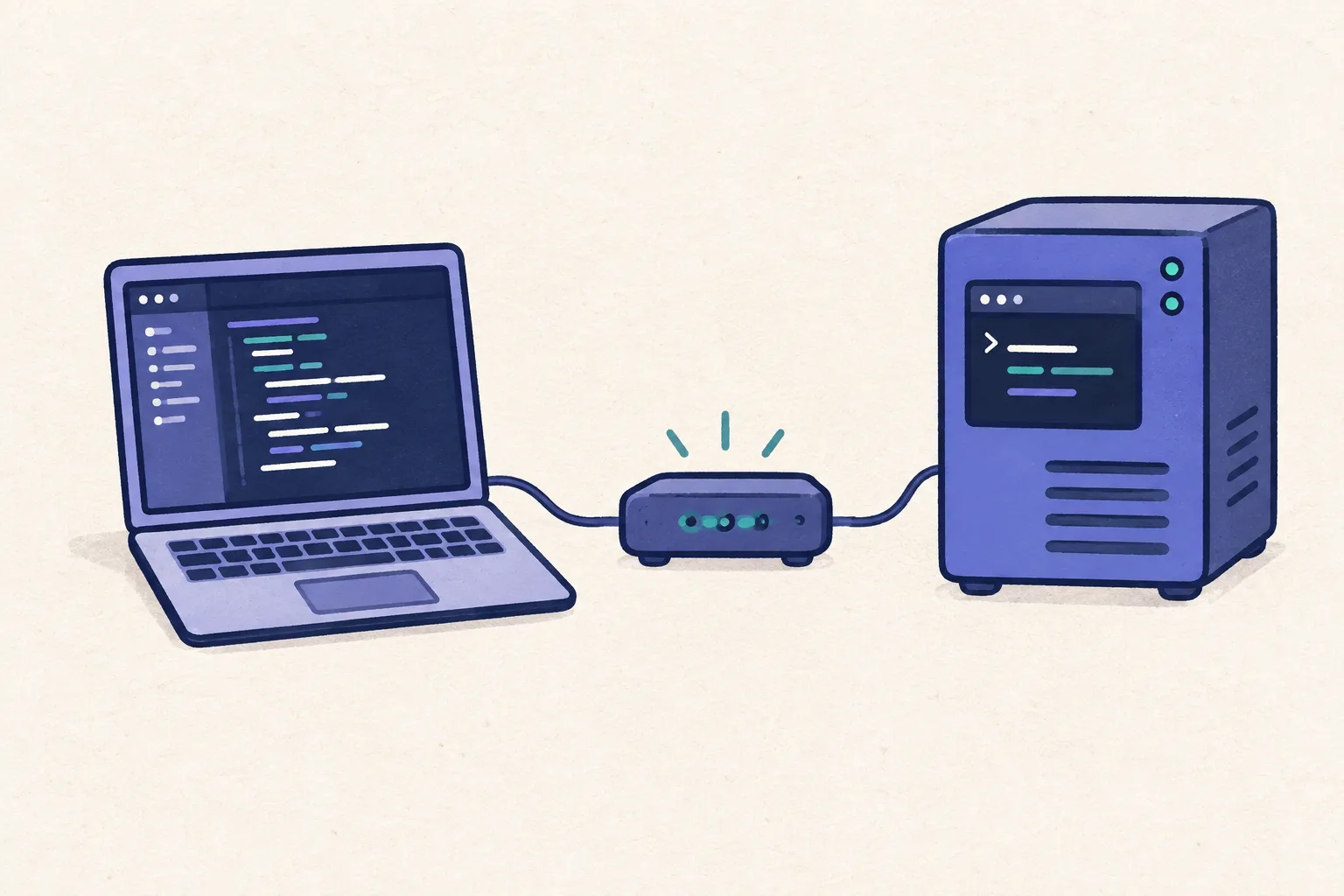
The diagram shows the handoff: creation writes a job definition; the daemon later launches it. Creating a job does not start OpenCode immediately.
cwtctl jobs create --help
cwtctl daemon status
opencode --version
opencode models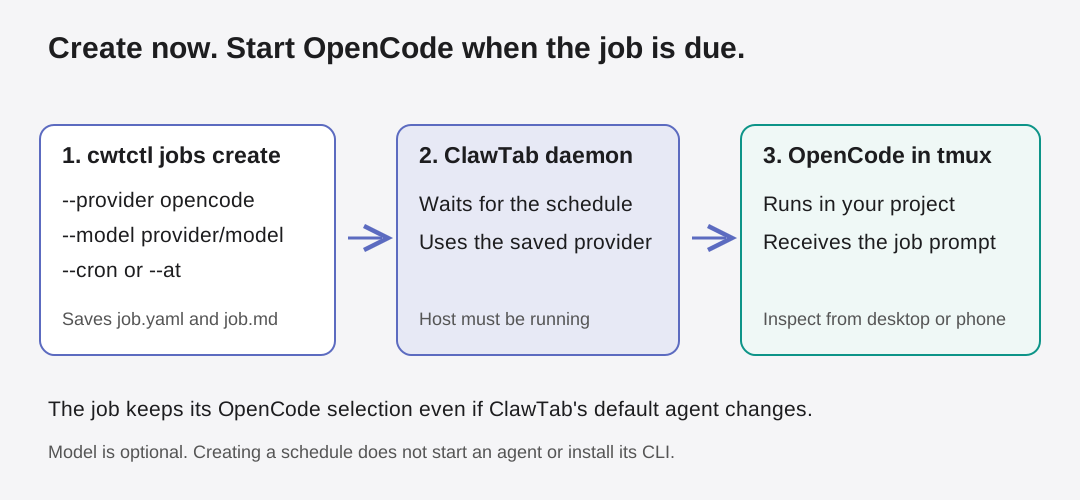
Create a recurring OpenCode job
Run this from the project directory. The description asks for a review without edits so the first run is easy to inspect. The schedule is daily at 09:00 in the host's local timezone.
--provider opencode stores OpenCode on this job. If you later make Codex the default agent in ClawTab, this job stays on OpenCode. Without --model, it inherits ClawTab's model only when OpenCode is also the default provider; otherwise OpenCode selects its own default model.
Check auto-yes before the first run. CLI-created jobs currently start with ClawTab auto-yes enabled. Turn it off in the job settings when you want to approve prompts manually. Asking for no edits in a prompt is useful task guidance, but it is not a permissions boundary.
cwtctl jobs create \
  --name daily-review \
  --provider opencode \
  --cron '0 9 * * *' \
  --description 'Review recent commits and failing tests. Summarize findings without editing files or committing changes.'
Pin a model and keep longer instructions in a file
For a repeatable model choice, add --model with an identifier from your host's model list. The example uses anthropic/claude-sonnet-4-5; replace it if your account exposes a different model. ClawTab's --provider opencode selects the agent CLI, while the anthropic/ prefix selects a model provider inside OpenCode.
Write your instructions in review.md, then create the job below. Creation reads that file and saves a copy as the job's job.md. Later edits to the original review.md do not automatically change the saved job. Edit the job description in ClawTab when it needs to change.
The CLI requires a provider whenever a model is supplied. It rejects an empty model or unknown agent provider. It does not authenticate against OpenCode or verify remote model availability while creating the job; test that on the host.
cwtctl jobs create \
  --name daily-review-pinned \
  --provider opencode \
  --model 'anthropic/claude-sonnet-4-5' \
  --cron '0 9 * * *' \
  --description-file review.md
Schedule a one-time run
Replace the example date with a future time, then use --at instead of --cron. An RFC 3339 timestamp includes an explicit offset; a plain YYYY-MM-DD HH:MM value uses the host's local timezone. The CLI rejects past dates.
By default, the daemon removes a one-time job's configuration after the agent starts. --keep-config instead retains it as a disabled job. This option only applies to one-time jobs. A one-time job due while the daemon was offline runs when it returns; this does not mean a sleeping host executes at the original time.
# Replace this with the future time you want.
cwtctl jobs create \
  --name release-review \
  --provider opencode \
  --at '2026-12-01T09:00:00+07:00' \
  --description-file review.md \
  --keep-config
Inspect a run locally, then from your phone
Creation prints the job's group/name reference. The group comes from the nearest configured project containing your current directory, or from that directory's name. Use the printed reference to run a first check manually. The example below assumes it was my-project/daily-review.
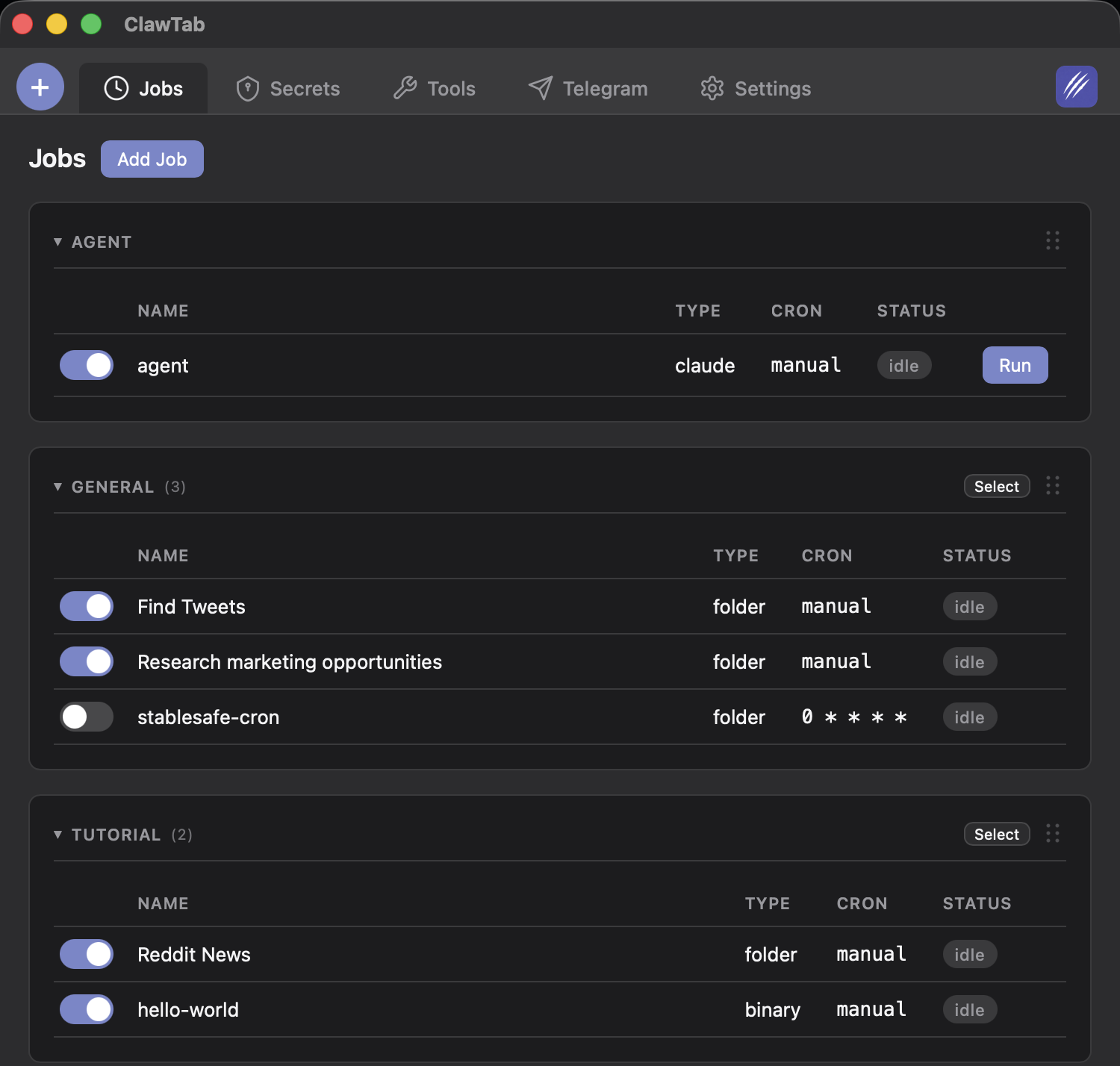
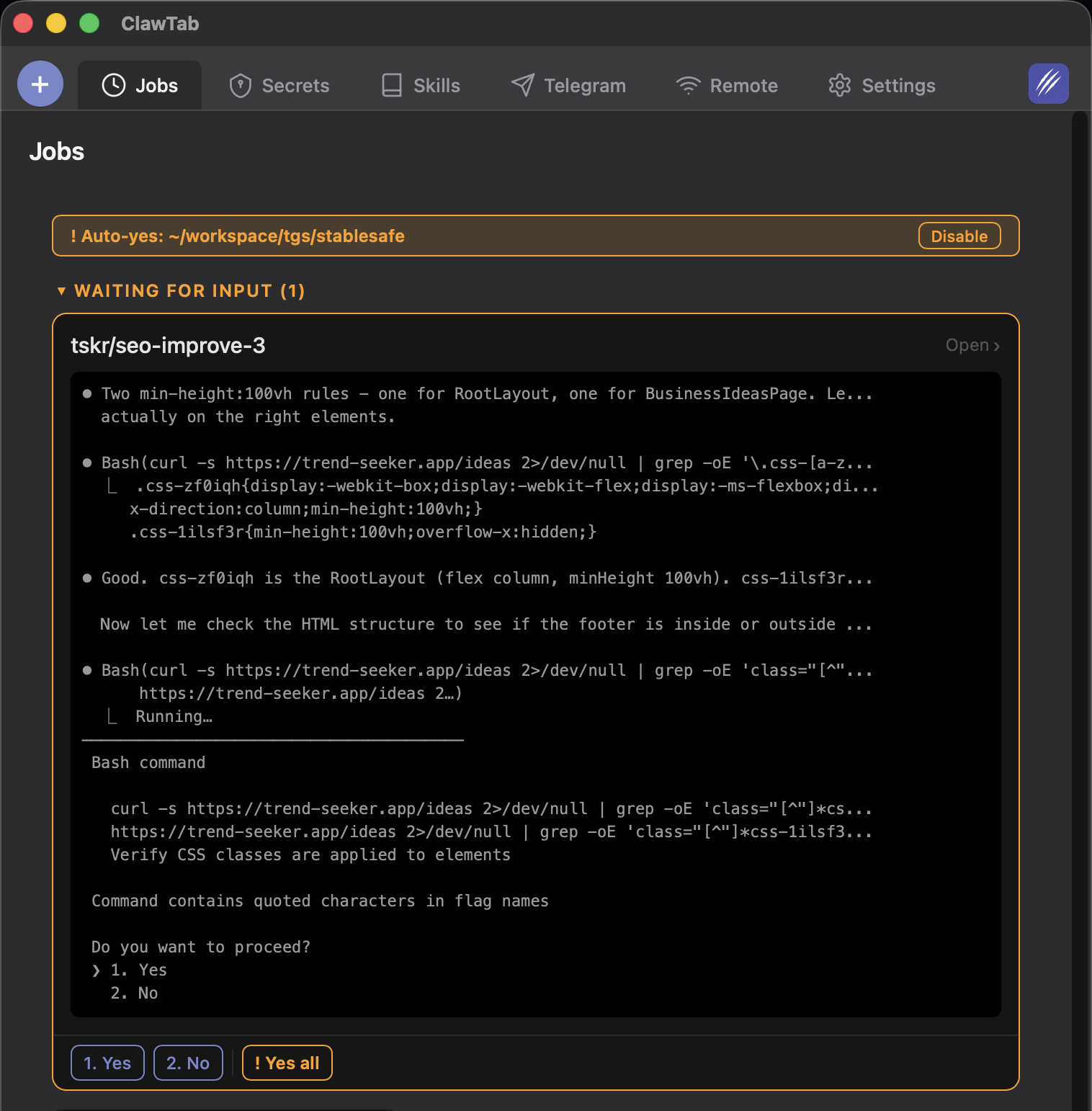
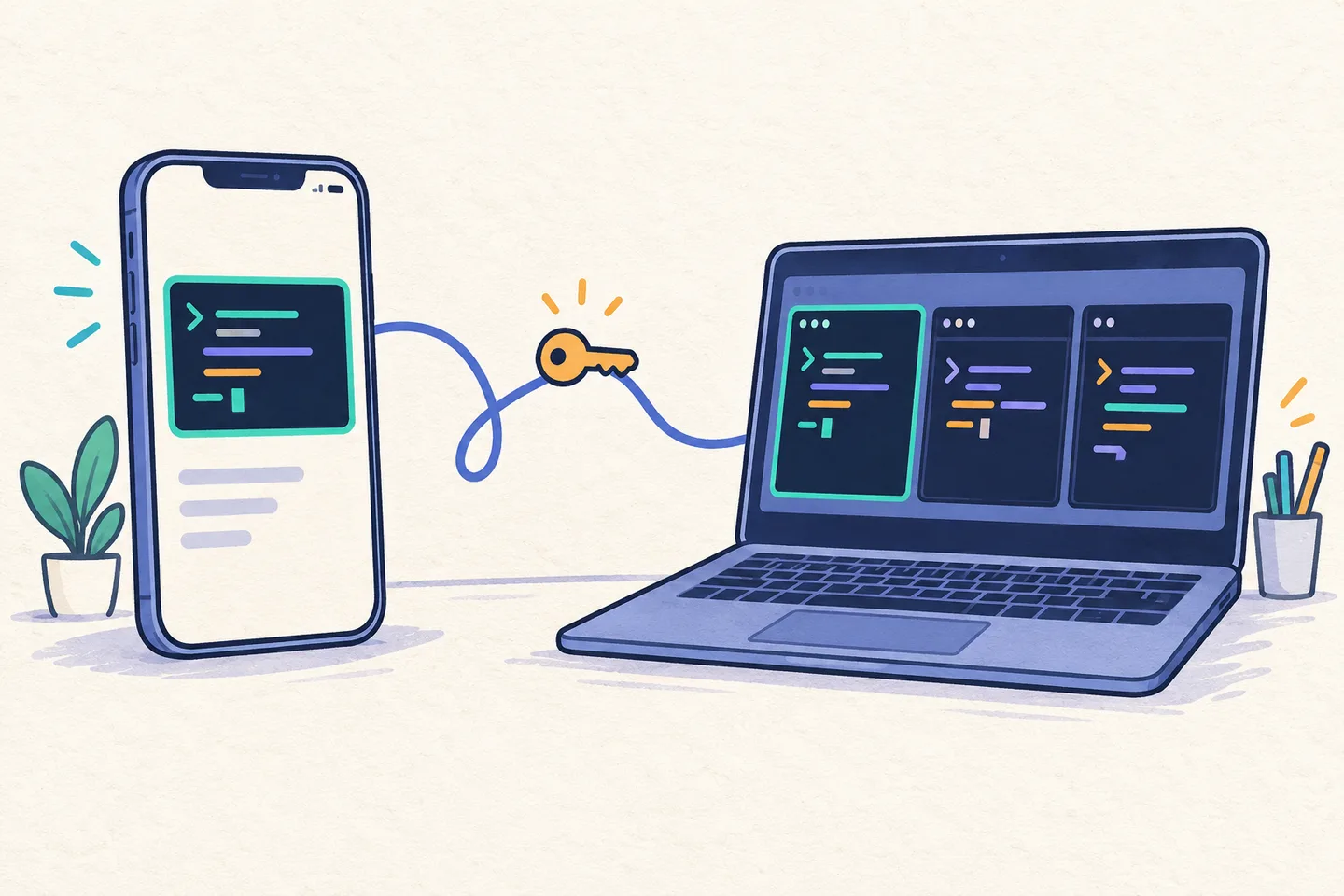
ClawTab launches OpenCode interactively with the saved prompt in tmux. Open the job's pane to inspect output and follow up. From the phone, select the same machine and pane through ClawTab Remote. The phone connection guide shows the host setup; the same connection works for OpenCode.
This is ClawTab's practical advantage for this workflow: scheduling and terminal access share a workspace with your other agents. You can see the run that needs attention and return to its existing session.
cwtctl jobs list
cwtctl jobs run my-project/daily-review
cwtctl jobs status
Permissions, missed runs, and changes to the job
OpenCode's own permissions still matter. Its permissions guide documents allow, ask, and deny rules; its --auto mode approves prompts that are not explicitly denied. ClawTab auto-yes is a separate pane-level control. See OpenCode auto mode and ClawTab auto-yes before enabling unattended writes.
| Problem | Check or change |
|---|---|
| The scheduled time passed with no run | Host power, daemon status, local timezone, and whether the job is enabled. Cron schedules need an available host; do not assume every missed occurrence will be replayed. |
| OpenCode fails immediately | Its executable and authentication on the host, the chosen model, and the project directory. |
| The run waits for input | Inspect the pane and permission prompt. Choose deliberate manual approval or configure a narrow unattended policy. |
| You want to stop future runs | Disable the job in ClawTab. jobs pause controls a running job; it is not the switch for disabling its schedule. |
| You want to change the schedule or prompt | Edit the saved job in ClawTab. jobs create creates a new definition; it does not update an existing job with the same name. |
Start with one explicit OpenCode job, confirm its model and permissions, and inspect the first run. Keep cron or a plugin when a headless task is enough. Use ClawTab when you also want the live terminal, remote follow-up, and other agent CLIs in the same place.