Why Schedule Claude Code Agents?
Most developers run Claude Code interactively - open a terminal, type a prompt, wait for results. But the most productive workflows are the ones that run without you. Code reviews that happen every morning before standup. Dependency updates that check for vulnerabilities overnight. Test suites that run after every deploy.
These are exactly the kind of repetitive, well-defined tasks that benefit from scheduling. Instead of remembering to run them, you define them once and let cron handle the rest.
Claude Code now has built-in scheduling via the /schedule and /loop commands. The /schedule command creates persistent remote triggers that run on a cron schedule, while /loop handles quick in-session polling. Both are useful for lightweight automation, but scheduled tasks expire after three days by default and have limited monitoring capabilities. For persistent, long-running automation - the kind that survives reboots, injects secrets, and lets you monitor from your phone - you need something more robust.
ClawTab's cron scheduler runs at the system level. Jobs persist across app restarts, survive macOS reboots, and run for as long as you want them to. Combined with remote monitoring from your phone, you get a complete automation pipeline that doesn't need your attention.
How ClawTab's Cron Scheduler Works
ClawTab uses standard 5-field cron expressions - the same format used by Unix cron, GitHub Actions, and every CI/CD system you've used before.
| Expression | Schedule | Use Case |
|---|---|---|
0 9 * * 1-5 | Weekdays at 9am | Morning code review before standup |
0 0 * * * | Daily at midnight | Overnight dependency audit |
*/30 * * * * | Every 30 minutes | Monitor error logs |
0 */2 * * * | Every 2 hours | Check PR status and post updates |
0 18 * * 5 | Fridays at 6pm | Weekly changelog generation |
The scheduler polls every 30 seconds. When a scheduled time falls within the polling window, the job fires. This means your jobs execute within 30 seconds of their target time - precise enough for any dev automation use case.
Under the hood, ClawTab parses your 5-field expression into the standard 6-field format used by the cron crate in Rust, prepending a "0" for the seconds field. The scheduler maintains state using Tokio's async runtime, so multiple jobs can fire simultaneously without blocking each other.
Setting Up a Cron Job
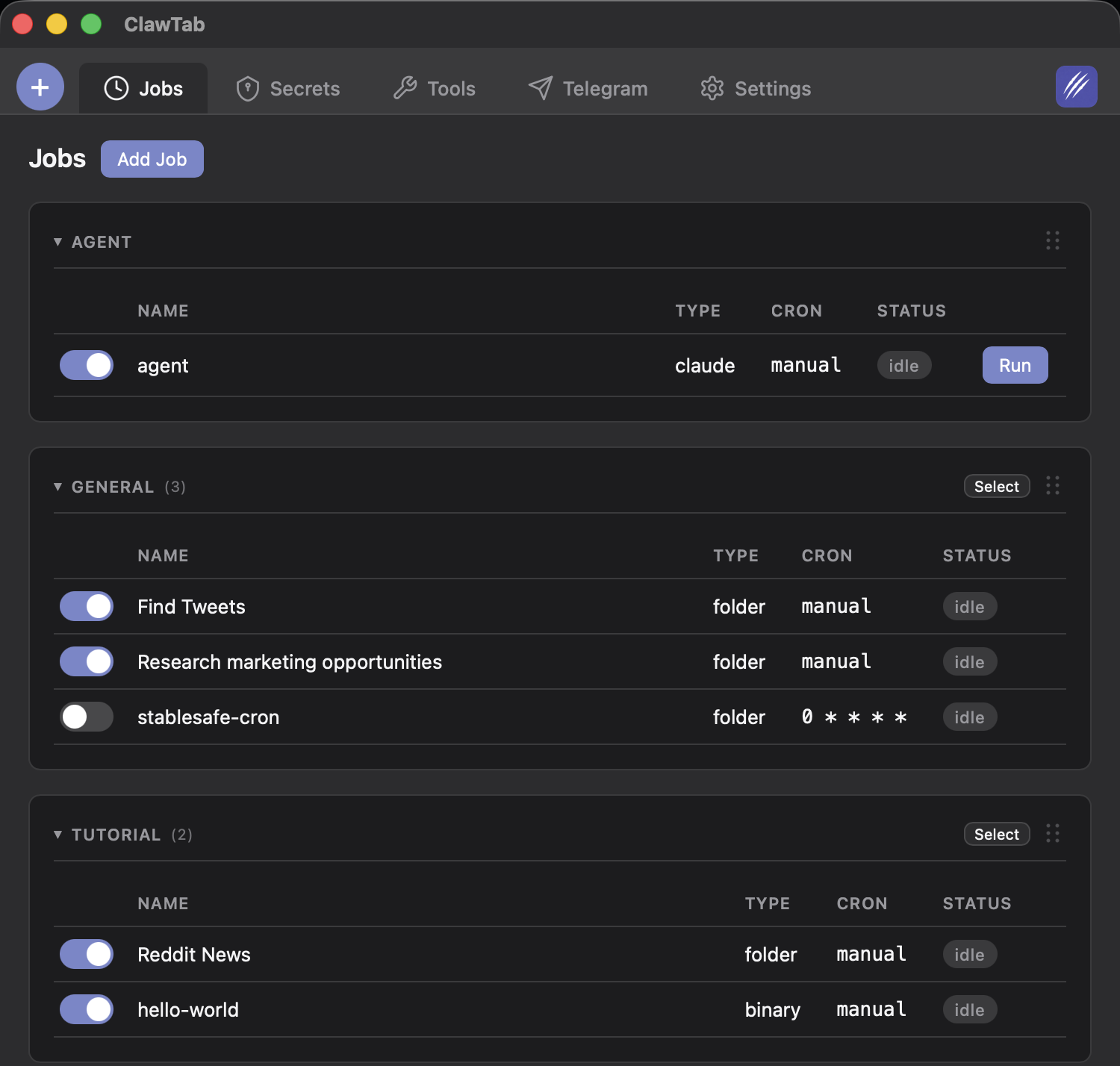
Creating a scheduled job takes about 30 seconds:
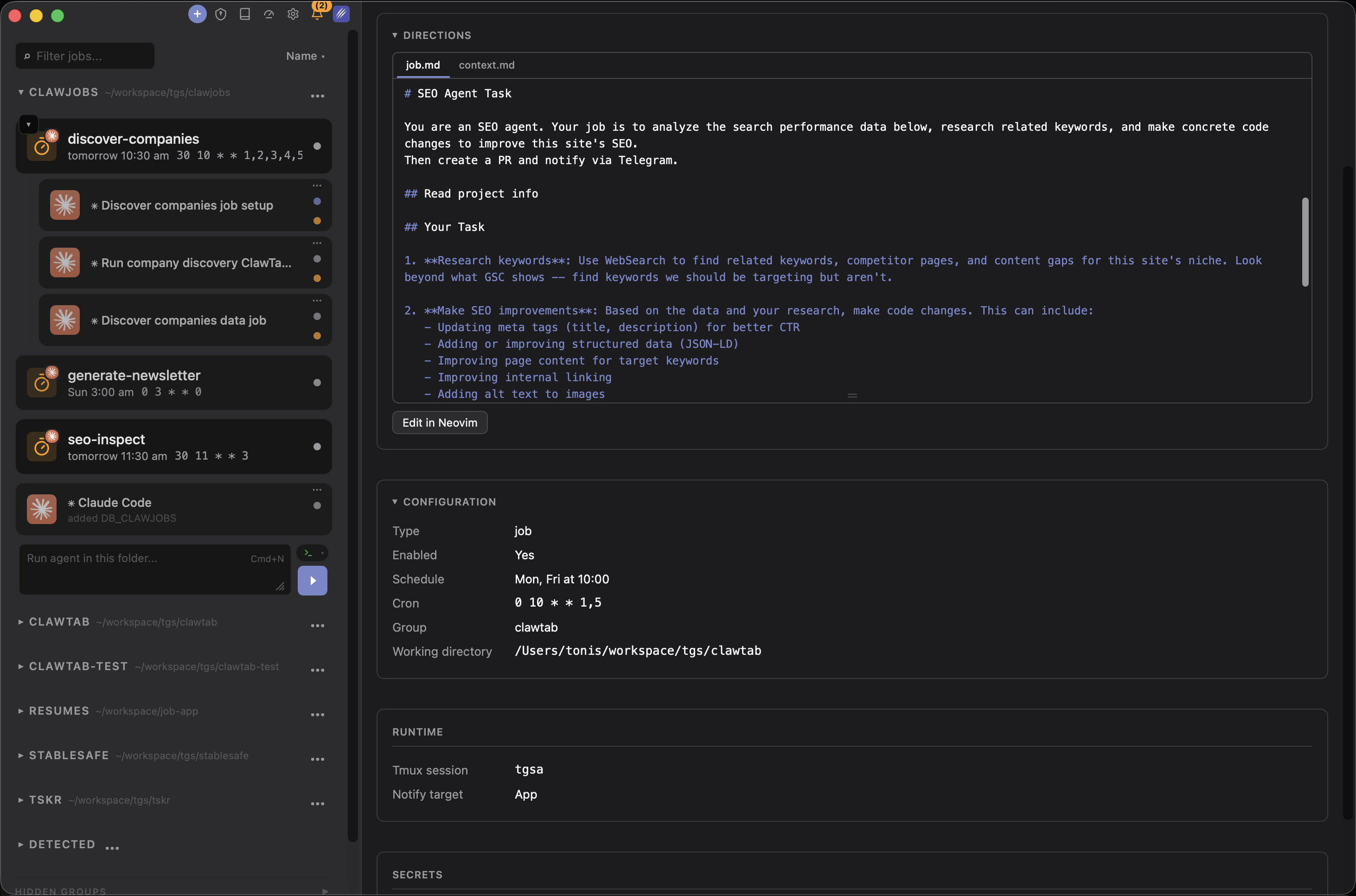
- Open ClawTab from your menu bar
- Click "New Job"
- Choose your job type: Binary (shell script), Claude (AI prompt), or Folder (project-based agent)
- Set the path, prompt, or folder
- Enter a cron expression
- Save
That's it. The job appears in your job list with the next scheduled run time. You can also run it immediately with "Run Now" to verify it works before waiting for the first cron trigger.
Jobs are stored as YAML files under ~/.config/clawtab/jobs/, so you can version control them, copy them between machines, or edit them directly if you prefer.
You can also manage jobs from the command line with cwtctl:
cwtctl status          # list all jobs and their status
cwtctl run myapp/review  # trigger a job manually
cwtctl logs myapp/review # view recent run logs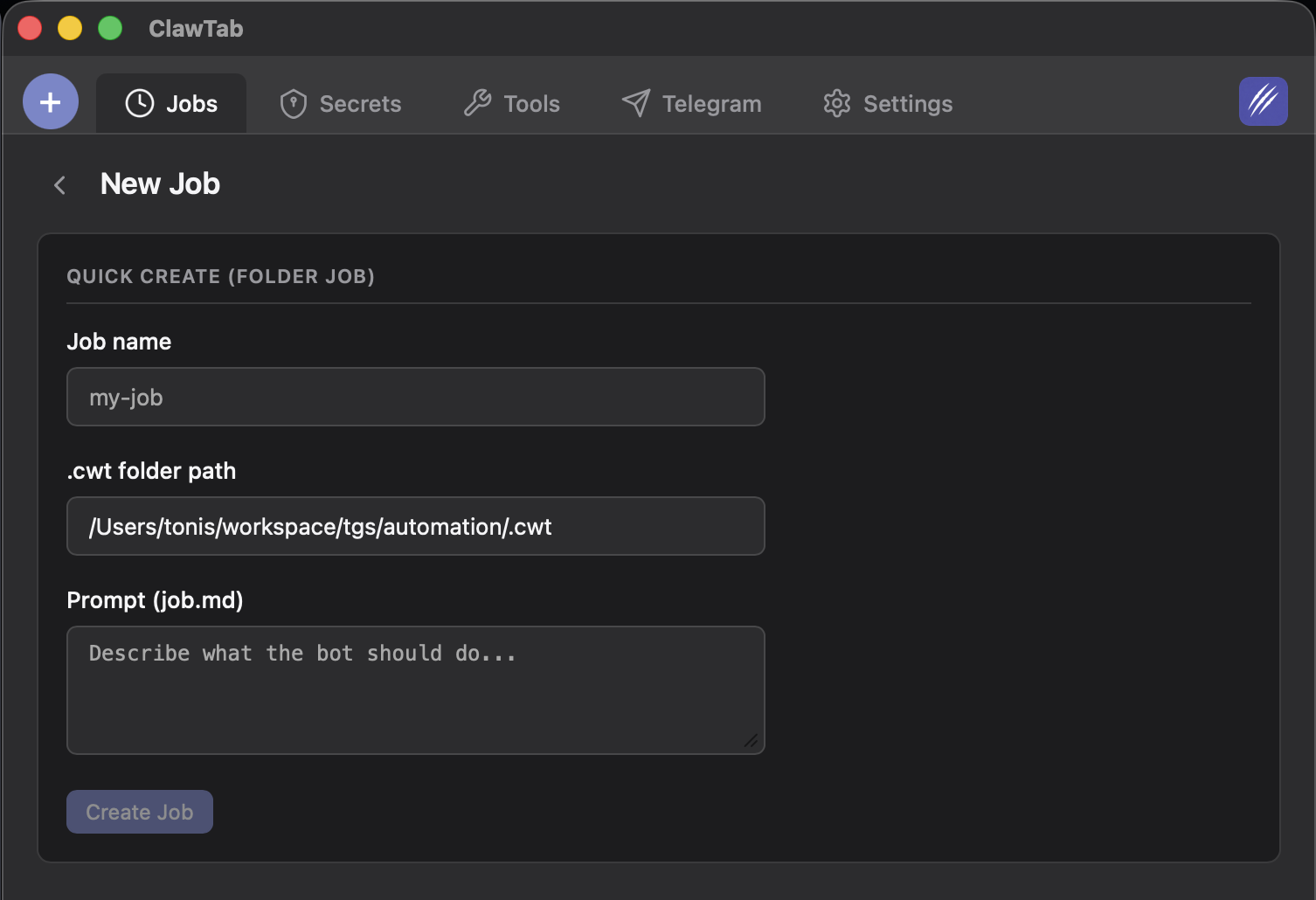
Three Job Types for Different Workflows
ClawTab supports three job types, each suited to different automation patterns:
| Type | What It Runs | Best For |
|---|---|---|
| Binary | Shell script or binary | Build scripts, deploy commands, data pipelines |
| Claude | Claude Code with a prompt file | Code reviews, refactoring, test generation |
| Folder | Claude Code with centralized project config | Complex multi-file agent tasks with shared context |
Binary jobs run as child processes with stdout/stderr captured. They complete when the process exits. Use these for anything you'd normally put in a shell script.
Claude jobs launch Claude Code in a tmux window with a prompt from a text file. The command sent to tmux is cd /work/dir && claude "$(cat /path/to/prompt.txt)". This is the simplest way to schedule an AI agent.
Folder jobs use ClawTab's centralized job storage for richer context. Each project can have multiple jobs (deploy, lint, review), each with its own prompt file and shared project context. The agent runs from the project root with all context files loaded automatically.
For both Claude and Folder jobs, if the target tmux window already exists, ClawTab splits a new pane instead of creating a new window. This means multiple scheduled agents can run in parallel within the same tmux session without conflicts.
Missed Job Recovery
What happens if your Mac was asleep when a job was supposed to run? ClawTab handles this automatically.
On startup, the scheduler scans for missed triggers with a 24-hour lookback window. For each enabled job, it checks whether a scheduled time occurred between the last known run and now. If it finds a missed trigger, the job fires immediately.
This means you can close your laptop on Friday evening and open it Monday morning - any jobs scheduled over the weekend will run as soon as ClawTab starts. You don't lose scheduled work just because your machine was off.
The 24-hour lookback limit is intentional. If your machine was off for a week, you probably don't want seven days of accumulated cron jobs all firing at once. The scheduler catches the most recent missed trigger and runs it once.
Secrets and Environment Variables
Scheduled jobs often need credentials - API keys, database passwords, deploy tokens. ClawTab integrates with macOS Keychain and gopass for secrets management.
You assign secret keys to individual jobs in the job configuration. When the job runs, ClawTab looks up each key in the Keychain (then falls back to gopass) and injects them as environment variables. For tmux-based jobs, secrets are injected via tmux's -e KEY=VALUE flags, so they never appear in the command string or shell history.
# job.yaml
name: myapp/deploy
job_type: claude
cron: "0 0 * * *"
secret_keys: [GITHUB_TOKEN, SLACK_WEBHOOK]
env:
ENVIRONMENT: production
This means your scheduled Claude Code agents can interact with GitHub APIs, post to Slack, access databases, and deploy to production - all without storing credentials in plain text or prompt files.
Monitoring Scheduled Jobs Remotely
The real power of scheduled jobs comes when you combine them with ClawTab Remote. Your jobs run on your Mac on a schedule, and you monitor them from your phone.
When a scheduled job fires, you can:
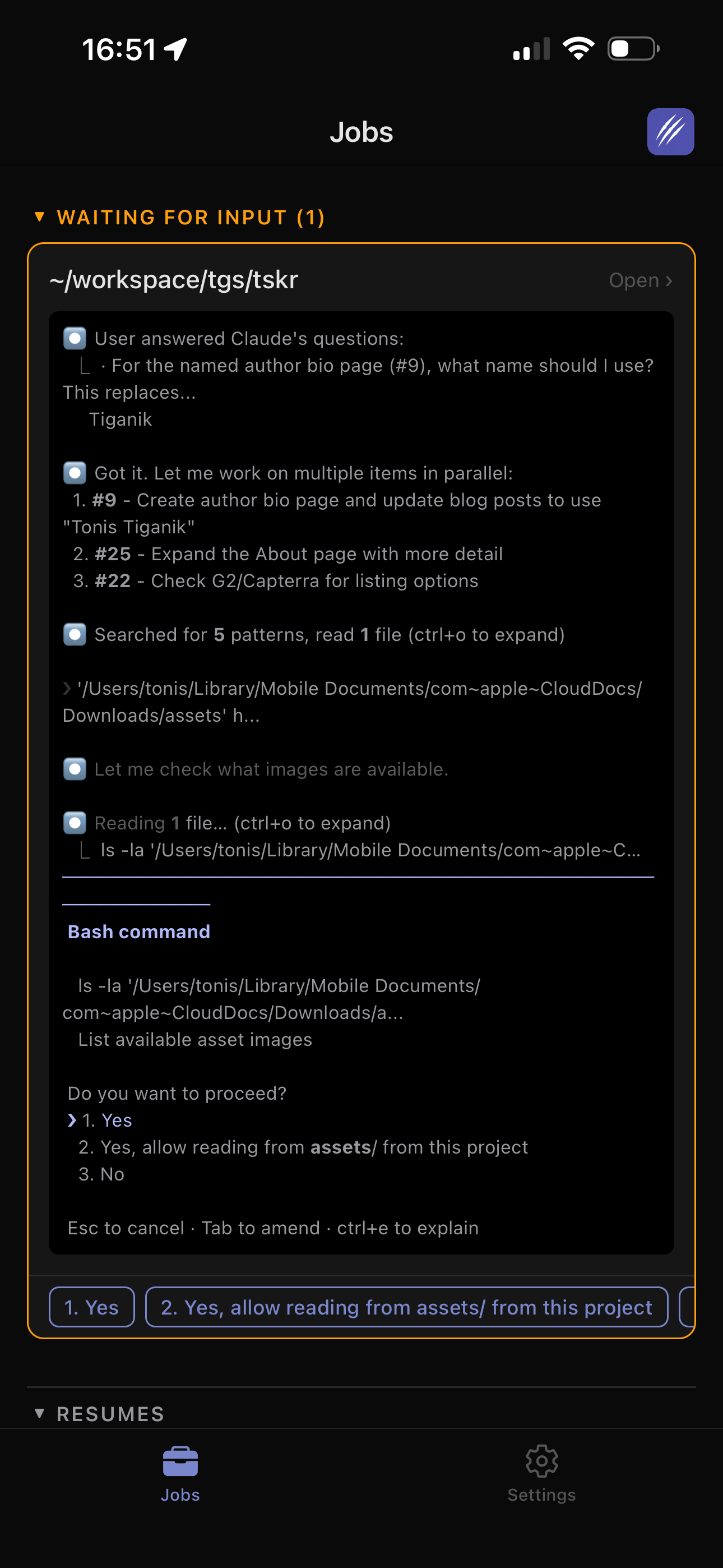
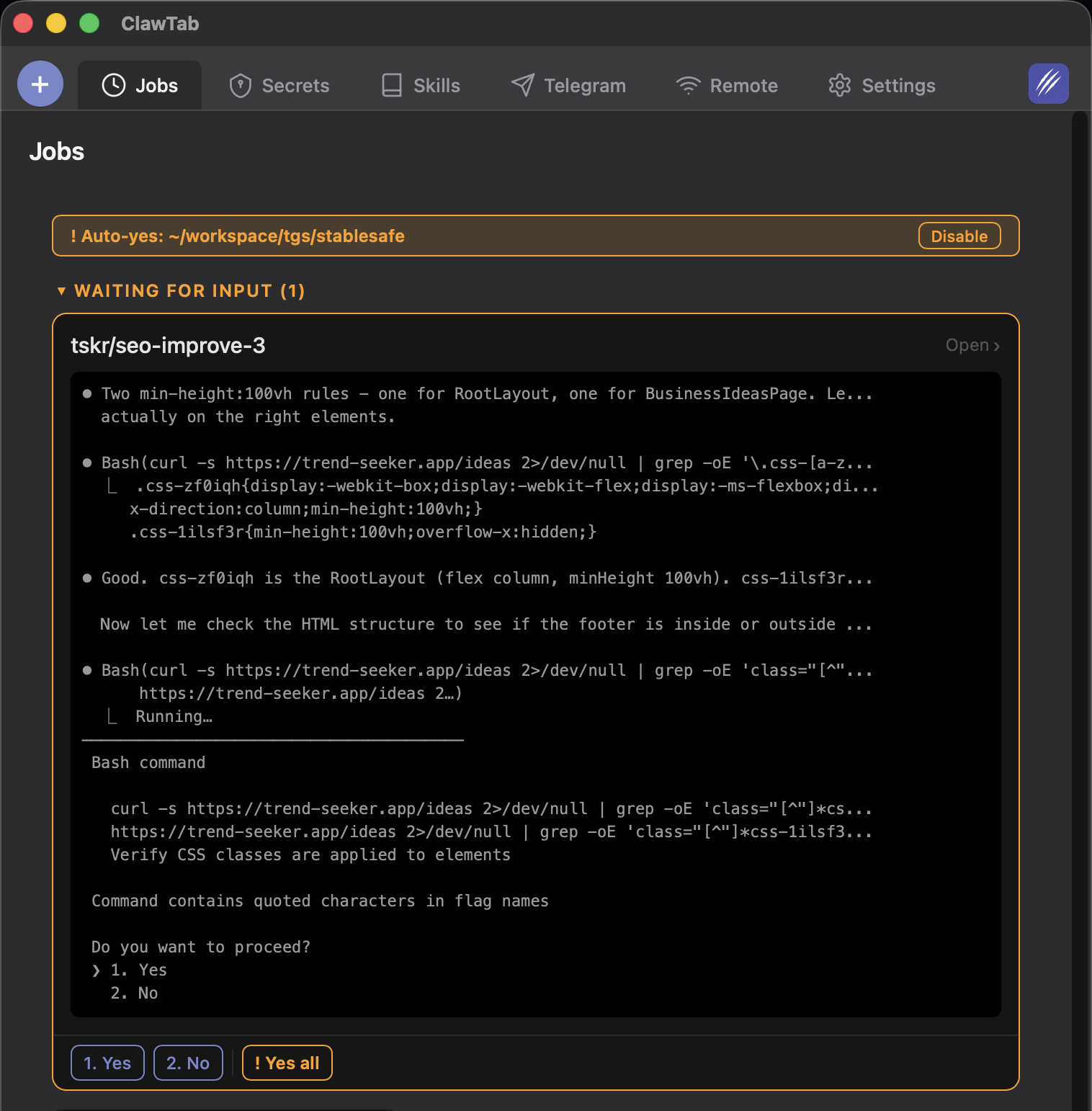
- Get push notifications when the job completes, fails, or when the agent asks a question
- Stream live logs from the running job directly to your phone
- Respond to agent questions without being at your desk
- Enable auto-yes mode so permission prompts don't stall your overnight agents
You can also set up Telegram notifications for log streaming and completion alerts. The Telegram bot batches log output intelligently - it waits for the agent to pause before sending, so you get readable chunks instead of a flood of individual lines.
For teams, workspace sharing lets colleagues monitor your scheduled jobs too. The on-call engineer can respond to your nightly CI agent's questions without waking you up.
ClawTab vs Other Scheduling Approaches
There are several ways to schedule Claude Code agents in 2026. Here's how they compare:
| Approach | Persistence | Remote Control | Secrets | Monitoring |
|---|---|---|---|---|
| ClawTab cron | Survives reboots, no expiry | Phone + Telegram | Keychain + gopass | Push notifications, live logs |
| Claude Code /schedule | Persistent remote triggers | None | Shell env only | Terminal only |
| Claude Code /loop | Expires after 3 days | None | Shell env only | Terminal only |
| runCLAUDErun | Menu bar app, persistent | None | Basic env vars | Desktop only |
| claude-code-scheduler | CLI-based, persistent | None | Shell env only | Terminal only |
| System crontab | Persistent | None | Manual | Log files only |
| GitHub Actions | Cloud-based, persistent | GitHub UI | GitHub Secrets | Actions UI |
Claude Code's native /schedule creates persistent remote triggers and /loop is great for quick polling tasks within an active session. But neither offers remote monitoring from your phone, secrets injection from Keychain, or per-pane auto-yes for unattended operation. For persistent automation that runs for weeks with full observability, ClawTab fills the gap between built-in scheduling and full CI/CD pipelines.
The key differentiator is the combination of persistent scheduling, remote monitoring, and secrets management. You can set up a nightly code review agent, assign it a GitHub token from your Keychain, and respond to its questions from your phone the next morning.
Practical Cron Job Recipes
Here are concrete examples of scheduled jobs you can set up today:
Daily code review (weekdays at 9am):
# prompt: review-pr.txt
Review all open PRs in this repository. For each PR:
1. Check for security issues, performance problems, and style violations
2. Leave inline comments on specific lines
3. Post a summary comment with an overall assessment
Focus on changes in the last 24 hours.
cron: "0 9 * * 1-5"
secret_keys: [GITHUB_TOKEN]Nightly dependency audit:
# prompt: dep-audit.txt
Run npm audit and cargo audit. For any critical or high
vulnerabilities, create a branch with the fix and open a PR.
Skip vulnerabilities that require major version bumps.
cron: "0 2 * * *"
secret_keys: [GITHUB_TOKEN]Hourly error log monitor:
# prompt: error-monitor.txt
Check the last hour of error logs at /var/log/myapp/error.log.
Classify errors by type and severity. If any new error patterns
appear that weren't in yesterday's logs, post a summary to Slack.
cron: "0 * * * *"
secret_keys: [SLACK_WEBHOOK]Weekly changelog (Friday evening):
# prompt: changelog.txt
Generate a changelog for this week's commits. Group changes by
category (features, fixes, refactoring). Write it in a tone
suitable for a public release notes page. Save to CHANGELOG.md.
cron: "0 18 * * 5"Tips for Reliable Scheduled Agents
After running hundreds of scheduled Claude Code jobs, here are patterns that work well:
- Keep prompts focused. A prompt that does one thing well is more reliable than one that tries to do five things. Split complex workflows into separate jobs.
- Use Folder jobs for complex tasks. The centralized storage lets you provide rich context - shared project knowledge, per-job instructions, and auto-generated agent metadata. This gives the agent more to work with than a bare prompt.
- Assign secrets explicitly. Don't rely on shell environment inheritance for credentials. Explicitly list
secret_keysin the job config so the right credentials are always available. - Enable remote notifications. The whole point of scheduling is to run jobs when you're not watching. Set up push notifications or Telegram alerts so you know when something needs attention.
- Test manually first. Always "Run Now" a new job before relying on its cron schedule. Fix any issues while you're watching, then let cron take over.
- Use auto-yes for trusted jobs. Overnight agents that hit permission prompts will stall until morning. If you trust the job, enable auto-yes so it runs uninterrupted.