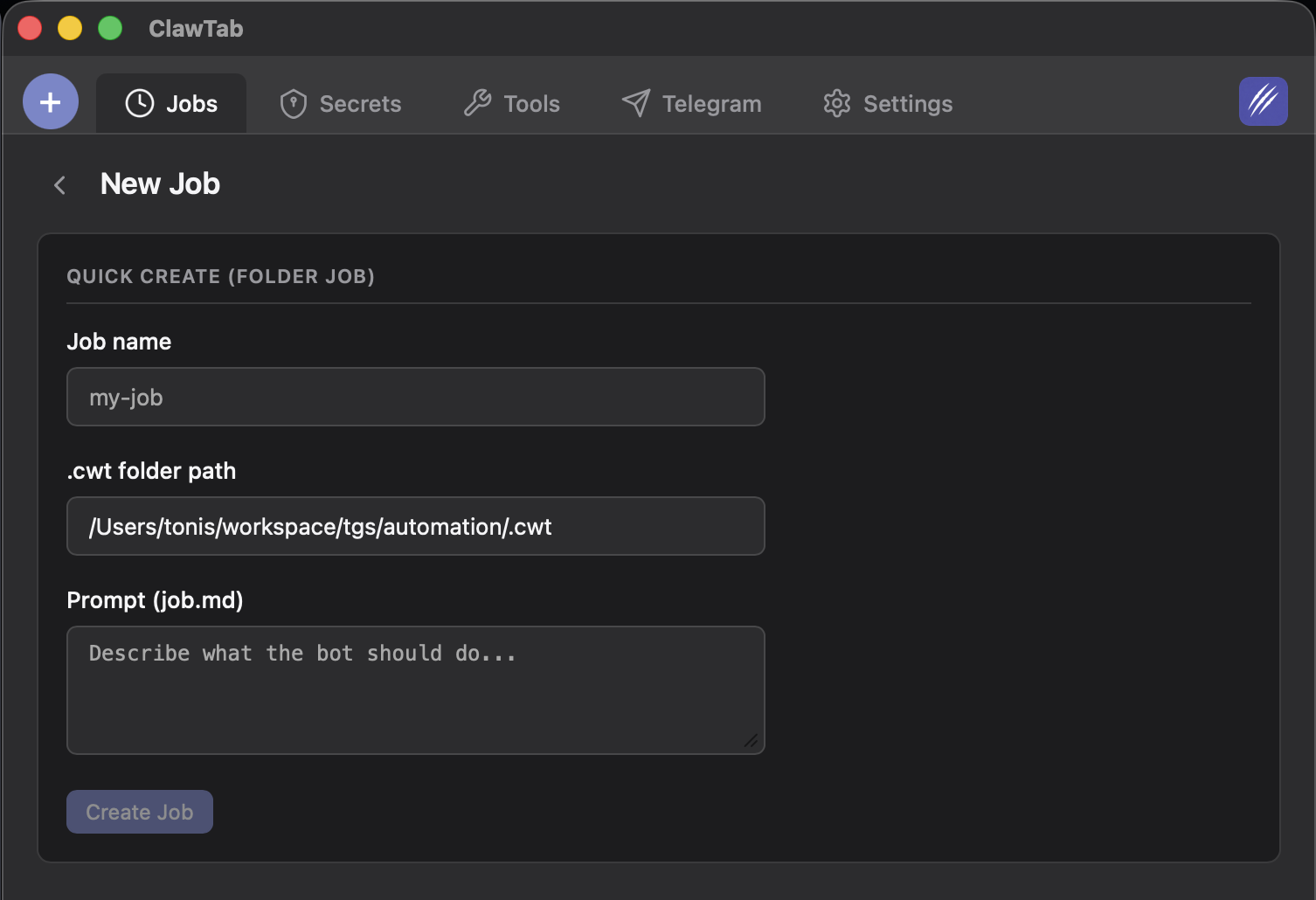
Introduction
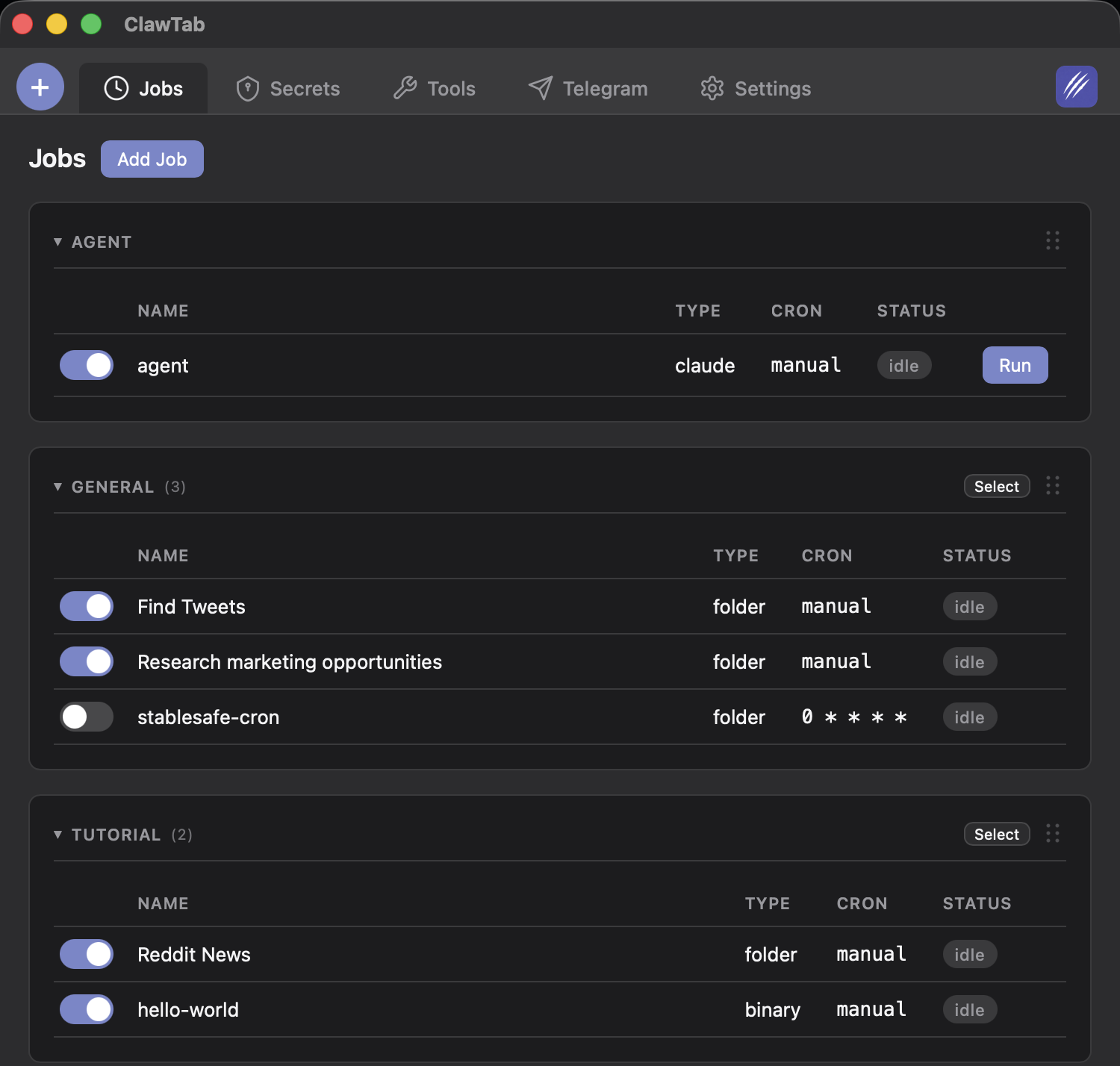
ClawTab manages all Claude Code agent workflows from a single central directory: ~/.config/clawtab/jobs/. Job configurations, prompts, shared project context, auto-generated agent context, and run logs all live here - organized by project and job name. Nothing is stored in your project directory, keeping your repo clean.
Central Storage Layout
Everything is stored under ~/.config/clawtab/jobs/, grouped by project slug and job name:
~/.config/clawtab/jobs/
myapp/
  context.md          # shared project context (you write this)
  deploy/
    job.yaml          # job configuration
    job.md            # job-specific prompt (you write this)
    context.md        # auto-generated per-job context
    logs/
      <run-id>.log    # captured output per run
  lint/
    job.yaml
    job.md
    context.md
    logs/
  review/
    job.yaml
    job.md
    context.md
    logs/
The job.yaml contains the job definition - type, cron schedule, secret keys, working directory, and other settings. The job.md is the prompt you write that tells the agent what to do. The context.md files provide runtime context to the agent. Logs are captured per run.
This central storage means your job configs survive project moves, don't clutter your repo, and are easy to back up. ClawTab manages this directory automatically - you interact with it through the desktop app or cwtctl.
Shared Project Context
The project-level context.md at ~/.config/clawtab/jobs/<project-slug>/context.md is your project's shared context - the information every job needs regardless of what it's doing. Think of it as a CLAUDE.md scoped specifically to your automated agent workflows.
Good shared context includes:
- Project architecture - where the source lives, what the build system is, which directories matter
- Conventions - coding style, commit message format, branch naming, test expectations
- Environment details - which runtime version, which package manager, paths to config files
- Common constraints - "never modify files in
vendor/", "always run tests before committing", "use pnpm, not npm"
Example for a TypeScript monorepo:
# Project context

- Monorepo: pnpm workspaces
- Packages: apps/web (Next.js), apps/api (Fastify), packages/shared
- Build: pnpm turbo build
- Test: pnpm turbo test
- Lint: pnpm biome check --write
- Node 22, TypeScript strict mode
- Never edit generated files in dist/ or .next/
- Commit messages: imperative mood, no prefix
Keep it concise. The agent reads this on every run, so state facts, not tutorials. You can edit this file through the ClawTab desktop app or directly in your editor.
Writing Job Prompts in job.md
Each job's job.md lives at ~/.config/clawtab/jobs/<slug>/job.md. You can edit it from the ClawTab desktop app or directly in your editor. This is the actual prompt - the task description that tells the agent what to do.
A deploy job might look like this:
# Deploy to staging

1. Pull latest from main
2. Run the full test suite: pnpm turbo test
3. If tests pass, build all packages: pnpm turbo build
4. Deploy apps/web to Vercel: vercel --prod
5. Deploy apps/api: docker build -t api . && docker push registry.example.com/api:latest
6. Run smoke tests: curl -f https://staging.example.com/health
7. Post results to Telegram
A lint/fix job could be much simpler:
# Lint and fix

Run biome check --write on the entire codebase.
If there are unfixable errors, list them and stop.
If everything passes, commit the changes with message "fix: auto-lint".
You can use markdown, numbered steps, conditional logic, references to project files - anything you'd put in a Claude Code prompt. The content is inlined directly into the Claude Code invocation at runtime.
How Jobs Run
When a Folder job runs, ClawTab reads all context and the prompt from central storage, assembles them into a single Claude Code invocation, and runs it from the project root:
cd /projects/myapp && claude $'<shared context.md>\n\n<per-job context.md>\n\n<job.md content>'The shared project context, per-job auto-generated context, and job prompt are all inlined into a single prompt. The working directory is the project root, so all file paths in your instructions are relative to the project.
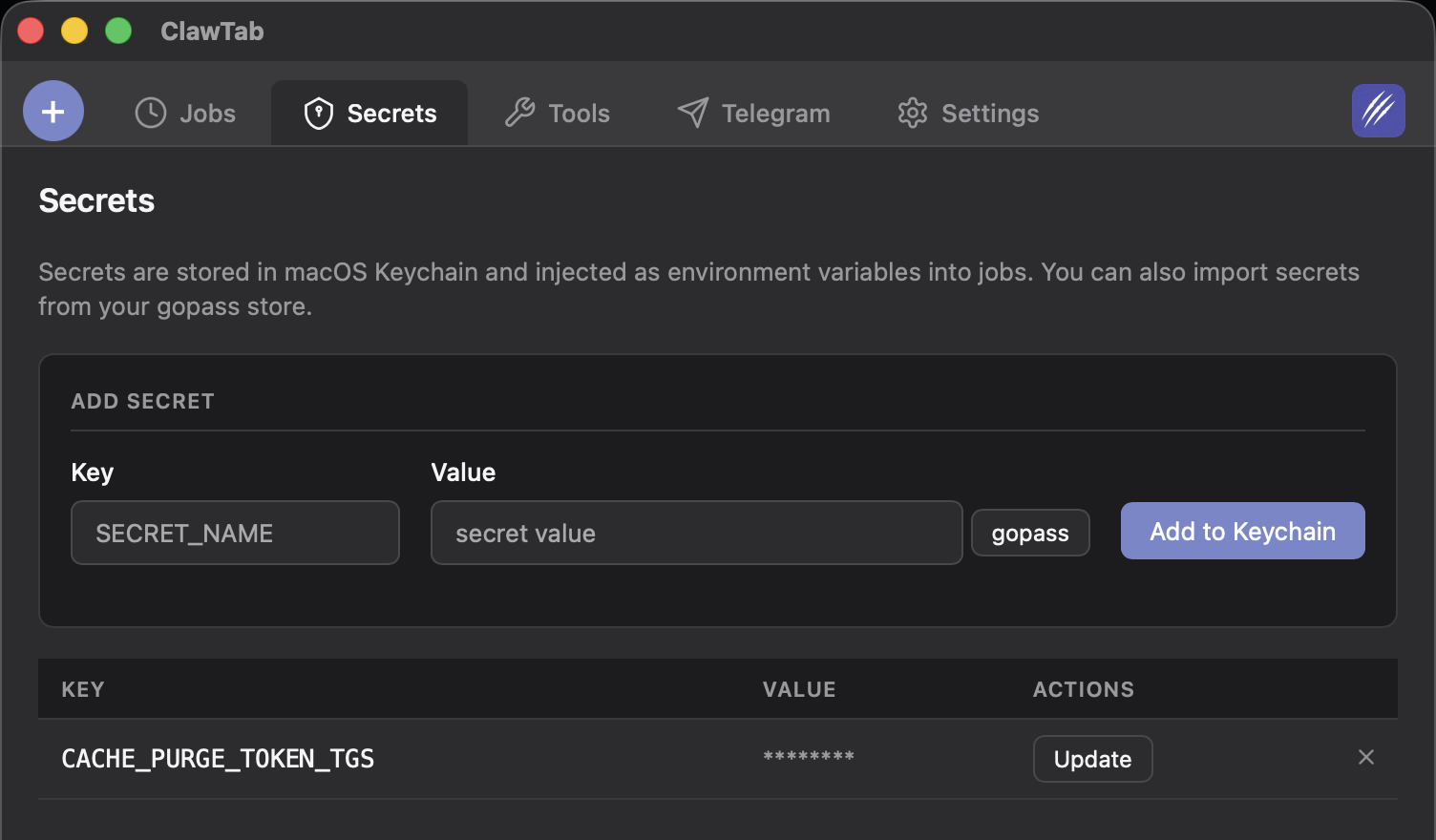
Secrets are injected as tmux environment variables via -e KEY=VALUE flags when creating the tmux pane. They never appear in the command string or in any file.
The per-job context.md is auto-generated by ClawTab on job save, settings change, or app startup. It contains job metadata, available CLI tools, and injected environment variable names.
Running Multiple Jobs per Project
A single project can have as many jobs as you need. Each gets its own subfolder under the project slug in central storage with its own config, prompt, context, and logs.
Create multiple Folder jobs pointing to the same project root but with different job_name values:
# Job 1: deploy
job_type: folder
folder_path: /projects/myapp
job_name: deploy

# Job 2: lint
job_type: folder
folder_path: /projects/myapp
job_name: lint

# Job 3: review
job_type: folder
folder_path: /projects/myapp
job_name: review
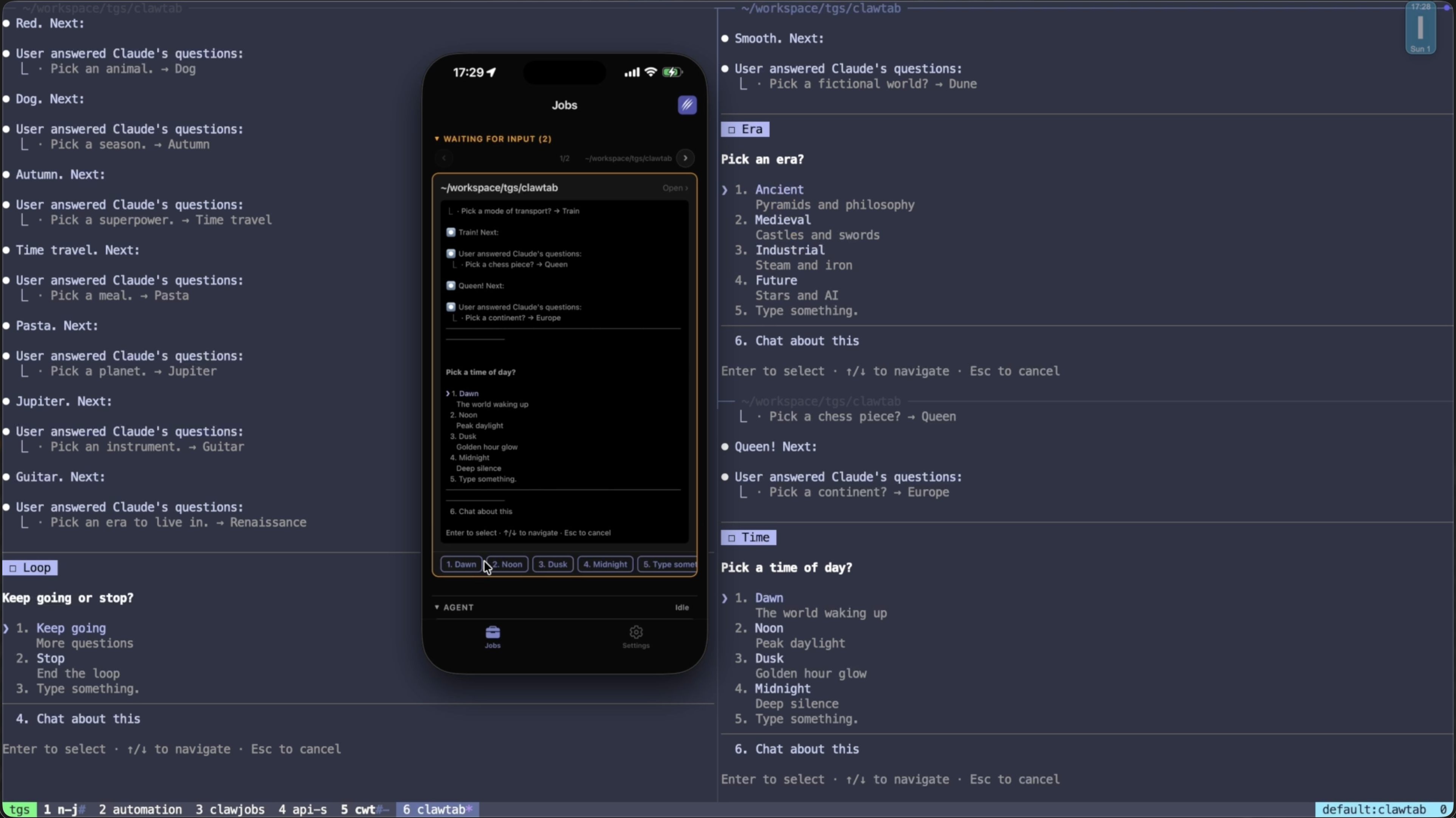
Each job runs in its own tmux pane. ClawTab groups them under the same tmux window (named cwt-myapp), splitting panes when a window already exists. You can run deploy, lint, and review simultaneously as parallel agents - each with their own instructions but sharing the same project context.
This pairs well with agent swarms. Instead of running multiple copies of the same task, you run different specialized agents that each handle one aspect of your workflow.
Combining with Cron Scheduling
Folder jobs support cron scheduling just like any other ClawTab job. This turns your job configurations into recurring automated workflows.
Common patterns:
- Nightly lint pass - schedule a lint job for 2am every night. The agent runs biome/eslint, fixes what it can, and commits the result.
- Morning dependency review - a job that checks for outdated packages, reviews changelogs, and opens PRs for safe updates.
- Post-deploy smoke tests - trigger a test job after each deploy to verify the staging environment.
- Weekly code review - an agent that reviews the week's PRs and posts a summary to Telegram.
Because the instructions live in job.md files and the shared context in context.md, updating the workflow is just editing a markdown file. No pipeline YAML, no CI configuration language - just plain instructions the agent reads on every run.
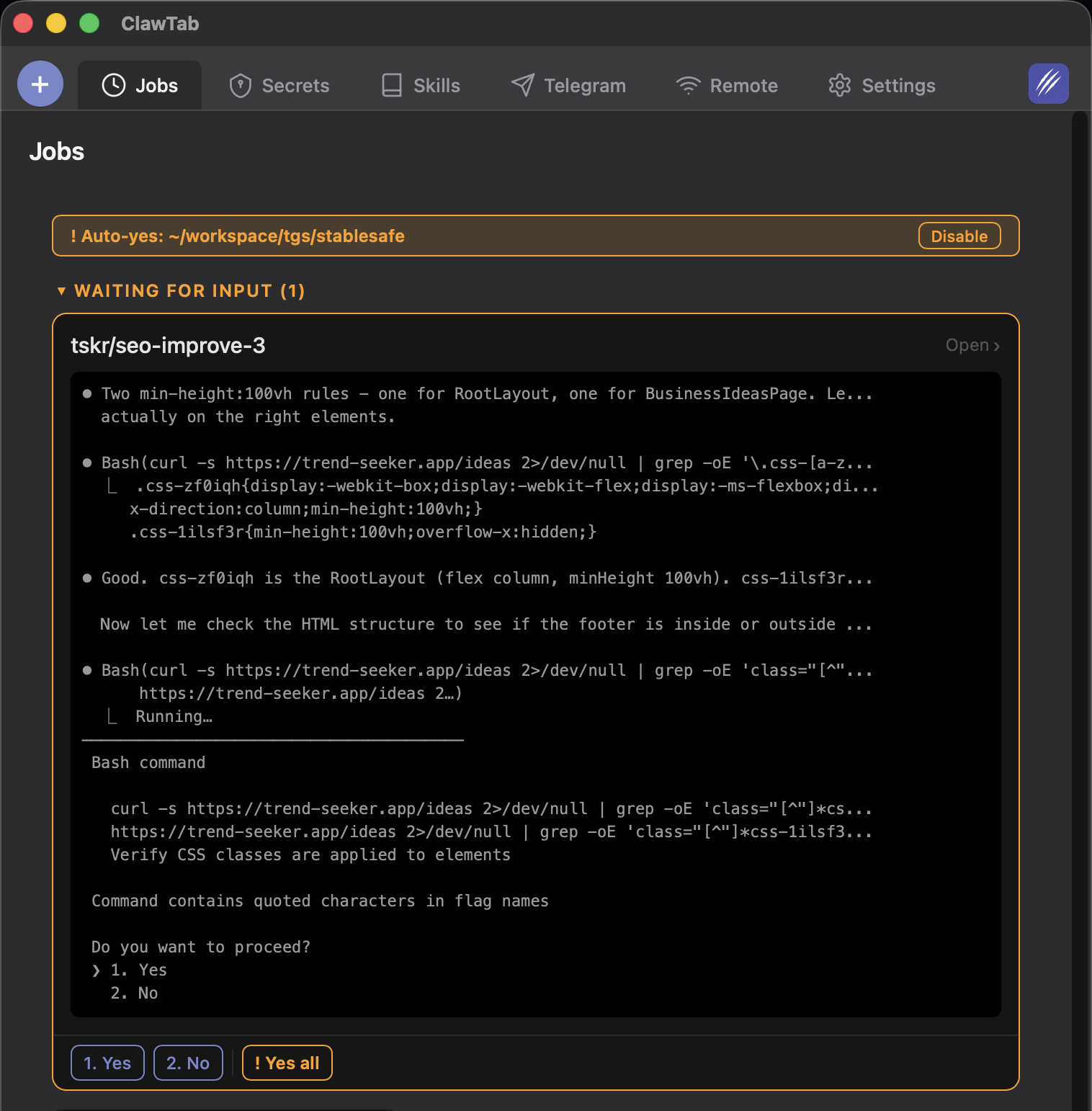
Pair cron-triggered jobs with auto-yes mode to let them run completely unattended. The agent launches on schedule, ClawTab auto-accepts permission prompts, and you get a Telegram notification when it finishes.
Central Storage vs CLAUDE.md
ClawTab's job system complements CLAUDE.md. Each serves a different purpose:
| ~/.config/clawtab/jobs/ | CLAUDE.md | |
|---|---|---|
| Contains | Job configs, prompts, shared context, per-job context | General project conventions |
| Who writes it | You (config, prompts, shared context) + ClawTab (per-job context) | You |
| Location | ~/.config/clawtab/jobs/ | Project root |
| Audience | ClawTab scheduler + Claude Code agents | Every developer + every agent |
| Per-job instructions | Separate job.md per job | Not supported |
| Cron / secrets | Yes | No |
Use CLAUDE.md for general project conventions that benefit both human developers and ad-hoc Claude Code sessions. Use context.md in central storage for agent-specific project context. Use job.md for the actual task instructions. The layers complement each other.
Real-World Workflow Examples
Here are four job configurations for common development workflows. The job.md files are stored at ~/.config/clawtab/jobs/<slug>/job.md:
Deploy
# deploy/job.md
Pull main, run tests, build, and deploy to staging.
If any step fails, stop and report the error.
On success, run smoke tests against staging and report results.
Lint and fix
# lint/job.md
Run biome check --write on the entire codebase.
Commit any changes with message "fix: auto-lint".
If there are unfixable errors, list them in a Telegram message.
Code review
# review/job.md
Find all PRs merged to main in the last 24 hours.
For each PR, review the diff for:
- Security issues (exposed secrets, SQL injection, XSS)
- Performance regressions (N+1 queries, missing indexes)
- Missing tests for new functionality
Post a summary to Telegram with findings per PR.
Test suite
# test/job.md
Run the full test suite: pnpm turbo test
If any tests fail:
1. Read the failing test and the code it tests
2. Determine if the test is wrong or the code is wrong
3. Fix whichever is incorrect
4. Re-run the failing tests to confirm the fix
5. Commit with message "fix: repair failing tests"
All jobs share the same project context.md for conventions, use injected secrets for API tokens, and can be triggered manually from ClawTab or on a cron schedule.