Why Do Secrets Matter for AI Agents?
AI coding agents need credentials. A Claude Code agent reviewing PRs needs a GitHub token. An agent deploying to production needs cloud provider keys. An agent posting status updates needs a Slack webhook URL.
The naive approach is to paste these values into prompts or hardcode them in scripts. This is dangerous. Credentials end up in shell history, log files, prompt caches, and version control. A single leaked API key can cost thousands of dollars or expose your entire infrastructure.
The problem gets worse with scheduled agents that run unattended. You can't type a password each time a cron job fires at 2am. And you definitely don't want credentials sitting in plaintext config files on disk.
ClawTab solves this by integrating with two established secrets backends - macOS Keychain and gopass - and injecting secrets as environment variables at runtime. Secrets are never written to disk, never appear in command strings, and never show up in shell history.
How ClawTab's Secrets Injection Works
When a job runs, ClawTab builds its environment variables in a specific order:
- PATH and HOME - base shell environment
- Static env map - key-value pairs defined in
env:in your job config - Secrets - looked up from Keychain/gopass based on
secret_keys - TELEGRAM_BOT_TOKEN - injected automatically if Telegram integration is configured
For each key listed in secret_keys, ClawTab looks it up from macOS Keychain. This lookup happens at job start time, so secrets are always fresh - if you rotate a credential in Keychain, the next job run picks up the new value automatically.
For tmux-based jobs (Claude and Folder types), secrets are injected using tmux's -e KEY=VALUE flags. This is critical: the secret values never appear in the command string that tmux executes. They're set directly in the tmux environment, invisible to ps, shell history, and process listings.
# What ClawTab does internally (simplified):
tmux send-keys -e GITHUB_TOKEN=ghp_xxx -e SLACK_WEBHOOK=https://... "cd /project && claude '$(cat prompt.txt)'" Enter
For binary jobs, secrets are injected as standard environment variables in the child process. They exist only in memory for the duration of the process.
Setting Up Secrets in macOS Keychain
macOS Keychain is the simplest option. Every Mac already has it, and it's protected by your login password and the Secure Enclave on Apple Silicon machines.
Add a secret using the security CLI:
# Add a secret to Keychain
security add-generic-password -a clawtab -s GITHUB_TOKEN -w "ghp_your_token_here"

# Verify it was stored
security find-generic-password -a clawtab -s GITHUB_TOKEN -w
The -a flag is the account name (use clawtab for consistency), -s is the service name (this is the key ClawTab looks up), and -w is the secret value.
You can also use the Keychain Access app if you prefer a GUI. Create a new password item with "clawtab" as the account and your key name as the service.
To update a secret, use the -U flag:
# Update an existing secret
security add-generic-password -a clawtab -s GITHUB_TOKEN -w "ghp_new_token" -U
To delete a secret:
security delete-generic-password -a clawtab -s GITHUB_TOKENSetting Up Secrets with gopass
gopass is a team-friendly secrets manager built on GPG encryption and git. It's ideal if you already use it for password management or need to share secrets across machines.
Install gopass and store a secret:
# Install gopass (macOS)
brew install gopass

# Initialize if you haven't already
gopass init

# Store a secret
gopass insert clawtab/GITHUB_TOKEN

# Verify
gopass show clawtab/GITHUB_TOKEN
ClawTab looks up gopass secrets under the clawtab/ prefix by default. So a secret_keys entry of GITHUB_TOKEN maps to clawtab/GITHUB_TOKEN in gopass.
The advantage of gopass over Keychain is portability. Your gopass store is a git repository, so you can sync secrets across machines, share them with team members via GPG, and maintain an audit trail of changes. If you're running ClawTab on multiple Macs, gopass keeps them in sync.
Assigning Secrets to Jobs
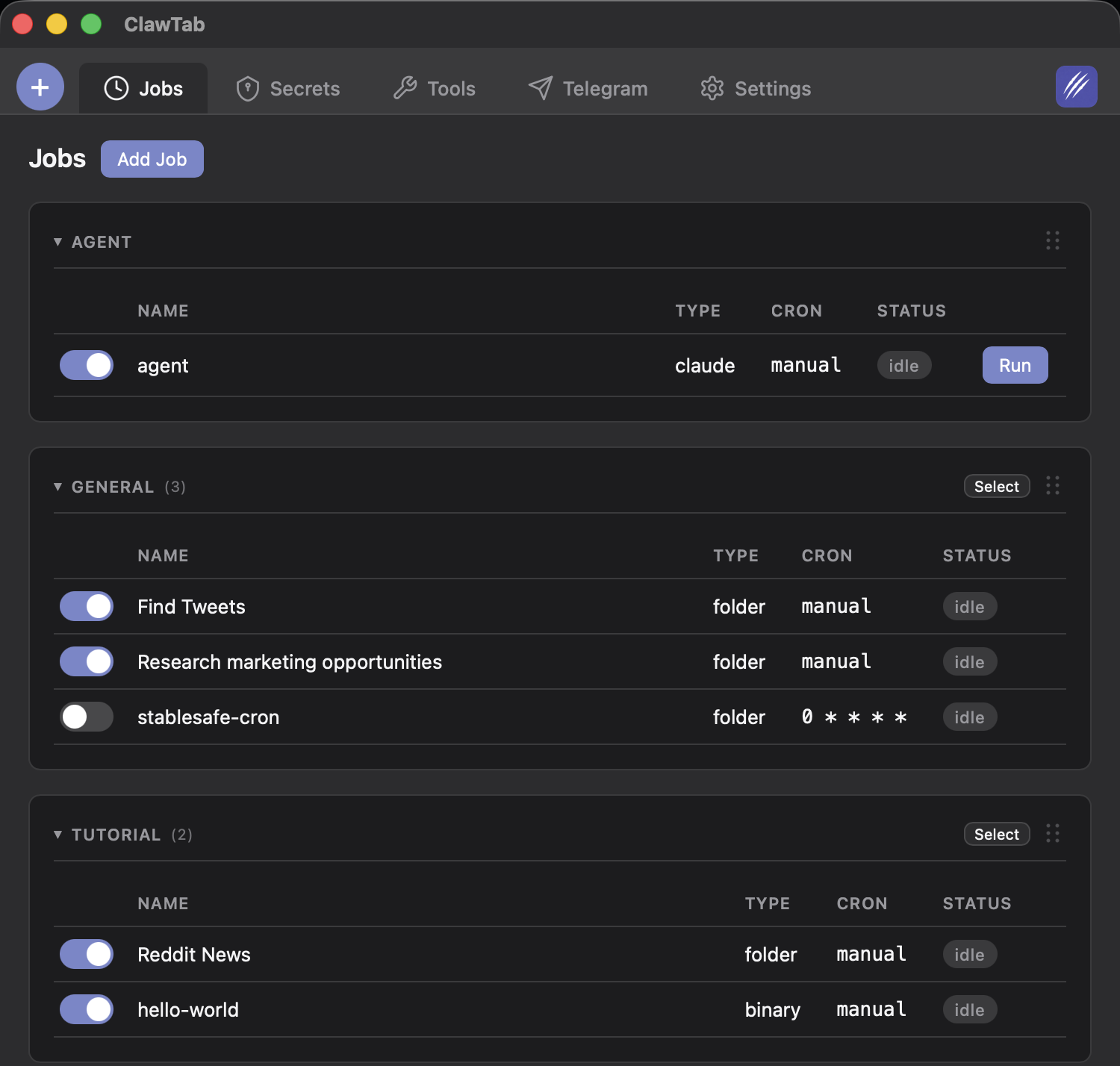
Secrets are assigned per-job using the secret_keys field in your job configuration. Each job only gets the secrets it needs - a deploy job gets deploy credentials, a code review job gets a GitHub token, and a monitoring job gets a Slack webhook.
# ~/.config/clawtab/jobs/myapp-deploy.yaml
name: myapp/deploy
job_type: claude
cron: "0 2 * * *"
secret_keys: [GITHUB_TOKEN, AWS_ACCESS_KEY_ID, AWS_SECRET_ACCESS_KEY]
env:
AWS_REGION: us-east-1
ENVIRONMENT: production
# ~/.config/clawtab/jobs/myapp-review.yaml
name: myapp/review
job_type: claude
cron: "0 9 * * 1-5"
secret_keys: [GITHUB_TOKEN]# ~/.config/clawtab/jobs/error-monitor.yaml
name: myapp/monitor
job_type: binary
cron: "0 * * * *"
secret_keys: [SLACK_WEBHOOK, DATADOG_API_KEY]This per-job isolation is a security feature. If an agent is compromised or behaves unexpectedly, it only has access to the credentials you explicitly assigned to it. A code review agent can't accidentally use your AWS deploy keys.
What Security Properties Does ClawTab's Secrets Injection Provide?
ClawTab's approach provides several layers of protection:
- No plaintext on disk - secrets live in Keychain (encrypted by macOS) or gopass (encrypted by GPG). They're never written to job config files, prompt files, or log files.
- No command history exposure - tmux's
-eflag injects environment variables without including them in the command string. Runninghistoryorps auxwon't reveal secret values. - Per-job isolation - each job only receives the secrets listed in its
secret_keys. There are no global secrets that every job can access. - Runtime-only injection - secrets exist in the process environment only while the job is running. They're not persisted anywhere after the process exits.
- Fresh on every run - secrets are looked up at job start time, not cached. Rotate a key in Keychain and the next run uses the new value immediately.
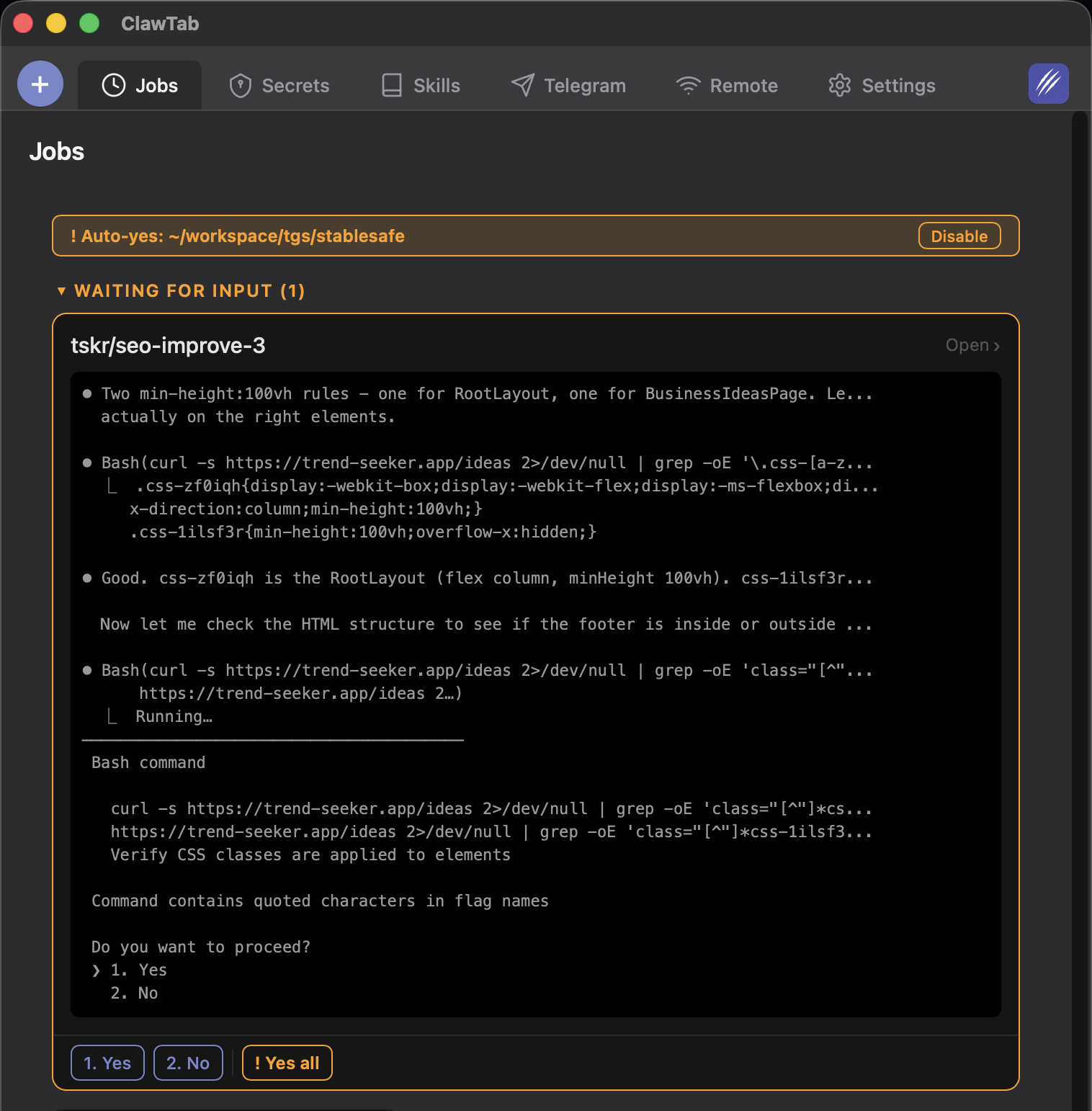
Combined with auto-yes mode for unattended operation, this means your overnight cron jobs can access APIs securely without any human intervention.
How Does ClawTab Compare to Other Secrets Management Approaches?
There are several ways to pass credentials to AI agents. Here's how they compare:
| Approach | Encryption at Rest | History Safe | Per-Job Isolation | Rotation | Team Sharing |
|---|---|---|---|---|---|
| ClawTab + Keychain | macOS Secure Enclave | Yes (tmux -e) | Yes | Automatic on next run | No (per-machine) |
| ClawTab + gopass import | GPG encryption + Keychain | Yes (tmux -e) | Yes | Re-import from gopass | Yes (git + GPG) |
| .env files | No (plaintext) | N/A | No (global) | Manual edit | Copy files |
| Hardcoded in prompts | No | No | No | Edit every prompt | No |
| Shell export | No | No (in .bashrc) | No (global) | Manual edit | No |
| Cloud (AWS SSM, Vault) | Yes | Depends | Yes | API-based | Yes (IAM policies) |
.env files are the most common approach, but they're plaintext on disk and typically loaded globally. Every process in the shell gets every secret. Hardcoding secrets in prompts is worse - they end up in logs, caches, and potentially in the AI provider's training pipeline.
Cloud secrets managers like AWS Parameter Store or HashiCorp Vault are powerful but require network access and infrastructure. ClawTab works entirely offline using local secrets stores, which is ideal for development machines.
Keychain and gopass: How They Work Together
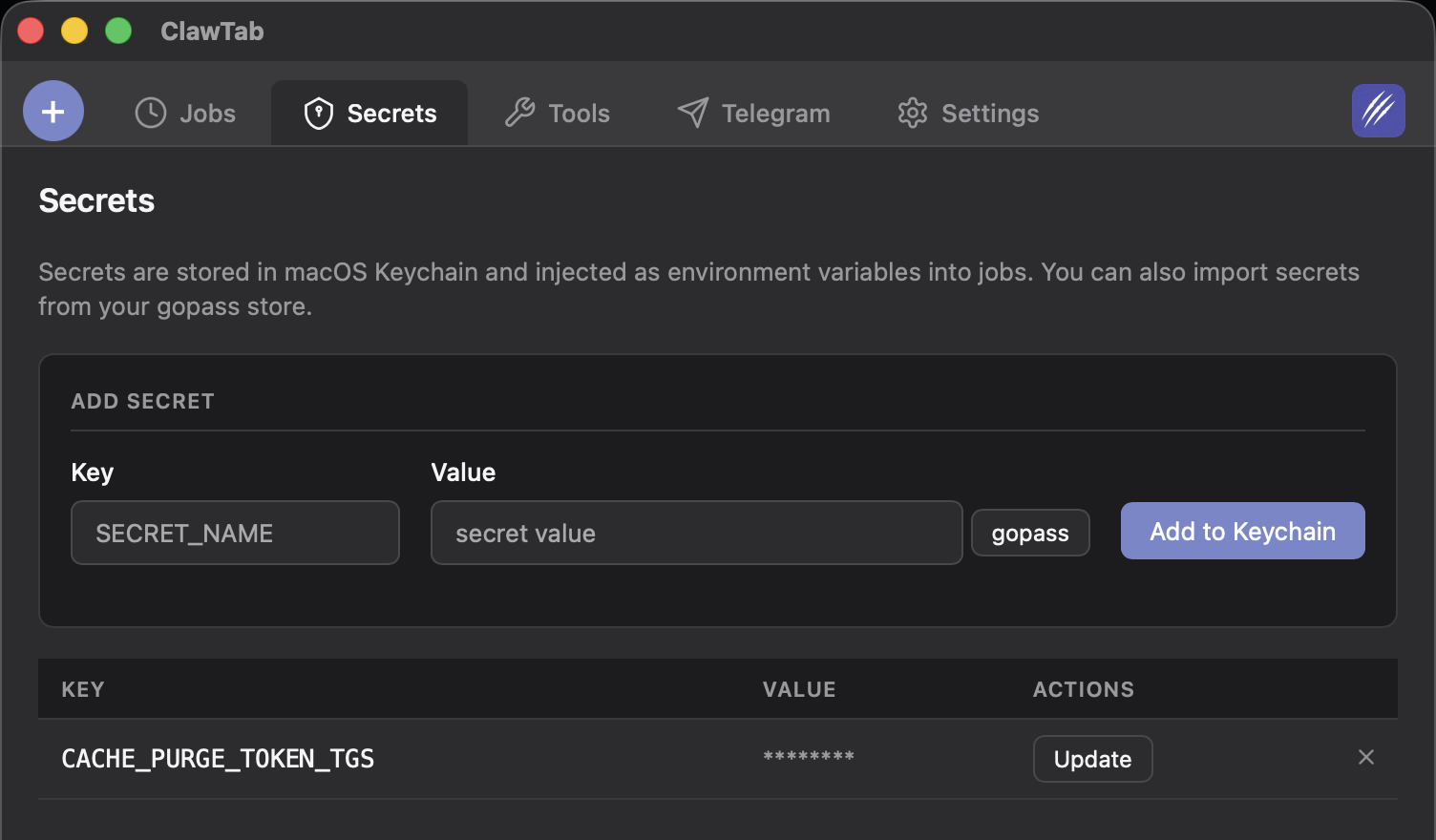
ClawTab always stores and looks up secrets from macOS Keychain. It's the primary secrets backend and requires no configuration - Keychain is built into every Mac, protected by your login password, and backed by the Secure Enclave on Apple Silicon.
If your team already manages secrets in gopass, ClawTab can import them. This is a one-way operation: secrets are read from your gopass store and written into Keychain, where ClawTab picks them up at job runtime. This means you get the team-friendly workflow of gopass (git-synced, GPG-encrypted, shared across machines) while keeping the runtime simplicity of Keychain lookups.
| Workflow | Best For | How It Works |
|---|---|---|
| Keychain only | Solo developers on a single Mac | Add secrets directly via security CLI or Keychain Access |
| gopass import | Teams, multi-machine setups | Import from gopass into Keychain, then ClawTab reads from Keychain |
For most solo developers, adding secrets directly to Keychain is the path of least resistance. If you work across multiple Macs or share secrets with a team, maintain your secrets in gopass and import them on each machine.