Introduction
Looking for an OpenCode yolo mode? Current OpenCode releases call it auto mode. Start OpenCode with opencode --auto to approve permission requests that would otherwise ask, while explicit deny rules remain in effect.
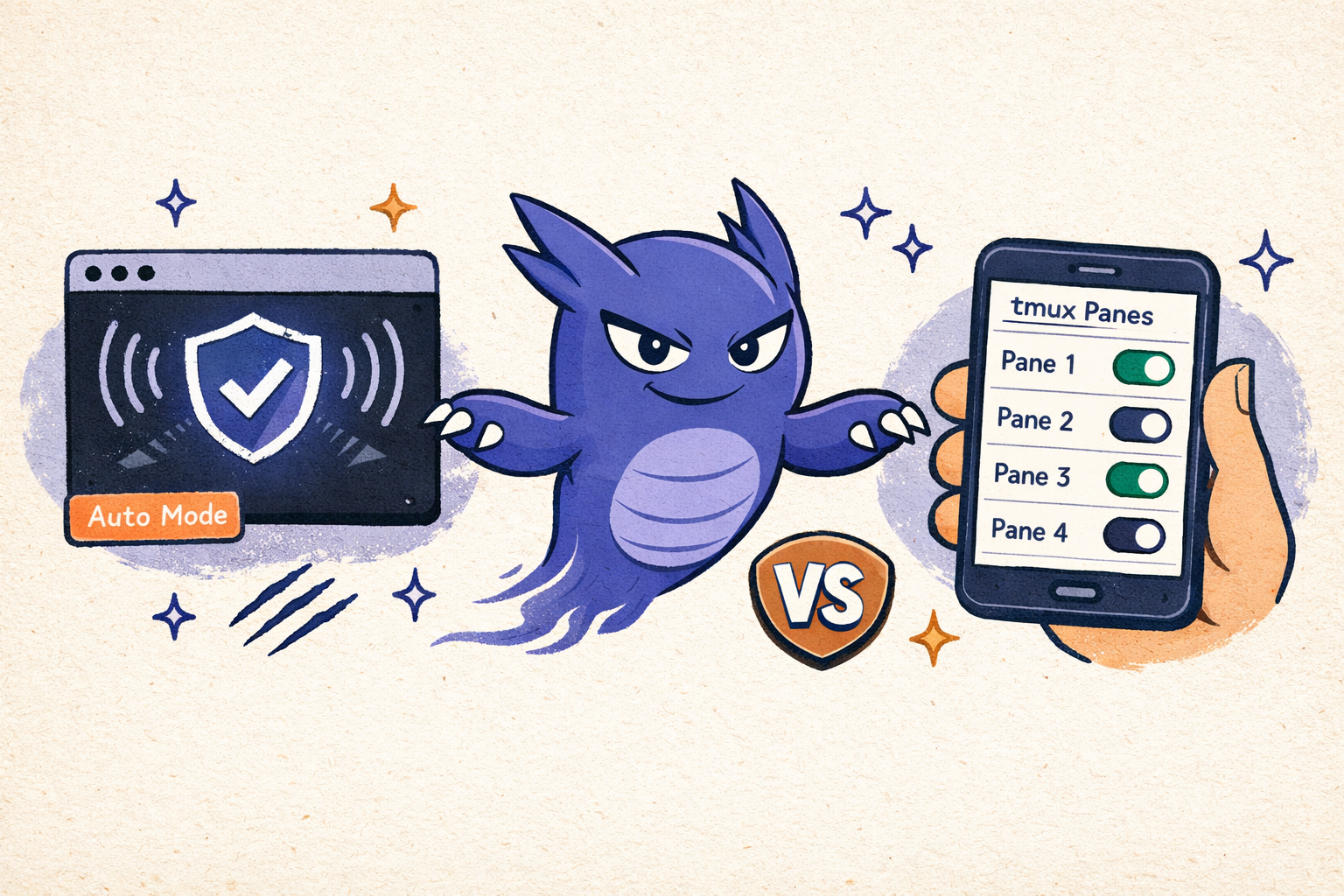
ClawTab auto-yes watches AI coding agents in tmux and answers affirmative permission prompts for the panes you choose. It handles Claude Code, Codex, and OpenCode. Enable it from iOS, the web remote, the desktop app, tmux, or cwtctl, then disable it without restarting the agent.
The scope is one tmux pane. You can auto-approve a routine Codex migration while a Claude Code security review and an exploratory OpenCode session continue to ask. The agent stays in its native terminal, and the ClawTab daemon keeps monitoring even when the desktop window is closed.
Does OpenCode Have Auto Mode?
Yes. Current OpenCode releases include a built-in auto mode. Start an interactive session with opencode --auto, or run a one-off prompt with opencode run --auto "Refactor this module". In the TUI, use the command palette actions Enable auto-approve permissions and Disable auto-approve permissions to switch modes.
opencode --auto
opencode run --auto "Refactor this module"
OpenCode's permission documentation says auto mode approves requests that would otherwise use the ask policy. Explicit deny rules still block the action. Use OpenCode's built-in mode when one OpenCode session is the control boundary.
ClawTab auto-yes is a different layer. It watches the actual permission prompt in a tmux pane and can be toggled remotely for that pane. That is useful when OpenCode runs beside Claude Code, Codex, and shell jobs, or when you want to change approval behavior from iOS, web, desktop, tmux, or cwtctl without restarting the agent.
The Problem: Permission Prompts Stall Your Agents
Claude Code, Codex, and OpenCode ask before actions outside their current permission policy. These are useful guardrails. But during a well-scoped refactor or a batch of agents across several panes, a pending prompt can leave the process idle until you answer it.
If you're at your desk, it's a minor interruption. If you stepped away, it means you come back to an agent that's been sitting idle for 20 minutes waiting for you to press "1" for Yes.
Claude Code includes acceptEdits, dontAsk, Auto Mode, and bypassPermissions. Codex and OpenCode have their own approval policies. Those settings live inside each agent. ClawTab takes a separate approach: it operates at the tmux layer, so one remote toggle can apply narrowly to a pane without changing the configuration of every provider.
Auto-yes is useful for trusted, repetitive tasks. It is not a safety classifier and does not inspect whether the command is wise. Keep it off when a task is exploratory, destructive, or connected to production.
How It Works
When you enable auto-yes, the ClawTab daemon watches that pane more frequently and combines terminal parsing with agent activity hooks. When it detects a permission prompt, it does two things:
- Scores affirmative choices such as Yes, Approve, Allow, or Proceed. It prefers a session-scoped or one-time approval and penalizes permanent choices such as Always or Don't ask again.
- Sends the selected key or TUI click to that exact tmux pane, just as if you answered in the terminal.
The same parser powers remote notification cards. Claude Code and Codex expose numbered choices, while OpenCode uses selectable TUI buttons. ClawTab handles both input styles without requiring a provider plugin.
Each detected question receives a stable ID based on its pane and options. ClawTab avoids repeatedly answering the same screen, but retries after several checks if the prompt is still present. When the prompt disappears, the pane is ready for the next question.
One Policy Layer Across Three Agents
The July 2026 implementation is provider-aware:
| Agent | Typical affirmative choices | What auto-yes prefers |
|---|---|---|
| Claude Code | Yes; Yes, during this session | The session-scoped choice |
| Codex | Yes, proceed; approve once; always allow | The one-time approval |
| OpenCode | Allow once; allow always; reject | Allow once |
This does not make the three permission systems identical. It gives them one operational control: whether ClawTab should answer an affirmative prompt in this pane. Provider rules, sandboxes, and protected paths still apply underneath.
Enabling Auto-Yes From Your Phone
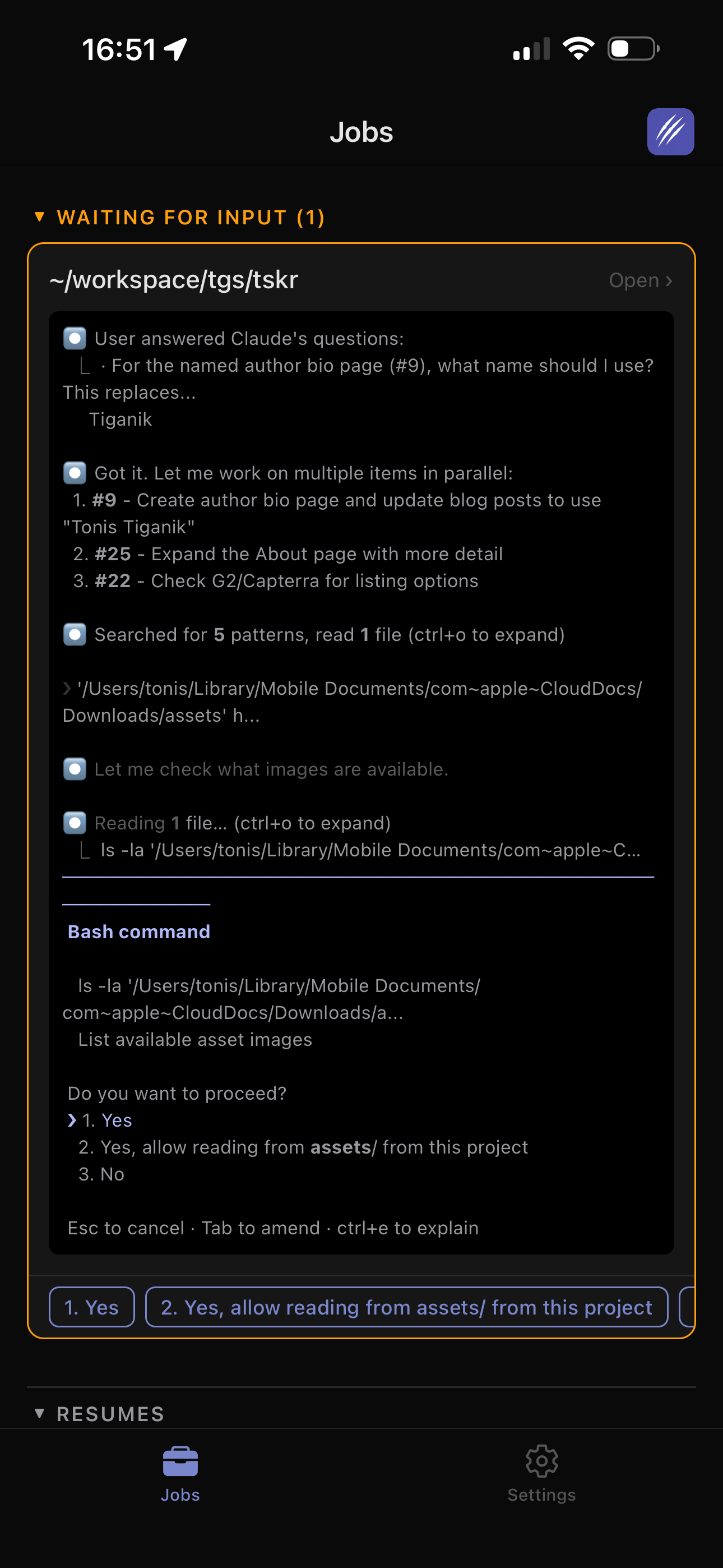
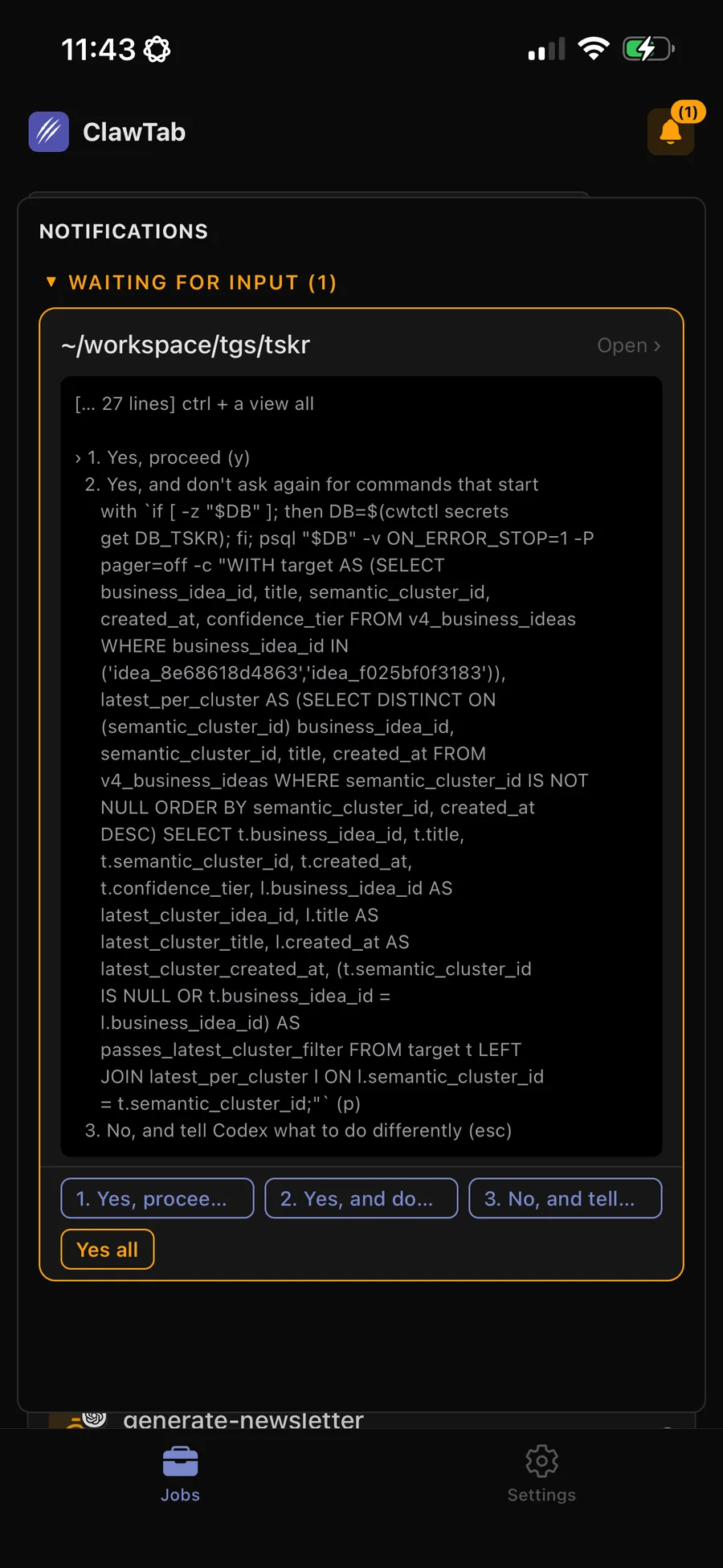
The most common way to enable auto-yes is from the mobile app. When an agent asks a question and you get the notification card, you'll see option buttons at the bottom of the screen - the detected choices from the terminal prompt, plus a "Yes all" button.
Tapping "Yes all" does two things immediately:
- Answers the current question with "Yes"
- Enables auto-yes for that pane going forward
A confirmation dialog explains what's about to happen: future prompts with a recognized affirmative option in that pane will be accepted until you disable it.
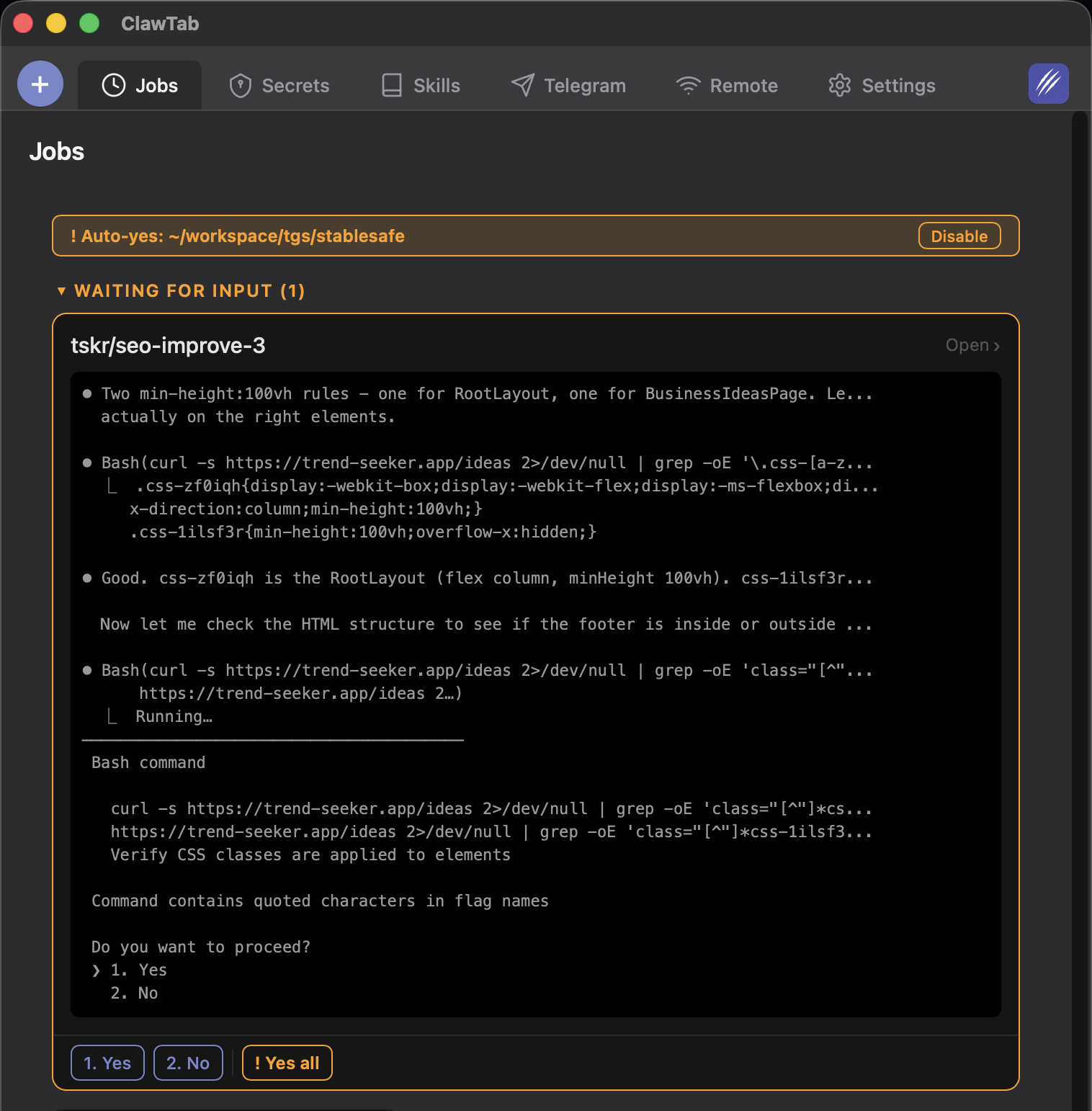
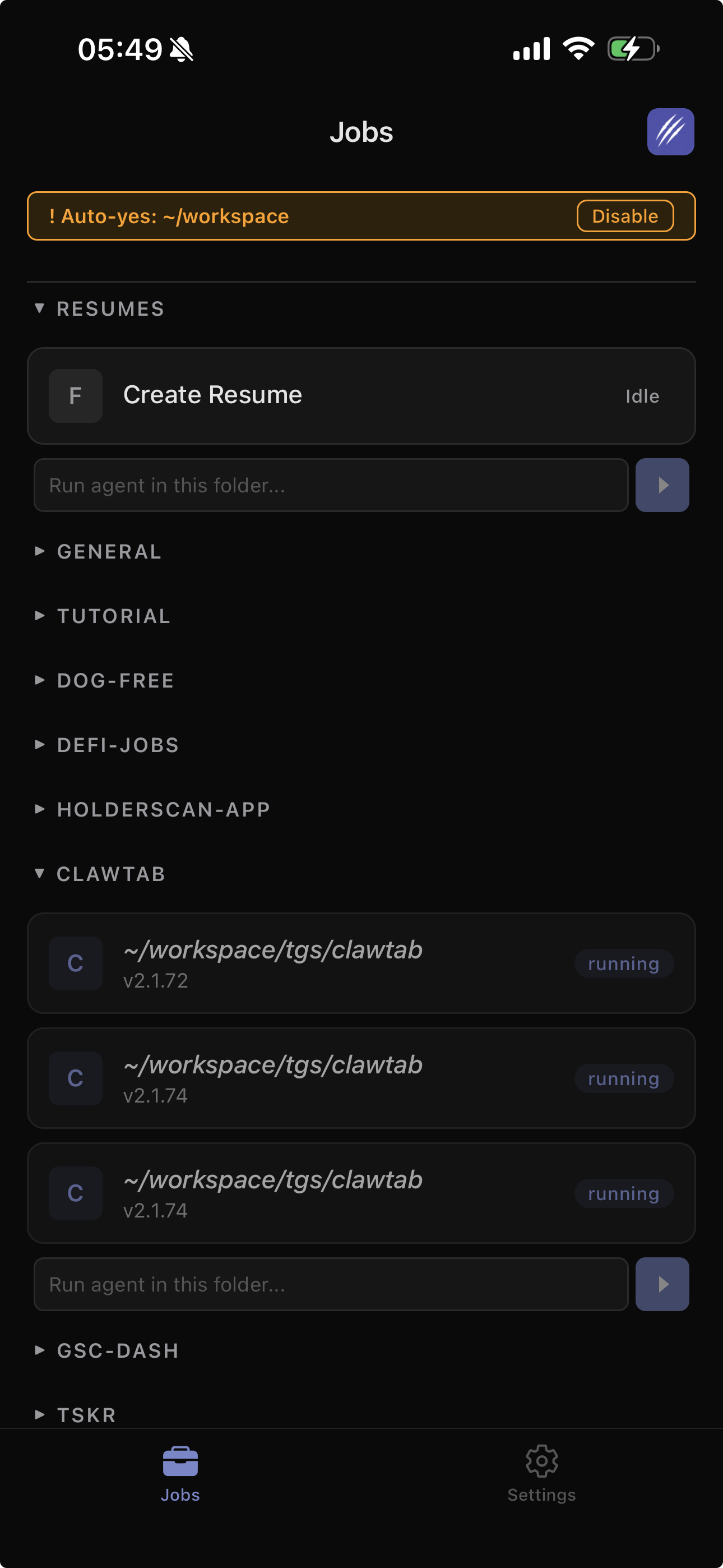
Once enabled, you'll see a banner at the top of the jobs list showing which panes have auto-yes active, along with a "Disable" button for each one. The banner persists across app restarts and reconnections - the relay server caches the auto-yes state and replays it when your phone reconnects.
You don't need the desktop window open. The daemon owns question detection, relay state, and auto-yes, while the phone is another client for the same tmux workspace.
The Auto-Yes Banner
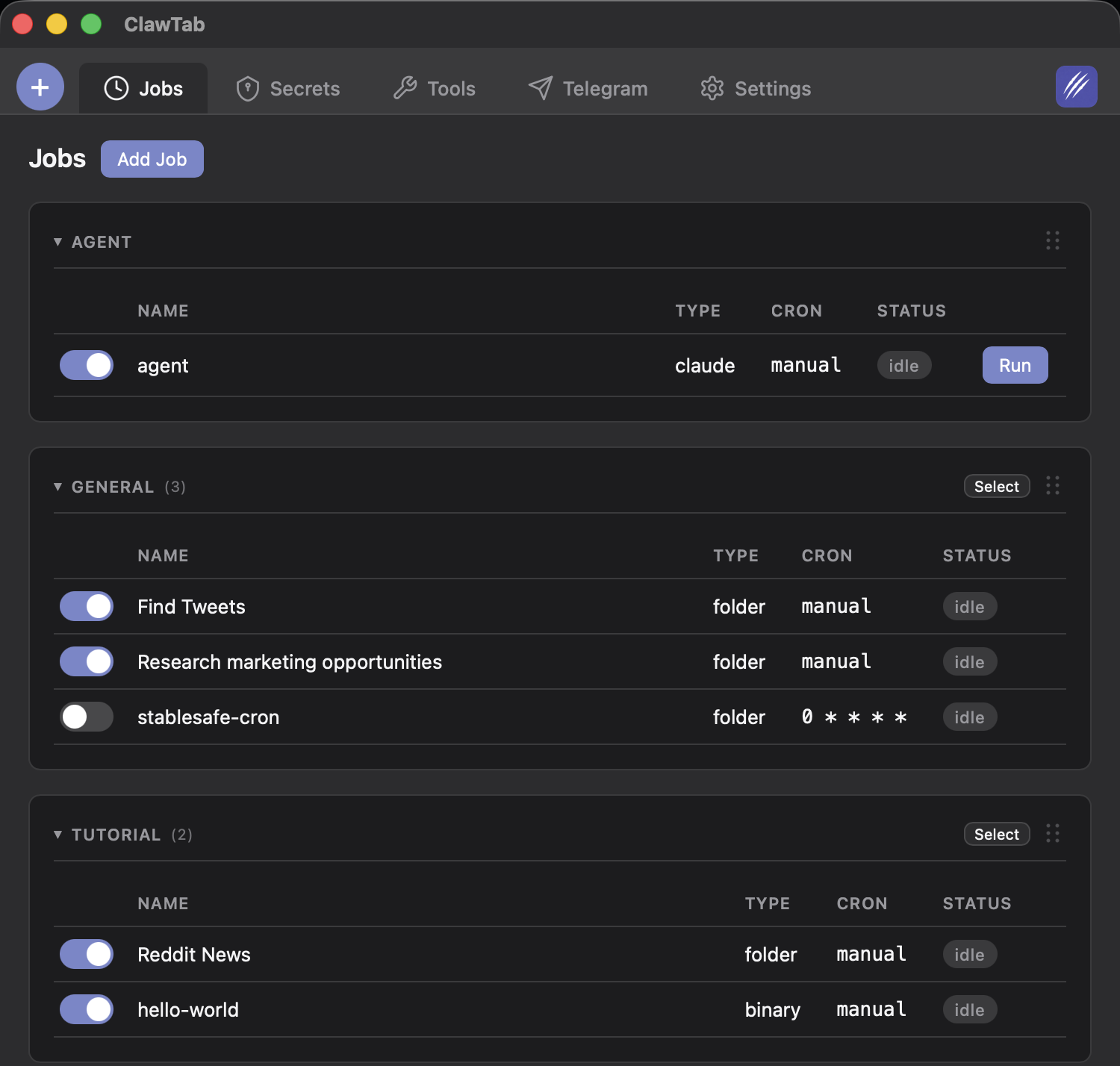
When auto-yes is active, a prominent banner appears at the top of the jobs list - both on mobile and on the desktop app. The banner shows the pane path (like "~/workspace") and a "Disable" button.
This serves as a persistent reminder that auto-approval is active. You won't forget it's running because it's always visible at the top of the screen.
Tapping "Disable" turns auto-yes off immediately. The next permission prompt will wait for your manual approval as usual.
Cross-Device Sync
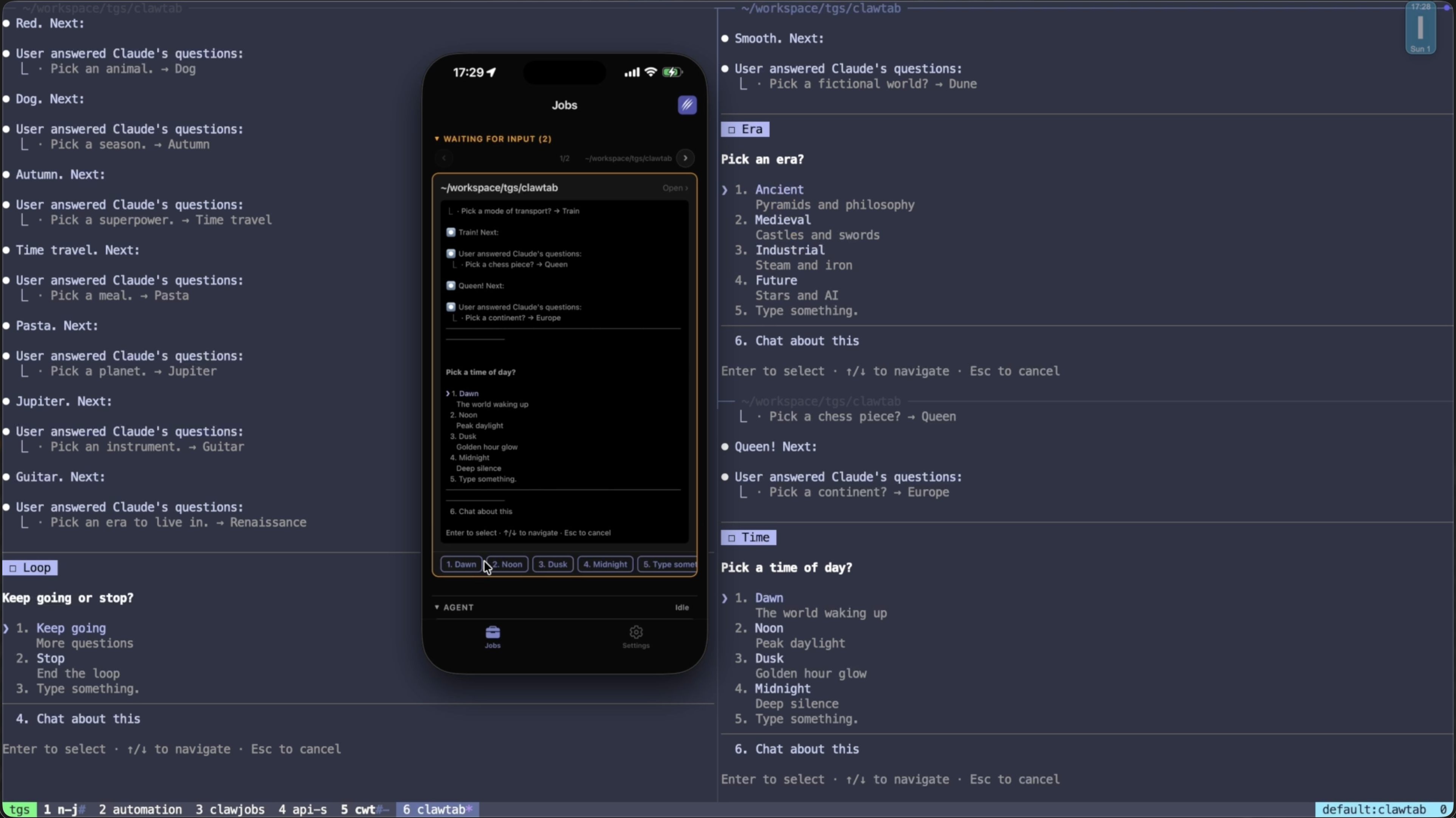
Auto-yes state syncs between the daemon and all connected desktop or mobile clients through the relay server. Enable it from your phone, and the daemon starts auto-accepting on the next check. Disable it from the desktop UI, and the banner disappears on your phone.
The relay caches the current auto-yes state per user. When a mobile device reconnects (after a network drop, app restart, or switching devices), the relay replays the cached state so the UI stays accurate without needing to wait for the desktop to re-broadcast.
This also works with workspace sharing. If a colleague has shared access to your workspace, they can see which panes have auto-yes enabled and can disable it if needed.
Push Notification Suppression
When auto-yes is active for a pane, ClawTab suppresses push notifications for questions from that pane. There's no point buzzing your phone about a prompt that's going to be auto-accepted in half a second.
You still get push notifications for other events - job completion, failures, and questions from panes that don't have auto-yes enabled. Only the permission-prompt notifications are filtered out.
How ClawTab Compares to Agent Permission Modes
Permission modes and auto-yes control different layers:
| Approach | Decision point | Good fit | Main risk or limit |
|---|---|---|---|
| Provider allow rules | Before the prompt | Known commands and durable team policy | Configuration differs by provider |
| Claude Code Auto Mode | Classifier checks each action | Long Claude tasks with fewer prompts | Research preview with plan, model, and provider requirements |
bypassPermissions | No permission prompt | Disposable containers or VMs | Removes most approval protection |
| ClawTab auto-yes | After a prompt appears in tmux | Trusted local work across Claude Code, Codex, and OpenCode | Accepts an affirmative option without judging the action |
Start with provider allow rules for predictable commands. Use Auto Mode when its classifier matches the Claude workflow. Use ClawTab auto-yes when you need one per-pane switch across local agents, schedules, and remote clients.
ClawTab Auto-Yes vs Claude Code Auto Mode
Claude Code Auto Mode uses a separate classifier to review actions before execution and block work that exceeds the request or touches untrusted infrastructure. Anthropic describes it as a research preview, not a replacement for review on sensitive operations.
However, auto mode and ClawTab auto-yes solve the same problem from different angles. Here's how they compare:
| Feature | Claude Code Auto Mode | ClawTab Auto-Yes |
|---|---|---|
| Approval method | AI safety classifier pre-screens actions | Accepts affirmative prompts and prefers session or one-time scope |
| Granularity | Per-session (all or nothing) | Per-pane (different policy per agent) |
| Remote control | Remote Control can display the mode and route prompts, but cannot select Auto from mobile | Toggle from phone, web, desktop, tmux, or CLI |
| Toggle without restarting | Shift+Tab to cycle modes | One tap from any device |
| Plan requirement | Max, Team, Enterprise, or API; not Pro | ClawTab is free and open source |
| Model/provider requirement | Supported Claude 4.6/4.7 models through Anthropic API; not Bedrock, Vertex, or Foundry | Claude Code, Codex, or OpenCode prompt detected in tmux |
| Works with scheduled jobs | Yes when the scheduled Claude session can use Auto Mode | Yes, with ClawTab cron and saved per-job auto-yes |
| Multi-agent use | Configured per Claude session | Independent per pane across providers |
Use Auto Mode when you want action-level screening inside Claude Code. Use ClawTab auto-yes for background automation across providers, or when a trusted pane needs a switch you can change remotely.
You can monitor a Claude session in Auto Mode through ClawTab without enabling auto-yes. If Auto Mode blocks an action, review why it was blocked instead of treating auto-yes as a way to defeat the classifier.
Safety Properties
Auto-yes is designed with a few deliberate constraints:
- Per-pane scope - auto-yes is enabled per tmux pane, not globally. You can auto-approve one agent while keeping manual approval on another.
- Narrow approvals preferred - ClawTab prefers "during this session" or "once" over permanent allowlist entries.
- Only affirmative prompts - auto-yes looks for choices beginning with Yes, Allow, Approve, Proceed, Confirm, OK, or Okay. It won't answer freeform questions or unrelated multiple-choice decisions.
- Explicit opt-in - you must tap the button and confirm the dialog. It never enables itself.
- Visible state - the banner is always visible when auto-yes is active, on both mobile and desktop.
- Instant disable - one tap to turn it off, effective immediately.
Auto-yes is a power-user feature. It trades manual approval for uninterrupted agent progress. Use it when you trust the task - a well-scoped refactoring job, a migration you've tested, a code review pass. Disable it when precision matters.
When to Use Auto-Yes
Batch migrations. You're running agents across 15 repositories to update an import path. Each agent will ask to write files dozens of times. Enable auto-yes and let them run.
Overnight jobs. You kick off a big refactoring agent before bed. Enable auto-yes so it doesn't stall at 2am waiting for you to approve a file write.
Multi-agent swarms. You have Claude Code, Codex, and OpenCode running across tmux panes. Enable auto-yes on the agents doing well-defined work and keep manual approval on exploratory panes.
CI-like workflows. You're using cron jobs to run recurring agents. Auto-yes lets them complete end-to-end without human intervention.
Toggling Auto-Yes From tmux
If you live in the terminal, the ClawTab tmux plugin gives you a keybinding to toggle auto-yes without reaching for the GUI or your phone.
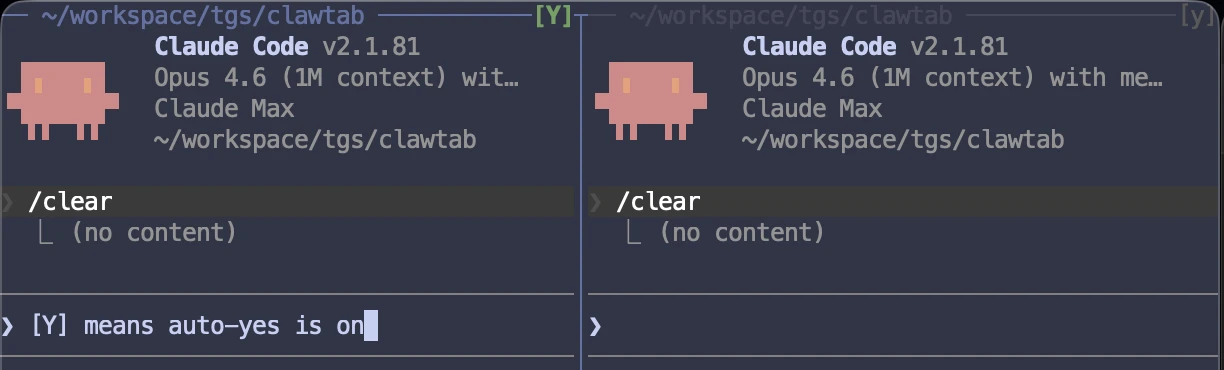
Press prefix + y to toggle auto-yes on the current agent pane. The pane border shows the state: [Y] in green when enabled, [y] in dim gray when disabled.
You can also toggle it from the popup menu (prefix + E, Shortcuts tab), which shows the current ON/OFF status next to the option.
Setup takes one line in your .tmux.conf:
run-shell /path/to/tmux-clawtab/clawtab.tmuxSee the tmux integration guide for the full feature set including session forking, secret injection, and skill search.
Toggling Auto-Yes From cwtctl
The headless control path is useful over SSH or in scripts. Run cwtctl agent auto-yes toggle %16 with the target tmux pane ID. The daemon updates desktop, remote, and tmux clients from the same state.
Use cwtctl jobs or tmux list-panes -a -F '#{pane_id} #{pane_current_command} #{pane_current_path}' to resolve the pane before toggling it. Pane-level targeting is the safety boundary, so do not guess the ID.