Claude Code Auto Mode vs Auto-Yes: Which Permission System Should You Use?
Claude Code auto mode (Team plan, AI safety classifier) vs ClawTab auto-yes (free, per-pane, phone-controlled). Both let AI agents run unattended — but they work differently. Here's when to use each and how to combine them.
Introduction
Claude Code auto mode (March 2026) uses an AI safety classifier to pre-screen every action before execution. It's built into Claude Code, requires a Team plan, and works per-session. ClawTab auto-yes accepts permission prompts per-pane, can be toggled from your phone, and integrates with cron scheduling for background automation. Use auto mode for interactive sessions. Use ClawTab auto-yes for scheduled jobs, agent swarms, and remote control. Use both together for maximum coverage.
The Permission Problem
Claude Code asks for permission before writing files, running commands, and installing packages. These prompts are important safety guardrails - they prevent the agent from taking destructive actions you didn't intend. But they also stall your agents when you're not at the keyboard.
A single interactive session is manageable. You see the prompt, you approve it, the agent continues. But the moment you step away from your desk, schedule agents to run overnight, or launch a swarm of parallel agents, those permission prompts become blockers. Your agents sit idle waiting for a human that isn't watching.
Until recently, the only built-in solution was --dangerously-skip-permissions, which disables all safety checks entirely. In March 2026, two better alternatives emerged: Claude Code auto mode (an AI-powered classifier built into Claude Code) and ClawTab's auto-yes (remote-controllable per-pane approval). They solve the same problem from different angles.
What Is Claude Code Auto Mode?
Auto mode is a new permission mode built into Claude Code. When enabled, a separate AI classifier model reviews every action before it executes. The classifier checks whether the action matches what you asked for, targets infrastructure it recognizes as trusted, and doesn't appear to be driven by hostile content encountered in a file or web page.
If the classifier approves, the action runs without a prompt. If it detects something risky - mass deletions, data exfiltration, malicious code execution - it blocks the action and asks for manual approval.
Key characteristics of auto mode:
AI-powered safety. A dedicated classifier model evaluates each action against the conversation context and task scope. This is more nuanced than a simple allowlist.
Session-scoped. Auto mode applies to the entire Claude Code session. You can't enable it for some actions and not others within the same session.
Team plan required. Auto mode is available on Team plans, with Enterprise and API support rolling out. An admin must enable it in Claude Code admin settings before users can turn it on.
Model-specific. Requires Claude Sonnet 4.6 or Claude Opus 4.6. Not available on Haiku, Claude 3 models, or third-party providers like AWS Bedrock or Google Vertex AI.
Research preview. Anthropic recommends using auto mode in isolated environments (containers, VMs, sandboxes). The classifier is good but can miss edge cases.
To enable auto mode in the CLI, run claude --enable-auto-mode, then use Shift+Tab to cycle to it during a session. In VS Code, toggle it in Claude Code settings and select it from the permission mode dropdown.
What Is ClawTab Auto-Yes?
ClawTab auto-yes takes a fundamentally different approach. Instead of an AI classifier, it watches for permission prompts in the terminal output and sends keystrokes to accept them - the same way you would if you were sitting at the keyboard.
When you enable auto-yes for a Claude Code pane, ClawTab's desktop app polls the terminal at double the normal rate (every 500ms). When it detects a numbered permission prompt, it identifies the best "yes" option - preferring "Yes, during this session" over a blanket "Yes" - and sends the option number as a keystroke to the tmux pane.
Key characteristics of auto-yes:
Per-pane granularity. Auto-yes is enabled per tmux pane, not per session. You can auto-approve one agent while keeping manual approval on another running in the same tmux window.
Remote control. Toggle auto-yes from your phone via the ClawTab mobile app, from the web at remote.clawtab.cc, or from the desktop UI. No need to be at your terminal.
Works with any Claude Code version. No plan requirement, no model restriction. Auto-yes works by reading terminal output, not by hooking into Claude Code's internals.
Integrated with scheduling. Combined with ClawTab's cron scheduler, auto-yes lets scheduled agents run uninterrupted. Your overnight code review agent won't stall at 3am waiting for you to press "1".
Free and open source. ClawTab is MIT-licensed. No subscription required for the desktop app or auto-yes functionality.
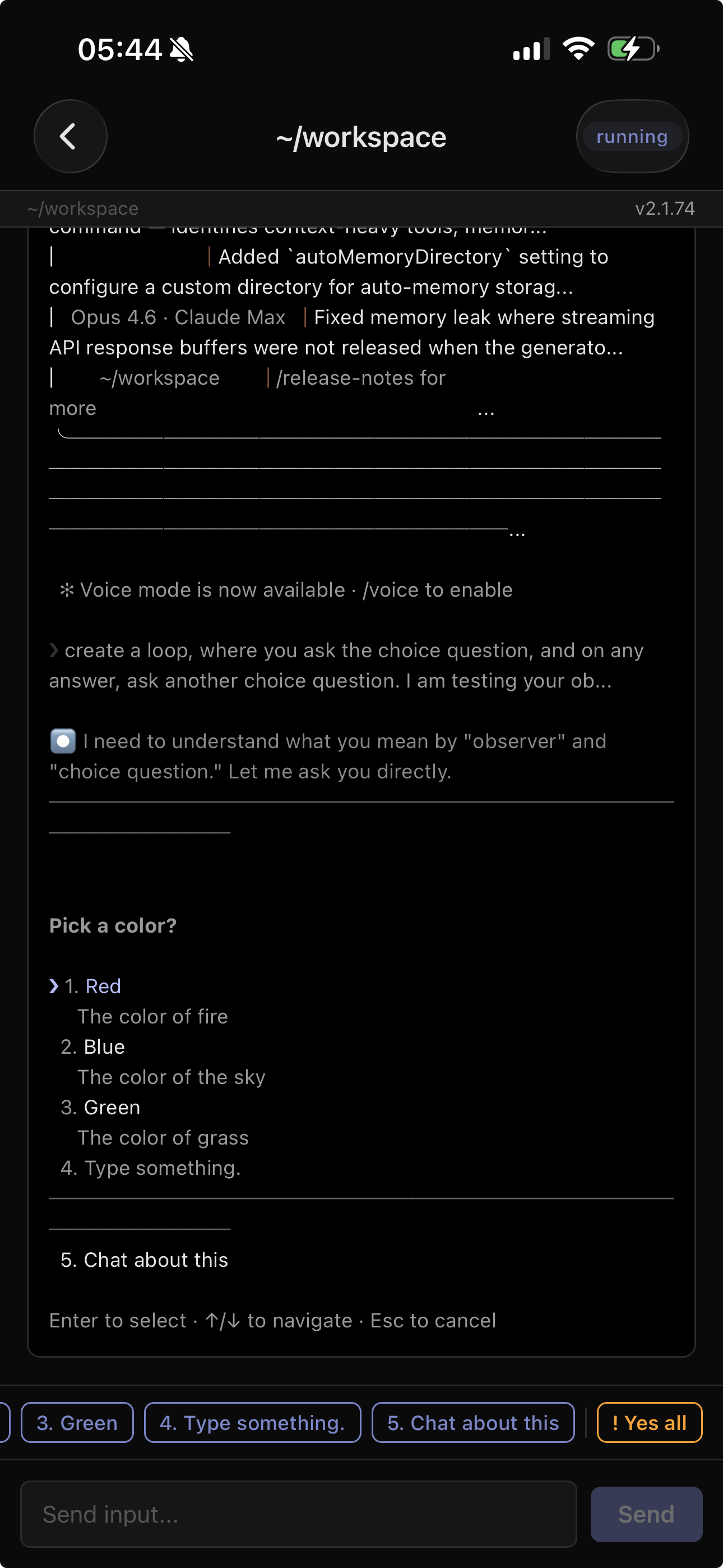
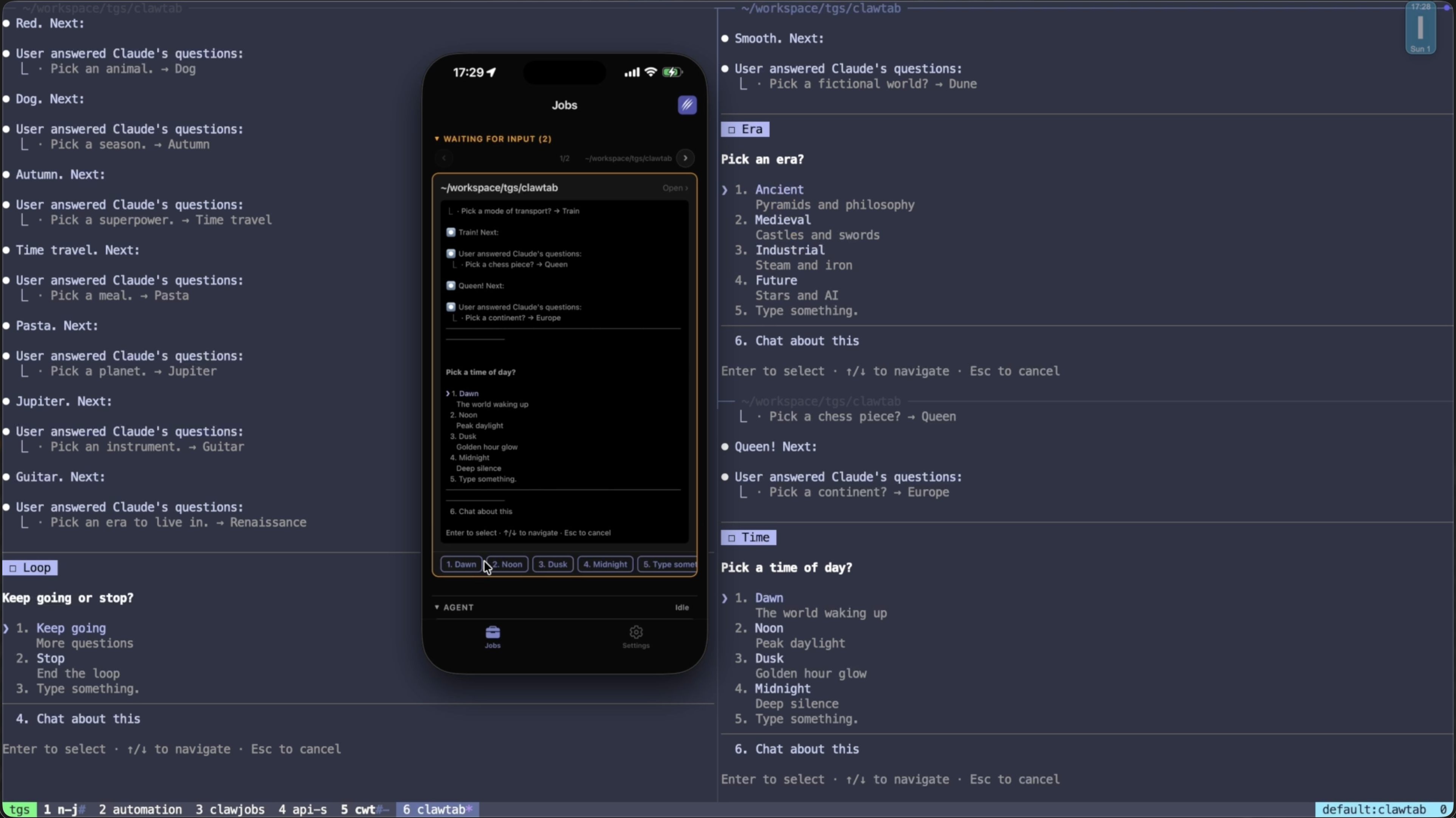
To enable auto-yes, tap the red "Yes all" button when a Claude Code agent asks a question on your phone. Or press prefix + y in tmux with the ClawTab tmux plugin.
Tap 'Yes all' on any permission prompt to enable auto-yes for that pane
Feature-by-Feature Comparison
Here's how the three main approaches to Claude Code permission handling compare across every dimension that matters for production use:
The key difference: auto mode is smarter about what it approves, while auto-yes gives you more control over where and when it approves.
When to Use Claude Code Auto Mode
Auto mode is the right choice when you're sitting at your terminal working interactively with a single Claude Code session and want to reduce the friction of permission prompts without losing safety.
Specific scenarios where auto mode shines:
Interactive coding sessions. You're pair-programming with Claude Code, making rapid changes across files. Auto mode lets the agent write files and run commands without interrupting your flow, while the classifier catches anything unexpected.
Exploratory refactoring. You've asked Claude to "clean up the auth module." The scope is broad enough that you'd normally want to approve each action, but auto mode's classifier can distinguish between legitimate refactoring and accidental destruction.
IDE workflows. In VS Code or JetBrains, auto mode integrates with the IDE's permission UI. You stay in your editor, and the classifier handles the approval loop.
Team environments. Your organization is on a Team plan and wants a standardized approach to agent permissions. Admins can enable auto mode org-wide and trust the classifier to enforce reasonable boundaries.
Auto mode is not ideal for scheduled background jobs (it requires an active session), multi-agent swarms (it's per-session, not per-agent), or scenarios where you need to toggle permissions remotely from your phone.
When to Use ClawTab Auto-Yes
ClawTab auto-yes is built for background automation and remote control. Use it when you won't be at your terminal.
Specific scenarios where auto-yes shines:
Overnight jobs. You kick off a refactoring agent before bed. Enable auto-yes so it doesn't stall at 2am on a file-write permission. If something goes wrong, you'll get a push notification on your phone.
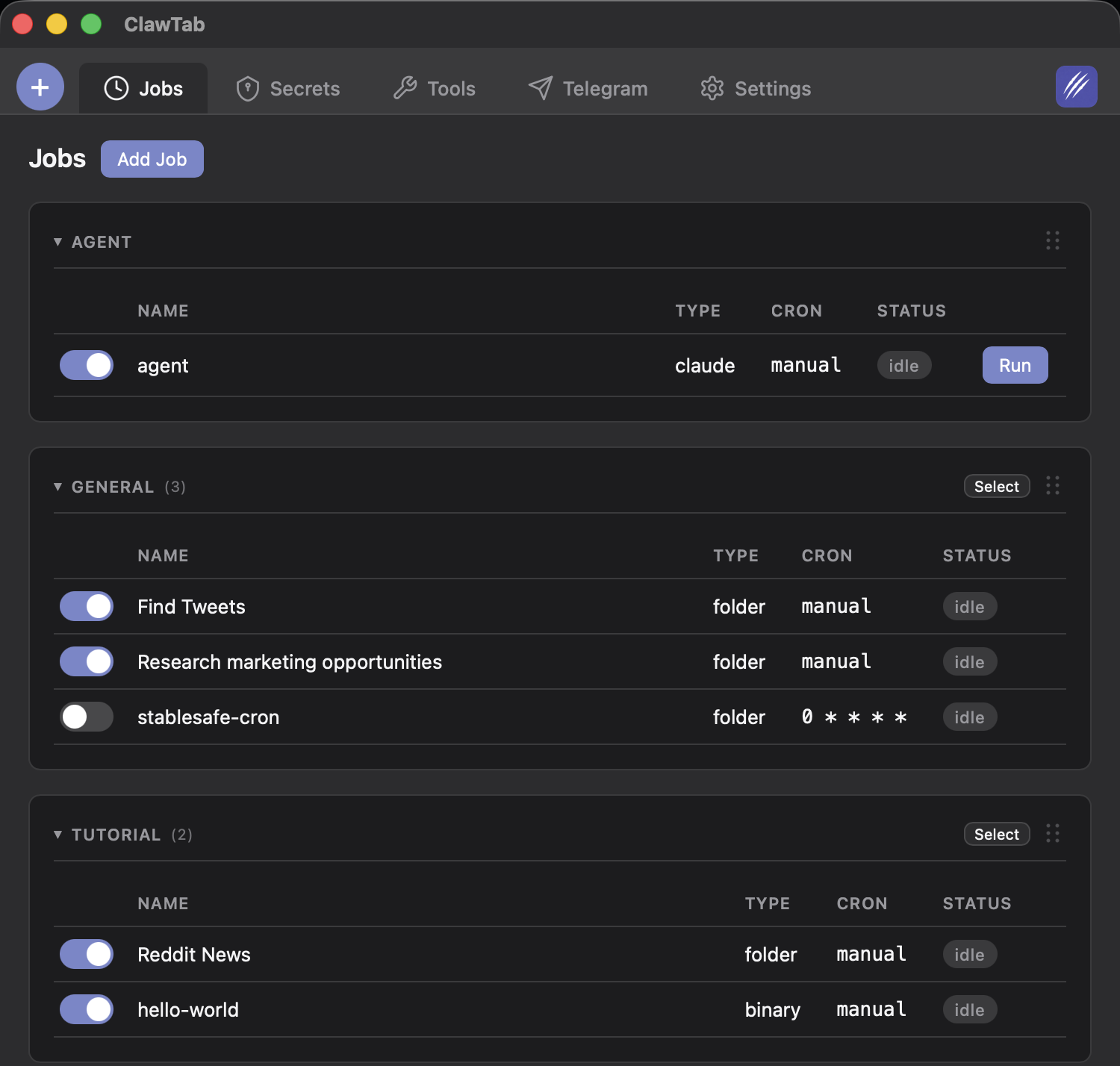
Cron-scheduled agents. Your daily code review runs at 9am, your dependency audit at midnight, your error monitor every hour. Each job needs to run uninterrupted. Auto-yes keeps them moving, and secrets injection provides the credentials.
Agent swarms. You're running 6 agents in parallel across tmux panes. Enable auto-yes on the agents doing well-defined migration work. Keep manual approval on the agent doing exploratory architecture changes. Different policies for different agents.
Away from desk. You're at lunch, on a walk, or in a meeting. An agent hits a permission prompt. Your phone buzzes, you see the prompt, and you either tap the specific option or tap "Yes all" to enable auto-yes for that pane. The agent continues without you going back to your desk.
Team handoff. You're heading out for the day, but agents are still running. Share your workspace with a colleague. They can toggle auto-yes, answer questions, and keep your agents running from their own phone.
Auto-yes is not ideal when you want AI-powered safety screening of each action (use auto mode for that), or when you're working interactively at your terminal and want seamless approval without any tool on top of Claude Code.
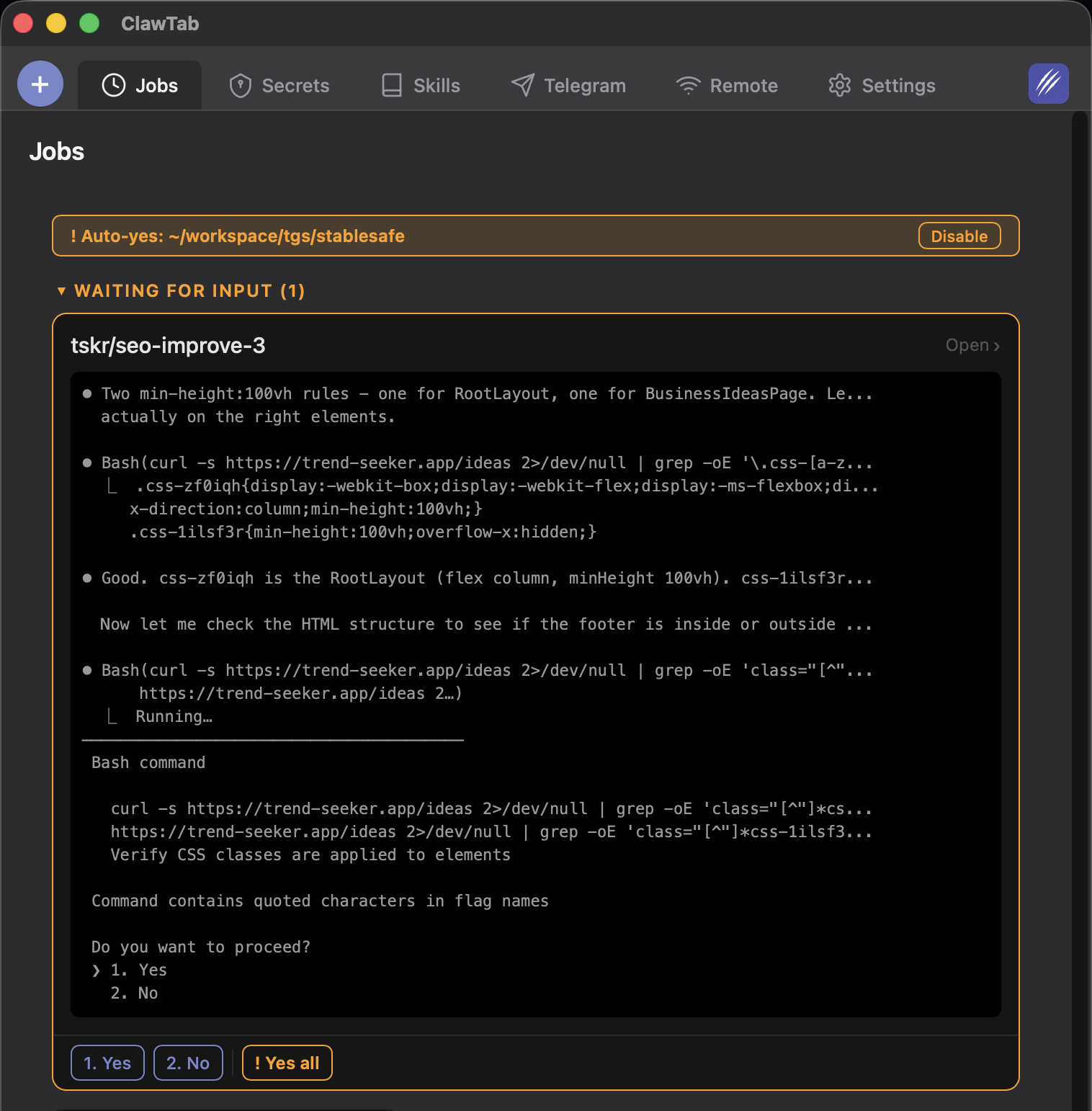
Auto-yes active on the desktop - permission prompts are accepted automatically while you're away
Using Both Together
Auto mode and auto-yes are not mutually exclusive. They operate at different layers and complement each other well.
Here's the recommended setup for maximum coverage:
Enable auto mode in Claude Code for its safety classifier. This gives you an AI-powered first line of defense that blocks genuinely dangerous actions.
Run Claude Code inside ClawTab-managed tmux sessions. This gives you scheduling, remote monitoring, push notifications, and log streaming.
Use auto-yes as a fallback for classifier blocks. Auto mode's classifier is conservative by design - it will occasionally block actions that you actually want. When that happens, you get a notification on your phone. If you trust the action, enable auto-yes for that pane to let it proceed.
The workflow looks like this:
Layer
What It Does
When It Acts
Auto mode (Claude Code)
AI classifier pre-screens every action
Before each tool call
ClawTab monitoring
Detects permission prompts, sends notifications
When Claude Code asks a question
Auto-yes (ClawTab)
Accepts prompts automatically for enabled panes
When a prompt appears and auto-yes is active
Mobile notification
Alerts you when an agent needs attention
When auto-yes is off and a prompt appears
This layered approach gives you: AI safety screening (auto mode) + remote visibility (ClawTab monitoring) + selective auto-approval (auto-yes) + manual override (phone notifications). Each layer handles what the others can't.
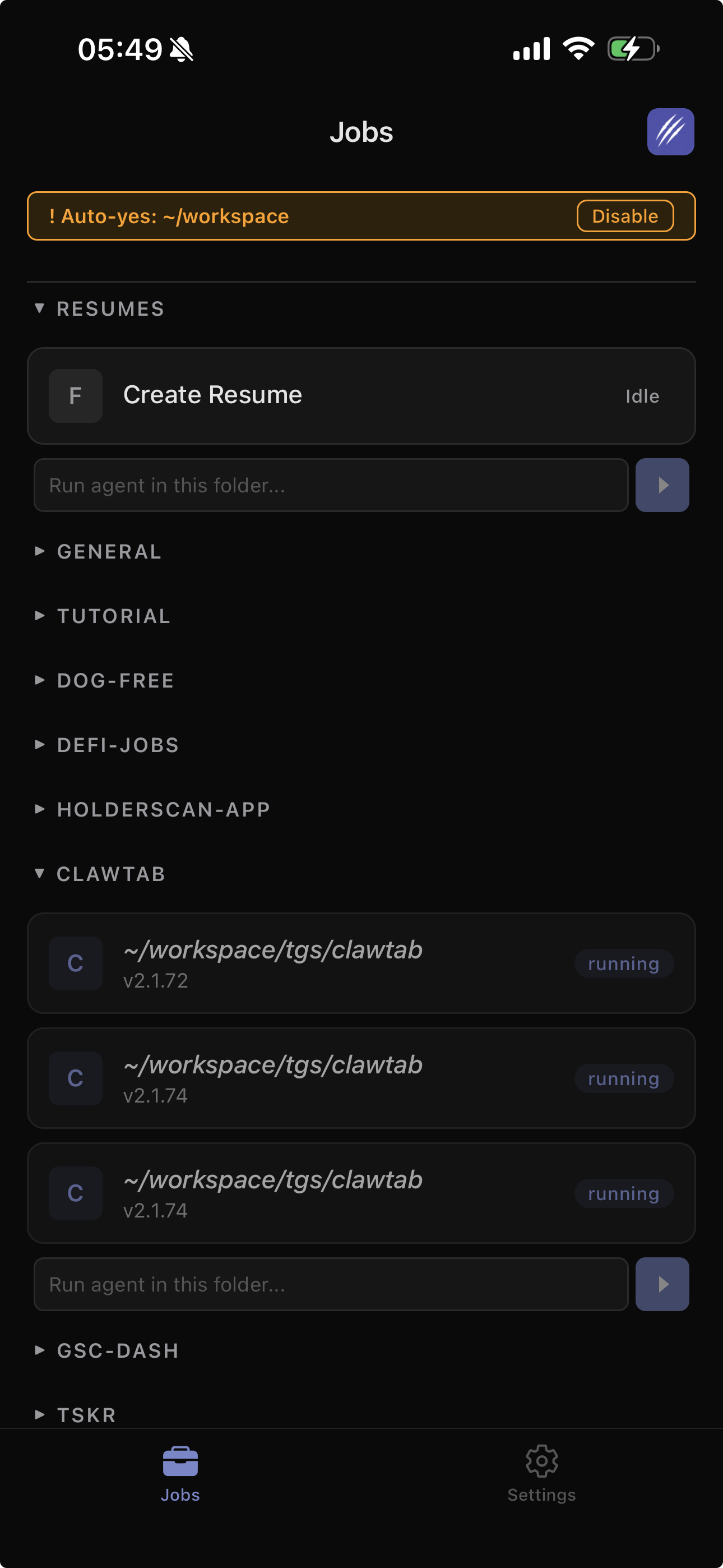
The auto-yes banner shows which panes are in auto-accept mode with a disable button for each
Migration Paths
If you're currently using one approach and want to add the other, here's what changes:
Create jobs for your agents in ClawTab. They'll run in tmux sessions with auto mode active.
Connect your phone for remote monitoring. You now get push notifications for any prompts that the classifier blocks.
Enable auto-yes on specific panes where you want to override classifier blocks. Most of the time, auto mode handles things - auto-yes is your escape hatch.
Already using ClawTab auto-yes, adding auto mode:
Ensure your team is on a Claude Code Team plan
Have an admin enable auto mode in Claude Code admin settings
In your ClawTab job configs, auto mode activates when Claude Code starts in auto mode. ClawTab continues monitoring on top.
You may find you need auto-yes less often, since the classifier handles routine approvals. Keep auto-yes available for overnight jobs and high-volume swarms.
Currently using --dangerously-skip-permissions:
Switch to auto mode for interactive sessions (you get safety screening for free) and ClawTab auto-yes for background automation (you get remote monitoring and per-pane control). Both are strictly better than blanket permission skipping.
Limitations and Caveats
Neither system is perfect. Understanding the limitations helps you choose the right one for each situation.
Auto mode limitations:
The safety classifier is a research preview. Anthropic warns it can miss edge cases - don't run it directly on production systems without backups.
Requires specific model versions (Sonnet 4.6, Opus 4.6) and a Team plan. Not available on personal plans, Haiku, or third-party providers.
No remote control. If the classifier blocks something while you're away from your desk, the agent stalls until you get back.
Per-session only. You can't have different permission policies for different tasks within the same session.
Auto-yes limitations:
No intelligent screening. Auto-yes accepts all permission prompts that match a "yes" pattern. It doesn't evaluate whether the action is safe or within scope.
macOS only. ClawTab is a macOS desktop app. Linux and Windows users can't use it (yet).
Requires tmux. Auto-yes works by reading tmux pane output and sending keystrokes. If you're not running Claude Code in tmux, auto-yes can't detect prompts.
Slight delay. Auto-yes polls every 500ms, so there's up to half a second between the prompt appearing and the keystroke being sent. In practice this is imperceptible.
Which Should You Choose?
Start with the simplest approach that fits your workflow:
Your Workflow
Recommended Approach
Interactive coding at your terminal
Auto mode alone
Interactive coding + want phone notifications
Auto mode + ClawTab monitoring (no auto-yes)
Scheduled background agents
ClawTab auto-yes + cron
Scheduled agents + maximum safety
Auto mode + ClawTab auto-yes as fallback
Multi-agent swarms with mixed policies
ClawTab auto-yes (per-pane control)
Team with shared agent workloads
Auto mode (org-wide) + ClawTab workspace sharing
CI/CD pipeline integration
--dangerously-skip-permissions in sandboxed container
The good news is these aren't permanent decisions. You can toggle auto mode per-session and auto-yes per-pane at any time. Start with one, add the other when your workflow demands it.
Frequently Asked Questions
Claude Code auto mode is a permission setting launched by Anthropic in March 2026 that uses an AI safety classifier to automatically approve routine actions (file writes, commands) while blocking risky ones (mass deletions, data exfiltration). It requires a Team plan and Claude Sonnet 4.6 or Opus 4.6. Enable it via claude --enable-auto-mode in the CLI or through VS Code settings.
ClawTab auto-yes automatically accepts Claude Code permission prompts for a specific tmux pane. It works by detecting numbered yes/no prompts in the terminal output and sending the 'Yes' keystroke. It's per-pane (not global), can be toggled remotely from your phone, and integrates with ClawTab's cron scheduler for background automation. Free and open source, works with any Claude Code version.
Yes. They operate at different layers and complement each other. Auto mode's AI classifier pre-screens actions before execution, while ClawTab auto-yes handles any prompts that still appear (including ones the classifier blocks). ClawTab adds remote monitoring, push notifications, and per-pane control on top of auto mode's safety screening.
No. Auto mode requires a Claude Code Team plan, with Enterprise and API support coming. It also requires Claude Sonnet 4.6 or Opus 4.6 - it's not available on Haiku, Claude 3 models, or third-party providers like AWS Bedrock or Google Vertex AI. ClawTab auto-yes is free and open source with no plan or model restrictions.
Not directly. Auto mode requires an active Claude Code session, so it doesn't integrate with external schedulers. For scheduled background agents, use ClawTab's built-in cron scheduler with auto-yes mode, which can run agents unattended on a schedule with remote monitoring from your phone.
In the CLI, run claude --enable-auto-mode, then use Shift+Tab to cycle to auto mode during a session. In VS Code, toggle it in Claude Code settings and select it from the permission mode dropdown. An admin must first enable auto mode in Claude Code admin settings for your organization.
There are three ways: (1) From the ClawTab mobile app or remote.clawtab.cc, tap the red 'Yes all' button when an agent asks a permission question. (2) From the desktop app's Jobs tab, click the auto-yes toggle for a pane. (3) From tmux, press prefix + y with the ClawTab tmux plugin installed.
Auto mode is safer per-action because it uses an AI classifier to evaluate each action before execution. Auto-yes accepts all yes/no prompts without evaluating the action's safety. However, auto-yes offers more operational safety through per-pane isolation (different policies per agent), remote monitoring (push notifications when agents need attention), and instant disable from any device. The safest setup is both together: auto mode for action-level screening, auto-yes as a controlled fallback.
For most use cases, yes. Auto mode gives you hands-free operation with a safety classifier, which is strictly better than disabling all permission checks. The exception is CI/CD pipelines running in sandboxed containers, where --dangerously-skip-permissions is still the simplest option since there's no user to interact with and the blast radius is contained.
Yes, with ClawTab. The mobile app shows permission prompts as tappable notification cards. You can approve individual prompts, enable auto-yes for a pane, or disable auto-yes - all from your phone. Claude Code auto mode does not support remote control. Install ClawTab via Homebrew: brew install --cask tonisives/tap/clawtab.