Why Run Multiple Claude Code Agents in Parallel?
A single Claude Code agent handles one task at a time. That's fine for interactive work - you type a prompt, watch it think, review the result. But some jobs are inherently parallel. You need to migrate 12 microservices to a new API. You want to generate tests across four packages simultaneously. You're reviewing PRs across three repos before standup.
This article focuses on the 10+ agent end of the spectrum - the swarm. If you are looking for the everyday 4-8 Claude Code parallel agents pattern with git worktrees and tmux panes, the sibling guide covers that case in detail.
Running these sequentially means waiting hours for work that could finish in minutes. Each agent spends most of its time on I/O - reading files, calling APIs, writing output - not burning CPU. Your machine can easily handle 6, 8, or 10 agents at once.
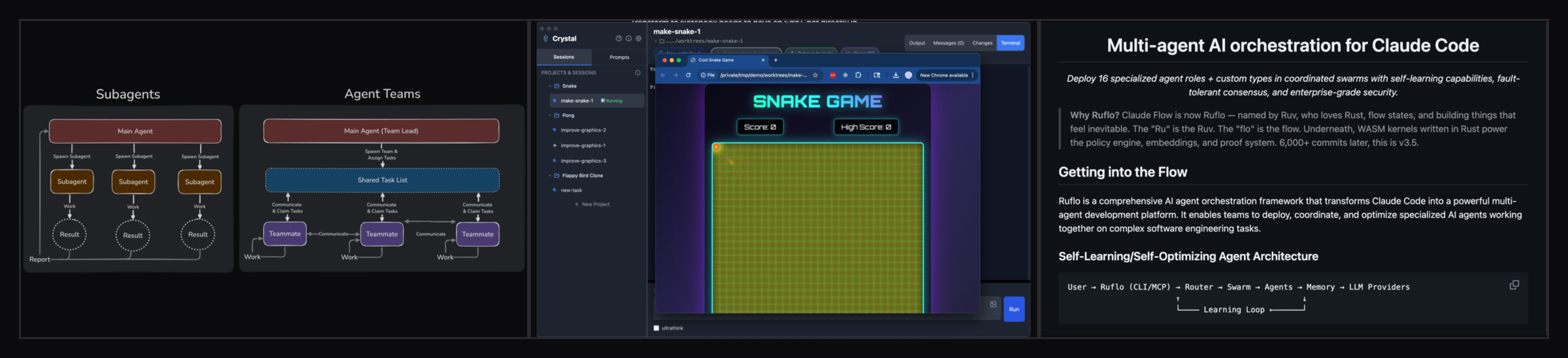
Claude Code now has experimental Agent Teams (swarm mode) that coordinates multiple instances with a team lead pattern, each working in isolated git worktrees. Agent Teams is powerful for interactive, task-decomposed work where one lead agent delegates subtasks. But it requires an active terminal session and doesn't support scheduled runs, remote monitoring, or per-agent auto-yes.
ClawTab takes a different approach to multi-agent orchestration. Instead of a lead/worker hierarchy, each agent runs independently in its own tmux pane with its own schedule, secrets, and auto-yes policy. You monitor all of them from your phone, get push notifications when any agent needs attention, and control them remotely. This makes ClawTab better suited for background automation - migration swarms, scheduled reviews, and overnight jobs - while Agent Teams excels at interactive, coordinated coding sessions.
How Does tmux Pane Splitting Work in ClawTab?
ClawTab runs every agent job inside a tmux session. When you create a job targeting a specific tmux window, ClawTab launches a new pane in that window. When a second job targets the same window, ClawTab doesn't create a new window - it splits the existing one into a new pane.
This happens automatically. You don't configure pane layouts or manage tmux sessions yourself. ClawTab handles the split, assigns each pane its own run ID and monitoring task, and starts polling for output.
Under the hood, each pane gets:
- Its own run_id - a unique identifier for the job execution, used to track history and logs
- A dedicated monitoring task - a Tokio async task that polls the pane's terminal buffer every 2 seconds for new output
- A fast exit poller - a separate poller running every 200ms that detects when the agent process exits, so completions are caught nearly instantly
- Independent auto-yes state - each pane can have auto-yes enabled or disabled independently
Jobs run concurrently via Tokio's async runtime with unbounded spawning. There's no hard limit on concurrent panes from ClawTab's side - the constraint is your machine's memory and the Claude API rate limits on your account.
Setting Up a Swarm of Agents
There are two ways to launch a swarm: manually from the UI, or with scheduled jobs that fire simultaneously.
Manual launch:
- Open ClawTab from your menu bar
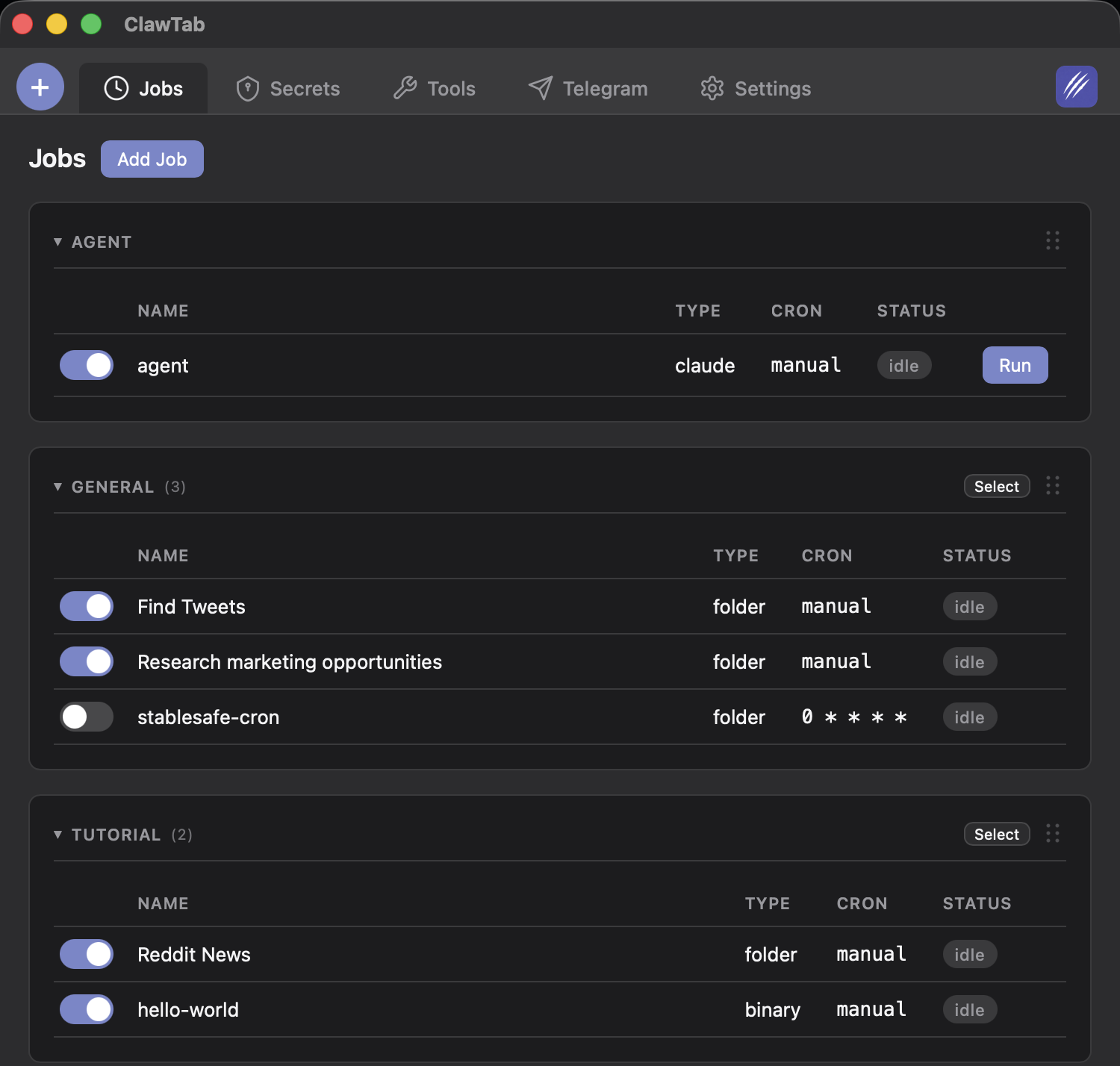
- Create multiple jobs targeting the same tmux window, each with a different prompt or project path
- Click "Run Now" on each one - ClawTab splits a new pane for each job automatically
Scheduled swarm with cron:
- Create multiple Claude or Folder jobs with the same cron expression (e.g.,
0 9 * * 1-5) - Point them at the same tmux window but different project directories or prompts
- When the cron fires, all jobs launch simultaneously into adjacent panes
You can also use centralized workflow configs to define swarm configurations per project. Each job can have its own prompt file, secrets, and schedule - but they all launch in the same tmux session when triggered together.
# Example: three agents targeting the same tmux window
# Job 1 - migrate auth service
job_type: claude
tmux_window: swarm
path: ~/workspace/auth-service
prompt: migrate-to-v3.txt

# Job 2 - migrate billing service
job_type: claude
tmux_window: swarm
path: ~/workspace/billing-service
prompt: migrate-to-v3.txt

# Job 3 - migrate notification service
job_type: claude
tmux_window: swarm
path: ~/workspace/notification-service
prompt: migrate-to-v3.txt
All three agents run in separate panes within the "swarm" tmux window. Each has its own working directory, its own Claude Code session, and its own output stream.
How Do I Monitor Multiple Agents From My Phone?
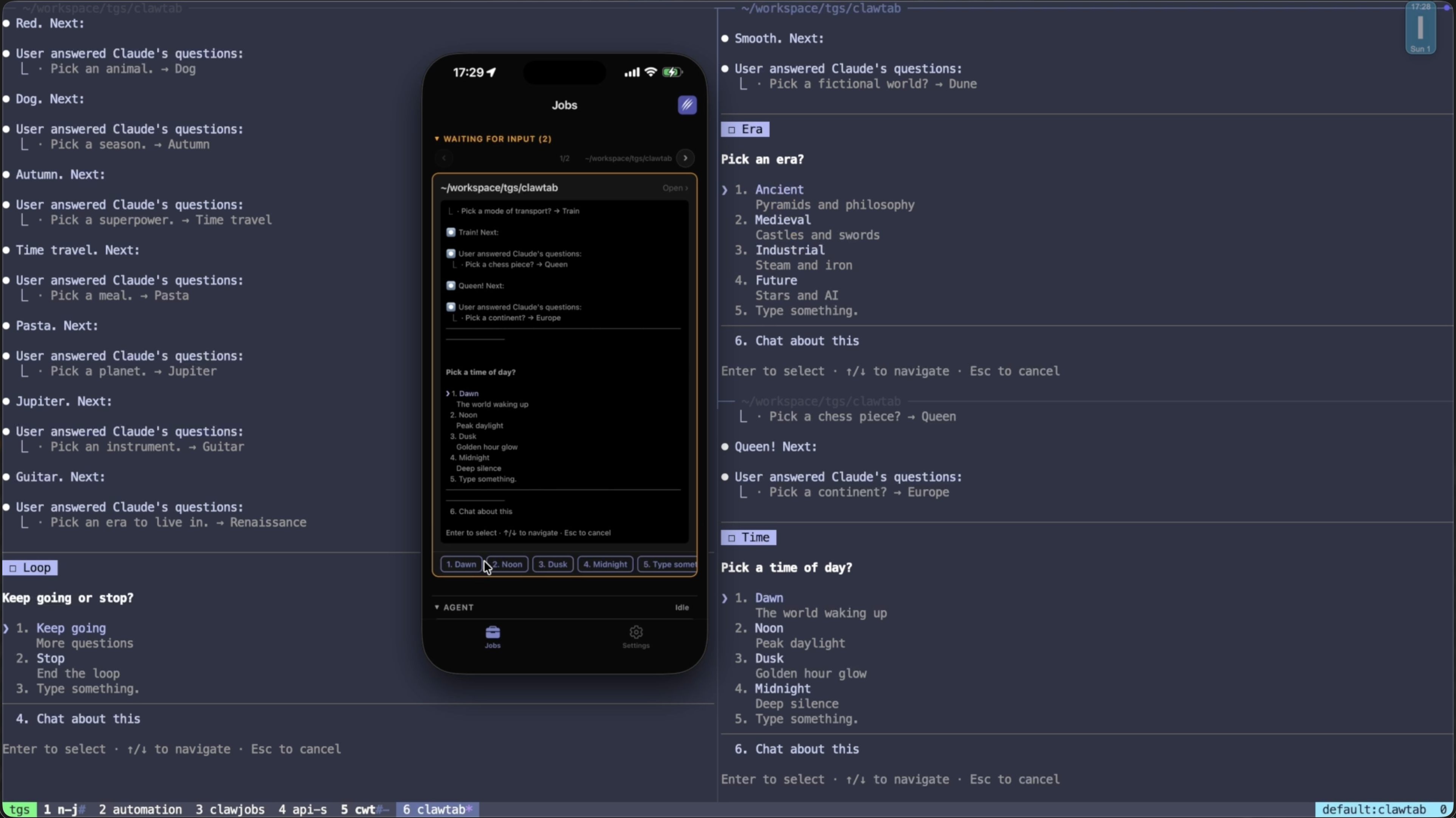
Monitoring a swarm from your desk means squinting at tiny tmux panes. Monitoring from your phone with ClawTab Remote is actually easier - each agent appears as a separate job in your jobs list, with its own status, log stream, and notification cards.
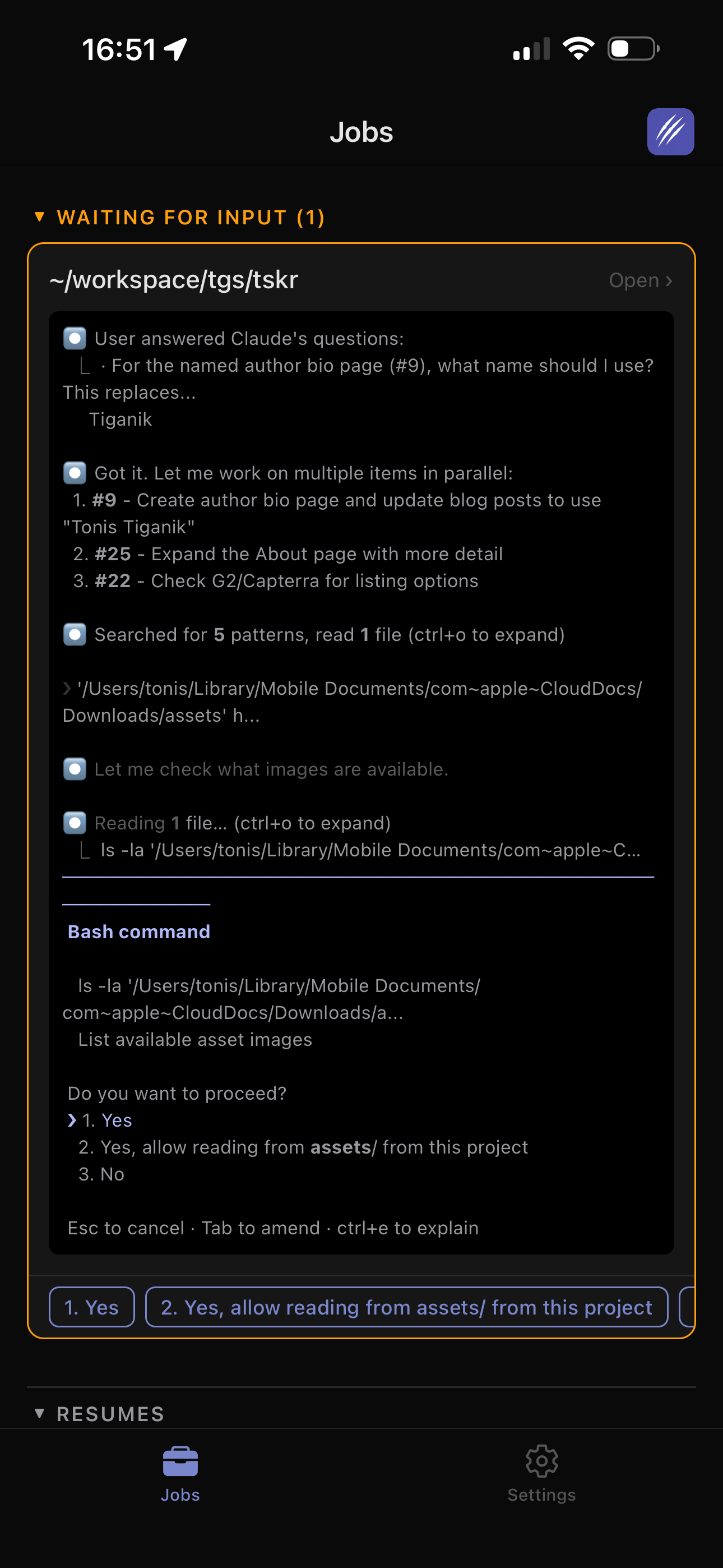
When any agent in the swarm asks a question, you get a push notification identifying which pane and which project. Tap it to see the full context and respond. The other agents keep working while you answer.
The jobs list on your phone shows all running agents at a glance:
- Agent status (running, waiting for input, completed, failed)
- Last output line as a preview
- Time elapsed since the job started
- Which panes have auto-yes enabled
You can also stream live logs from any individual agent by tapping into it. The log view shows the full terminal output, scrollable and searchable.
For teams, workspace sharing lets colleagues see and respond to your swarm's agents. Useful when you're running a large migration and want someone else to handle questions while you focus on reviewing the output.
If you prefer asynchronous monitoring, Telegram integration sends batched log output and completion alerts to a Telegram chat. The bot waits for natural pauses in agent output before sending, so you get readable summaries instead of a flood of messages.
Auto-Yes Mode for Unattended Swarms
A swarm of 8 agents will generate a lot of permission prompts. Claude Code asks before writing files, running commands, and installing packages. Manually approving each prompt across 8 agents is a full-time job - and defeats the purpose of running them in parallel.
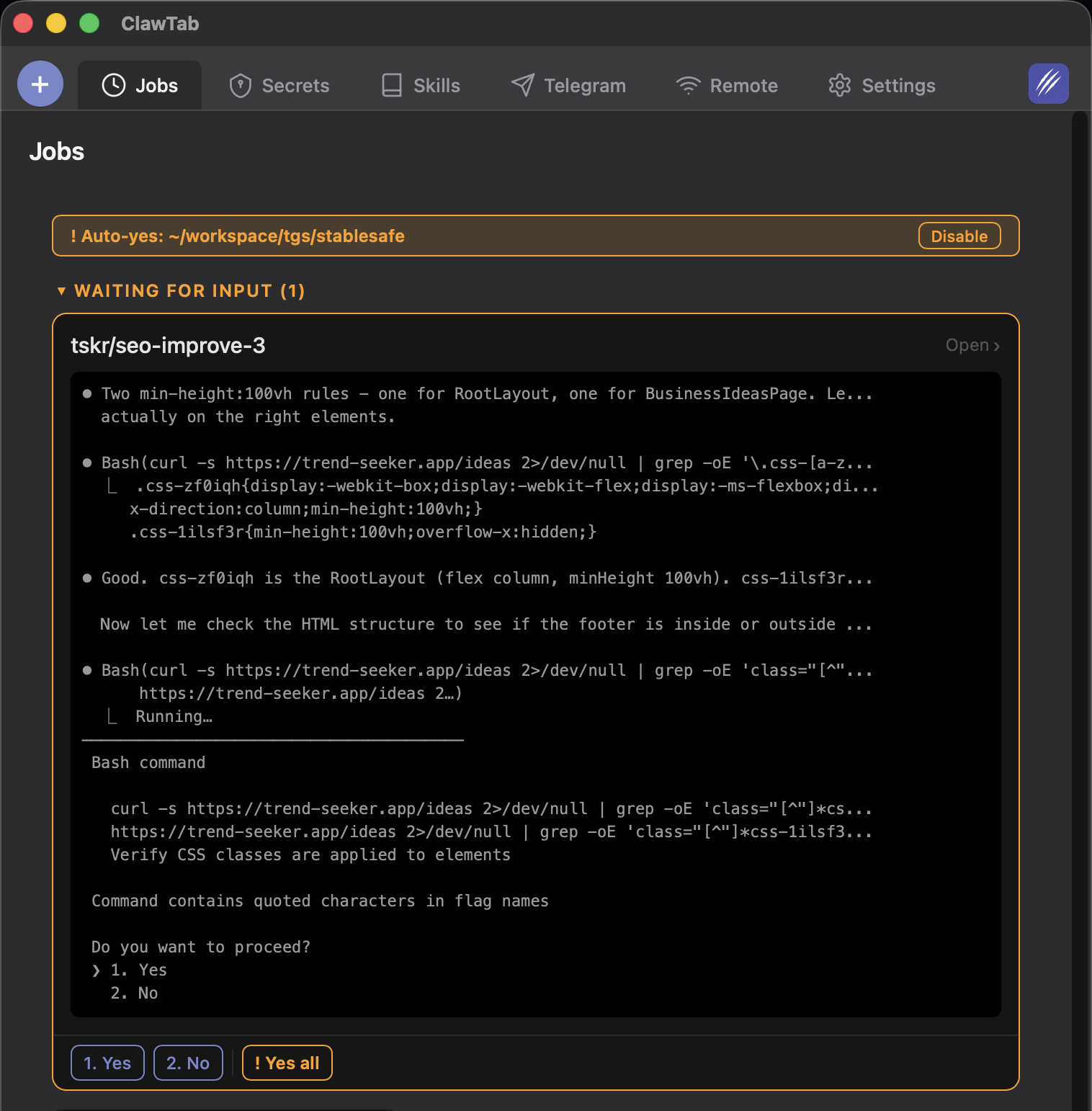
Auto-yes mode solves this. Enable it per-pane, and ClawTab automatically accepts permission prompts for that agent. The detection runs at double polling speed (every 500ms) and picks the most conservative "yes" option available - preferring "Yes, during this session" over a blanket "Yes".
The recommended pattern for swarms:
- Enable auto-yes on agents doing well-defined, repetitive work (migrations, test generation, formatting)
- Keep manual approval on agents doing exploratory or high-risk work (architecture changes, production deploys)
You can toggle auto-yes for individual panes from your phone at any time. The auto-yes banner at the top of the jobs list shows exactly which panes are in auto-accept mode, with a disable button for each one.
Practical Swarm Patterns
Here are concrete swarm configurations that work well in production:
Migration swarm. You're upgrading an API version across multiple services. Each agent gets the same migration prompt but a different service directory. They run independently since each service is a separate codebase. Launch 5-10 agents at once, enable auto-yes on all of them, and review the PRs when they finish.
Test generation swarm. Point agents at different packages within a monorepo, each with a prompt to generate unit tests for untested functions. Agents won't conflict because they're writing to different directories. Good candidate for auto-yes since test files are low-risk writes.
Multi-repo code review. Schedule agents across your team's active repos to review open PRs every morning. Each agent runs in its own pane, reads the repo's PRs via GitHub API, and posts review comments. Assign a GITHUB_TOKEN via secrets management so each agent can authenticate.
Refactor + test + lint pipeline. Three agents on the same repo, staggered by a few minutes: one refactors, one generates tests for the changed code, one runs the linter and fixes violations. Use cron offsets (e.g., 0 9, 10 9, 20 9) to sequence them loosely.
| Pattern | Agents | Auto-Yes | Conflict Risk | Best For |
|---|---|---|---|---|
| Migration swarm | 5-10 | Yes | None (separate repos) | API upgrades, dependency bumps |
| Test generation | 3-6 | Yes | Low (separate dirs) | Coverage gaps, new modules |
| Multi-repo review | 3-8 | No | None (read-only) | Morning PR reviews |
| Staggered pipeline | 2-3 | Mixed | Medium (same repo) | Refactor chains |
Resource Management and Rate Limits
Running multiple Claude Code agents hits real constraints. Here's what to watch for and how to manage it:
Claude API rate limits. Each agent makes API calls to Anthropic's Claude API. Your account has a requests-per-minute and tokens-per-minute limit. Running 10 agents simultaneously can exhaust your rate limit quickly, causing agents to stall or fail. Start with 3-4 agents and increase based on your plan's limits. The Anthropic rate limits documentation has the current numbers for each tier.
Memory. Each Claude Code process consumes 200-500MB of RAM depending on context size. Ten agents means 2-5GB. Monitor with htop or Activity Monitor and adjust your swarm size accordingly. macOS will start swapping aggressively past 90% memory usage, which slows everything down.
tmux buffer size. Each pane's scrollback buffer grows as the agent produces output. Long-running agents can accumulate large buffers. ClawTab reads the visible terminal content for monitoring, not the full history, so buffer size doesn't affect polling performance - but it does consume memory. Consider setting set-option -g history-limit 5000 in your ~/.tmux.conf to cap it.
File system contention. Agents writing to the same repository at the same time will cause git conflicts. The safest pattern is one agent per repository, or agents that write to non-overlapping directories within a monorepo. If you must have multiple agents on the same repo, use separate branches.
| Resource | Per Agent | Recommendation |
|---|---|---|
| RAM | 200-500 MB | Keep total under 80% of system memory |
| API rate limit | Varies by plan | Start with 3-4 agents, scale up gradually |
| tmux buffer | ~1-5 MB | Set history-limit to 5000 lines |
| CPU | Low (I/O bound) | Not usually the bottleneck |
The polling overhead from ClawTab itself is minimal. Each pane adds one async task reading terminal output every 2 seconds, plus the 200ms exit poller. Even with 20 panes, the total polling load is negligible.