Why Use Telegram for Claude Code Agent Notifications?
When you're running Claude Code agents on long tasks - refactoring a codebase, running migrations, or batch-processing files - you need to know when they finish, fail, or ask a question. You could sit at your desk watching, but that defeats the purpose of automation.
Telegram solves this with zero friction. It's always on, works on every platform (phone, tablet, desktop, web), and doesn't require installing another app if you already use it. Unlike email notifications, Telegram messages arrive instantly. Unlike custom mobile apps, there's no build-to-deploy cycle - you just create a bot and start receiving messages.
ClawTab's Telegram integration goes beyond simple "job done" alerts. It streams live output from your agents, shows working indicators so you know the agent is still active, and even lets you trigger and control jobs by sending commands to your bot. Think of it as a lightweight remote control for your agent fleet that lives in your existing chat app.
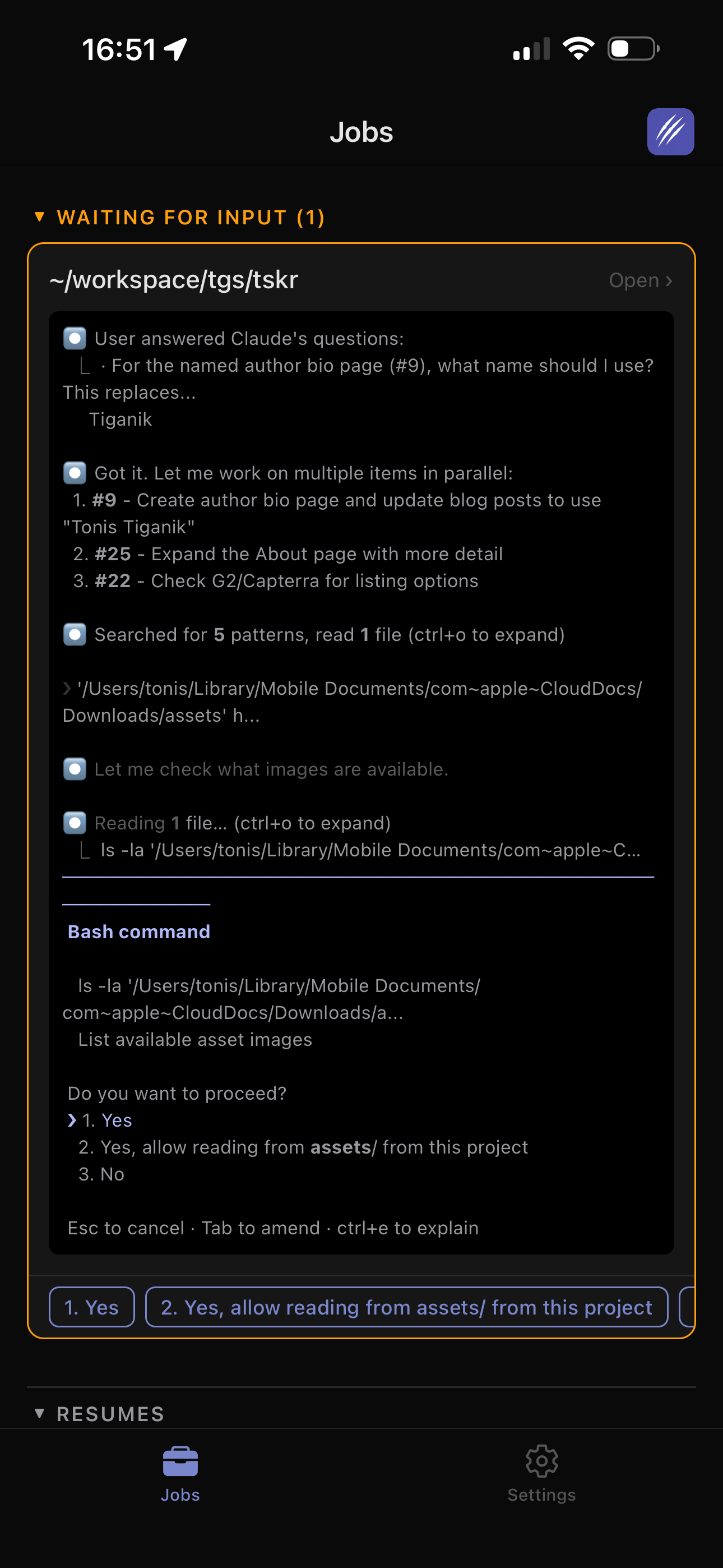
If you already use ClawTab Remote on your phone, Telegram adds a complementary channel - one that works even when the Remote app isn't open, integrates with Telegram's native notification system, and lets you route different jobs to different chats or groups.
How Do You Set Up a Telegram Bot for ClawTab?
ClawTab includes a guided setup wizard that walks you through the process in two steps. The whole thing takes about two minutes.
Step 1: Create your bot
- Open @BotFather in Telegram - this is Telegram's official tool for creating bots
- Send
/newbotand follow the prompts to pick a name and username for your bot - BotFather gives you a bot token (a long string like
123456:ABC-DEF...) - copy it - Paste the token into ClawTab's Telegram setup panel - it validates automatically and shows your bot's username on success
Step 2: Connect your chats
- Click "Open @your_bot_username" in ClawTab to jump to your bot in Telegram
- Send
/startto the bot (or add the bot to a group chat if you want team notifications) - ClawTab polls for messages and auto-detects your chat ID within seconds
- The chat appears in the "Connected chats" list with a Test button
- Name each chat (e.g. "Personal", "Team") for easy identification later
- Click Test to verify - you should see a test message arrive in Telegram
You can connect multiple chats. ClawTab polls for new chats every 3 seconds for up to 30 seconds, and you can click Refresh to poll again. This is useful if you want separate chats for different projects or teams.
Configuring ClawTab for Telegram Notifications
The setup wizard writes everything to your settings.yaml automatically. Here's what the configuration looks like:
telegram:
bot_token: "123456:ABC-DEF..."
chat_ids: [12345678, 87654321]
chat_names:
  "12345678": "Personal"
  "87654321": "Team"
notify_on_success: true
notify_on_failure: true
agent_enabled: true
The key settings:
- bot_token - your bot's API token from BotFather
- chat_ids - list of Telegram chat IDs that receive notifications by default
- chat_names - human-readable labels for each chat ID
- notify_on_success / notify_on_failure - toggle completion and failure alerts independently
- agent_enabled - enable bot command processing for remote job control
You can edit these values directly in settings.yaml or use the checkboxes in the Telegram panel's Notifications section. The GUI and the config file stay in sync.
How Does Log Streaming to Telegram Work?
For tmux-based jobs (Claude Code agents, folder watchers), ClawTab captures pane output every 2 seconds and relays new lines to Telegram. But it doesn't just dump every line as a separate message - that would flood your chat. Instead, it batches output intelligently.
Three relay modes are available per job:
- off - no output relay, only start/completion notifications
- always - every new output chunk is sent as it arrives
- on_prompt - output is buffered and sent when the agent goes idle (waiting for user input). This is the most useful mode for Claude Code agents because you get complete, readable chunks instead of fragmented lines
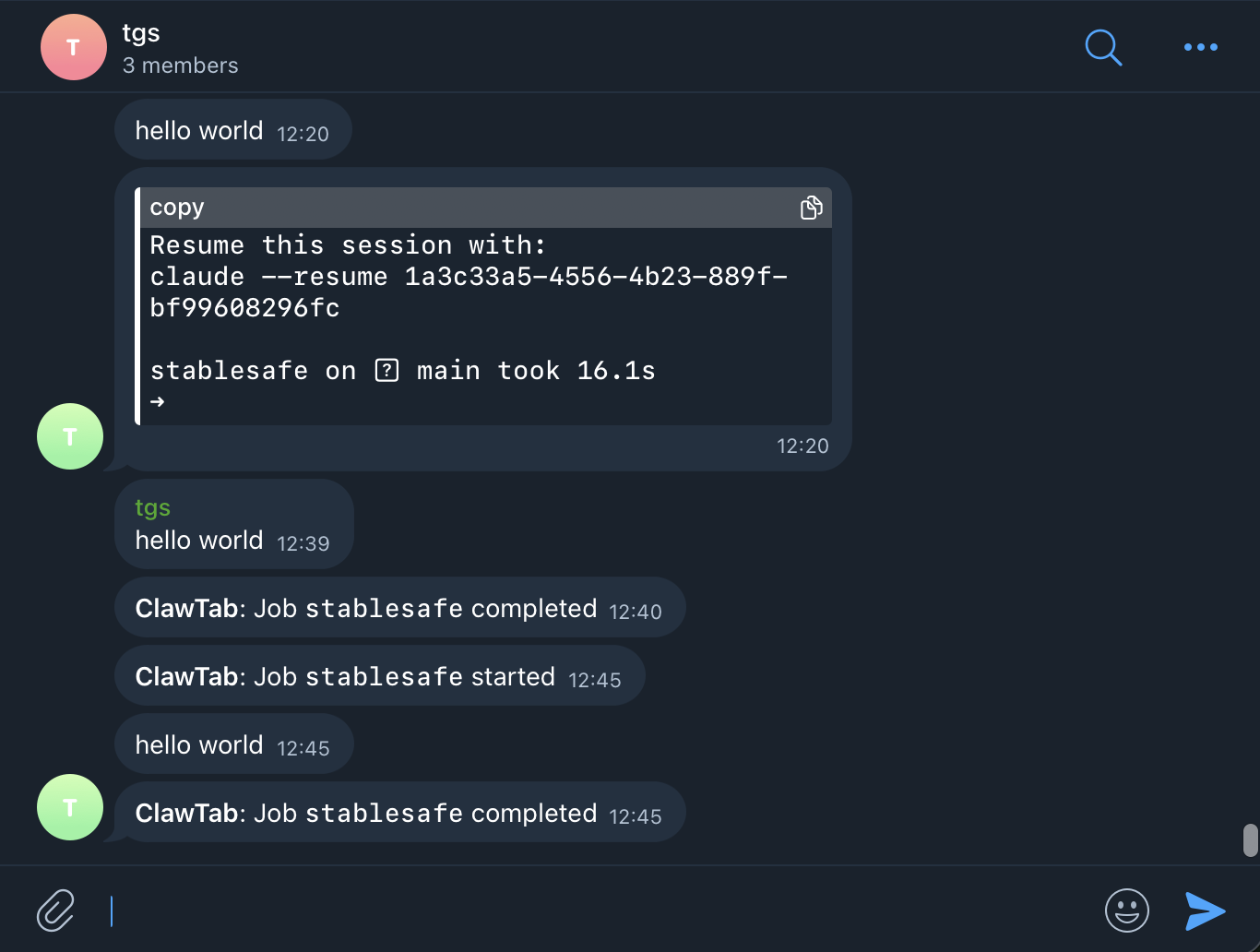
While the agent is actively working, ClawTab shows a working indicator - it updates a Telegram message with the elapsed time every 8 seconds. This tells you the agent is still running without spamming your chat with partial output.
When the agent pauses (to ask a question, wait for input, or finish thinking), ClawTab sends the buffered output as a single message. The result is a clean conversation in your Telegram chat: a "working..." indicator that ticks up, followed by the actual output when there's something meaningful to read.
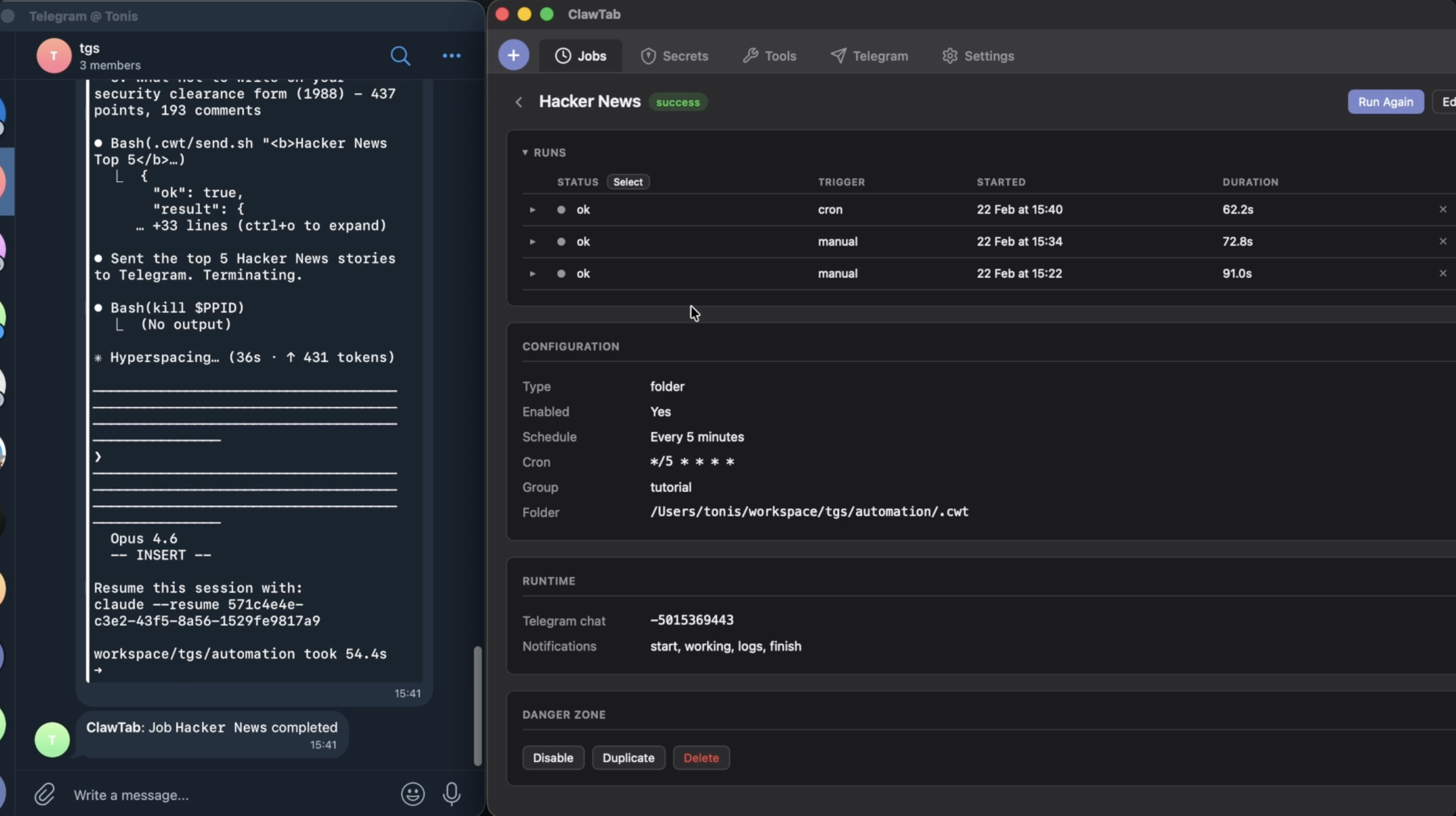
Completion and Failure Notifications
The most basic notification type: know when a job finishes. ClawTab sends a message to all configured chat IDs (or a job-specific chat if you've set one) when a job completes or fails:
ClawTab: Job daily-backup completed
ClawTab: Job deploy failed (exit 1)
Toggle these independently with Notify on job success and Notify on job failure in the Notifications section. Most people want failure alerts always on and success alerts for important jobs only.
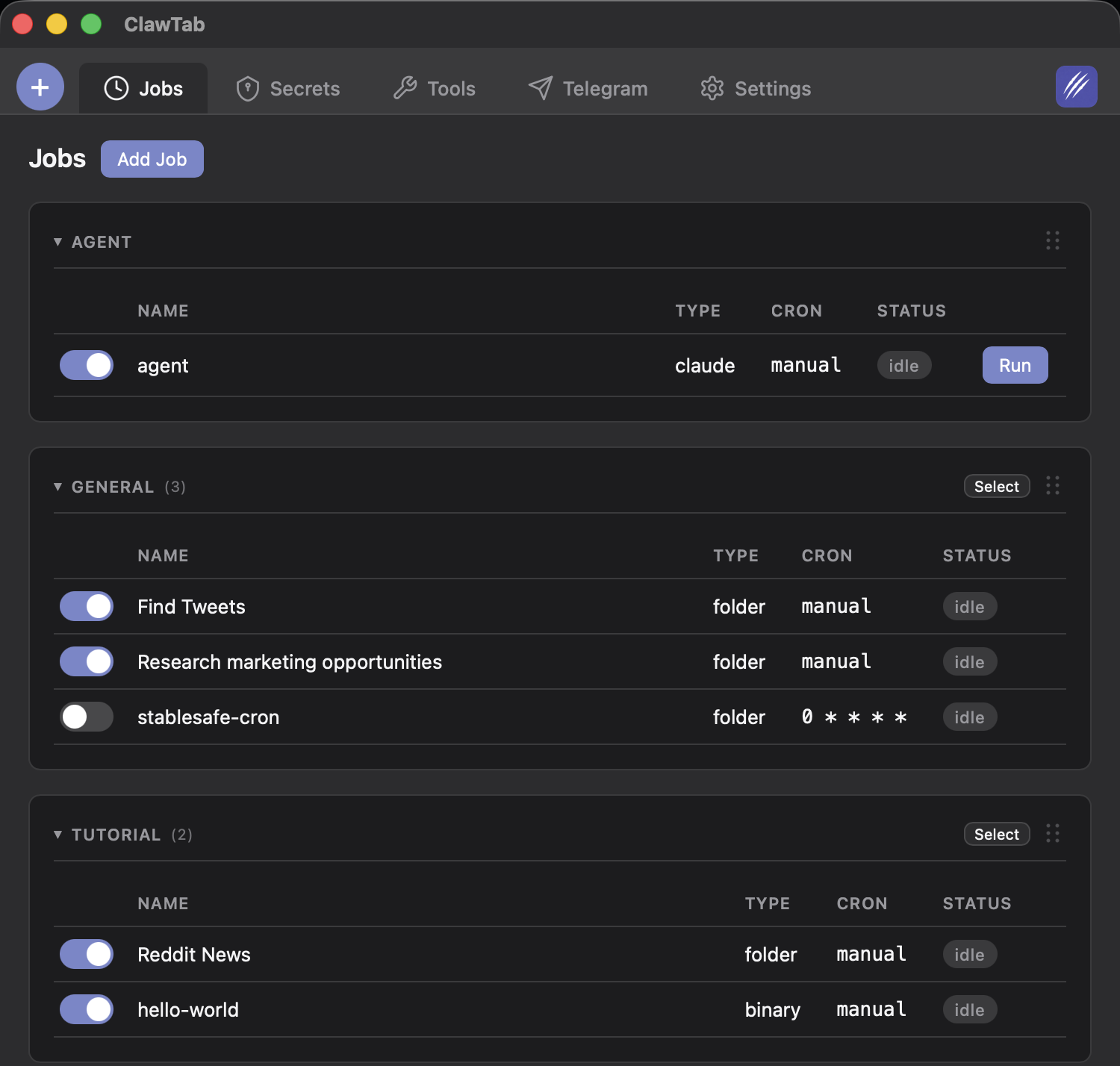
These notifications work for all job types - cron-scheduled jobs, one-off runs, and agent sessions. Combined with the output relay, you get a complete picture without opening the desktop app or ClawTab Remote.
How Can You Control Jobs From Telegram?
When agent_enabled: true is set, ClawTab polls for incoming Telegram messages and responds to slash commands. Only messages from authorized chat_ids are processed - random people can't control your agents even if they find your bot.
Available commands:
/helpor/start- show available commands/jobsor/list- list all jobs with their type, cron schedule, and enabled status/status- show all job statuses with timestamps/run <name>- trigger a job by name/pause <name>- pause a running job/resume <name>- resume a paused job
The agent uses long-polling with a 30-second timeout, polling every 8 seconds. This means commands are picked up within seconds of sending them. During Telegram setup in the GUI, agent polling pauses automatically to avoid competing for Telegram's getUpdates endpoint, and resumes when setup completes.
This is particularly useful for cron-scheduled jobs that you occasionally need to trigger manually - just send /run deploy-staging from your phone without opening any app.
Per-Job Notification Routing
Not every notification belongs in the same chat. You might want personal agent updates in a private chat and deployment notifications in a team group. ClawTab supports this with per-job routing.
Set telegram_chat_id on any job to route its notifications to a specific chat instead of the global chat_ids list. When a job has a telegram_chat_id set, ClawTab auto-injects the TELEGRAM_BOT_TOKEN environment variable so the job's scripts can also send custom messages.
When Telegram is configured, the bot token is injected as an environment variable. Your job prompts can instruct the agent to send arbitrary messages to Telegram during execution - progress updates, error details, or links to artifacts.
This per-job routing combined with multiple connected chats gives you a flexible notification architecture. Route noisy development agents to a muted chat, critical production jobs to a high-priority group, and personal experiments to your private chat with the bot.
Telegram vs ClawTab Remote: Which Should You Use?
ClawTab has two notification channels, each with different strengths. Here's how they compare:
| Feature | Telegram | ClawTab Remote |
|---|---|---|
| Setup time | 2 minutes | Sign in |
| Live output streaming | Yes (batched) | Yes (real-time) |
| Working indicators | Yes | Yes |
| Answer agent questions | No | Yes |
| Trigger jobs remotely | Yes (bot commands) | Yes |
| Auto-yes control | No | Yes |
| Team/group notifications | Yes (group chats) | Via sharing |
| Per-job routing | Yes | N/A |
| No extra app needed | If you use Telegram | Web or native app |
| Works offline/background | Yes | Push notifications |
Use Telegram when you want lightweight, always-on notifications without opening a dedicated app. It's great for teams that already use Telegram, for routing notifications to group chats, and for triggering jobs via simple bot commands.
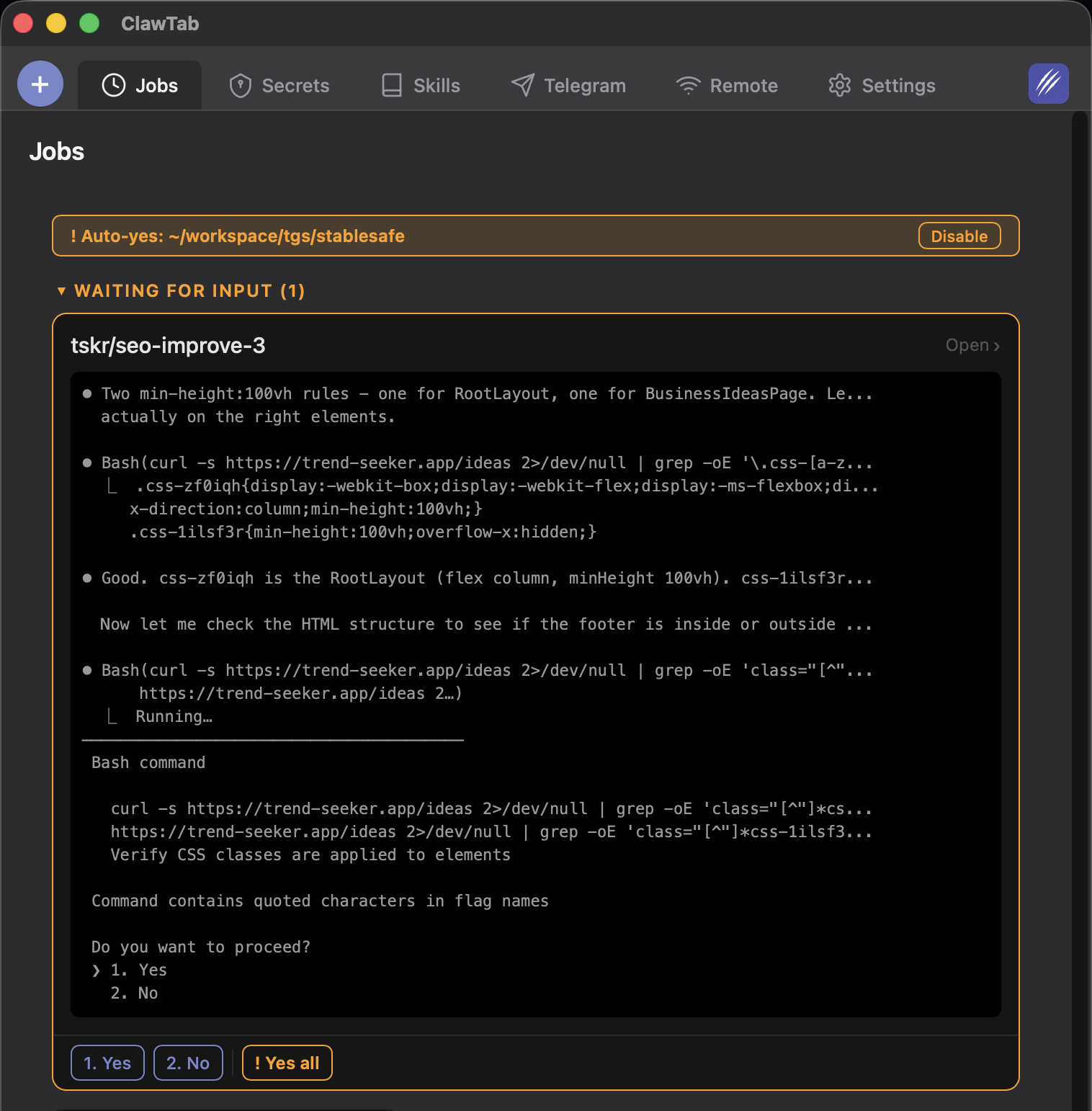
Use ClawTab Remote when you need full interactive control - answering agent questions, viewing live terminal output, enabling auto-yes mode, or managing multiple panes. Remote is the richer experience.
Use both for the best coverage. Telegram catches you when you're not actively monitoring, and Remote gives you full control when you need to intervene.