Why Share Your Workspace?
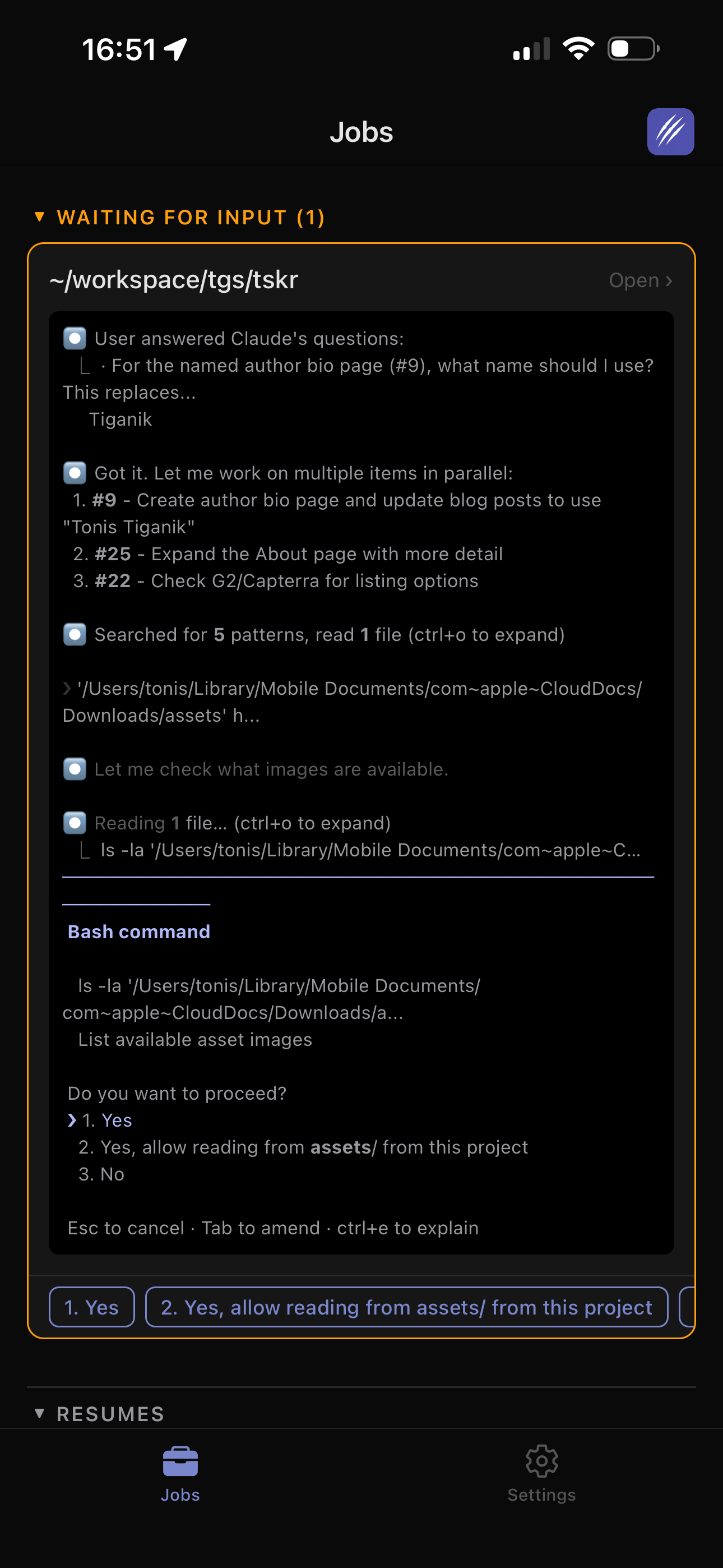
You're running a fleet of Claude Code agents on a big migration. You step away for lunch. Your colleague sees an agent stall on a permissions question, taps "Yes" from their phone, and the agent keeps working. No Slack message, no waiting, no context switch.
Workspace sharing lets a trusted person monitor and interact with your ClawTab desktop as if it were their own. They see your jobs, your agent questions, your desktop status - all in real time through the same relay connection you already use for remote access.
This is useful for:
- Pair programming - a colleague can monitor and respond to your agents while you focus on something else
- On-call handoff - share access with whoever is covering, revoke it when the shift ends
- Team leads - keep an eye on multiple developers' agent workloads from one phone
- Assistants and delegates - let someone manage your automated tasks without giving them your credentials
How It Works
The sharing system is built on top of the existing relay infrastructure. When you share your workspace with someone, the relay server starts forwarding your desktop's messages to their mobile connection in addition to yours.
Here's the flow:
- You enter your colleague's email in Settings > Shared Access
- The relay server looks up their account and creates a share link in the database
- Next time they open the mobile app, they see your desktop alongside their own
- Your agent questions, job statuses, and desktop online/offline status all appear on their device
- They can answer questions and send commands that route to your desktop
The guest doesn't need any special setup. They just sign in with their existing ClawTab account and your shared workspace appears automatically.
Setting Up Shared Access
Open the ClawTab mobile app (or remote.clawtab.cc) and go to Settings. Scroll to the "Shared Access" section.
Type the email address of the person you want to share with and tap "Share". That's it. They'll see your workspace next time they connect.
The settings page shows two lists:
- Shared by me - people you've given access to. You can remove any of them at any time.
- Shared with me - workspaces others have shared with you. You can leave any of these.
Both the owner and the guest can revoke the share. There's no approval flow or pending state - sharing is immediate.
What Guests Can Do
A guest with shared access has the same view as the workspace owner's mobile app:
- See desktop status - online/offline indicator for each paired machine
- View agent questions - Claude Code questions appear as tappable cards, just like for the owner
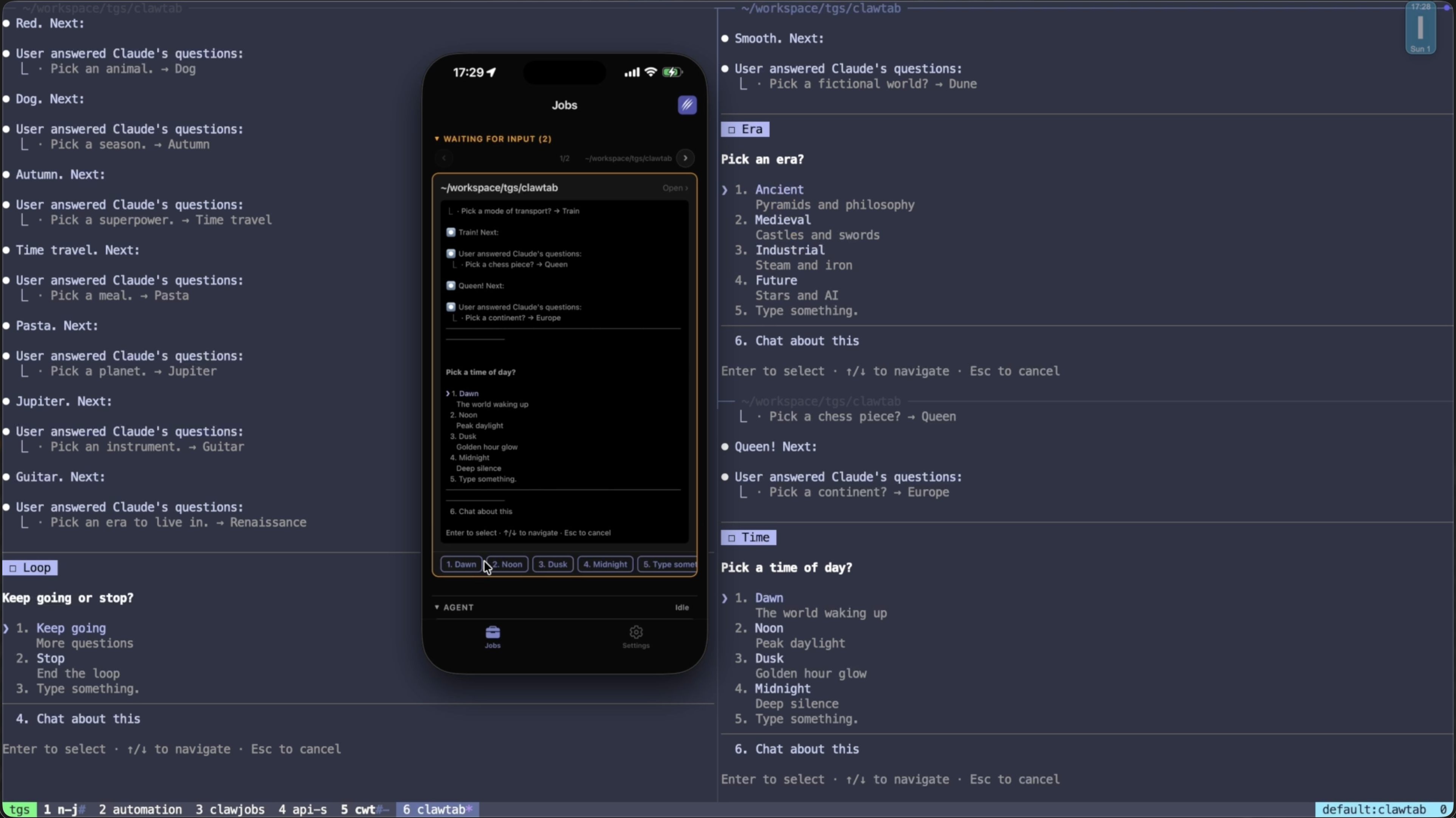
- Answer questions - tap a response and it goes straight to the owner's tmux pane
- Send commands - run jobs, pause, resume, stop, send input
- Stream logs - live output from running jobs
Guests cannot modify sharing permissions, manage devices, or change account settings. They interact with the workspace, not the account.
Architecture and Security
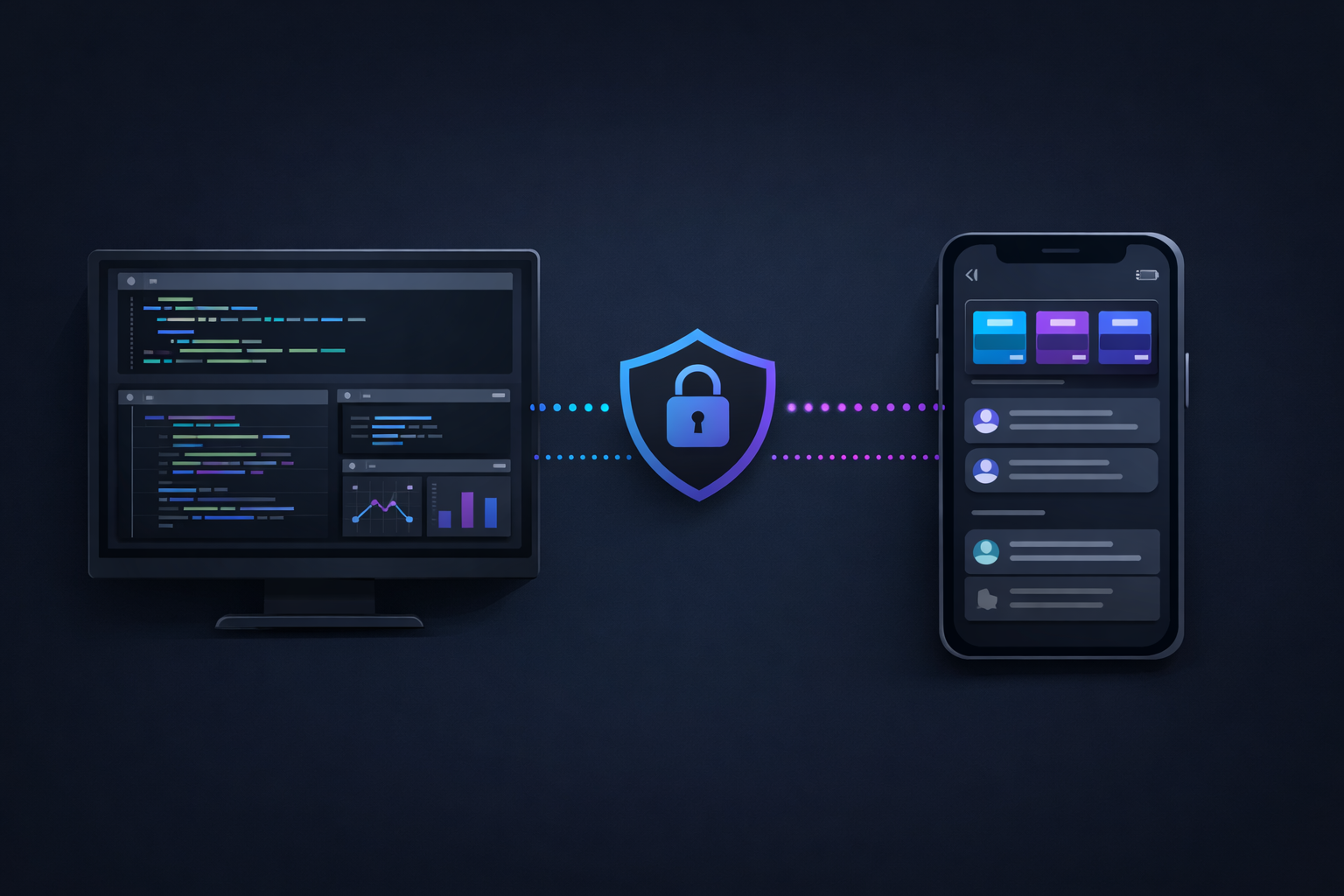
Sharing doesn't create new credentials or tokens. It works at the relay's message routing layer:
- The
workspace_sharesdatabase table tracks owner/guest relationships - When a desktop connects, the relay looks up its shared guests and includes them in message forwarding
- When a guest's mobile connects, the relay replays the owner's desktop state (online status, cached questions, auto-yes panes)
- Guest commands are routed to the owner's desktop through the same WebSocket protocol
The share relationship is stored by user ID, not by device. If the owner has multiple paired desktops, the guest sees all of them.
Security properties:
- No credential sharing - guests authenticate with their own account. No passwords or tokens are exchanged.
- Instant revocation - removing a share takes effect on the next connection. No tokens to rotate.
- Both parties can revoke - either the owner or the guest can end the relationship.
- Self-share prevention - the database enforces that you can't share with yourself.
- Relay is stateless - sharing relationships are queried from the database on each connection, not cached in memory.
Use Cases
Team agent monitoring. A tech lead shares their workspace with two senior engineers. When the lead kicks off a batch of refactoring agents before a meeting, the engineers can handle any questions that come up without interrupting the meeting.
On-call rotation. The person on-call gets shared access to the CI/CD agent workspace. When nightly deploy agents hit an issue, whoever is on-call can respond from their phone. Share access rotates with the on-call schedule.
Async collaboration. You share your workspace with a colleague in a different timezone. While you sleep, they can keep your agents running by answering questions as they come in. You wake up to completed tasks instead of stalled agents.