The Problem: Too Many Agents, Not Enough Visibility
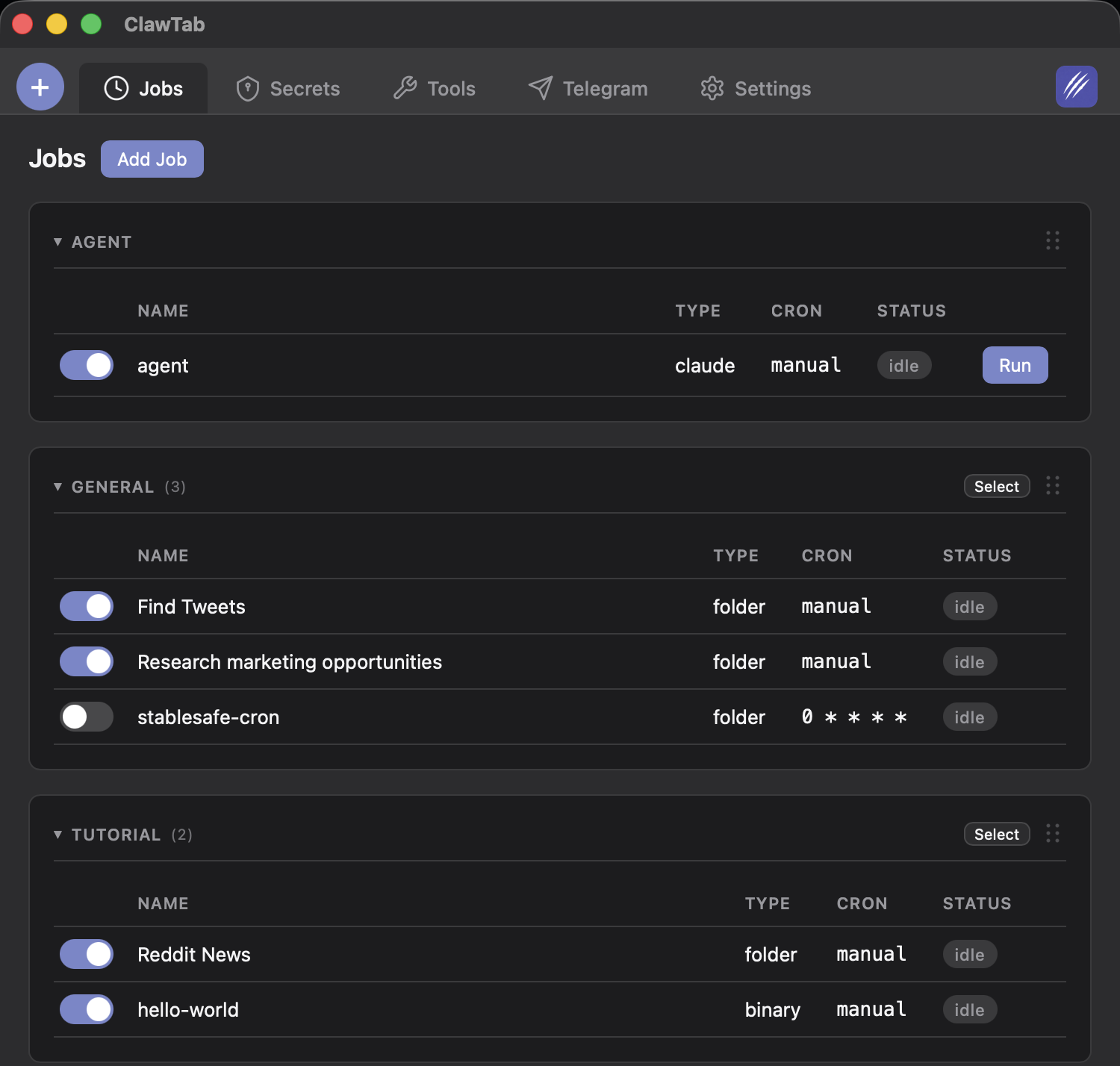
When you're running a handful of Claude Code agents, keeping track of them is easy. You see them all on one screen. But once you start automating seriously - running 20, 30, or 50+ jobs across multiple projects - the jobs list becomes a wall of cards. Finding a specific agent means scrolling through everything, scanning names, trying to remember which group it belongs to.
This gets worse when you're working across multiple projects. Your deploy agents sit alongside your test runners, code reviewers, and monitoring jobs. Different groups, different folders, different purposes - all in one flat list. Tools like Claude Squad and ClawPort organize sessions into separate views, but if you manage everything from a single dashboard, you need a way to cut through the noise.
Other AI coding tools handle this differently. Cursor shows one agent per window. Devin uses a cloud-based session list with basic search. Claude Code Agentrooms provides workspace views but doesn't support real-time filtering across groups. None of them give you a unified search across both configured jobs and auto-detected Claude processes running on your machine.
ClawTab's search, filter, and sort feature solves this. Type a few characters and the entire jobs list narrows to exactly what you need - across job names, group names, and detected Claude processes.
How Search and Filtering Works
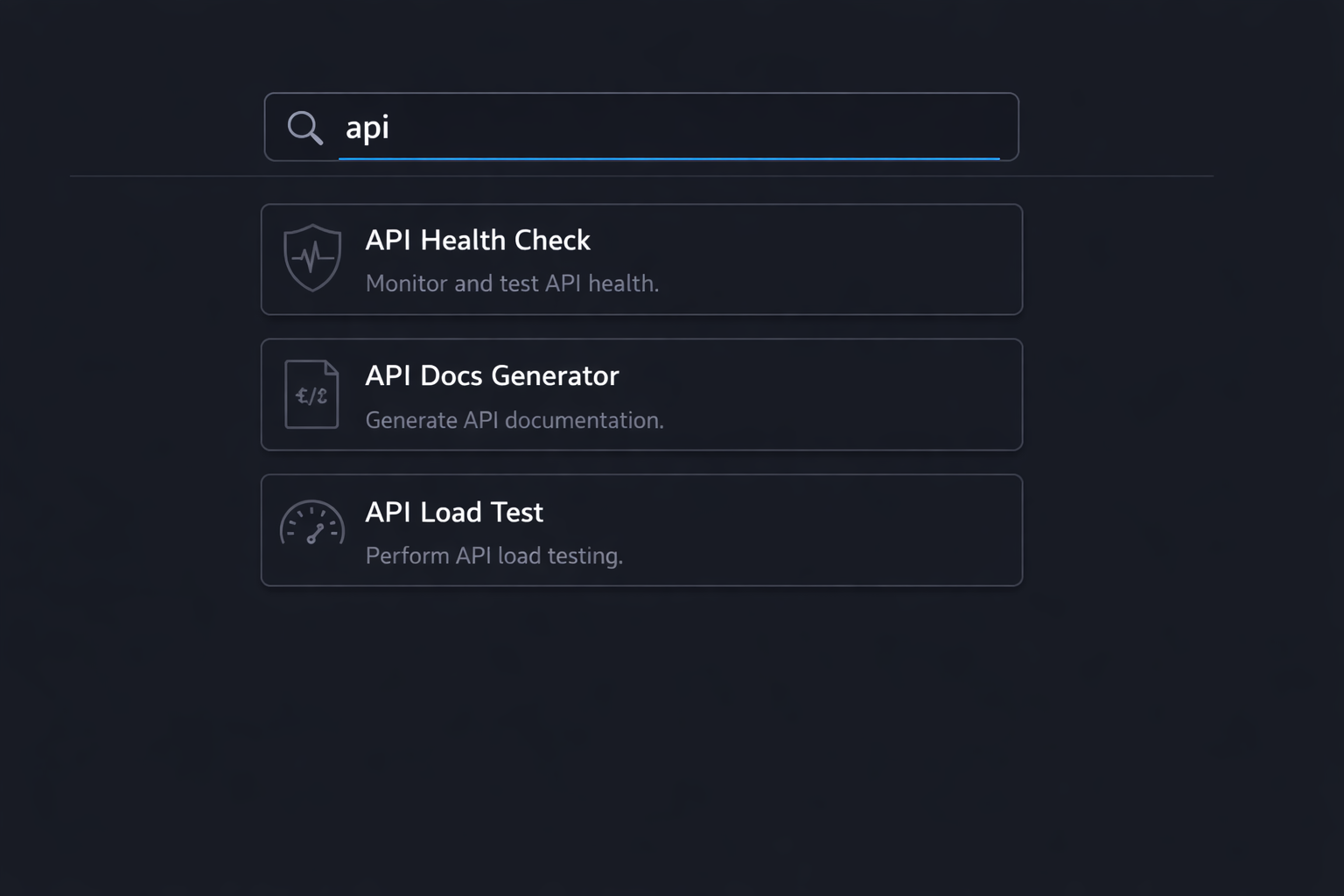
The search bar sits at the top of the jobs list, next to the sort dropdown. Start typing and the list filters in real time - no submit button, no delay. Every keystroke narrows the results.
The filter matches against multiple fields simultaneously:
- Job name - the name you gave the job when you created it (case-insensitive)
- Group name - the folder or group the job belongs to. If a job's group matches your query, all jobs in that group appear
- Detected process folder - for auto-detected Claude Code processes (ones you started outside ClawTab), the search matches against the working directory and folder name
If nothing matches, you get a clean "No matches" state instead of an empty void. The message includes your search query so you can verify what you typed.
Clearing the search is instant - tap the "x" button next to the input, or press Escape. The full list reappears immediately.
Keyboard Shortcuts
On desktop and web, you can focus the search bar without touching the mouse:
| Shortcut | Platform | Action |
|---|---|---|
Cmd+F | macOS | Focus search bar |
Ctrl+F | Windows / Linux | Focus search bar |
/ | Web (when not in an input) | Focus search bar |
Escape | All | Clear search and unfocus |
The / shortcut follows the convention used by GitHub, Slack, and most developer tools - press / from anywhere on the page to jump straight to search. It's deliberately ignored when you're already typing in an input or textarea to avoid conflicts.
These shortcuts work on the desktop app (via Tauri's webview) and the web remote interface at remote.clawtab.cc. On the native mobile app, the search bar is always visible and you just tap it.
Sorting: Three Modes for Different Workflows
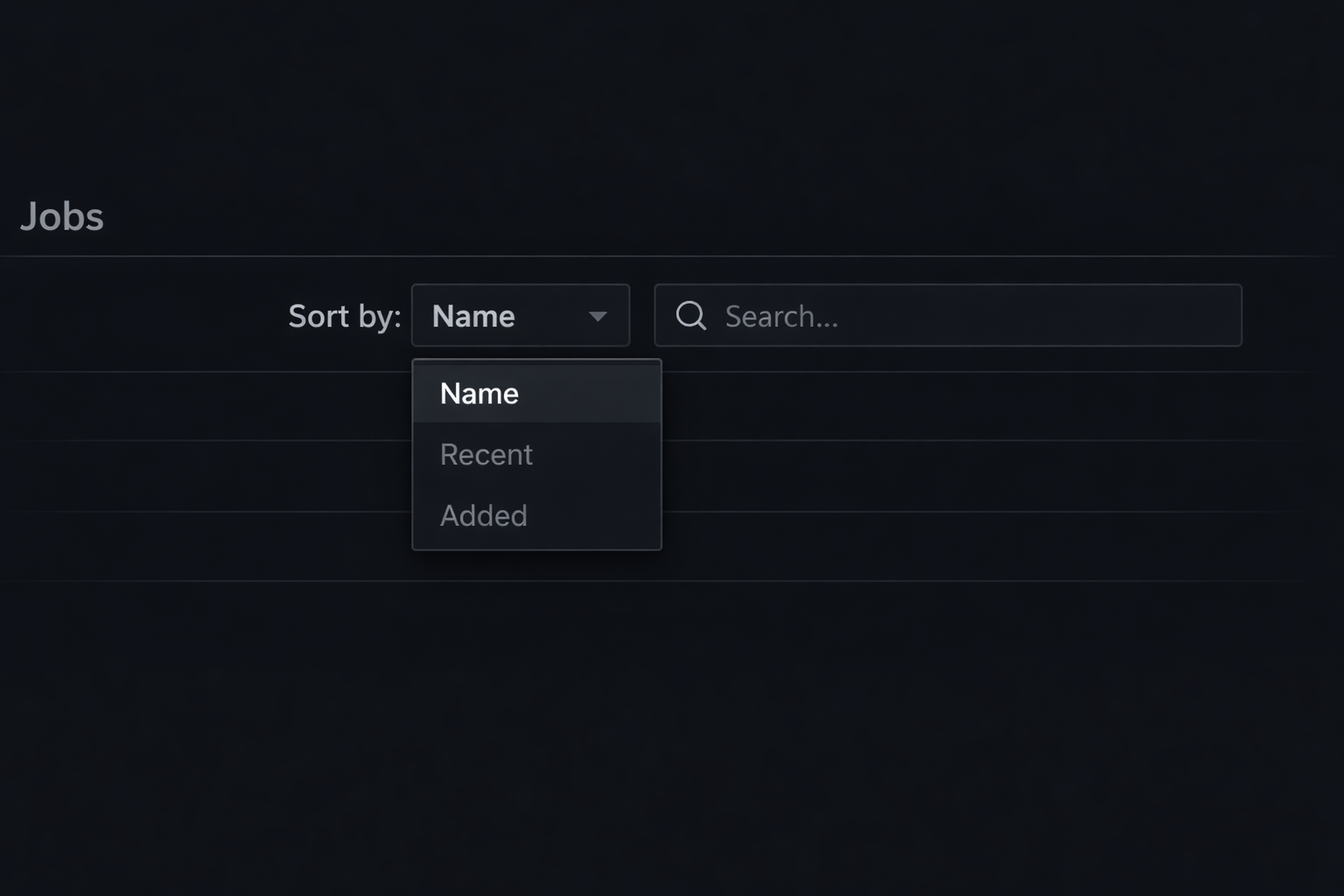
Next to the search bar, a sort dropdown lets you reorder your jobs list. The sort applies to both groups and the jobs within them:
| Sort Mode | Groups Ordered By | Jobs Within Groups | Best For |
|---|---|---|---|
| Name | Alphabetical (A-Z) | Alphabetical (A-Z) | Finding a specific job when you know its name |
| Recent | Most recently run first | Original order | Seeing what ran last, checking recent results |
| Added | Most recently created first | Original order | Finding new jobs you just set up |
"Name" is the default. It also sorts detected Claude processes alphabetically alongside your configured jobs, so everything interleaves naturally. If you have a "clawtab" group and a "clawtab-docs" group, they'll appear next to each other.
"Recent" uses the last run timestamp - whether the job succeeded, failed, or is currently running. Groups with an actively running agent bubble to the top. This is the mode to use when you're monitoring a batch of concurrent agents and want to see which ones are active.
"Added" sorts by the added_at timestamp stored on each job. Newest jobs appear first. Useful when you've just configured a batch of new jobs and want to verify they're set up correctly before the first run.
Search Combined with Sort
Search and sort work together. When you filter by a query, the sort still applies to the remaining results. So you can search for "deploy" and sort by "Recent" to see which deploy agents ran most recently - across all your projects.
This combination is particularly powerful when you have similar jobs across multiple groups. Search for "test" to see all your test-running agents, then sort by "Recent" to check which ones have fresh results and which are stale.
The filter preserves group structure. If your search matches jobs in three different groups, you'll see three group headers with their respective jobs underneath - not a flat list. Group collapse/expand state is preserved too, so if you had a group collapsed before searching, it stays collapsed in the filtered view.
How It Compares to Other Agent Management Tools
Most tools for managing multiple AI coding agents focus on orchestration rather than visibility. Here's how they handle the "find my agent" problem:
| Tool | Search / Filter | Sorting | Grouping |
|---|---|---|---|
| ClawTab | Real-time filter by name, group, and detected processes | Name, Recent, Added | Folder-based groups with collapse/expand |
| Claude Squad | No built-in search | Manual ordering | Flat session list |
| ClawPort | Kanban-style filtering | By status | Board columns |
| Claude Agent Teams | No search (CLI-based) | N/A | Team lead / teammate hierarchy |
| Devin | Session search | By date | Flat session list |
| Agentrooms | Workspace filter | By activity | Room-based |
ClawTab's advantage is that search covers both your configured jobs and auto-detected Claude processes running on your machine. If you started a Claude Code session directly in a terminal (outside ClawTab), it still shows up in the jobs list and is searchable by its working directory. No other tool bridges the gap between scheduled/configured agents and ad-hoc terminal sessions this way.
Use Cases
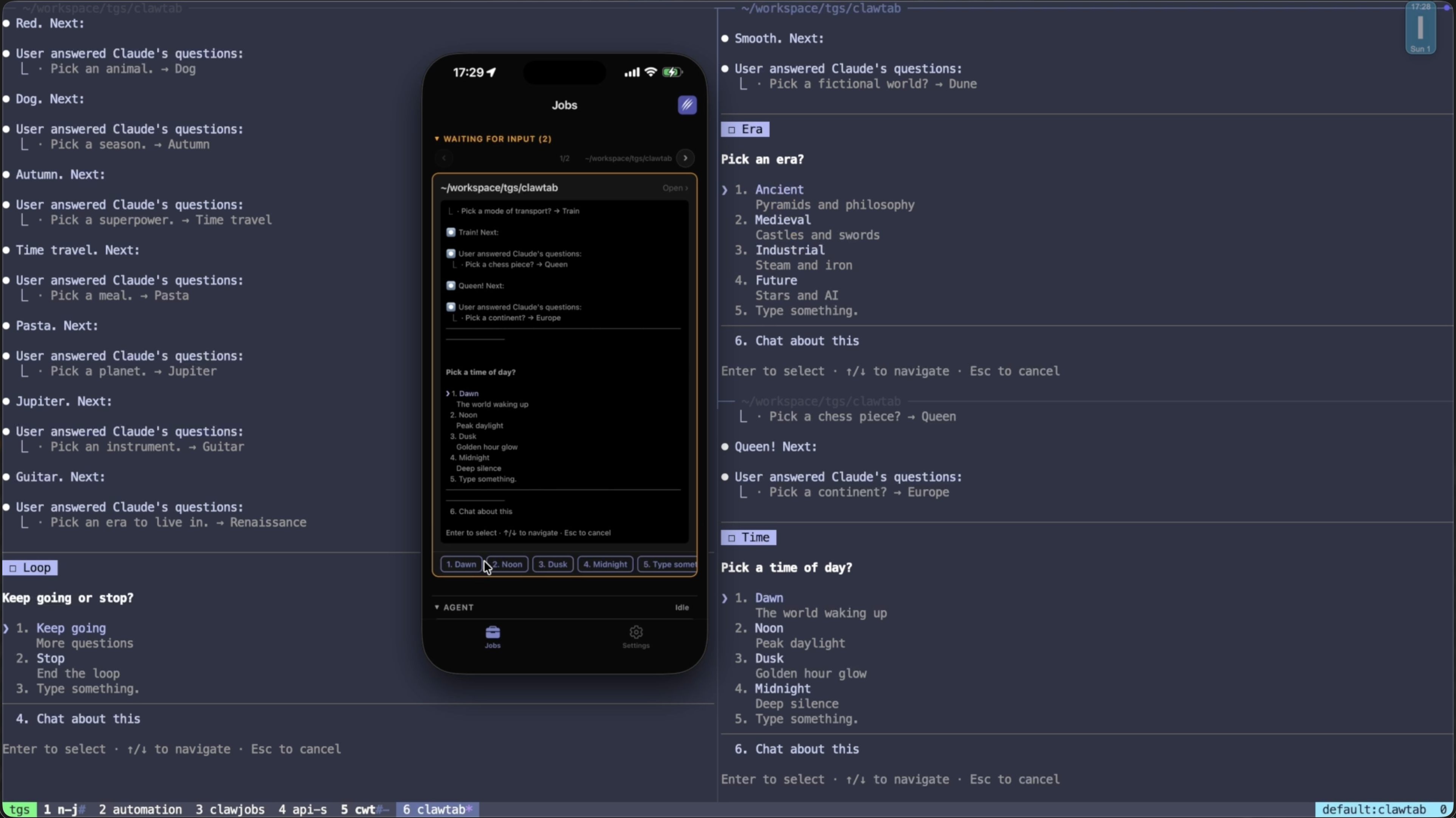
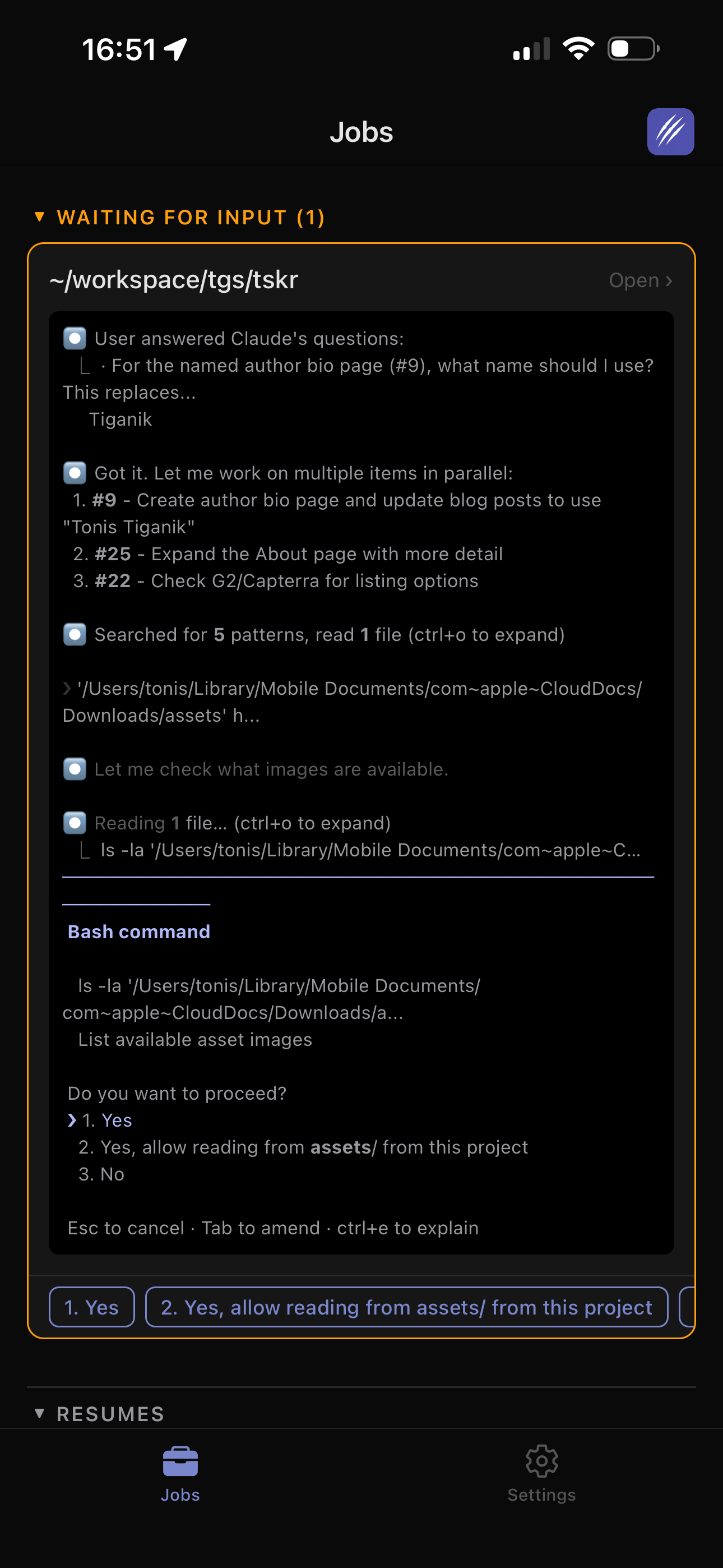
Finding a stalled agent in a large swarm. You're running 15 agents across 5 projects. One of them asked a permission question 10 minutes ago. Search for part of the project name, spot the job with a pending question card, and answer it. Total time: 3 seconds instead of scrolling through the entire list.
Checking deploy status across repos. You have deploy agents in multiple projects. Search for "deploy", sort by "Recent", and see at a glance which ones ran, which succeeded, and which failed. No clicking into individual jobs.
Monitoring newly added jobs. You just set up 8 new cron jobs and want to make sure they're all there. Sort by "Added" and your new jobs appear at the top, regardless of which groups they belong to.
Working with agent swarms. When running parallel agents on the same project, search by the project folder name to see only that project's agents and detected processes. Filter out all the noise from other projects.
Remote triage from your phone. You're away from your desk and get a notification. Open remote.clawtab.cc or the mobile app, search for the job name from the notification, and respond. The search bar works identically on the mobile remote interface.