How to Run Claude Code in the Background Without a Terminal
Claude Code is interactive by default and dies when you close the terminal. Here are four ways to run it headless - from manual tmux to auto mode to fully managed background agents with ClawTab.
Introduction
Claude Code runs in an interactive terminal session. Close the terminal and the agent dies. This article covers four approaches to running it in the background - from a manual tmux session to a fully managed daemon with ClawTab. If you just want the answer: install ClawTab via Homebrew, create a job, and it handles tmux sessions, process lifecycle, remote monitoring, and notifications for you.
The Problem: Claude Code Is Interactive-Only
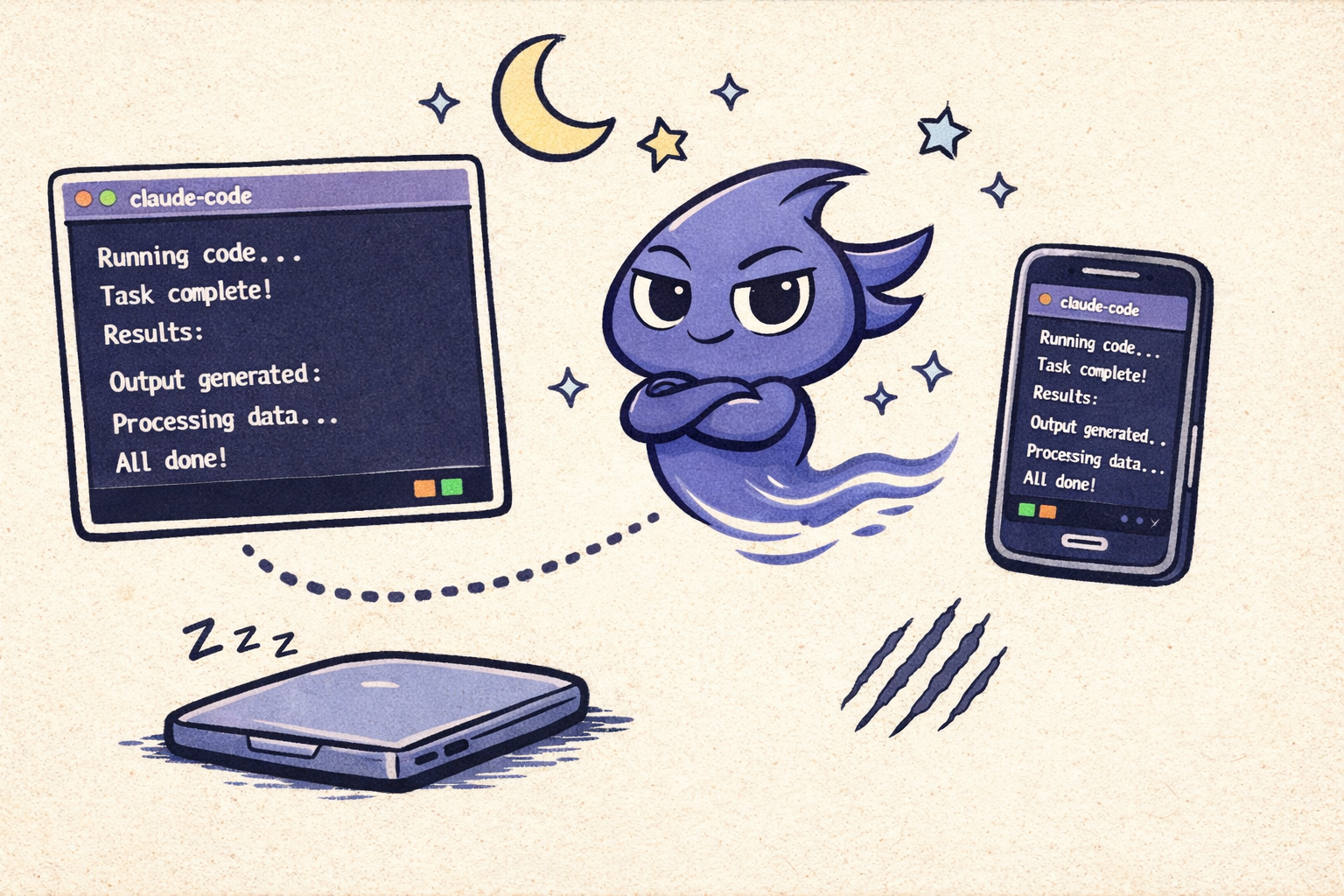
Claude Code is designed to run in a terminal where a human is present. It asks permission before writing files, running commands, and installing packages. When it needs input, it blocks until you respond. Close the terminal window, SSH disconnect, or let your laptop sleep - the process dies and you lose whatever work was in progress.
This works fine for a quick one-off task. But it breaks down when you want to:
Run an agent overnight without keeping a terminal open
Schedule recurring agents on a cron-like schedule
Run multiple agents in parallel without babysitting each one
Trigger agents from CI/CD pipelines or webhooks
Monitor and control agents from your phone while away from your desk
The community has converged on several workarounds. Here's how each one works, what it gets right, and where it falls short.
Option 1: Manual tmux or screen
The simplest approach. Start a tmux session, launch Claude Code inside it, and detach. The session persists even if you close your terminal or disconnect from SSH.
# Start a named tmux session
tmux new-session -s claude-agent

# Inside the session, launch Claude Code
claude --print "refactor the auth module"

# Detach with Ctrl-b d
# Reattach later with:
tmux attach -t claude-agent
This solves the "process dies when I close the terminal" problem. But it introduces new ones:
No remote monitoring. You have to SSH back in and attach to the session to see what's happening. No push notifications, no mobile access.
No automatic restarts. If the agent crashes or your machine reboots, the session is gone. You have to manually recreate it.
No permission handling. If the agent asks a permission question while you're detached, it sits there waiting indefinitely. You won't know until you check.
No scheduling. You have to start each session manually. No cron, no recurring runs.
Session management overhead. Managing 5+ tmux sessions by hand gets tedious fast. Naming them, remembering which is which, cleaning up finished ones.
Manual tmux is the right choice when you need to run a single long task and you're comfortable SSHing back in to check on it. For anything more structured, you need tooling on top.
Option 2: Claude Code's Built-in SDK and Subprocesses
Claude Code has a SDK mode that lets you invoke it programmatically from Node.js or as a subprocess. This is the official way to embed Claude Code in scripts and automation.
# Run as a subprocess with JSON output
claude --print --output-format json "write tests for utils.ts"

# Use the Node.js SDK
import { claude } from "@anthropic-ai/claude-code"
let result = await claude({ prompt: "fix the failing test" })
The SDK gives you structured output, error handling, and the ability to chain Claude Code into larger programs. You can wrap it in a Node.js process that runs as a daemon, handles retries, and collects results.
What it doesn't give you:
Interactive session management. Each SDK call is a one-shot invocation. There's no persistent session where the agent remembers context across calls (unless you manage conversation history yourself).
Terminal UI. You lose the rich interactive terminal experience - the thinking indicators, the permission prompts, the live code diffs. Everything becomes JSON in, JSON out.
Built-in scheduling. You still need cron, systemd, or another scheduler to trigger runs.
Remote control. No built-in way to monitor or interact with running agents from another device.
The SDK is the right choice when you're building custom tooling that embeds Claude Code as a component - CI bots, code review automation, or chat interfaces. It's not designed for running persistent, interactive agents in the background.
Option 3: --dangerously-skip-permissions or Auto Mode
Claude Code's --dangerously-skip-permissions flag disables all permission prompts. Alternatively, Claude Code auto mode (March 2026) uses a safety classifier to auto-approve routine actions while blocking risky ones - a safer middle ground. Combined with tmux or nohup, either lets you run less-interactive background sessions:
# Run in background with no permission prompts
tmux new-session -d -s agent "claude --dangerously-skip-permissions --print 'migrate the database schema'"
This is the fastest path to "headless Claude Code." No prompts, no blocking, no interaction needed.
The tradeoffs are significant:
No safety guardrails. The agent can write any file, run any command, and install any package without asking. The name includes "dangerously" for a reason.
No visibility. You have no idea what the agent is doing until you check the output. No notifications when it finishes, fails, or does something unexpected.
All or nothing. You can't selectively approve some actions while auto-accepting others. Every permission check is suppressed.
No remote control. Same as manual tmux - you need terminal access to check on it.
This flag is designed for controlled environments - CI pipelines, sandboxed containers, and automated testing where the blast radius is contained. Using it on your development machine for open-ended tasks is risky. A prompt like "clean up the project" could delete files you didn't expect.
Option 4: ClawTab - Managed Background Agents
ClawTab is a macOS menu bar app that manages Claude Code agents as background processes. It handles everything the manual approaches don't: tmux lifecycle, scheduling, permission handling, remote control, and notifications.
Here's what a background agent looks like in ClawTab:
# Install ClawTab
brew install --cask tonisives/tap/clawtab

# Create a job via the desktop UI:
name: "daily-review"
job_type: "claude"
cron: "0 9 * * 1-5"
prompt: "Review open PRs and post summaries"
auto_yes: false
When the cron fires, ClawTab:
Creates a tmux session with the job name
Launches Claude Code with your prompt inside it
Monitors the terminal output for permission prompts and completion
Sends push notifications to your phone when the agent asks a question or finishes
Keeps the session alive across reboots via launchd
The key difference from the other approaches: you don't lose the interactive terminal session. The agent runs in a real tmux pane. You can attach to it any time to see exactly what Claude Code is doing. But you don't have to - the mobile app shows you live logs, lets you answer permission prompts, and gives you full job control from your phone.
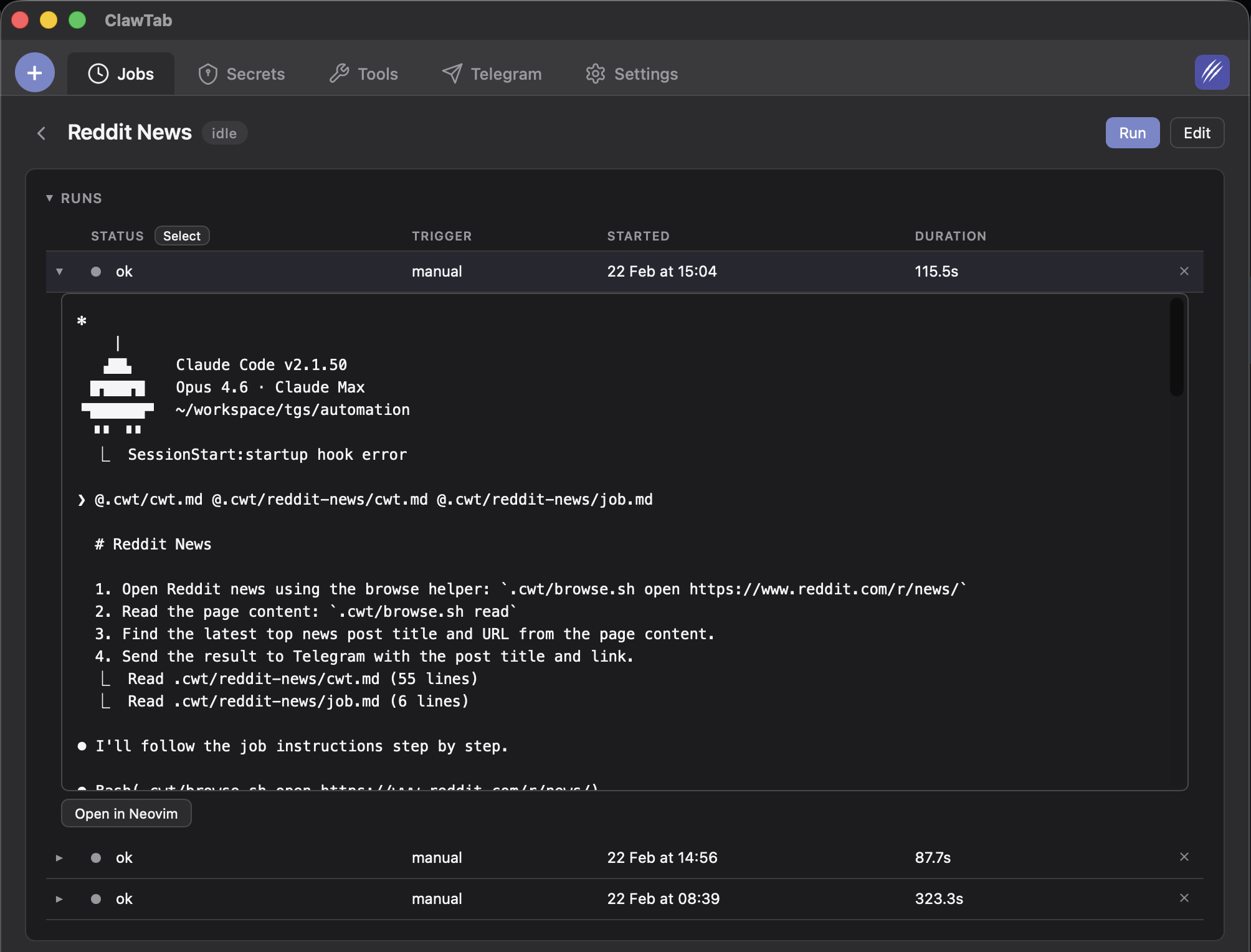
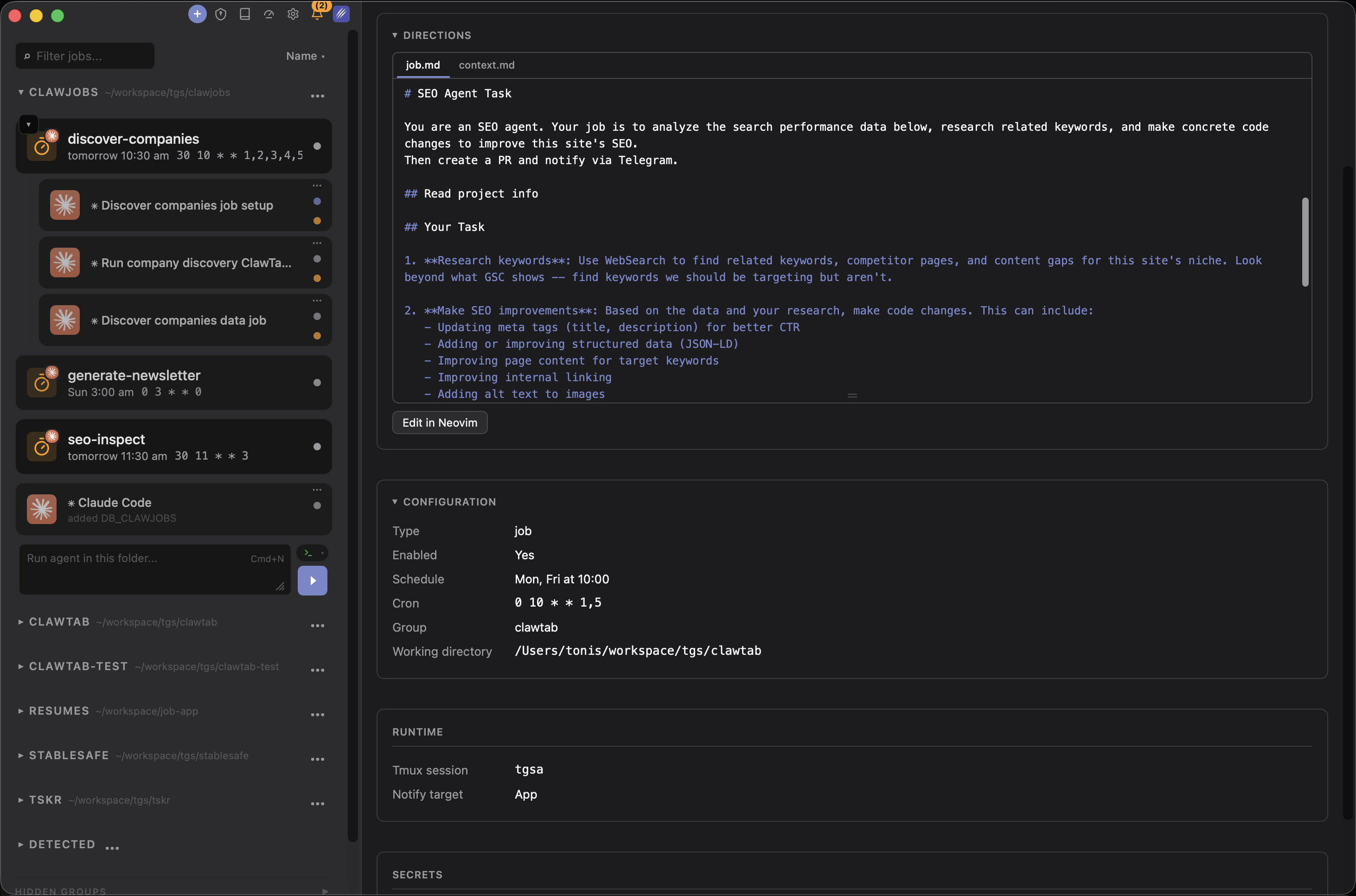
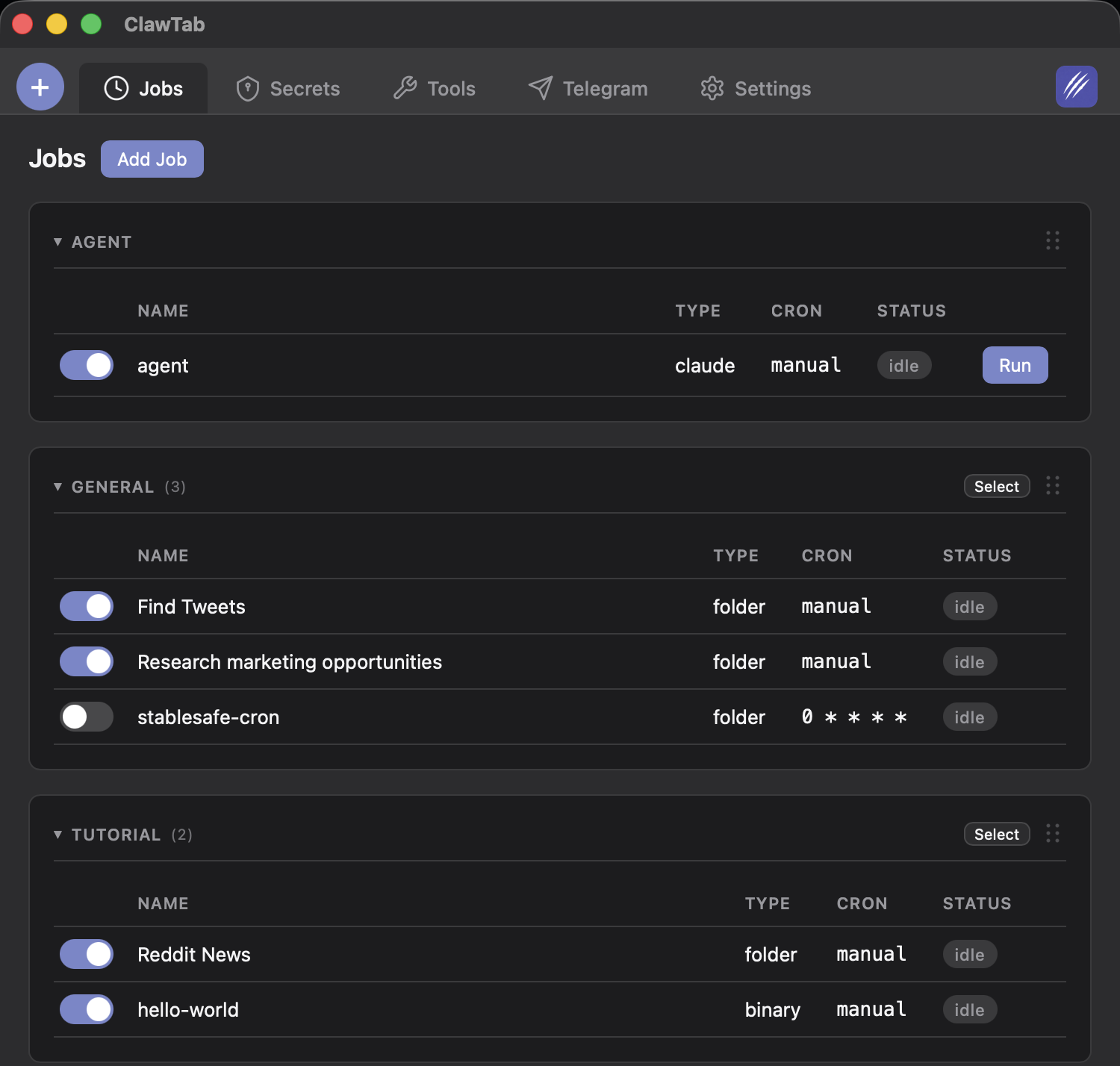
ClawTab manages agents as background processes - live logs, run history, and cron config in one view
Feature Comparison
Here's how the four approaches compare across the capabilities that matter for running Claude Code in the background:
A common request is triggering Claude Code agents from GitHub Actions or other CI systems. ClawTab's CLI tool cwtctl makes this straightforward:
# Trigger a job from a GitHub Action or script
cwtctl run myapp/daily-review

# Check job status
cwtctl status daily-review

# List all jobs
cwtctl list
The job runs on your Mac (where ClawTab is installed) with full access to your local environment, git repos, and secrets. The CI system just triggers it - it doesn't need Claude Code installed, API keys, or access to your codebase.
This is useful for workflows like:
Post-merge code review. A GitHub Action triggers a ClawTab job after every merge to main. The agent reviews the diff and posts comments.
Nightly maintenance. A cron job runs dependency updates, runs tests, and opens a PR if everything passes.
On-demand refactoring. A Slack bot or webhook triggers a ClawTab job to refactor a specific module.
The alternative is running Claude Code directly in CI (using the SDK or --dangerously-skip-permissions in a container). That works but requires managing API keys in CI secrets, installing Claude Code in the runner, and giving the CI environment access to your repos. ClawTab keeps everything local and just exposes a trigger.
Setting Up Your First Background Agent
Here's the quickest path from "Claude Code dies when I close the terminal" to "agents run in the background and notify me on my phone":
Install ClawTab:
brew install --cask tonisives/tap/clawtab
Create a job from the menu bar app. Pick "Claude Code" as the job type, write your prompt, and set a cron schedule (or leave it manual-only).
Run it. Click "Run" or wait for the cron to fire. The agent launches in a tmux session managed by ClawTab.
Connect your phone. Open remote.clawtab.cc or install the iOS app. Scan the QR code from the desktop app to pair.
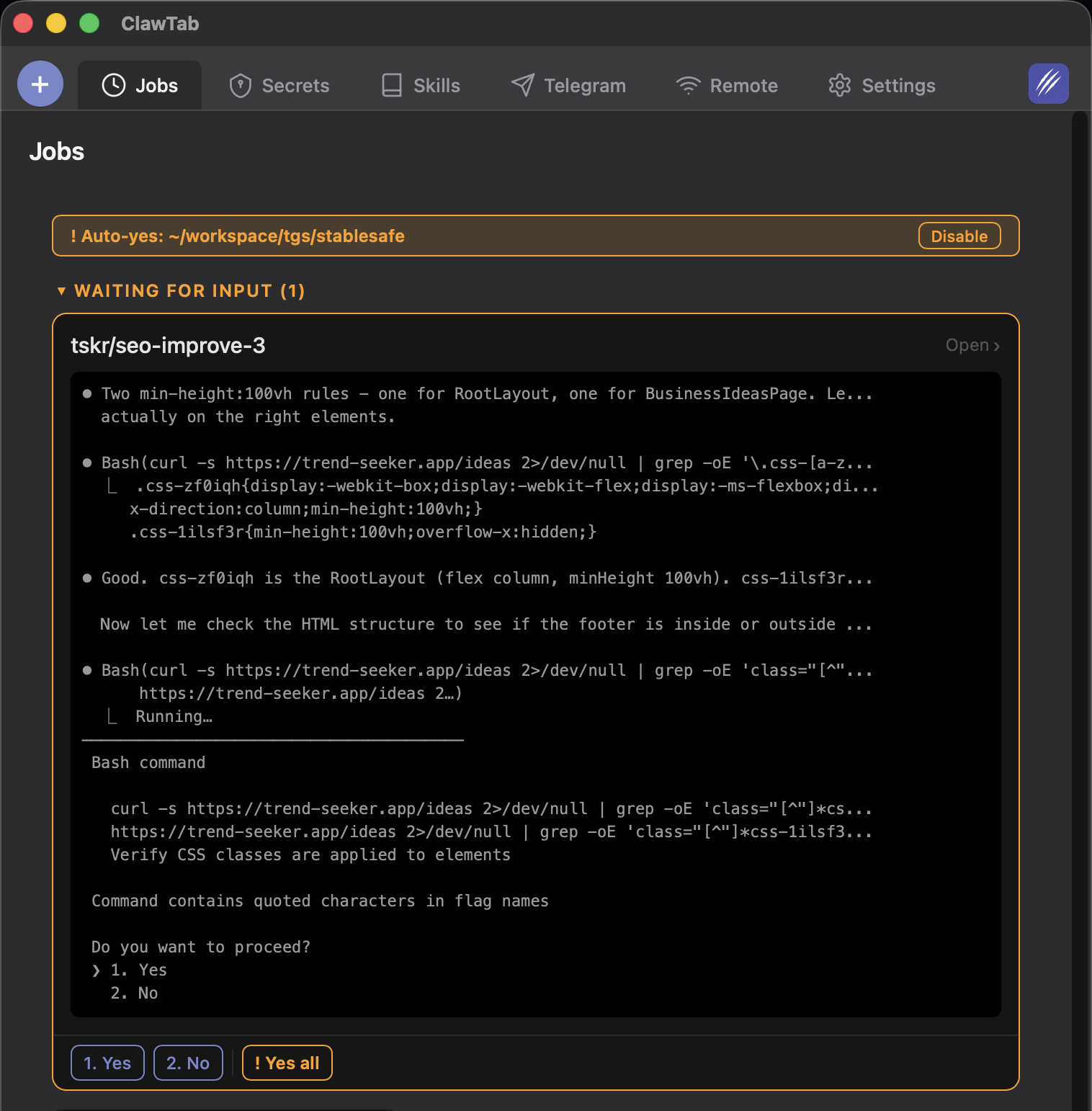
Enable auto-yes if you want the agent to handle permission prompts without waiting for you. Tap "Yes all" on the first prompt notification.
Your agent now runs in the background, survives terminal closures and reboots, sends you notifications, and lets you respond from your phone. Total setup time: under 2 minutes.
For a deeper walkthrough covering secrets, Telegram alerts, and multi-agent setups, see the full automation guide.
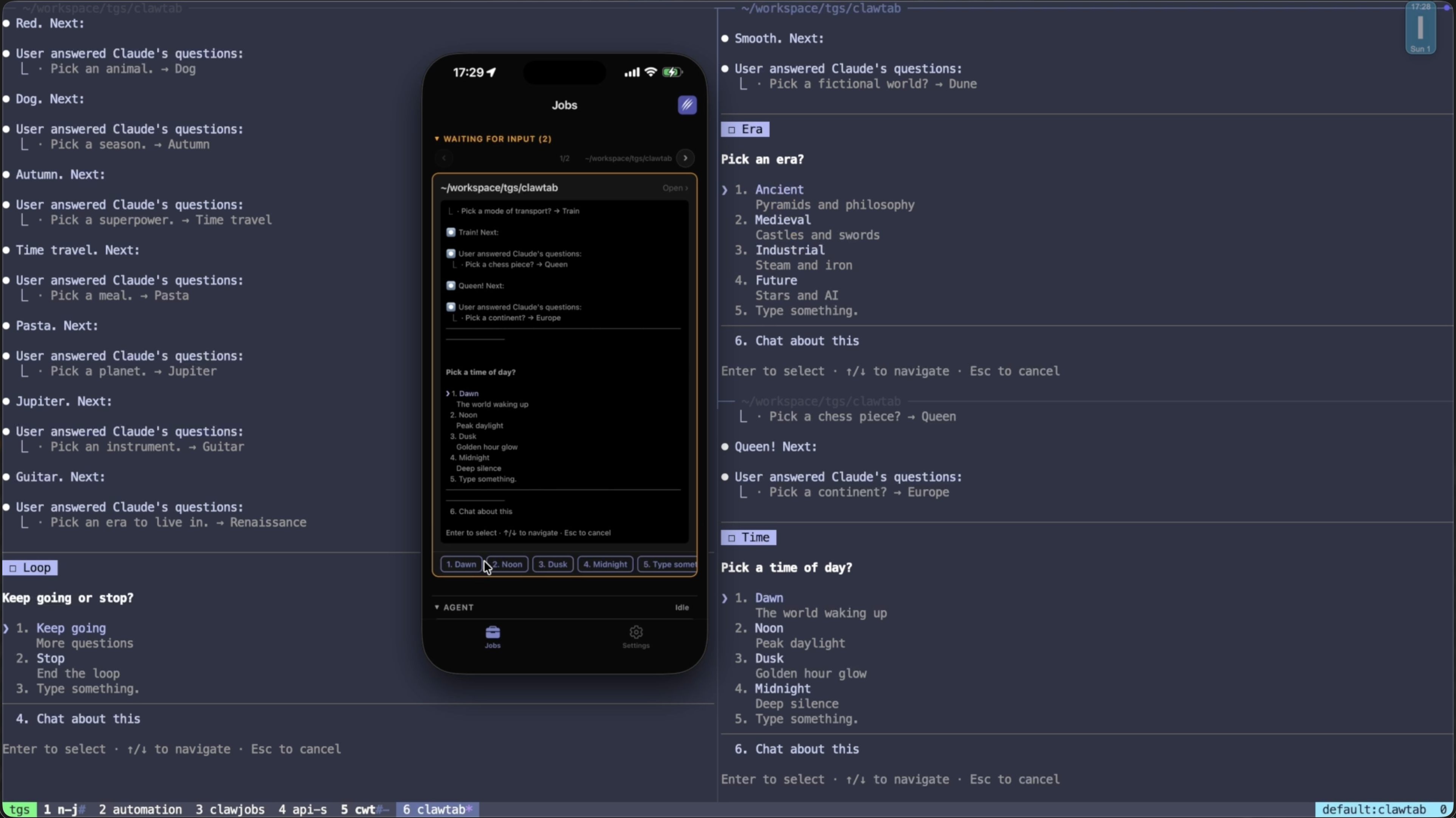
Auto-yes enabled on a running agent - permission prompts are accepted automatically
Frequently Asked Questions
Claude Code is interactive by default and terminates when you close the terminal. To run it in the background, you need a session manager like tmux to keep the process alive, or a tool like ClawTab that manages tmux sessions, scheduling, and remote monitoring automatically. ClawTab runs Claude Code agents as managed background processes that survive terminal closures and reboots.
ClawTab turns Claude Code into a daemon-like service. Install it via Homebrew (brew install --cask tonisives/tap/clawtab), create a job with your prompt and schedule, and ClawTab manages the tmux session lifecycle, restarts after reboots via launchd, and sends push notifications to your phone. You can also use cwtctl to trigger jobs from scripts and CI/CD pipelines.
You have several options: (1) Use ClawTab to manage agents as background processes with mobile monitoring. (2) Use the Claude Code SDK to invoke it programmatically from Node.js. (3) Run it in a tmux session that persists after you close the terminal. (4) Use --dangerously-skip-permissions for non-interactive execution in containers or CI. ClawTab is the most complete option because it preserves the interactive terminal while adding scheduling, notifications, and remote control.
Claude Code doesn't have a built-in headless mode. By default, it requires an interactive terminal. To run it headless (without a visible terminal), use ClawTab to manage agents in tmux sessions, the Claude Code SDK for programmatic one-shot invocations, or the --dangerously-skip-permissions flag for fully non-interactive execution. ClawTab is the closest thing to a headless mode because it runs agents in managed background tmux sessions while giving you remote visibility through a mobile app.
Yes, in two ways. You can run the Claude Code SDK or CLI directly in your CI runner (requires API keys and --dangerously-skip-permissions). Or you can use ClawTab's cwtctl CLI to trigger jobs on your local machine from CI - the job runs locally with your full environment while CI just sends the trigger. The second approach keeps API keys and code access on your machine rather than in CI secrets.
Use tmux: start a tmux session (tmux new-session -s agent), launch Claude Code inside it, and detach with Ctrl-b d. The session persists. For a managed solution, use ClawTab - it automatically runs agents in tmux sessions, handles reboots, sends notifications, and lets you monitor from your phone without attaching to the session.
ClawTab has built-in cron scheduling. Set a cron expression on any job (e.g., '0 9 * * 1-5' for weekday mornings) and ClawTab launches the agent automatically. You can also trigger jobs manually via the UI or programmatically via cwtctl. Without ClawTab, you'd need to combine system cron with tmux scripts and handle process lifecycle yourself.
ClawTab manages multiple concurrent agents in separate tmux panes. Create multiple jobs, each with its own prompt and schedule. ClawTab launches them in parallel, monitors all of them, and sends notifications for each. You can search and filter agents by name, sort by recent activity, and manage them from your phone. See the agent swarm article for running 10+ agents simultaneously.