Claude Code tmux Plugin: Auto-Yes, Forking, and Secrets
Install the ClawTab Claude Code tmux plugin to toggle auto-yes, fork sessions, inject secrets, and search skills without leaving the terminal.
What do ClawTab tmux utils do?
Add one line to your .tmux.conf and get a lazygit-style popup for controlling Claude Code sessions. Toggle auto-yes, fork conversations into new panes, inject secrets as environment variables, search your skills library, and show working, waiting, and idle agent status without leaving the terminal.
Step 2: Add to your tmux config. Open ~/.tmux.conf and add:
run-shell ~/.clawtab/tmux-clawtab/clawtab.tmux
Step 3: Reload tmux. Either restart tmux or run:
tmux source-file ~/.tmux.conf
That's it. The plugin registers keybindings, sets up the auto-yes indicator in your pane borders, and is ready to go. No dependencies beyond tmux itself - the popup menu is a pure bash TUI that works without fzf or any external tools.
If you use TPM (tmux plugin manager), you can also add it manually with the run-shell directive - TPM is not required.
The Popup Menu
Press prefix + E to open the ClawTab popup. It's a tabbed TUI inspired by lazygit with three tabs: Shortcuts, Secrets, and Skills.
Key
Action
Tab / Shift+Tab
Switch between tabs
j / k or arrows
Navigate items
Space
Toggle selection (multi-select)
/
Search / filter
Enter
Execute selected action
Esc or q
Close popup
The popup only activates on Claude Code panes. It detects Claude Code by checking if the pane's current command matches a semver pattern (the way Claude Code reports itself to tmux). If you try to open it on a regular shell pane, it tells you and closes.
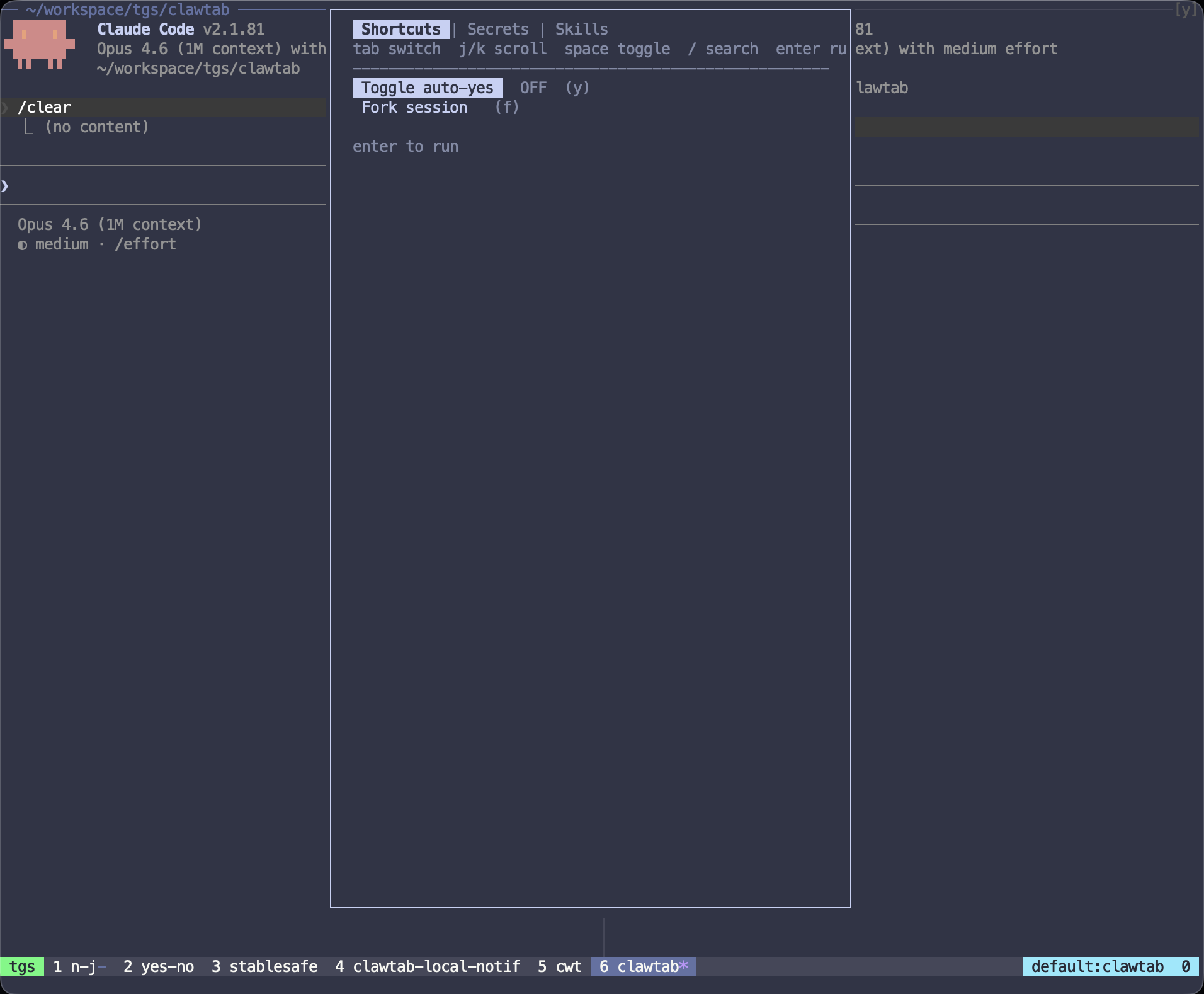
The Shortcuts tab with auto-yes toggle and fork session
Shortcuts Tab
The first tab shows two quick actions:
Toggle auto-yes. Flips auto-yes mode on or off for the current pane. The status shows ON (green) or OFF (dim) right next to the label. This does the same thing as prefix + y but from within the menu. The toggle syncs with the ClawTab desktop app via cwtctl in the background, so the state is consistent across your terminal and the GUI.
Fork session. Takes the current Claude Code conversation and forks it into a new tmux pane below. The forked session continues from the same conversation context using claude --continue --fork-session. Useful when you want to branch an agent's work in two directions - keep the original running on one task while the fork explores an alternative approach.
Each shortcut also shows its direct keybinding (Y for auto-yes, ys to yank the session ID, yp to yank the pane ID, and f for fork) so you can learn the shortcuts and skip the menu next time.
Injecting Secrets Into a Forked Session
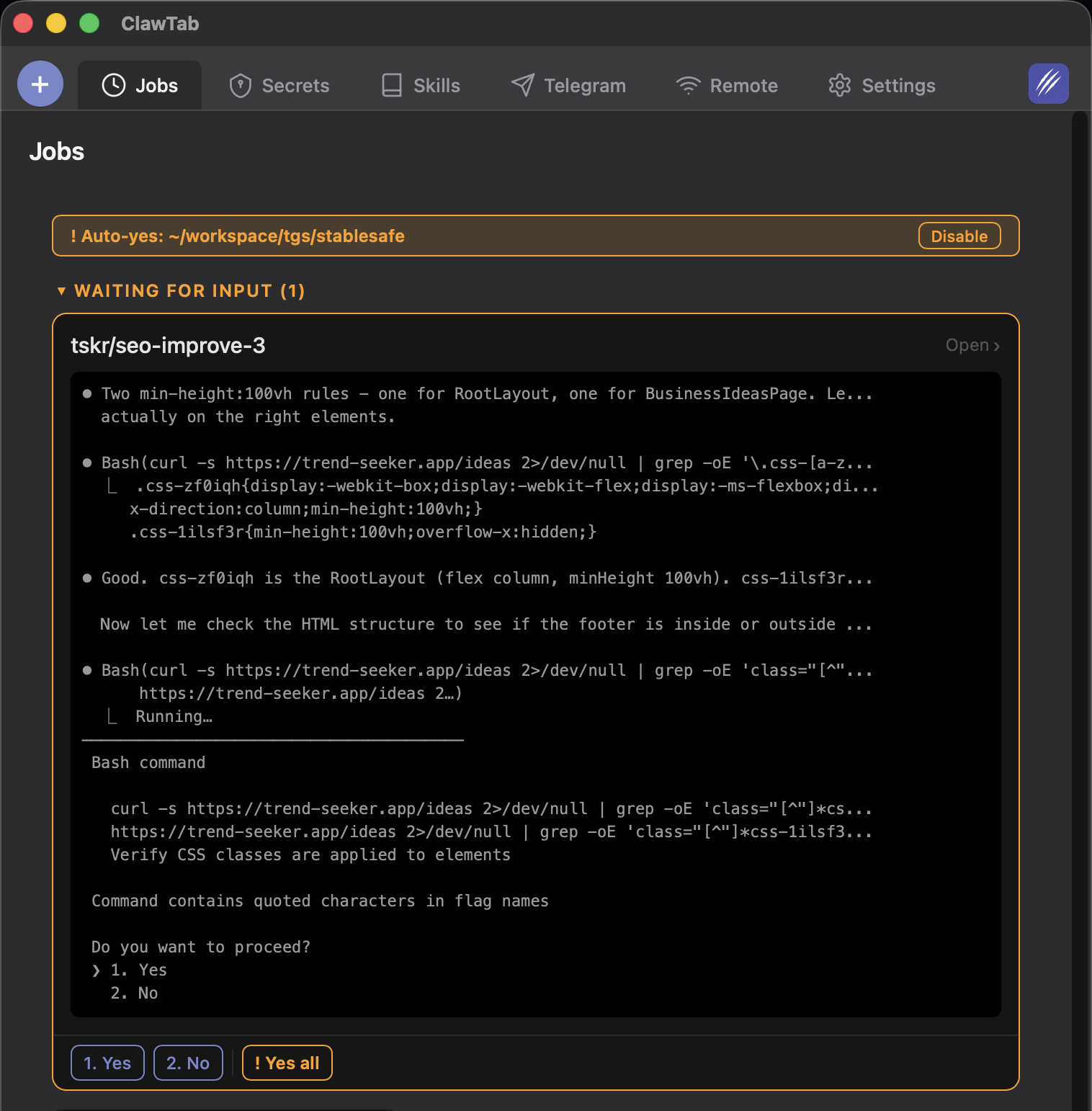
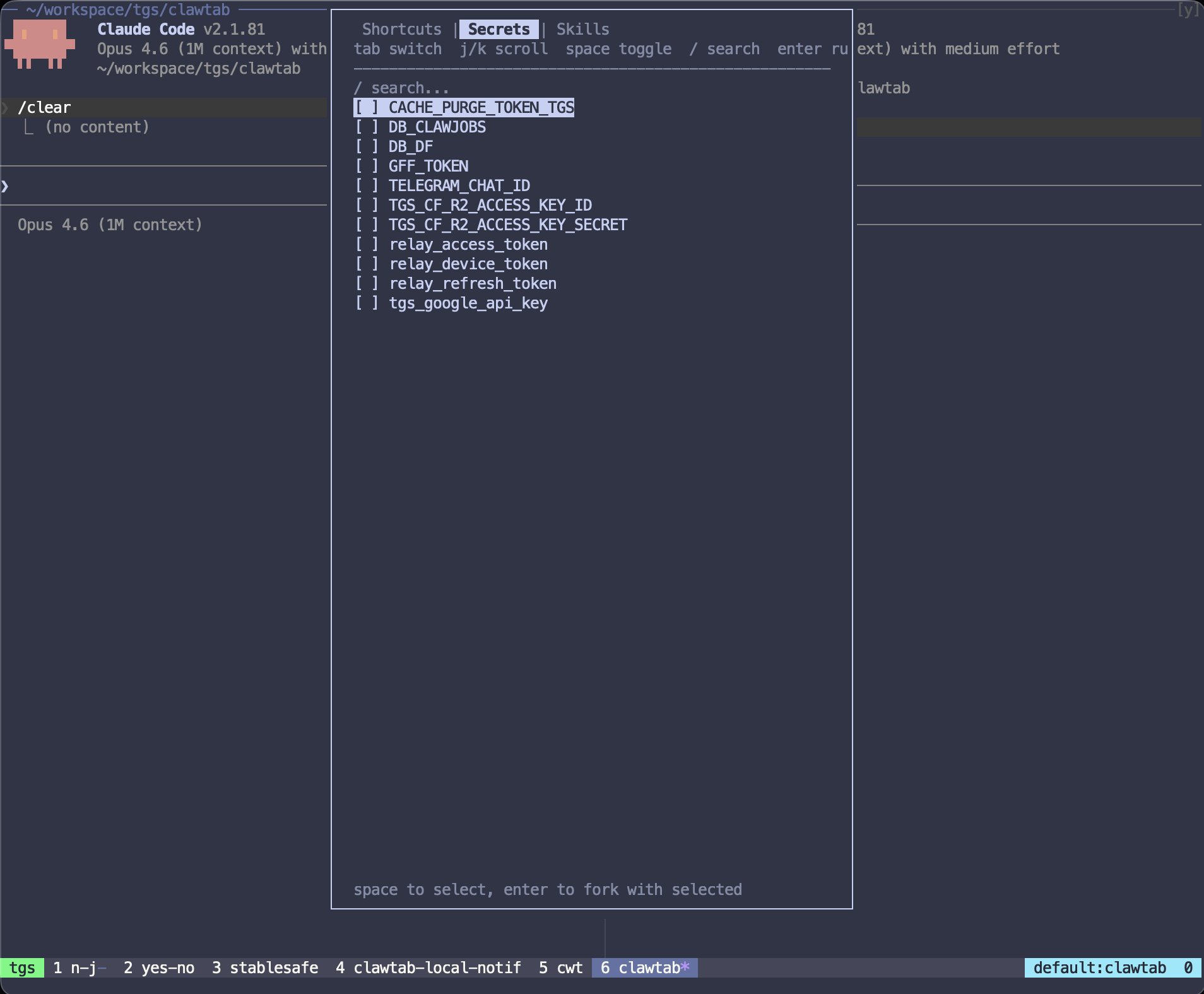
The Secrets tab lists all secrets stored in your ClawTab secret store (Keychain or gopass). Select one or more secrets with Space, then press Enter to fork the current session with those secrets injected as environment variables.
Here's what happens under the hood:
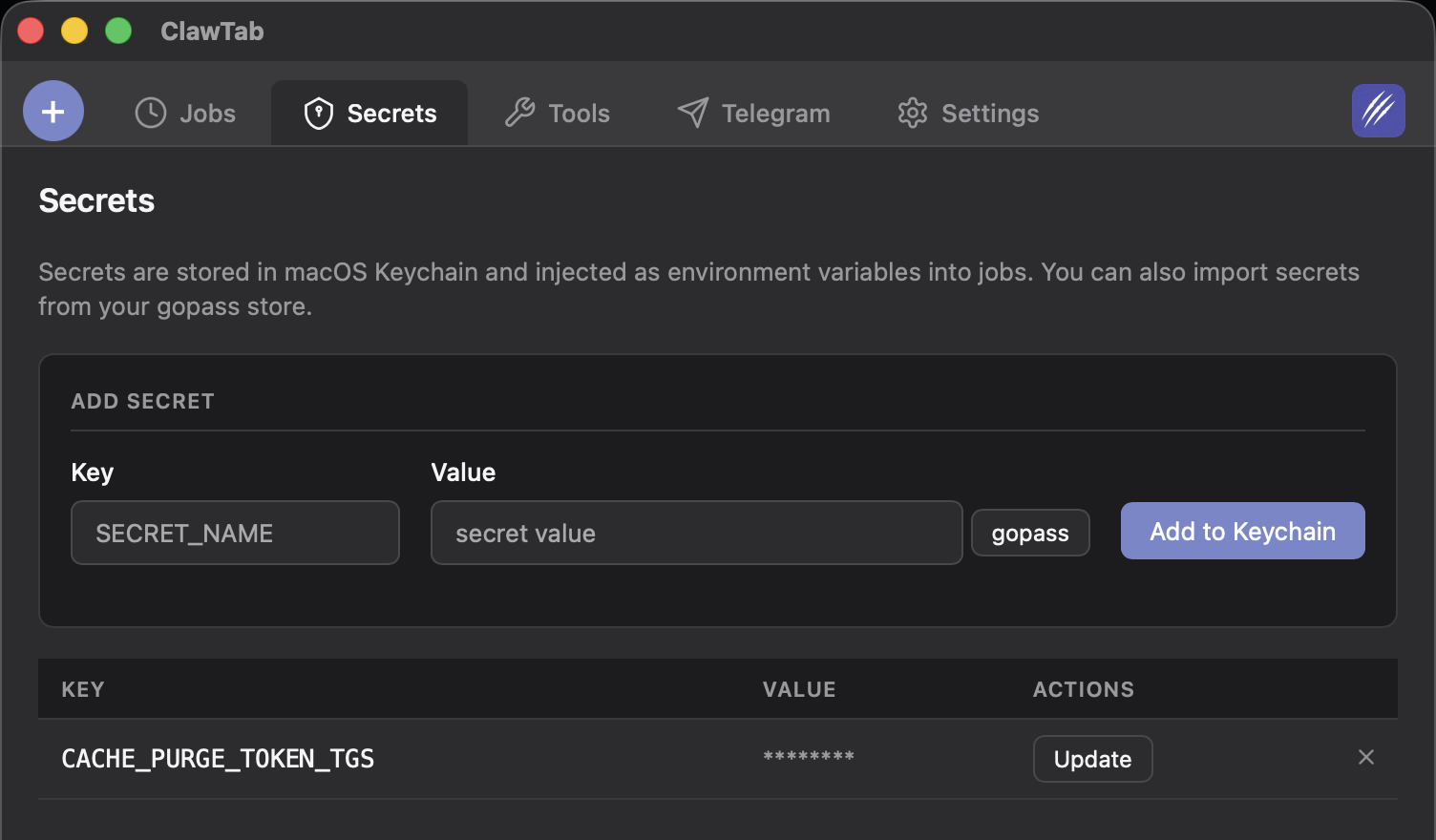
You select secrets (e.g., CACHE_PURGE_TOKEN_TGS, DB_CLAWJOBS)
The plugin sends "forking" to the current pane to mark the conversation
It fetches the secret values via cwtctl secrets get
A new pane opens with tmux split-window -e KEY=value, passing each secret as an environment variable
Claude Code starts in the new pane with --continue --fork-session and receives a prompt like "added $CACHE_PURGE_TOKEN_TGS, $DB_CLAWJOBS env"
The forked session has access to the secrets as regular environment variables. Claude Code can read them with standard shell access. The secrets never touch disk - they're passed as tmux environment flags and exist only in the pane's process environment.
This is the fastest path from "I need to give this agent database access" to a running agent with credentials. No .env files, no manual exports, no copy-pasting tokens.
Select secrets to inject into a forked Claude Code session
Searching and Sending Skills
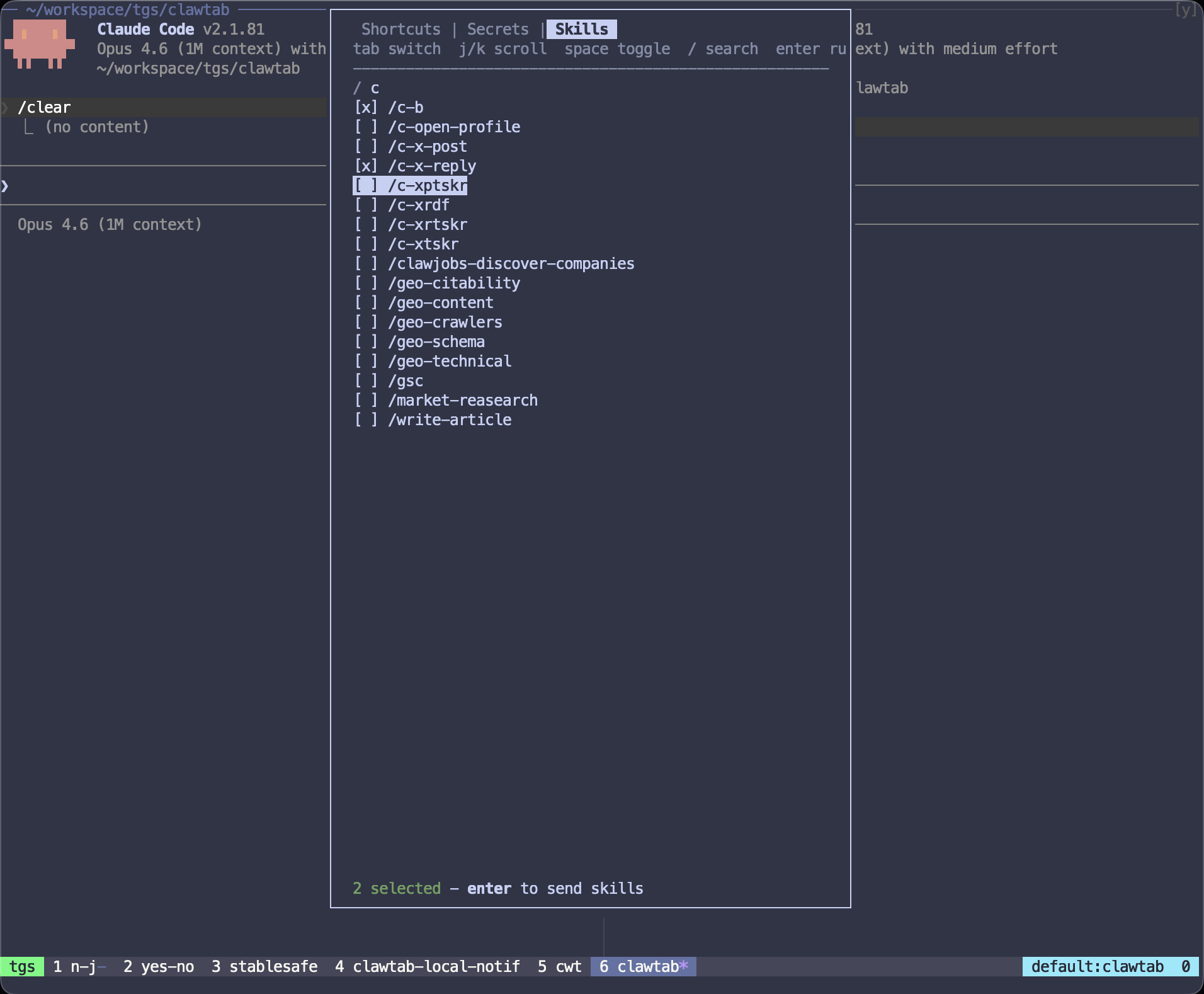
The Skills tab shows all skills from your ~/.claude/skills directory. Each skill appears as a /skill-name entry that you can select with Space.
Select one or more skills and press Enter. The plugin types the skill commands directly into your Claude Code pane's input. For example, selecting /c-b and /c-open-profile inserts /c-b /c-open-profile into the chat prompt, ready for you to press Enter or add more context.
The / key opens a search filter that narrows the list as you type. Useful when you have dozens of skills and need to find a specific one quickly.
There's also a standalone skill search with prefix + s that uses fzf for a simpler single-select flow. The popup menu's Skills tab adds multi-select on top of that.
Multi-select skills and send them to your Claude Code session
The Auto-Yes Pane Indicator
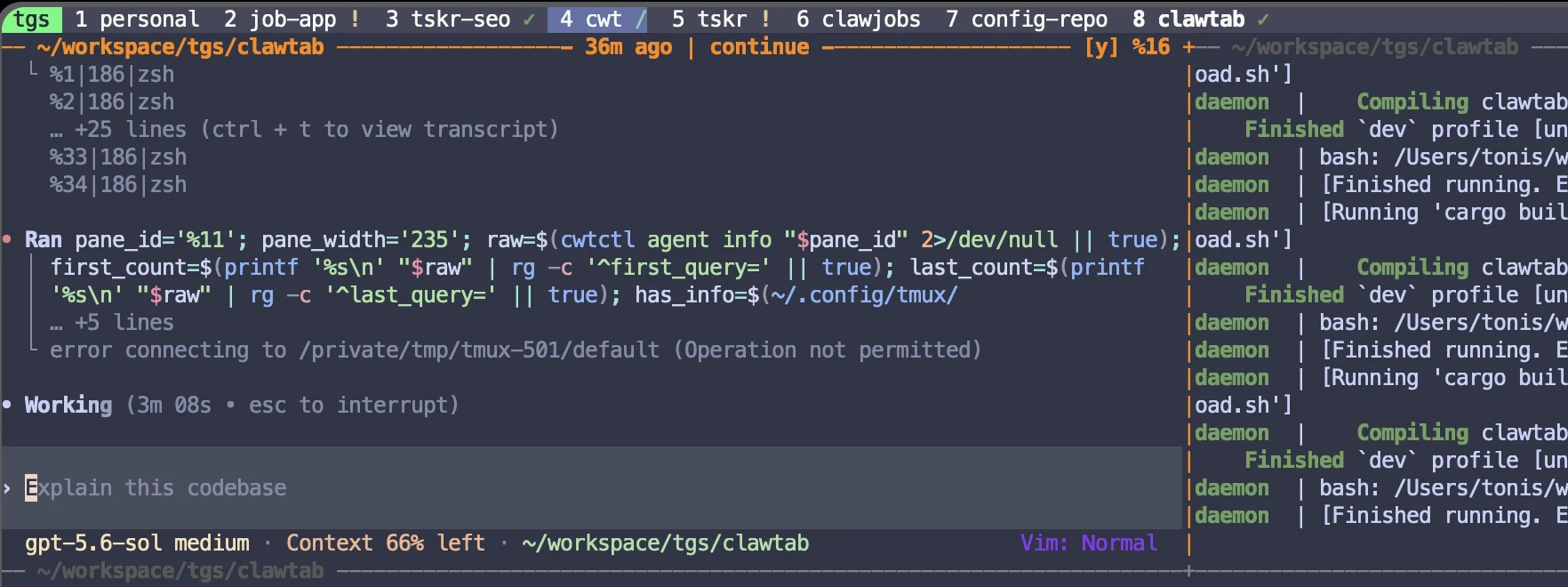
When the plugin loads, it adds a small indicator to your tmux pane borders. On Claude Code panes, you'll see either:
Regular shell panes show nothing. The indicator only appears when the pane's current command matches a semver pattern (how Claude Code identifies itself).
The indicator updates every 5 seconds via tmux's status interval. When you toggle auto-yes with prefix + y, the state change is stored as a tmux pane option (@clawtab-auto-yes), so the border format picks it up on the next refresh without any shell script overhead.
The pane border indicator: [Y] in green means auto-yes is on, [y] in gray means off
All Keybindings
The plugin registers five keybindings, all prefixed with your tmux prefix key (usually Ctrl+b):
Keybinding
Action
Notes
prefix + E
Open ClawTab popup menu
Tabbed TUI with shortcuts, secrets, skills
prefix + y
Toggle auto-yes
Only works on Claude Code panes
prefix + o
Open in ClawTab desktop
Opens the pane in the ClawTab GUI via cwtctl
prefix + s
Search skills (fzf)
Single-select, inserts and runs the skill
prefix + f
Fork session
Forks conversation into a new pane below
All keys are customizable via tmux options. Set them in your .tmux.conf before the run-shell line:
# Custom keybindings (set before run-shell)
set -g @clawtab-menu-key "E"
set -g @clawtab-auto-yes-key "y"
set -g @clawtab-open-key "o"
set -g @clawtab-skills-key "s"
set -g @clawtab-fork-key "f"

run-shell ~/path/to/tmux-clawtab/clawtab.tmux
Comparison: Popup Menu vs Direct Keybindings
You can do everything through either the popup menu or direct keybindings. Here's when to use which:
Task
Popup Menu
Direct Key
Use When
Toggle auto-yes
Shortcuts tab
prefix + y
Direct key is faster for a quick toggle
Fork session
Shortcuts tab
prefix + f
Direct key for simple fork, popup for fork with secrets
Inject secrets + fork
Secrets tab
-
Only available through the popup
Send one skill
Skills tab
prefix + s
Direct key uses fzf, simpler for single selection
Send multiple skills
Skills tab
-
Multi-select only available through the popup
Open in ClawTab GUI
-
prefix + o
Only available as direct key
The popup menu is the discovery tool - use it when you're learning the plugin or need multi-select features. The direct keybindings are the muscle-memory path for actions you do frequently.
How It Detects Claude Code Panes
The plugin needs to distinguish Claude Code panes from regular shell panes. It does this by checking pane_current_command - the process name running in the foreground of each tmux pane.
Claude Code reports itself to tmux as a semver string (e.g., 2.1.81). The plugin matches this with a regex: ^[0-9]+\.[0-9]+\.[0-9]+$. If the command matches, it's a Claude Code pane. If not, actions like toggle-auto-yes and fork-session exit silently.
This detection also drives the pane border indicator. The border format template uses tmux's pattern matching (#{m:*.*.*,#{pane_current_command}}) to only show the [y]/[Y] indicator on Claude Code panes. Regular panes get a clean border.
During startup, Claude Code briefly shows as claude before switching to the semver. The popup menu handles both cases.
What Needs the Desktop App
Most of the tmux plugin's features rely on the ClawTab desktop app and its cwtctl CLI. Two features work independently:
Fork session - pure tmux pane splitting with claude --continue --fork-session
Skill search and insertion - reads from ~/.claude/skills directory
Everything else needs the desktop app running:
Auto-yes - the toggle sets a tmux pane option, but the desktop app is what actually reads that flag and sends keystrokes to accept permission prompts. Without it, the [Y] indicator shows but nothing auto-accepts.
Secret injection - cwtctl secrets get fetches values from Keychain/gopass
Open in ClawTab - cwtctl open tells the desktop app to focus the pane
If cwtctl isn't installed, the secrets tab shows "cwtctl not found" and secret-dependent features gracefully degrade. Fork and skill search still work fine.
Frequently Asked Questions
Clone the ClawTab repo (git clone https://github.com/tonisives/clawtab.git ~/.clawtab), then add one line to your ~/.tmux.conf: run-shell ~/.clawtab/tmux-clawtab/clawtab.tmux. Reload with tmux source-file ~/.tmux.conf.
The popup menu (prefix + E) gives you a tabbed TUI with three sections: Shortcuts for toggling auto-yes and forking sessions, Secrets for injecting environment variables into forked sessions, and Skills for searching and sending skill commands to Claude Code. Navigate with tab/j/k, select with space, execute with enter.
Press prefix + y to toggle auto-yes on the current pane. You'll see [Y] in green on the pane border when enabled, or [y] in dim gray when disabled. You can also toggle it from the popup menu (prefix + E, Shortcuts tab).
Press prefix + f to fork the current Claude Code conversation into a new tmux pane below. The forked session continues from the same conversation using claude --continue --fork-session. You can also fork with secrets injected through the popup menu's Secrets tab.
Yes. Open the popup menu with prefix + E, go to the Secrets tab, select one or more secrets with Space, and press Enter. The plugin forks the session into a new pane with the selected secrets passed as environment variables. Secrets come from your ClawTab secret store (Keychain or gopass) via cwtctl.
Press prefix + s for a quick fzf search that selects and runs a single skill. For multi-select, use the popup menu (prefix + E, Skills tab) - select multiple skills with Space, then Enter to insert them all into the Claude Code prompt.
Yes. Set tmux options before the run-shell line in your .tmux.conf. Available options: @clawtab-menu-key (default E), @clawtab-auto-yes-key (default y), @clawtab-open-key (default o), @clawtab-skills-key (default s), @clawtab-fork-key (default f).
Session forking and skill search work independently - they only need tmux and Claude Code. Everything else requires the ClawTab desktop app: auto-yes needs the desktop to actually send keystrokes to accept prompts, secret injection needs cwtctl to fetch values from Keychain/gopass, and Open in ClawTab needs cwtctl to communicate with the GUI. The plugin degrades gracefully if cwtctl is not found.
Claude Code reports itself to tmux as a semver string (e.g., 2.1.81) in pane_current_command. The plugin matches this with a regex pattern. Only panes running Claude Code respond to auto-yes, fork, and other Claude-specific actions. Regular shell panes are ignored.
![Two tmux panes side by side showing the auto-yes indicator - left pane has [Y] in green (enabled), right pane has [y] in dim gray (disabled)](https://cdn.clawtab.cc/assets/articles/tmux/auto-yes-indicator.png)