Introduction
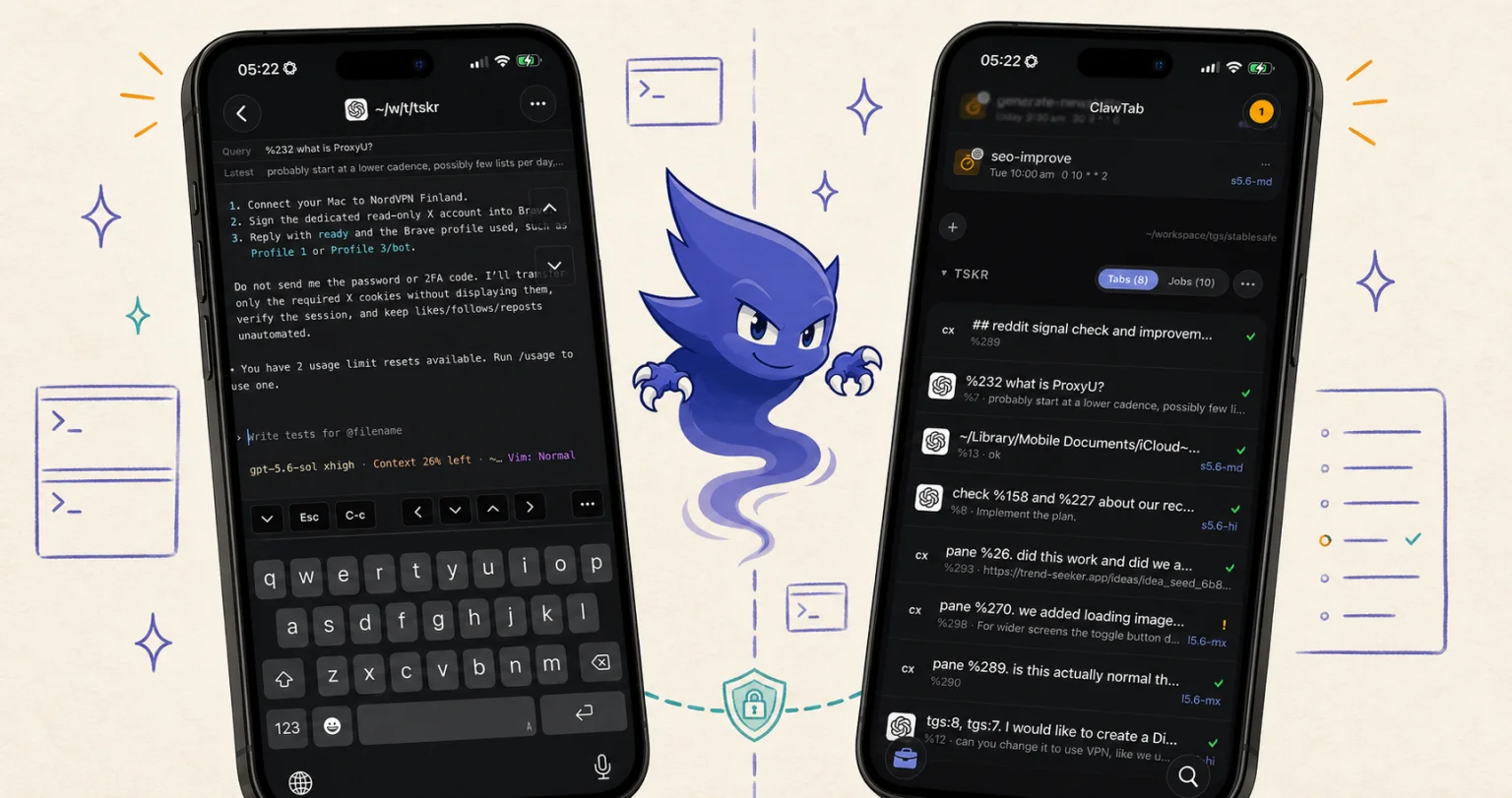
You can connect Codex CLI to your phone by pairing its host with ClawTab. Codex keeps running in its tmux pane on your Mac or Linux machine. ClawTab Remote gives you that pane's output and input from the iPhone app or a browser.
This is useful when you already have a terminal session you want to keep. You can leave the desk, inspect what Codex is doing, send a follow-up, and return to the same process. Later, OpenCode and Claude Code can appear alongside it without introducing another phone-to-host setup for each CLI.
This guide covers ClawTab pairing, a quick connection test, and the common reasons a paired host or pane does not appear. For a broader comparison with OpenAI's native connection, see Codex CLI remote control, phone, and SSH setup.
First, identify which pairing code you have
A Codex pairing code and a ClawTab machine code belong to different services. Enter each in the client that requested it. A valid code from one cannot connect the other.
| Where the code comes from | Where it belongs | What it connects |
|---|---|---|
codex remote-control pair | A compatible OpenAI Remote client | Codex's remote-enabled app-server |
cwtctl setup on Linux | ClawTab's Machines panel | The Linux host's ClawTab daemon |
| ClawTab on your Mac | Sign in and connect in Remote Access; use the same ClawTab account on your phone | Your Mac's ClawTab workspace |
OpenAI documents codex remote-control start followed by codex remote-control pair as an experimental CLI path. Its manual code expires; request another if needed. Check your installed CLI's help and the official command reference before using that route. The native desktop/mobile procedure is in OpenAI's Codex Remote guide.
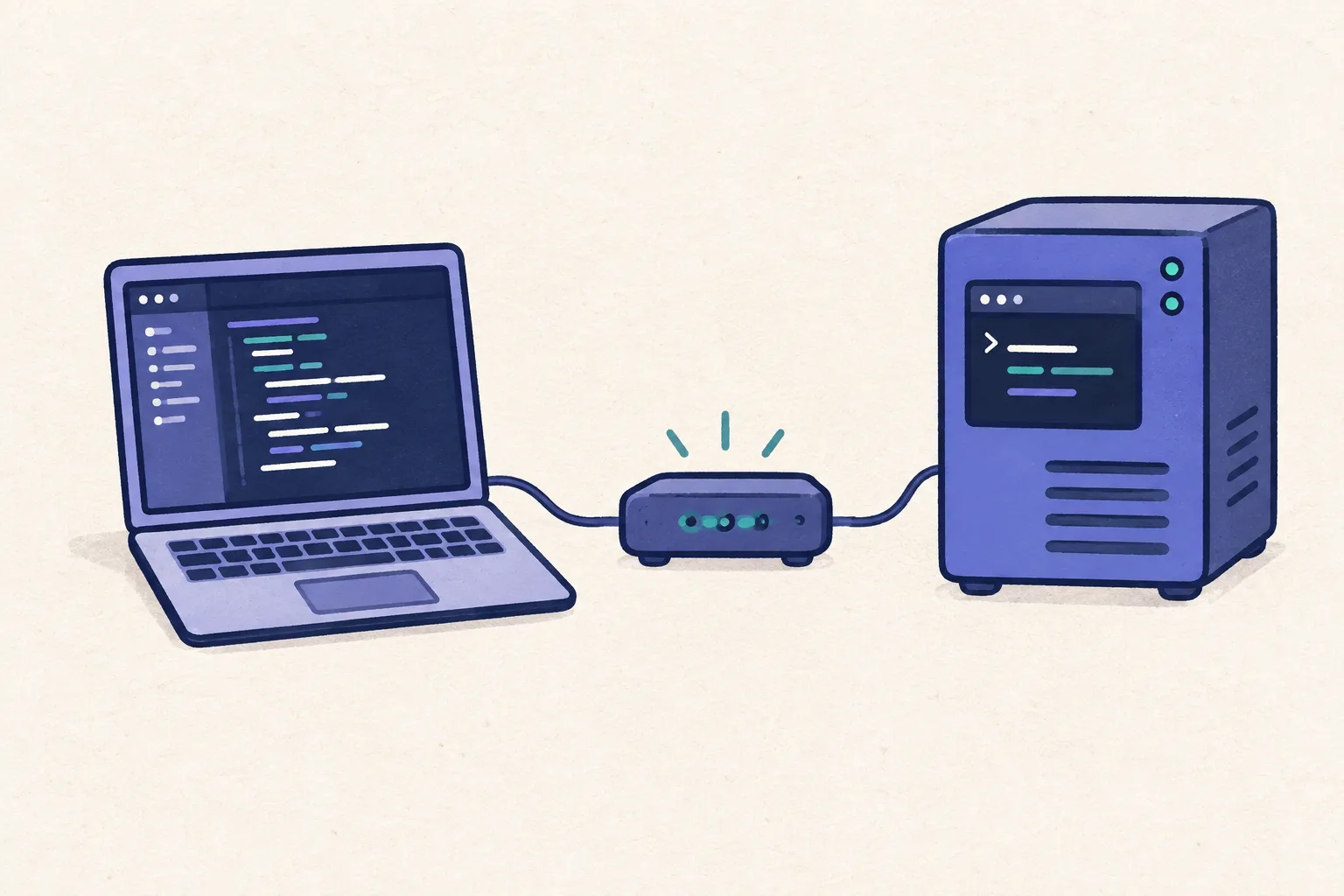
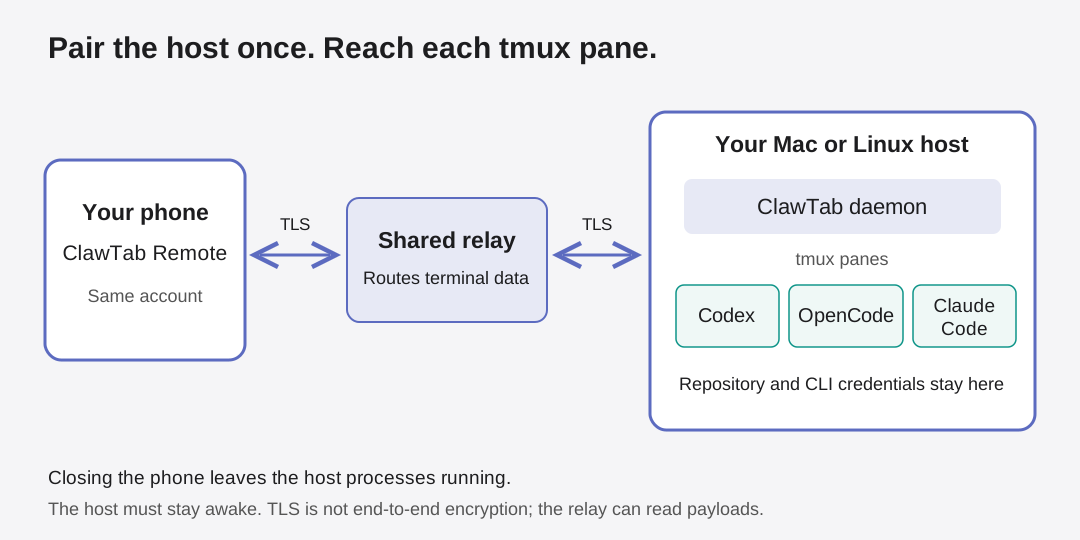
For the ClawTab route below, the connection belongs to the host. This diagram shows why adding another supported agent later does not require another provider-specific mobile connection.
Connect a Mac and open its Codex pane
- Start with a working local session. Install and authenticate Codex on the Mac. Open the project in ClawTab and start Codex in a tmux pane. Confirm that it can read the intended checkout before testing the phone.
- Connect ClawTab to your account. Open ClawTab's Remote Access settings and sign in. On an unpaired Mac, give the device a recognizable name and use Pair Device. An already registered machine may instead show Connect.
- Confirm the connection state. Wait for the machine to show as connected. Resolve an account or subscription error here before trying the mobile client.
- Sign in on your phone. Open the ClawTab iPhone app or ClawTab Remote in a browser with the same account. Select the correct machine and open its Codex pane.
Pairing does not copy your repository or Codex credentials onto the phone. The process stays on the Mac. The phone is another way to inspect and control it. The Remote product page explains the available clients and connection requirements.
Connect a Linux host with a ClawTab pairing code
On Linux, install ClawTab's host package, tmux, and Codex, then authenticate Codex on that machine. Follow the Linux machine setup guide for the package and service prerequisites.
Run the setup command below as the user who owns your project. Keep it running. In ClawTab on desktop or mobile, open Machines, choose the add/connect-machine action, enter the displayed code, and approve the connection. The current mobile form labels its confirmation button Connect machine.
The ClawTab setup code lasts ten minutes. If it expires, repeat setup for a fresh code. Once pairing succeeds, select the Linux machine explicitly before opening or starting Codex. Use --linger only if you want setup to request a user service that remains available after logout; the Linux guide covers that choice.
cwtctl setup --name codex-host

# After setup completes:
cwtctl daemon status
Verify that the phone controls the same session
Open a small, recognizable Codex task on the host, such as asking it to explain a file. On the phone, check the machine name, project, pane, and recent output. Send a harmless follow-up and confirm it appears in that same desktop terminal.
Next, close and reopen the mobile view. The original pane should still be there while the host and tmux process remain running. On machine terminals that show Watching, use Take control before typing. Only one remote client holds the input and resize lease at a time; multiple clients can observe.
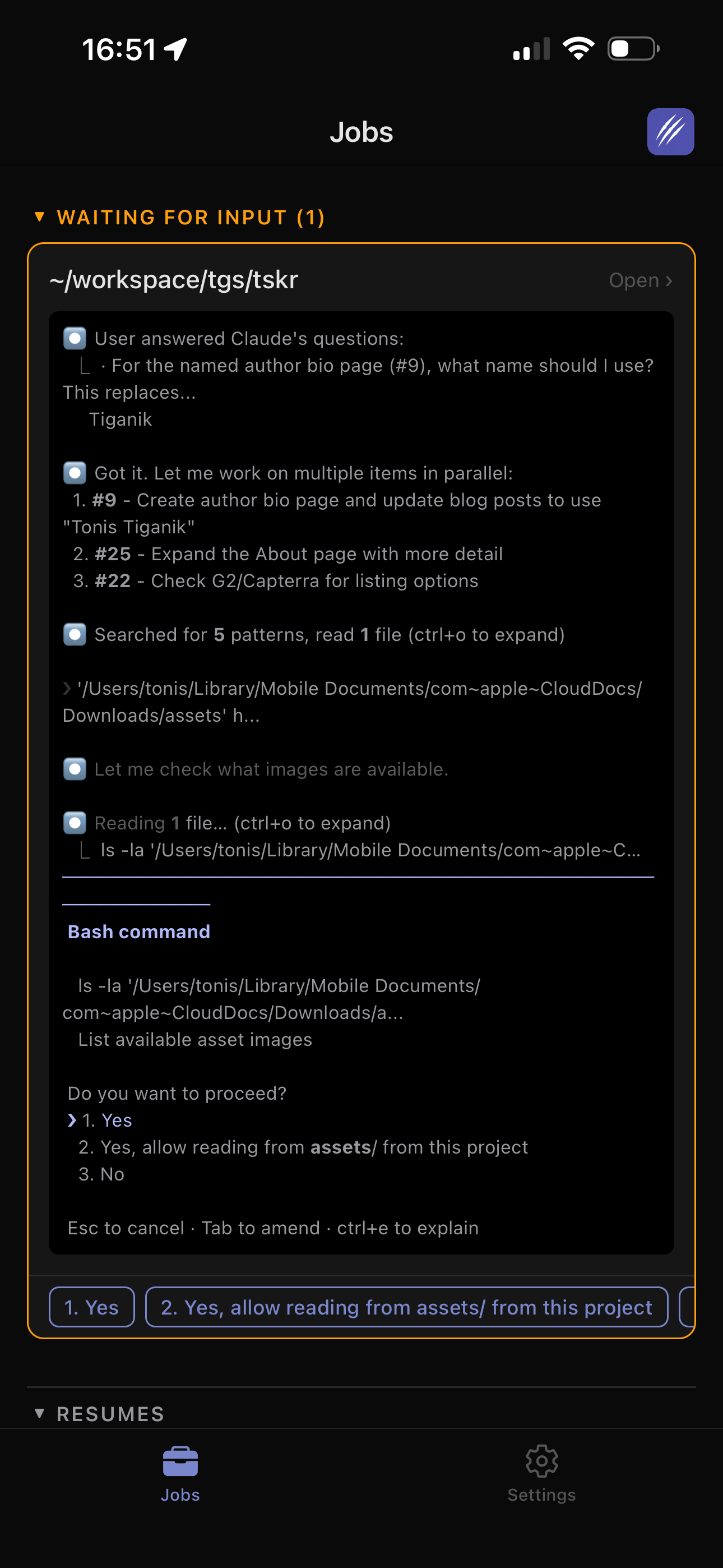
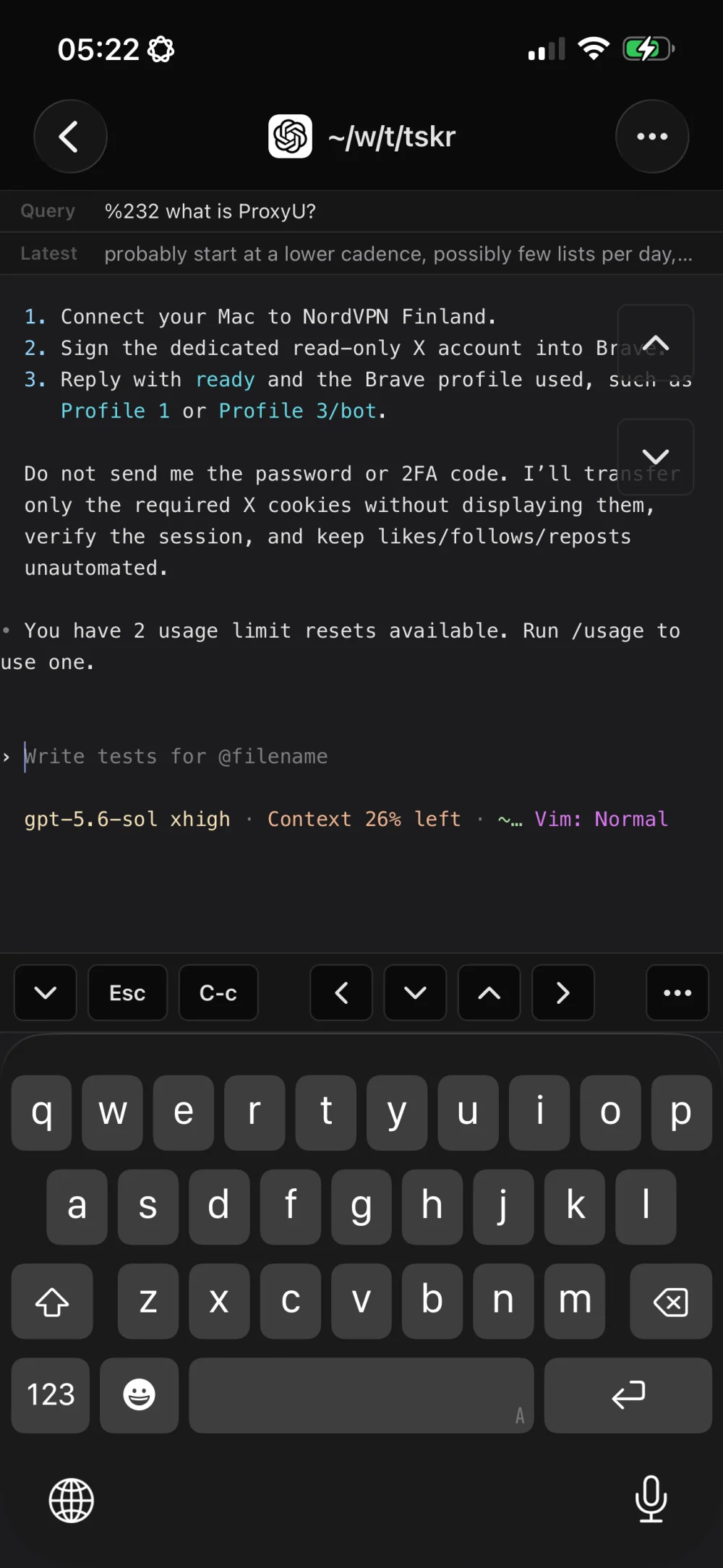
The recorded screen below shows the practical result: terminal output and input controls on the phone. It is the existing host session you are reaching, rather than a fresh copy of the task.
Fix pairing, offline-host, and missing-pane problems
| Symptom | Check | Next action |
|---|---|---|
| The pairing code is rejected | Was it issued by Codex or by cwtctl setup? | Use the matching service's client. Generate a fresh code if it expired. |
| The Mac says connected, but the phone shows no machines | The account used by each client and the phone's machine-list connection | Sign in to the intended account and refresh its machine list. A daemon connection and an account session are separate states. |
| The host appears offline | Power, sleep, network, daemon status, and outbound relay connectivity | Bring the host online and inspect daemon logs. Pairing alone cannot wake a sleeping machine. |
| The host is online, but the expected Codex pane is missing | The selected machine and the tmux workspace where Codex was started | Find that original pane on the host. A process outside the connected workspace will not become a pane merely because the phone paired. |
| Output arrives, but typing does nothing | Whether the machine terminal is watching or controlling | Use Take control, then send a harmless input to confirm the target. |
| The pane disappeared after a reboot | Whether the host or tmux server restarted | Start or resume the agent on the host. Pairing credentials and a running process have different lifetimes. |
On the affected host, the two commands below help distinguish a daemon problem from a phone-account or pane-selection problem. Check the error before changing the pairing. Avoid replacing a working host registration as a first troubleshooting step.
cwtctl daemon status
cwtctl daemon logs
Add OpenCode or Claude Code to the same phone view
Once the host connection works, install and authenticate another supported CLI on that host. Open its project in ClawTab and launch it in its own pane. Use a separate Git worktree when two agents will change the same repository concurrently.
Codex, OpenCode, and Claude Code can then share the same remote machine list and terminal controls. Their model access, login state, and permission rules still belong to their respective CLIs. Pairing ClawTab does not grant a subscription to another provider.
This is where ClawTab is useful beyond the first Codex connection: the next agent is another pane on the paired host. If the OpenCode task should repeat every morning, use an explicitly selected OpenCode scheduled job and inspect that run through the same remote interface.
What remains connected when you leave
Closing the phone or detaching a terminal does not end a tmux agent. Sleeping, rebooting, or powering off the host stops its ability to do work. An always-on Linux host is an option when a laptop's availability is too unpredictable.
The complete setup is a paired, reachable host plus a known Codex pane. Test both before leaving the desk. Once those work, the same ClawTab connection can serve additional agent CLIs and scheduled jobs as your workspace grows.