Codex CLI Remote Control: Phone, SSH, and tmux Setup
Pair Codex CLI with your phone using remote-control start and pair. Get a pairing code, fix pairing failures, or open a live tmux pane in ClawTab.
Introduction
Yes, you can control Codex CLI from your phone. For native Codex pairing, start the remote host and request a code with the commands below. To reach an existing Codex tmux pane alongside Claude Code or OpenCode, use ClawTab Remote.
Keep the host awake and online while pairing and using the remote session.
Codex CLI Remote Control Commands and Phone Pairing
For the experimental CLI route, run these commands on the machine that will host Codex:
start launches the remote-enabled local app-server daemon. Once it is running, pair prints a short-lived manual pairing code for a compatible Remote client. If the code expires before you finish pairing, run pair again. OpenAI documents this route in its developer commands reference; check your installed CLI help before relying on it.
For an expired code or an offline host, follow the Codex phone pairing checklist. For setup through the desktop app, see the desktop and SSH section below.
This creates a Codex-native remote environment. To control a Codex process already running in its original tmux pane, use ClawTab Remote for Mac and Linux hosts and open that pane from the iPhone app or web client.
What OpenAI's Codex Remote Connection Does
OpenAI describes Codex in the ChatGPT mobile app as a live view into trusted machines where Codex is working. The phone can load active threads and project context, show output as it arrives, and let you approve commands or change direction. OpenAI says screenshots, terminal output, diffs, test results, and approvals can flow back to the phone.
The execution boundary stays on the connected machine. Files, credentials, permissions, and the local toolchain do not move onto the phone. A secure relay keeps the machine reachable without requiring you to expose it directly to the public internet. See OpenAI's announcement, Work with Codex from anywhere, and the current Remote connections documentation.
Native Codex mobile capability
What it means in practice
Remote view in ChatGPT mobile
Open supported Codex chats and connected hosts from a phone.
Live machine state
Follow active threads, terminal output, tests, diffs, screenshots, and approvals.
Local execution
The repository, credentials, tools, and permissions stay on the laptop or remote machine.
Secure relay
The trusted machine does not need a public inbound terminal port.
Codex-native scope
The mobile surface is designed around Codex chats and connected hosts, not every unrelated process in a tmux server.
Desktop Pairing and Linux Hosts over SSH
Desktop path: Install the latest ChatGPT desktop app on macOS or Windows, sign in to the same account and workspace as the phone, then open Settings > Connections > Control this Mac or PC. Choose Set up or Add, approve remote access, and scan the QR code with ChatGPT on iOS or Android. Once paired, Remote can start or continue supported Codex chats on the host, show diffs and tests, and handle approvals. The host must remain awake, online, and signed in.
Experimental CLI path: OpenAI's Developer commands reference also documents codex remote-control start to run a remote-enabled local app-server daemon and codex remote-control pair to print a short-lived manual pairing code. Run start on the host, then pair and enter the code in a compatible Remote client. The CLI path is marked experimental; check your installed codex remote-control --help and verify the connection before depending on it for unattended work.
For a project on Linux or another development server, add a concrete host alias to ~/.ssh/config, confirm normal SSH access, and install and authenticate Codex on that host. Then add the SSH host in the desktop app under Settings > Connections and choose a project folder. OpenAI's Remote connections guide documents both flows and warns against exposing the app-server transport directly on a public network.
These Codex-native paths do not adopt every independent Codex process that you previously launched in tmux. If preserving the exact live pane, scrollback, shell state, and neighboring non-Codex processes is the requirement, connect at the tmux layer instead.
Codex Mobile vs ClawTab Remote
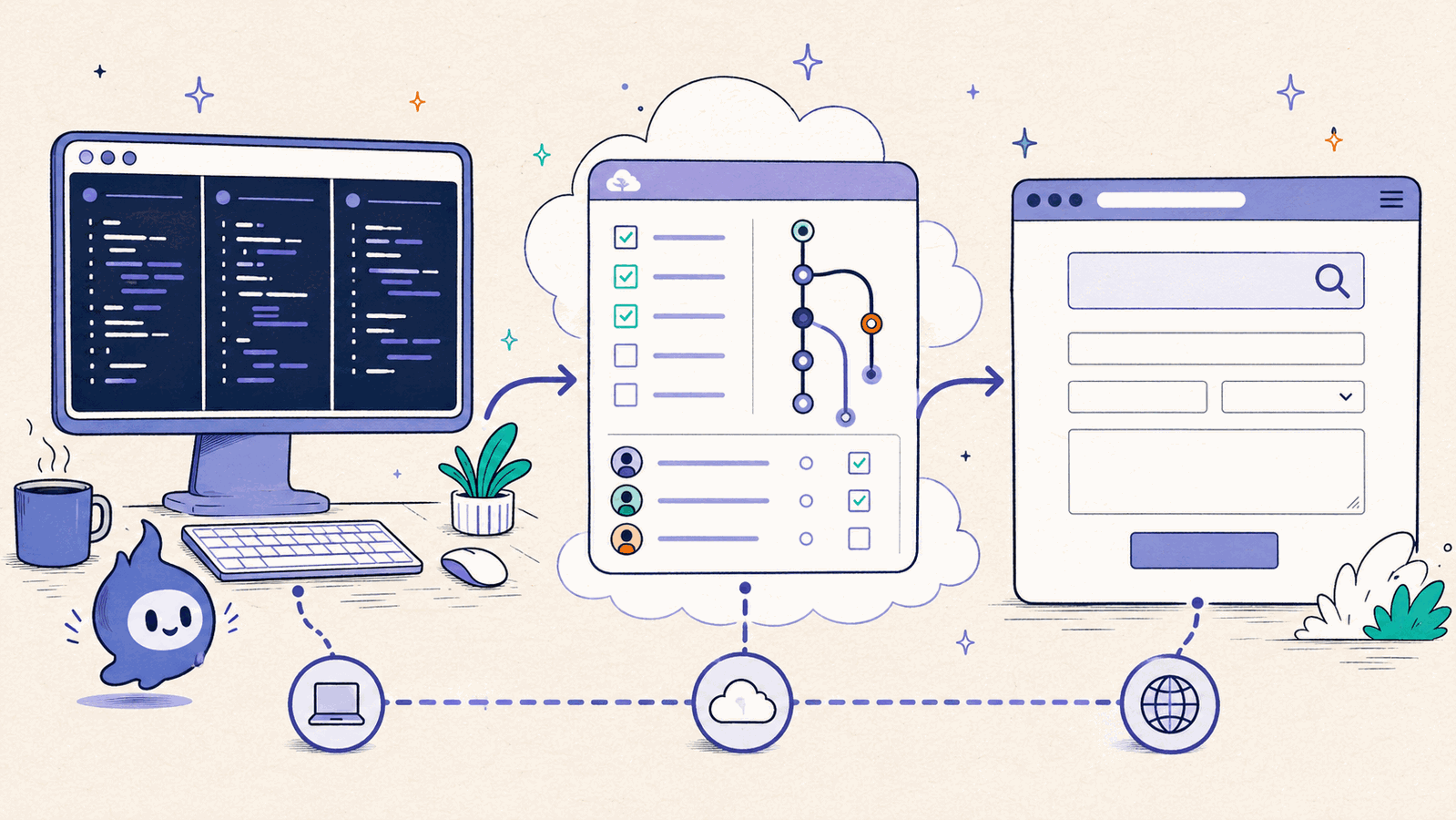
The products overlap at the phone, but they attach at different layers. OpenAI owns the Codex conversation and can present structured Codex artifacts. ClawTab owns the local tmux workspace and can present the terminal processes running inside it.
Question
Codex mobile Remote tab
ClawTab Remote
What does the phone attach to?
A supported Codex chat or connected host
A local ClawTab and tmux workspace
Providers
Codex
Codex CLI, Claude Code, OpenCode, and shell panes
Structured Codex artifacts
Threads, diffs, tests, screenshots, approvals, and project context
Live terminal state, detected questions, pane input, job state, and schedules
Existing tmux pane with its original shell state
Not the native attachment boundary
Yes, when the pane is part of the ClawTab workspace
Scheduled local jobs
Use Codex's supported scheduling surfaces
Standard cron-backed ClawTab jobs share the same remote view
Machine needs to stay reachable
Yes, for work executing on that machine
Yes; tmux survives terminal disconnects, not machine sleep or power loss
Choose the native Codex path when one provider owns the whole workflow and its structured review experience matters. Choose ClawTab when the operational unit is a local pane rather than a provider conversation. The broader local versus cloud coding agent comparison covers what changes when the task should run independently of your workstation.
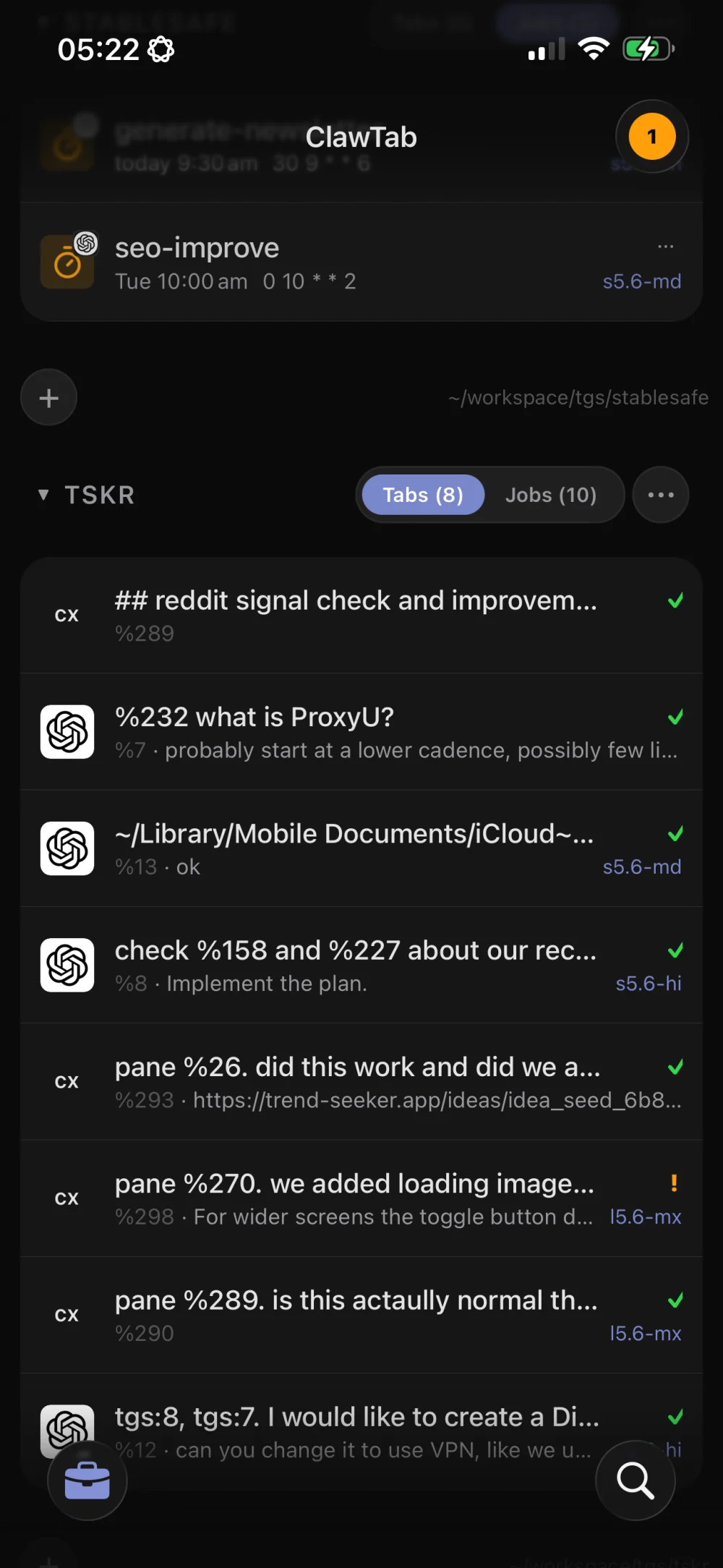
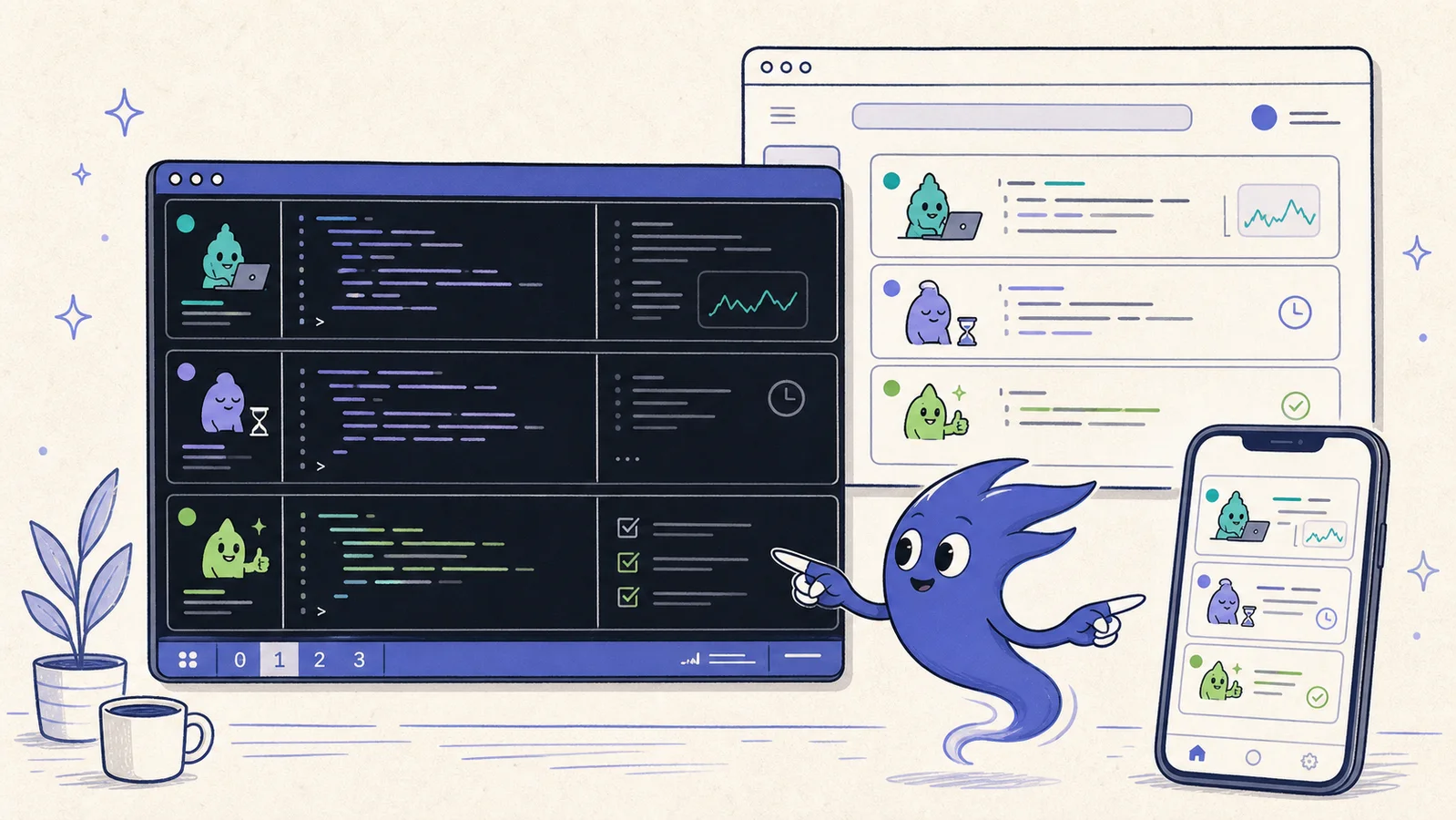
The ClawTab iPhone tab list shows several Codex sessions from one local tmux workspace, including pane IDs, recent prompts, model labels, and status.
A Real Local-Agent Approval Flow
A remote-control system earns its keep at the blocking point. The agent asks for permission or a choice, the phone shows enough recent output to make the decision, and the answer returns to the same local process.
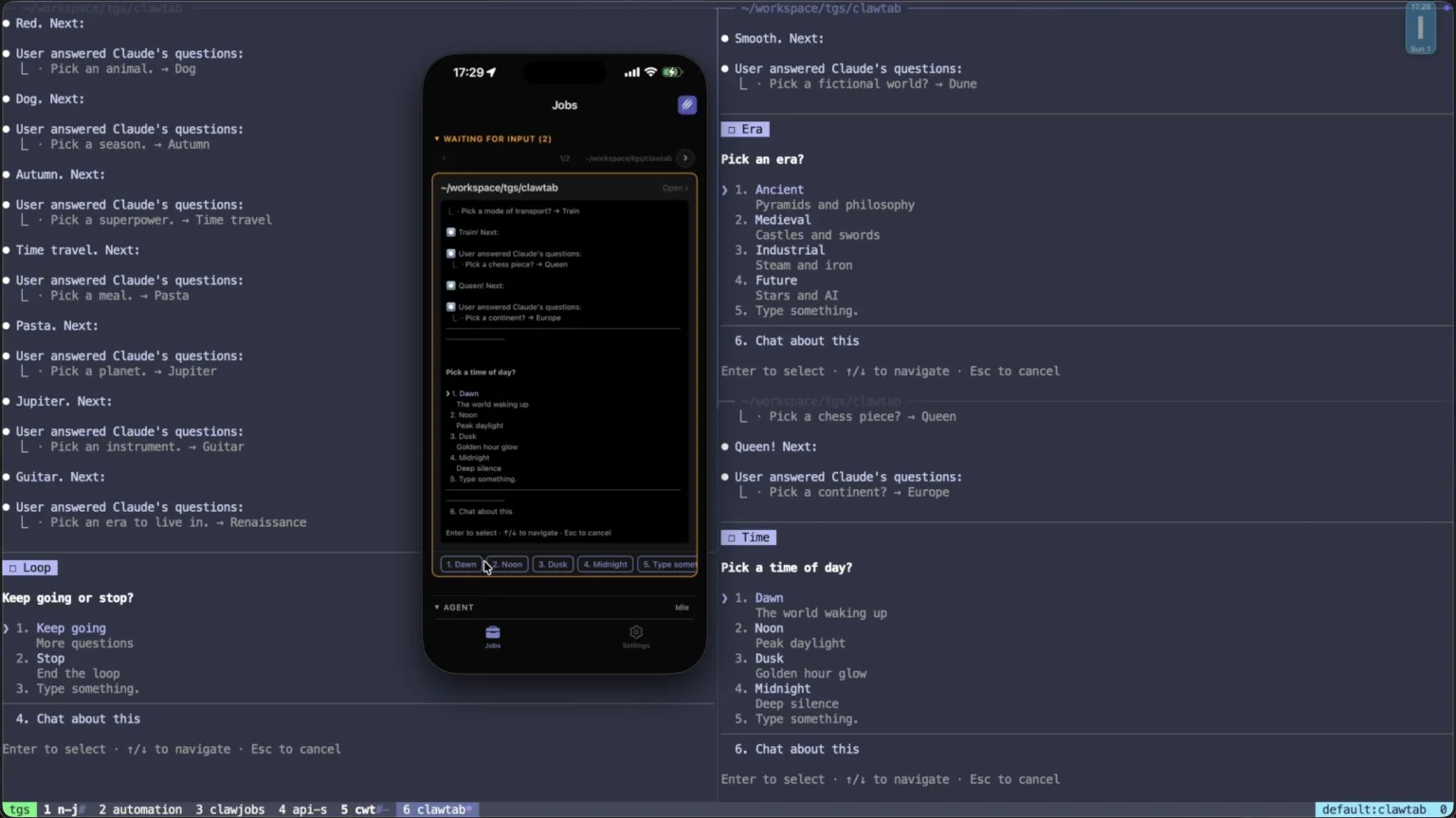
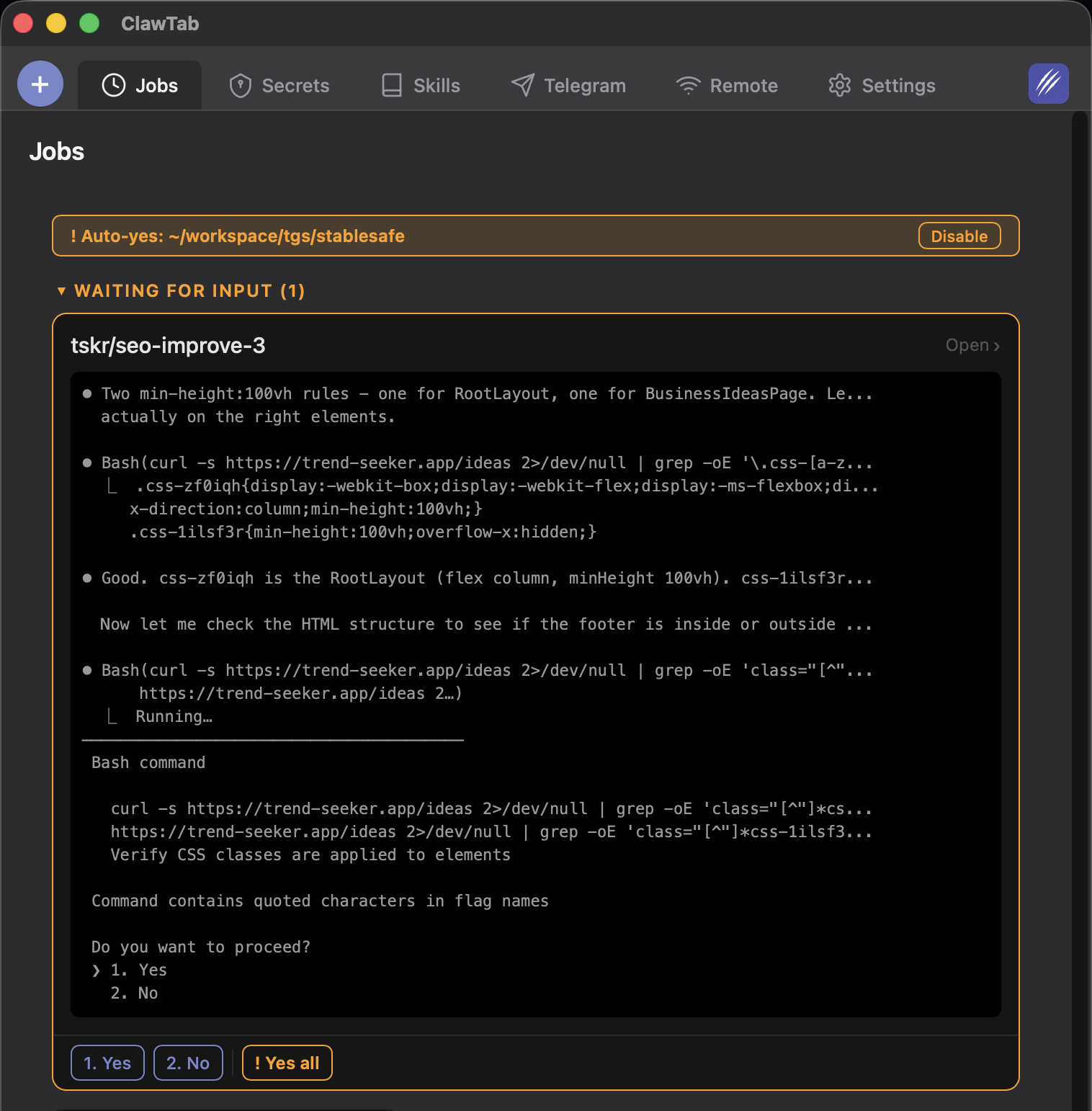
The screenshot below shows ClawTab detecting interactive questions in local tmux panes and rendering the active prompt as mobile buttons. This captured run uses Claude Code, which makes the prompt boundary easy to see. The transport itself is pane-based: Codex CLI and OpenCode panes use the same live-output and input route, while prompt parsing adapts to the terminal UI each provider emits.
A real local tmux prompt rendered on the phone. This captured prompt is from Claude Code; ClawTab's remote transport controls the pane rather than requiring a provider-owned mobile session.
Set Up Phone Access Without Publishing a Terminal
Do not solve this by forwarding SSH or a raw terminal port to the internet. Both the native Codex route and ClawTab use an outbound relay model so the development machine stays behind its normal network boundary.
Pick the attachment layer. Use OpenAI Remote for a Codex-native chat or host. Use ClawTab when the target is an existing tmux pane or a mixed-provider workspace.
Keep the repository on the machine that runs the agent. Start the job in the intended checkout or, for multiple writers, a dedicated Git worktree and tmux pane.
Connect the mobile client through the product relay. Sign in to ChatGPT mobile for native Codex access, or pair the ClawTab iOS/web client with the desktop app.
Test a harmless approval. Ask the agent to run a read-only command that requires confirmation. Verify that the phone shows the command and enough surrounding output before allowing it.
Test reconnection. Detach the terminal, switch the phone between Wi-Fi and cellular, and confirm that the same thread or pane returns.
tmux preserves the process when the terminal disconnects. It does not keep a sleeping or powered-off Mac online. If the job must continue with no dependency on your machine, use a hosted Codex task instead of remote control of a local process.
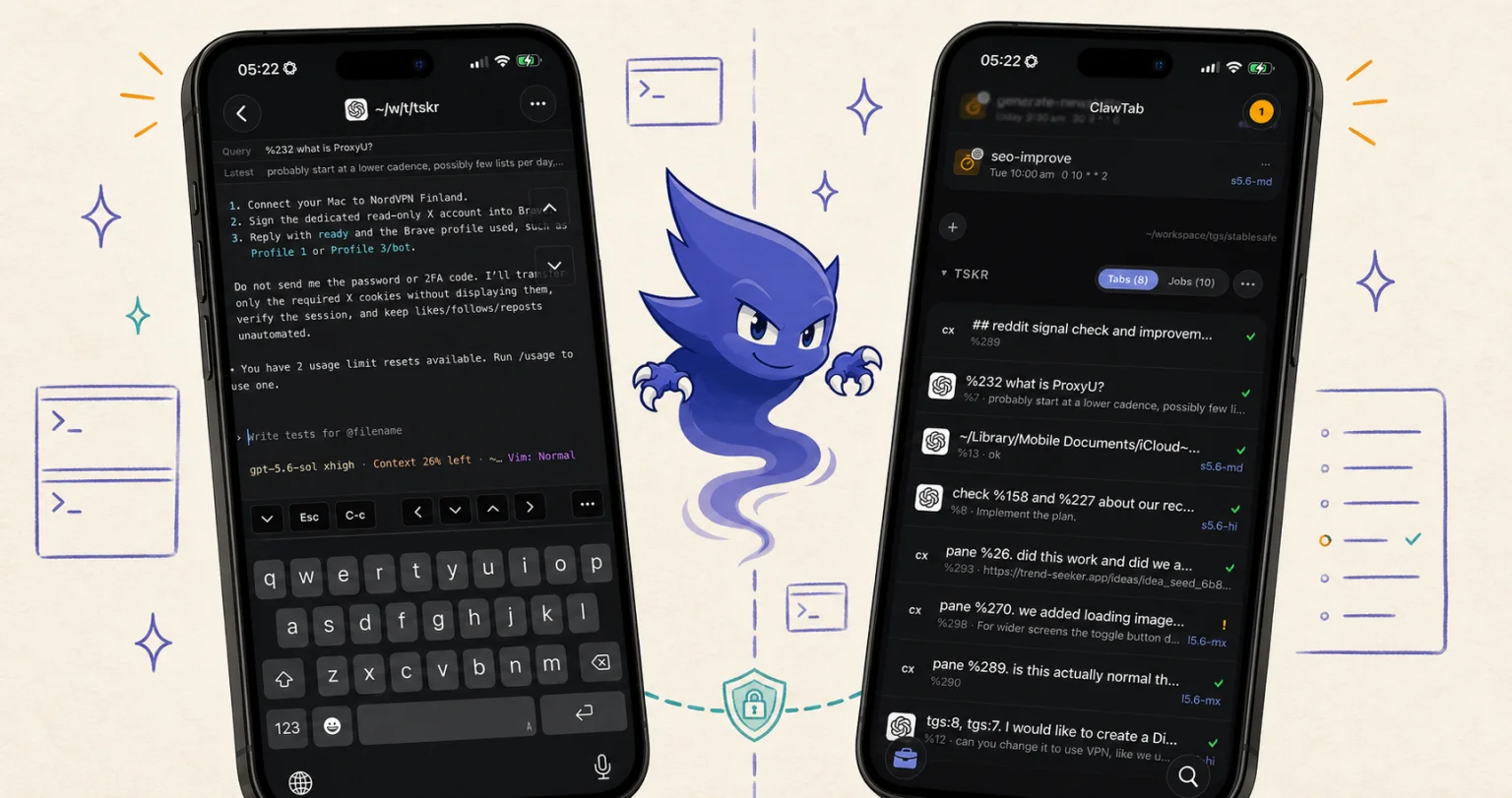
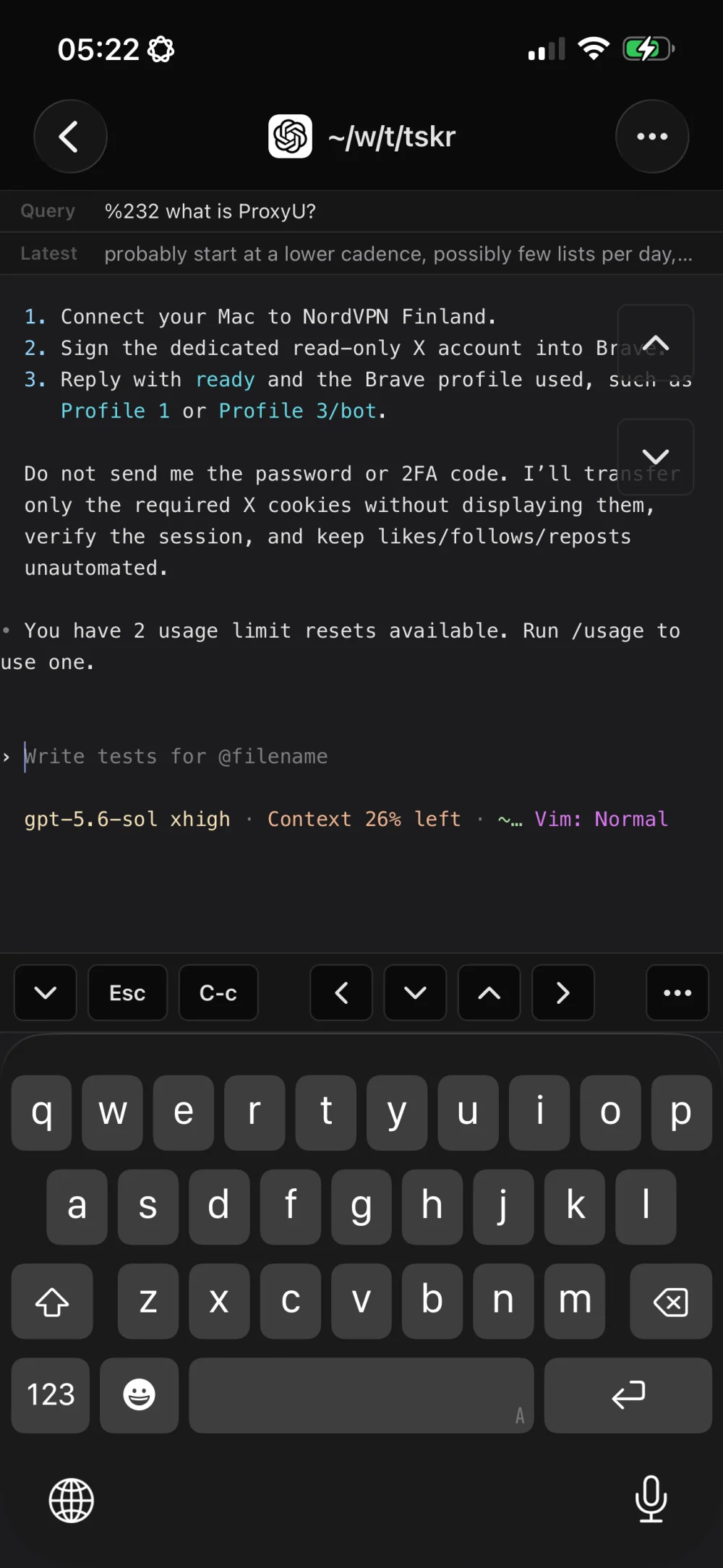
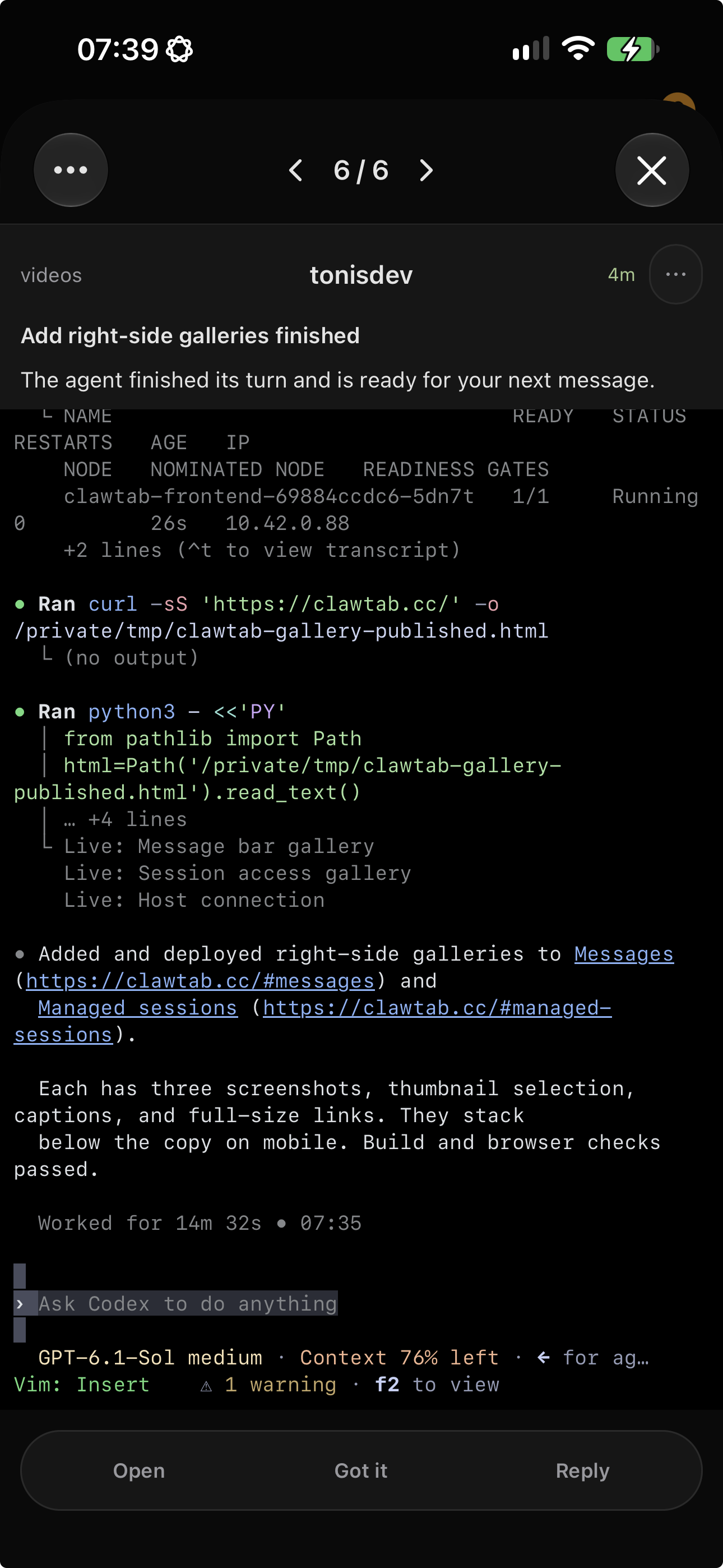
A live Codex CLI pane on iPhone. The detail view keeps terminal output, the prompt field, escape and control keys, model, effort, and remaining context visible.
Use One Phone View for Codex, Claude Code, and OpenCode
Provider-native remote control is usually the best client for that provider. The trade-off appears when a workspace contains more than one agent type.
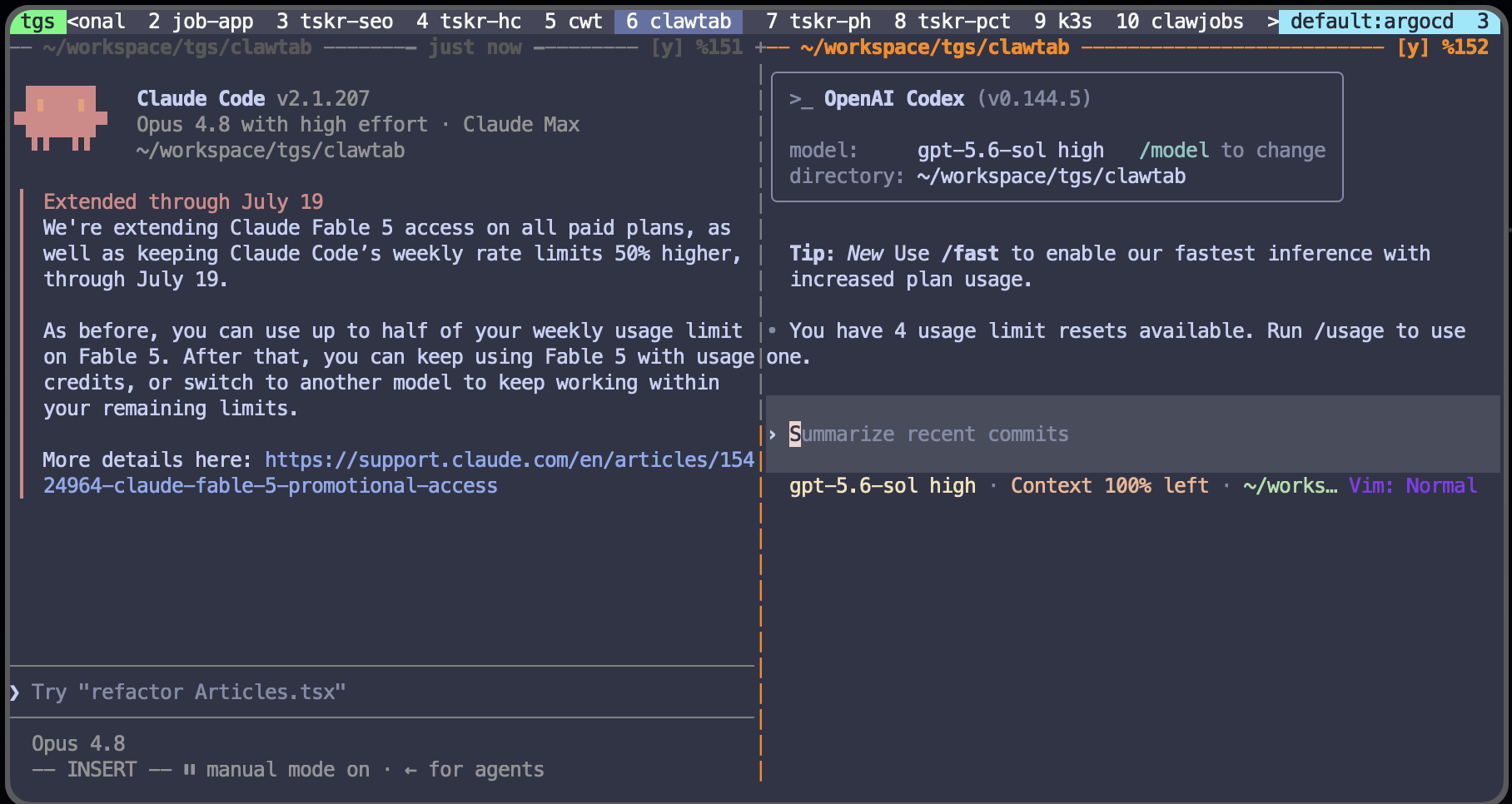
A common local setup has Codex reviewing one worktree, Claude Code implementing in another, OpenCode handling a smaller task, and ordinary shell panes running tests or a local service. Opening separate provider apps does not show whether the full workspace is healthy. A tmux-level view does.
One process boundary: each agent remains an ordinary tmux pane with its existing CLI state.
One mobile queue: waiting prompts from different panes appear together instead of being split by provider.
One scheduling layer:cron jobs and interactive agents can share the same local machine and remote status view.
One permission policy per pane: use manual approval by default, then enable auto-yes narrowly for a trusted, isolated task.
This is the main reason to add ClawTab around Codex CLI. It does not replace Codex's models, reasoning, diff review, or native mobile experience. It gives several local tools one operational home.
Does Codex CLI Have Remote Control Like Claude Code?
Both providers offer a phone path, but the setup differs. Anthropic's Remote Control documentation connects a local Claude Code CLI or VS Code session to claude.ai/code and the Claude mobile app. OpenAI's general Remote guide pairs a phone with a ChatGPT desktop host, while its developer reference documents experimental CLI pairing. Neither provider's mobile view is a general dashboard for every Claude Code, Codex CLI, OpenCode, and shell pane already running in tmux.
Claude's native path supports browser and mobile conversation sync, permission handling, file attachments, push notifications, and multi-session server mode. For a Claude-only workflow, use it. See Anthropic's Remote Control documentation.
Use ClawTab when the boundary is broader than Claude: mixed providers, existing tmux panes, shell processes, cron schedules, or one phone queue for the whole local workspace. This is the same decision as Codex native versus ClawTab—provider conversation versus terminal control plane.
Security Questions to Answer Before Leaving the Desk
Remote control keeps execution local, but it expands who can approve local actions. Treat the phone as a privileged development client.
What is exposed? Prefer an authenticated outbound relay. Do not publish tmux, SSH, or a web terminal directly.
Where does session data live? Read the provider's retention policy. Local execution does not mean that every message, transcript, or artifact stays only on the workstation.
What can one approval do? Keep sandboxing and least-privilege credentials enabled. A phone-sized screen is a poor place to approve a long destructive command.
Can you identify the target? Name each project, worktree, and pane clearly so an approval cannot land in the wrong repository.
What happens after theft? Require device authentication, keep account recovery current, and revoke the mobile session immediately if the phone is lost.
ClawTab connects its desktop and mobile clients through TLS and a relay rather than opening an inbound terminal port. The existing remote access guide covers its connection model, push notifications, and self-hosted relay option in more detail.
Which Remote Coding Agent Setup Should You Use?
Your actual requirement
Start here
Review and steer supported Codex work with native diffs, tests, and approvals
ChatGPT mobile Remote
Continue one or more local Claude Code sessions from mobile or browser
Claude Code Remote Control
Reach a standalone Codex CLI process already running in tmux
ClawTab Remote
Monitor Codex, Claude Code, OpenCode, and shell panes together
ClawTab Remote
Run when the laptop is asleep or disconnected
Codex cloud or another hosted agent environment
Operate a production service with no interactive prompts
A process supervisor and deployment tooling, not a coding-agent phone UI
Start with the provider-native client when it covers the whole job. Add a local control plane only when the terminal session, tmux workspace, or mixed-provider queue is the real source of truth. For a wider tool comparison, see the guide to multiple AI coding agents and managers.
Frequently Asked Questions
Yes. Pair ChatGPT mobile with a Mac or Windows host through the ChatGPT desktop app, or use the experimental Codex CLI remote-control commands to start a host and create a manual pairing code. ClawTab can also control a separate Codex CLI process already running in tmux.
Yes, experimentally. OpenAI documents codex remote-control start for the local app-server daemon and codex remote-control pair for a short-lived manual pairing code. Its general Remote guide still describes the desktop QR pairing flow, so check your CLI version and verify the client connection.
No. Codex remote control creates a Codex-native remote environment, but it does not automatically adopt every unrelated CLI process already running in tmux with its original pane state. Use a terminal-level controller such as ClawTab when that exact live pane is the target.
OpenAI says its Codex mobile experience uses a secure relay that keeps trusted machines reachable without exposing them directly to the public internet. Files, credentials, permissions, and local setup stay on the machine where Codex operates.
Yes. ClawTab Remote connects to the local tmux workspace, streams pane output, and sends input back to the selected pane. Because the boundary is the terminal pane, the same remote view can include Codex CLI, Claude Code, OpenCode, and shell jobs.
Remote control of a local agent pauses until the machine and network return. tmux protects the process from terminal disconnects, but it cannot run on a sleeping or powered-off computer. Use a hosted Codex task when the work must be independent of the laptop.
They solve a similar problem for different provider sessions. Claude Code connects its local CLI or VS Code sessions to Claude web and mobile. Codex exposes supported Codex chats and connected hosts in ChatGPT mobile. ClawTab instead connects to tmux panes and can show several providers together.
SSH is useful for full terminal administration when it is protected by a VPN, strong keys, and careful network rules. For quick agent approvals and status checks, a purpose-built authenticated relay reduces the need to expose or navigate a raw terminal on a small screen.