Herdr vs tmux for coding agents: replace the workspace or keep your panes?
Compare Herdr with tmux and ClawTab for Claude Code, Codex, and OpenCode: process ownership, agent status, worktrees, SSH, phone access, and migration.
Introduction
If you are comparing Herdr with tmux for coding agents, start with where you want your terminals to live. Herdr gives you a terminal workspace with agent awareness built in. tmux gives you durable panes that you can extend with a manager such as ClawTab. Both can keep work running when a client detaches.
Choose Herdr if you want its workspaces, sidebar, and agent controls to become your everyday terminal environment. Keep tmux if you already have panes, scripts, keybindings, and running services you want to retain. Add ClawTab when you want agent status and remote controls around those existing panes.
ClawTab publishes this comparison. We checked Herdr's current documentation and its upstream 0.9.5 macOS binary on November 6, 2026; the local ClawTab CLI was 0.6.2. The feature comparison below uses linked product documentation. The final checklist gives you a procedure to repeat with your own agents.
Compare the workspace you will actually use
Plain tmux and an agent manager solve different parts of the workflow. This table separates tmux itself from what ClawTab adds.
Decision
Herdr
tmux
tmux with ClawTab
Where terminals live
Herdr's background session server
The tmux server
The same tmux server; ClawTab discovers agent panes
Herdr owns the terminals created inside its workspaces. tmux owns the terminals created inside its sessions. Closing a client can leave either server running. Stopping the server that owns a terminal ends its live processes.
ClawTab sits alongside tmux. Closing its desktop app or restarting its daemon leaves the separate tmux sessions alive. That distinction matters when a pane contains both an agent and a development server you intend to keep running.
Event
Herdr
tmux with ClawTab
Detach the terminal client
Server and pane processes continue
tmux server and pane processes continue
Close ClawTab's desktop window
Separate from the Herdr session
Daemon and tmux keep running
Restart the pane owner
A normal Herdr server restart ends the original processes
A tmux server restart ends its original processes; a ClawTab daemon restart leaves tmux alive
Host sleeps
Work on that sleeping host pauses
Work on that sleeping host pauses
Host reboots
Original processes end; restore depends on saved state and integrations
Original processes end; restore depends on your tmux setup and agent resume workflow
Herdr distinguishes live persistence, layout restore, screen history, and native agent resume. Its optional experimental handoff attempts to retain live processes during supported server replacements. A restored layout or resumed conversation is a different recovery path from keeping the original process running.
For unattended work while your laptop sleeps, put the agents on an awake host. Connecting from a phone changes the client, not the machine doing the work.
Check which agent is waiting and answer its original prompt
Herdr supports Claude Code, Codex, and OpenCode. Its agent guide explains how process detection, screen rules, and integration reports produce agent state. The sidebar rolls that state up to workspaces so you can jump to a waiting terminal.
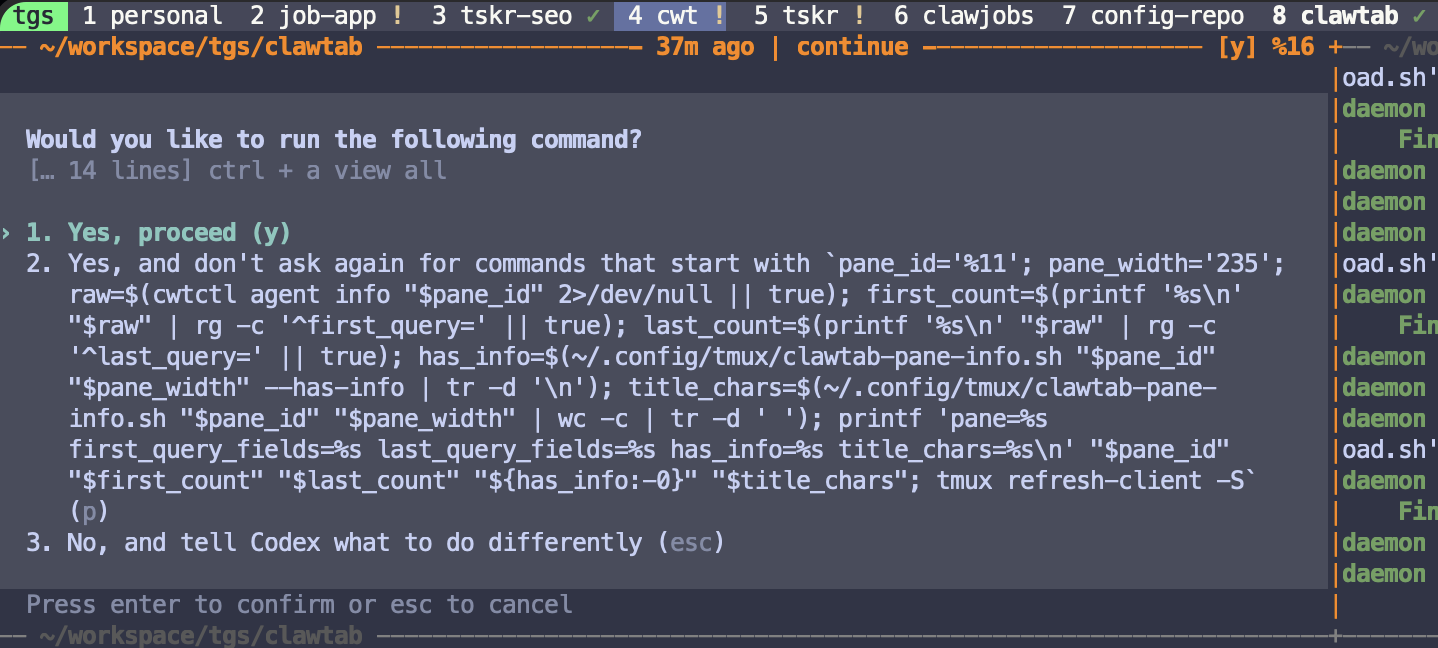
ClawTab uses provider integrations and a daemon to surface working, asking, and idle states around tmux panes. Its plugin keeps that information in the terminal; Remote adds messages and terminal access away from the desk. The screenshot below shows an existing ClawTab capture: a waiting indicator in the tmux window list and the actual approval prompt in its pane.
Existing ClawTab product capture from July 2026. It illustrates the waiting indicator and original terminal prompt; it is not a new Herdr comparison run.
Keep the two writers in separate worktrees
Two visible panes can still write into the same checkout. Before comparing either manager, give each writer a separate Git worktree and branch. Ask one agent to change an implementation and the other to update its documentation, then review both diffs independently.
Herdr 0.9.5 exposes a worktree command group. With tmux and ClawTab, you can create worktrees using Git and open panes in those directories. The useful test is whether you can identify the checkout, branch, and diff belonging to each agent throughout the task.
Use our parallel agents and Git worktrees guide for the tmux setup. Worktree isolation still leaves review, shared services, and merge order to your workflow.
Choose between SSH terminals and a phone companion
Herdr offers several SSH access paths: run it after logging into the host, or attach a local Herdr client with herdr --remote workbox. Its saved machines put connected local and SSH workspaces in one window. Each remote machine retains its own server.
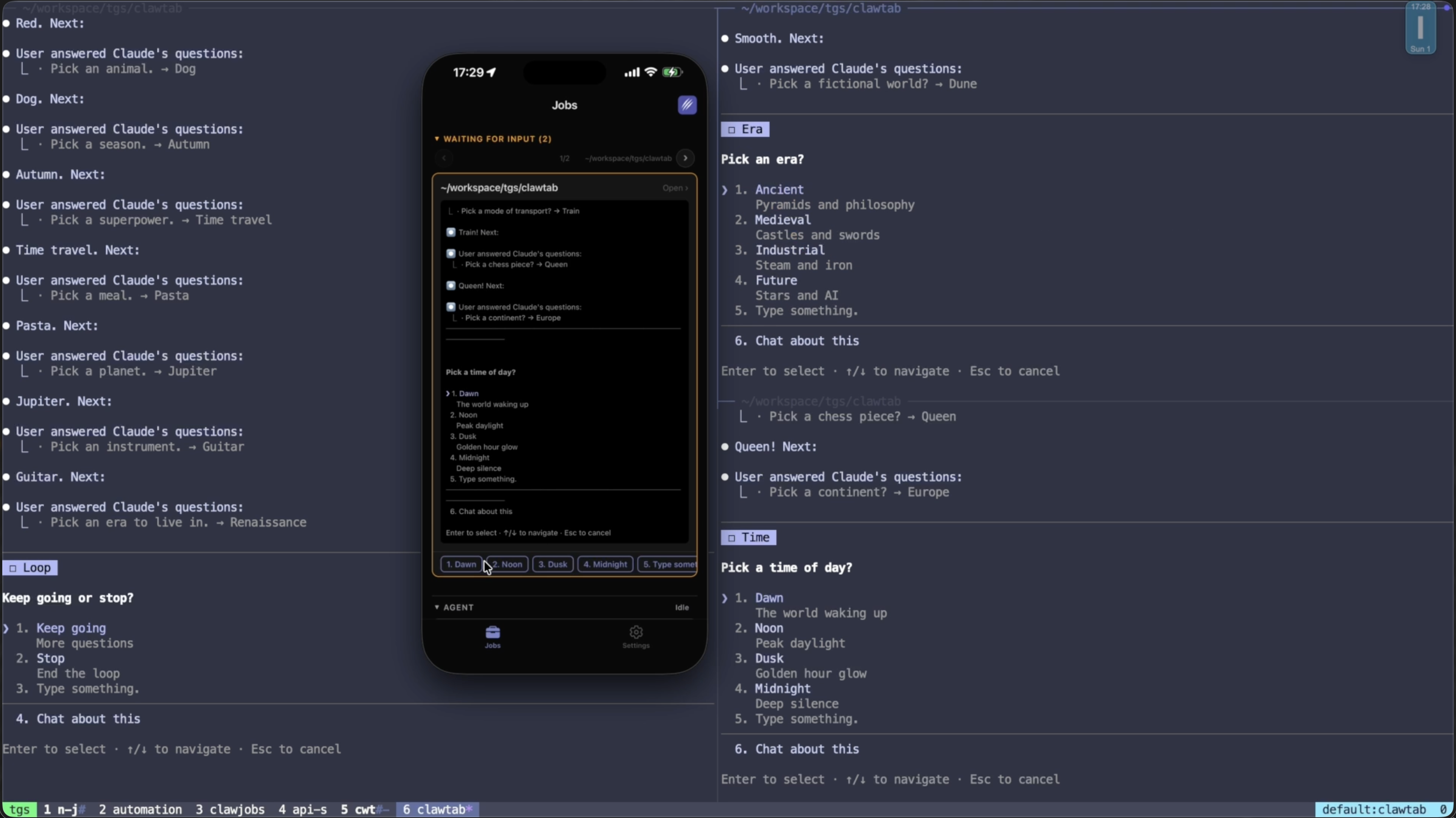
A phone SSH client can use the terminal route. ClawTab Remote offers a separate mobile and web interface for agent messages, replies, and live tmux terminals. Choose based on the action you need away from the desk: a full terminal session, or a quick reply to the agent that is waiting.
In either case, test a disconnect while two agents are waiting. Reconnect and answer just one of them. Check the original terminal to confirm which prompt received your reply. The ClawTab Remote page explains connecting your own host.
Existing tmux panes are the migration decision
Running Herdr inside an outer tmux terminal is possible, but its inner panes belong to Herdr. Herdr's agent documentation also explains that its detection does not inspect agents hidden inside a nested tmux session. Nesting the two does not turn your existing tmux panes into Herdr workspaces.
ClawTab's existing pane discovery is useful when the terminals already contain the work you want to manage. You can keep your tmux theme, attach directly, and add the ClawTab plugin and controls. Provider integrations supply the agent context; an arbitrary shell is still a shell.
Try Herdr first if you want a single terminal workspace with built in agent awareness and are ready to launch work in its panes.
Keep tmux and add ClawTab if existing panes, scripts, and remote replies are central to your workflow.
Keep plain tmux if splits, durable processes, and SSH already cover what you need.
Run this comparison in one disposable repository
Use the same repository, tasks, and provider settings on each side. Record the Herdr, tmux, ClawTab, and agent CLI versions before starting. Repeat with Claude Code, Codex, or OpenCode according to what you actually use.
Start two writers. Give each a separate worktree and a small, reviewable change. Record its pane, directory, and branch.
Create a real question. Ask each agent to request a choice before editing. Check which manager reports that it needs input, then answer only one original prompt.
Detach and reconnect. Keep a simple long running command alongside the agents. Record its PID before and after reconnecting to distinguish a live process from a reconstructed screen.
Switch clients. Try the SSH or phone path you will use. Check the reply in the original pane and review each worktree's diff.
Test recovery separately. In the disposable session, stop its pane owner and inspect what returns. Record layout, process, and conversation recovery as separate results.
Our local Herdr 0.9.5 check created a named server, two shell panes, and a client connection; we inspected process IDs through its CLI and then stopped that test server. We did not run the provider tasks or the phone workflow above. Those are the acceptance checks to perform before moving your daily workspace.
The deciding result is whether you can find the waiting agent, answer the right terminal, and review its changes using the workspace you want to keep. If that workspace is already tmux, start with the ClawTab tmux setup.
Frequently Asked Questions
Herdr provides its own workspaces, panes, and background session server, so it can take the terminal multiplexer role. It can also run inside an outer tmux terminal, but its inner panes remain Herdr terminals.
Herdr's agent guide says it does not inspect agents inside a nested tmux session. For an existing tmux workflow, ClawTab discovers agent panes and adds controls around them.
Normal client detach leaves Herdr's background server and pane processes running. A normal server stop ends those processes; layout restore and supported agent resume are separate recovery paths.
Herdr documents using a phone SSH client to connect to a host and run its terminal interface. ClawTab Remote provides a mobile and web companion for messages, replies, and live tmux terminals.
Work on the sleeping host pauses. To keep agents working while a laptop sleeps, run them on an awake remote host and use the laptop or phone as a client.