Introduction
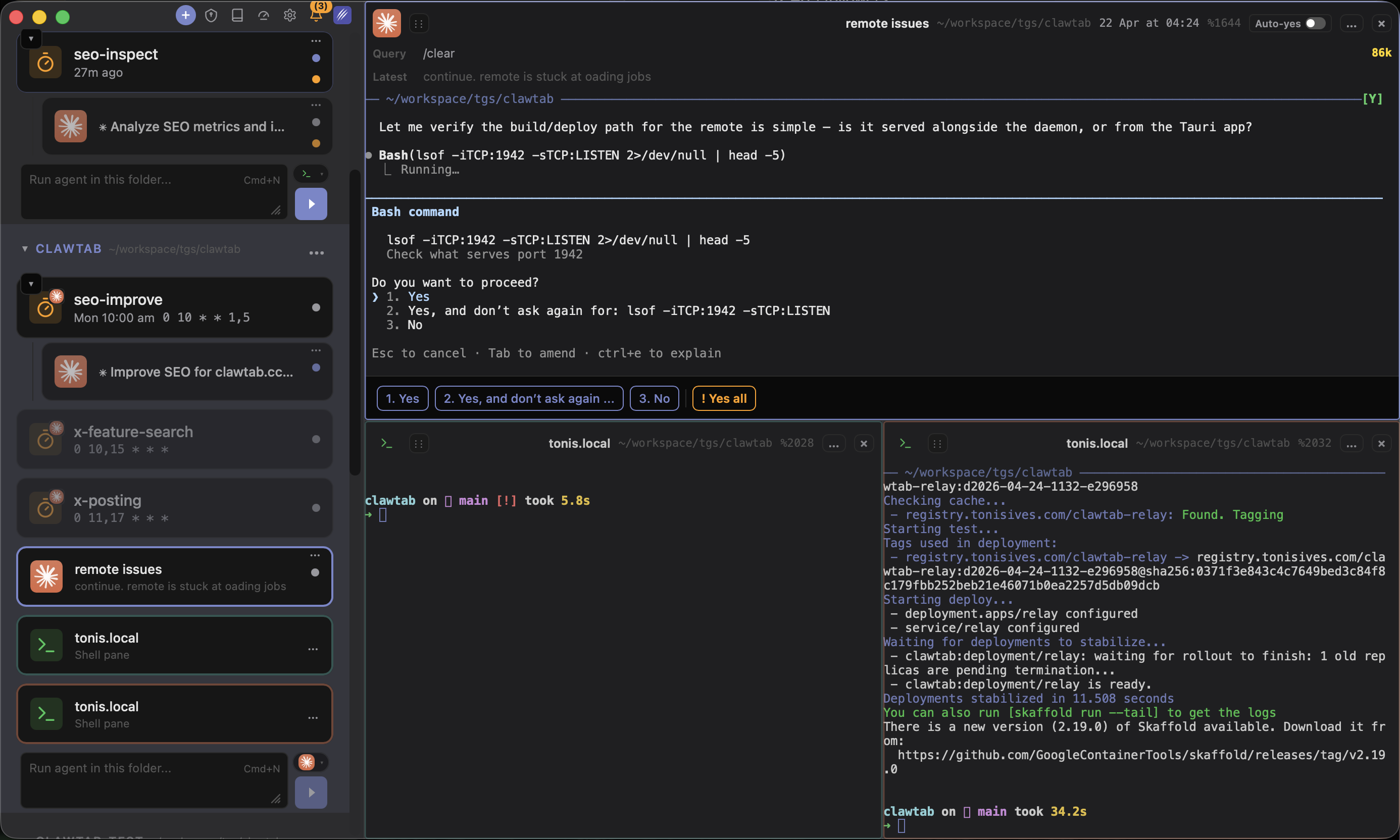
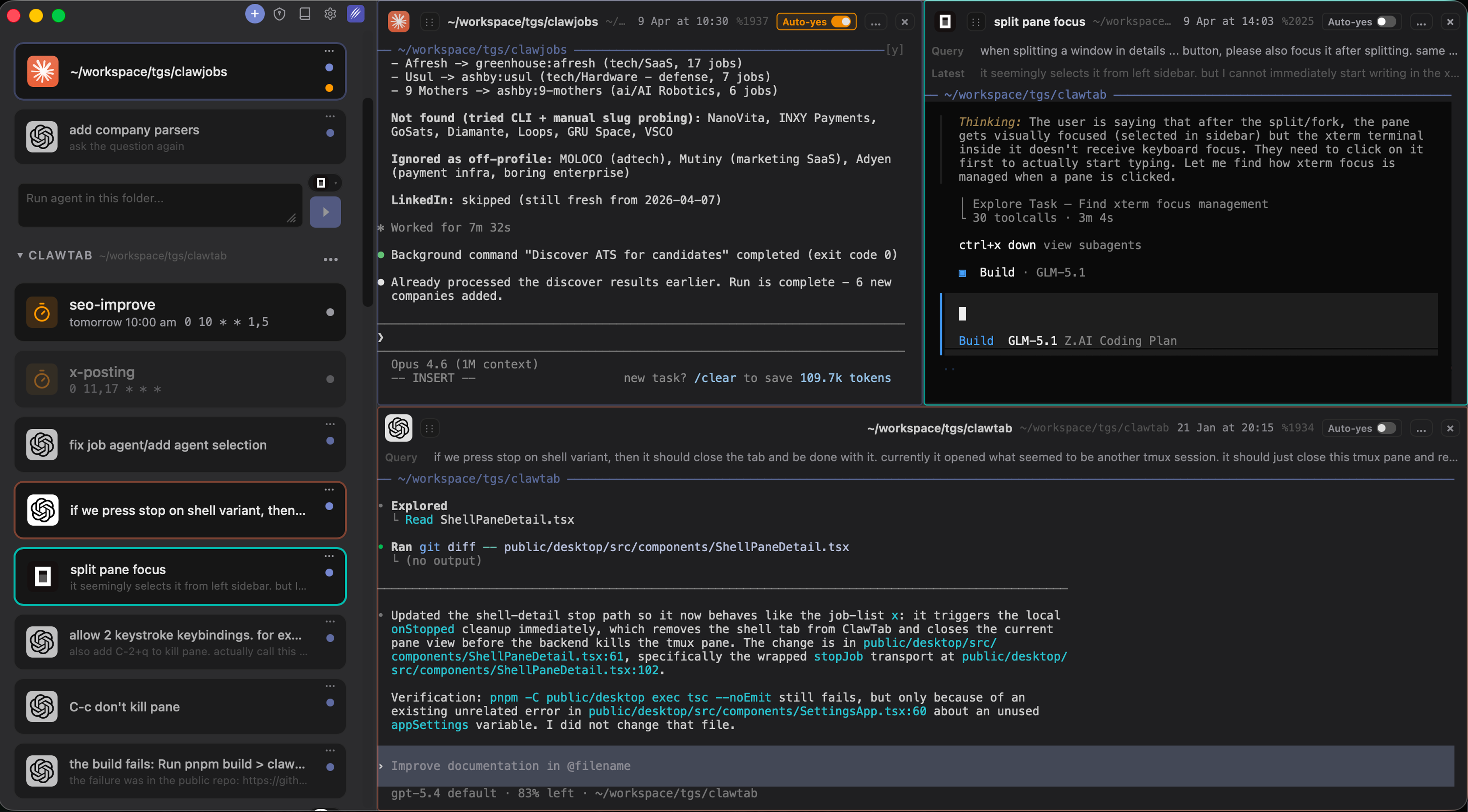
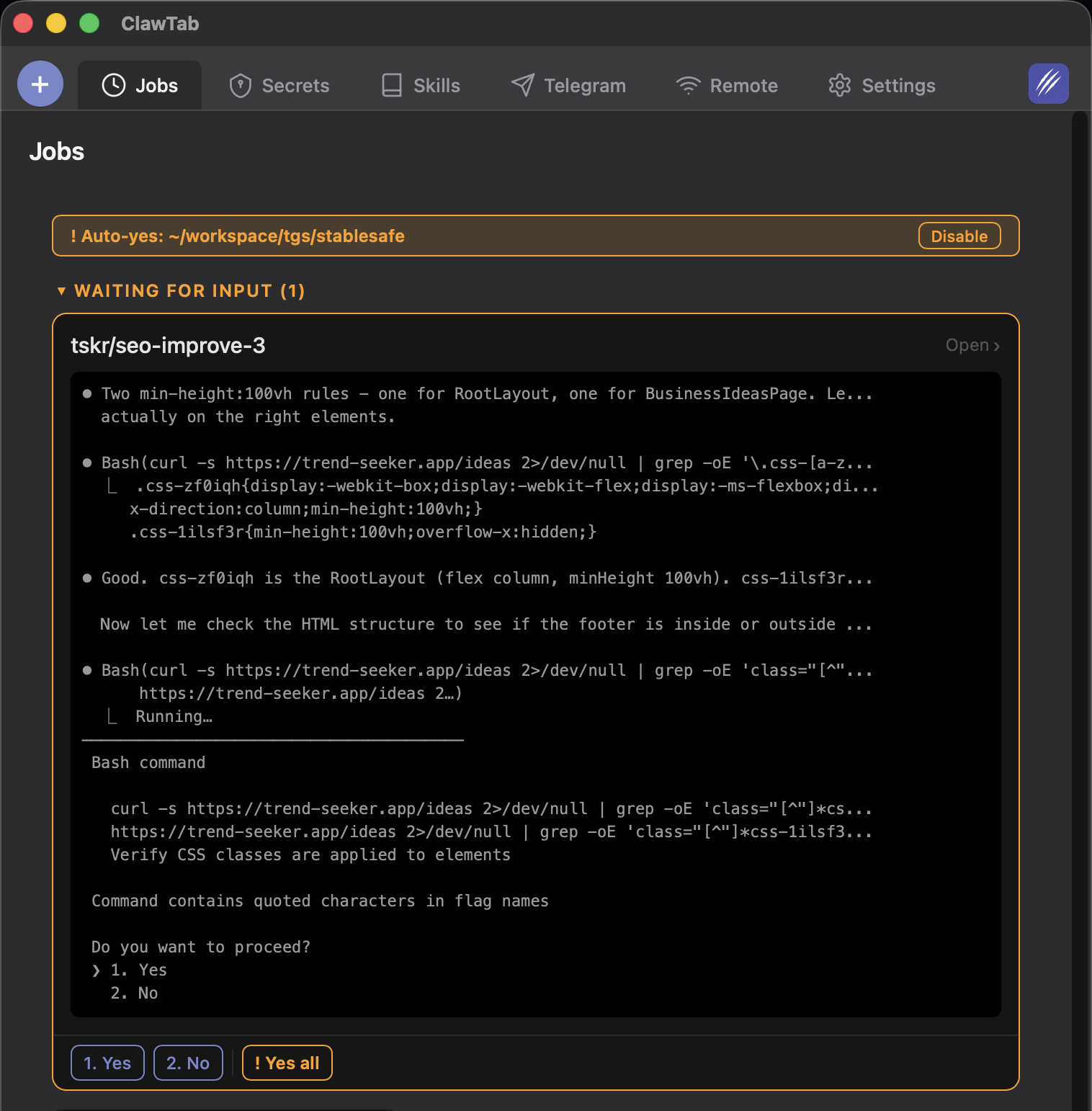
The sidebar lists your Claude Code agents. A split layout tiles a few of them. But once you push past five or six parallel agents across two or three projects, a flat list stops telling you what is actually happening - which agent talked last, which one is stuck waiting on a permission prompt, which group has gone quiet.
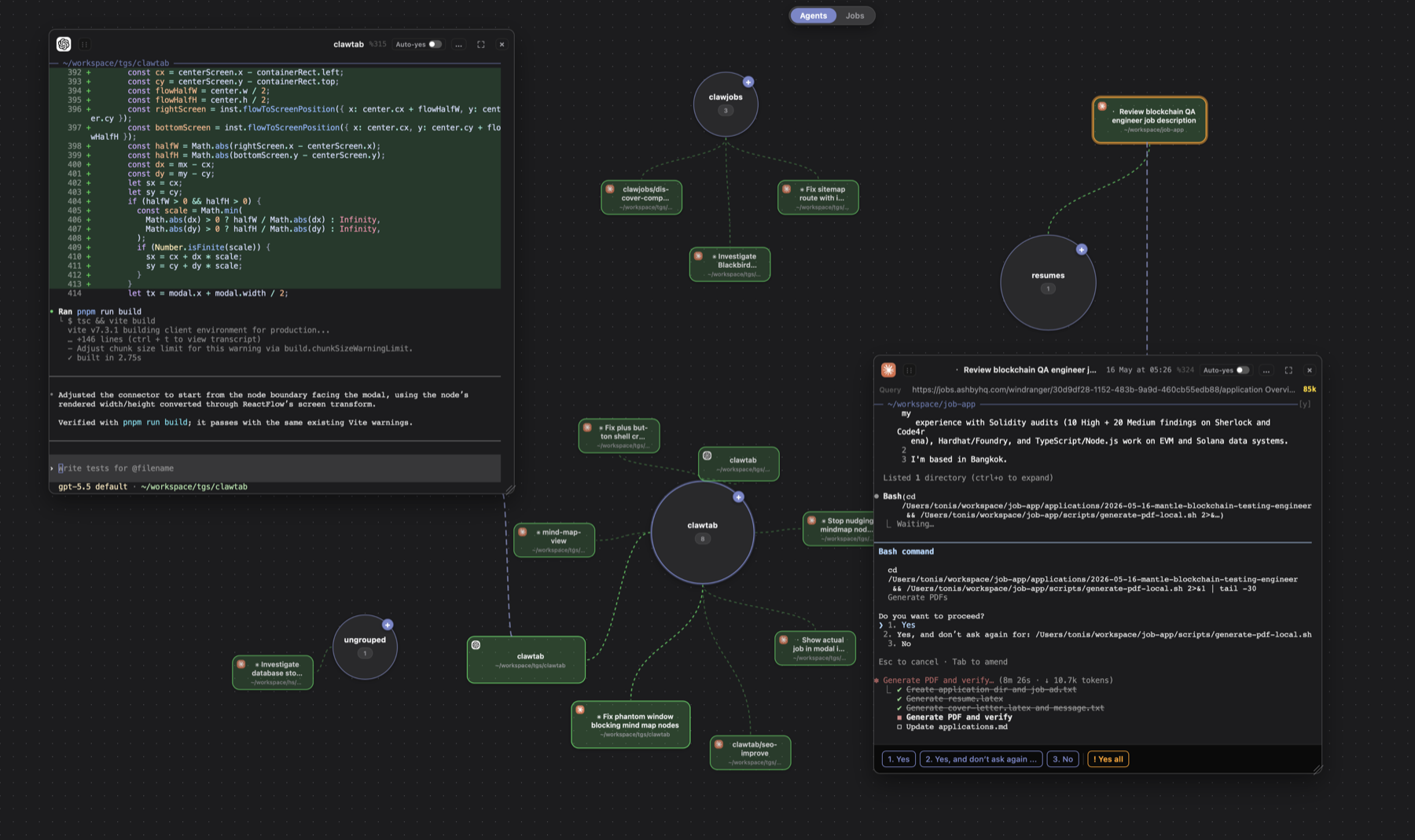
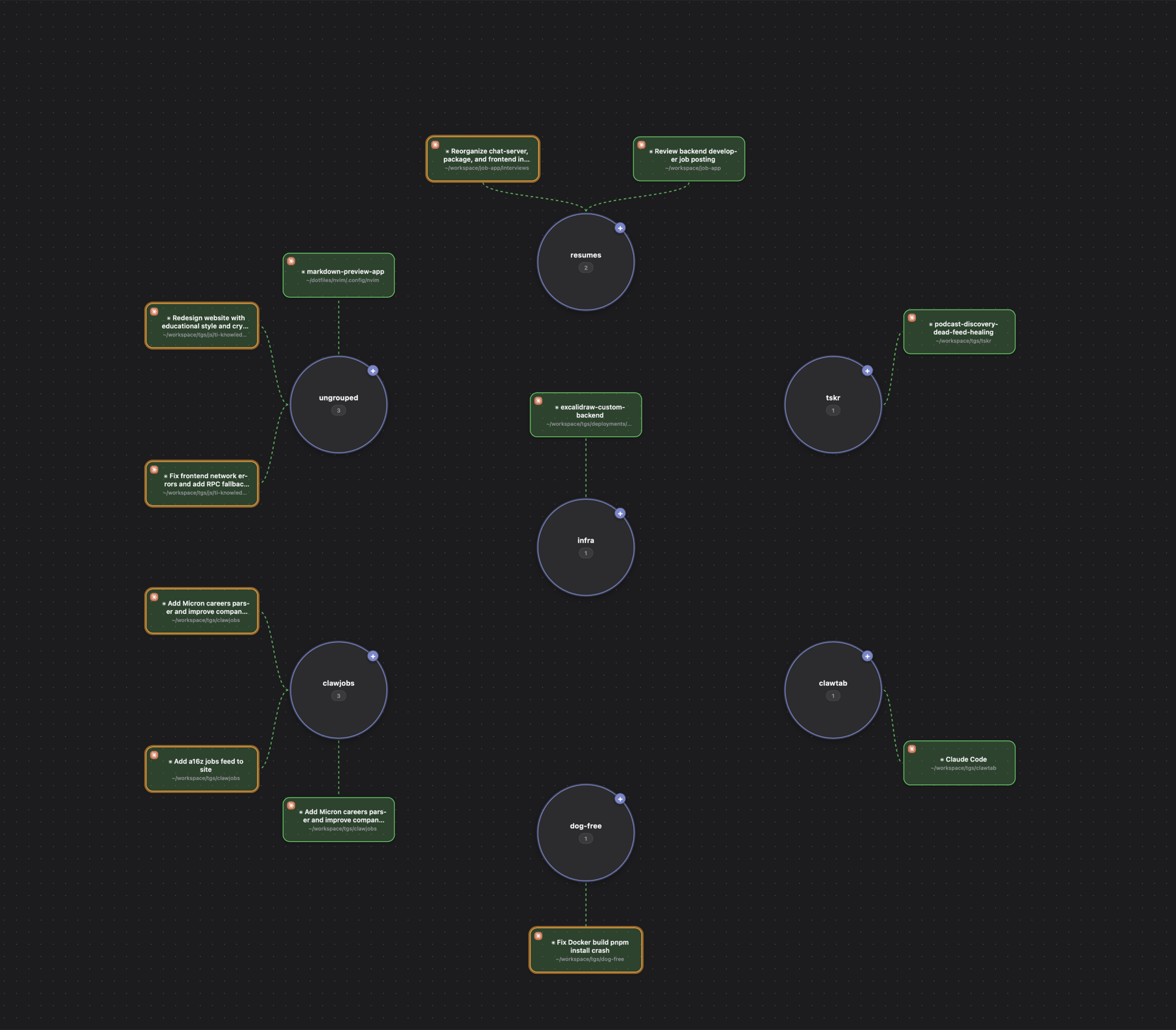
The new Mind Map view is a different lens on the same data. It draws every agent as a card orbiting its group hub, sized and positioned by how recently it was active. A bright animated edge means a running agent. A pulsing border means it just asked you a question. Click anywhere on a node and a draggable terminal modal pops out, anchored to the node by a curved line so you never lose track of which card you opened.
This article walks through what the Mind Map shows, how the recency layout works, and why a visual AI agent dashboard beats a list once you have more than a handful of agents running.
What This Dashboard Replaces
Most coding agent tools show one agent at a time: a terminal tab, an IDE panel, a cloud task queue, or a pull request list. That works for review, but it is weak for operations. When Claude Code, Codex, OpenCode, shell panes, and scheduled tmux jobs are all running at once, you need a control center that answers operational questions quickly.
- Which agent is active right now? Recent log activity pulls that card closer to the group hub and makes it larger.
- Which agent needs input? Permission prompts get a pulsing border and attention dot.
- Which jobs are stale or failing? Jobs mode shows last-run status, recency, success, and failure states on the same canvas.
- Can I inspect the terminal without losing context? Every card opens a live terminal modal anchored back to its source node.
That makes the Mind Map closer to an AI coding agent control center than a visualization toy. It is built for developers running local background agents, parallel tmux panes, and scheduled automation that needs monitoring from one place.
Two Modes: Agents and Jobs
A floating pill toggle at the top of the canvas switches between two modes:
- Agents - every detected Claude Code, Codex, or OpenCode process currently running on your machine, grouped by the sidebar group it belongs to (or
ungroupedif it has not been matched yet). - Jobs - every saved ClawTab job (cron-scheduled or manual), with its current status and last-run time. The job's running pane, if any, is wired in so you still get the live working/asking pulse on the node.
Both modes use the exact same layout engine; only the data source differs. The agents view is what you reach for when you are babysitting a swarm right now. The jobs view is what you reach for when you want a map of "what is scheduled to run on this Mac, and how recently did each one fire."
How the Recency Layout Works
The layout is a recency-weighted radial chart. Every item gets a score - for an agent, it is the most recent of the session-start time and the last log change; for a job, it is the latest of last-run, start, or added-at. Scores are normalized across the whole canvas to [0..1], and that single number drives every visual property of the node:
- Card size - active agents render larger (up to 220x88 pixels) than dormant ones (down to 150x64). Your eye lands on the busy agents first.
- Group hub size - hubs scale up to 190 pixels for groups containing the most recently active agent, down to 120 for groups whose agents have been quiet for a while.
- Opacity - old cards fade toward 80% opacity. New cards stay fully opaque.
- Edge weight and opacity - the line connecting an agent to its group hub gets thicker and brighter the more recently the agent was active.
Group hubs are arranged on concentric rings around the canvas origin (one in the center, up to six on the first ring, twelve on the second, and so on). Inside each group, agents fan out on an arc whose radius grows with the number of agents in that group - this keeps cards from colliding even when one group has ten agents and another has two.
A small collision-avoidance pass nudges cards apart if the auto-placement still overlaps, and a separate edge-crossing check makes sure the line from a group hub to its agent does not slice through another card.
State Indicators You Can Read at a Glance
Every node shows its state with motion, not just color:
| State | What You See | What It Means |
|---|---|---|
| Working | Animated green edge, soft glow on the card | The agent's log changed within the last 12 seconds - actively thinking, writing files, or running tools |
| Asking | Pulsing border, attention dot on the card | Claude Code is waiting on a permission prompt - tap to answer or enable auto-yes |
| Running (idle) | Solid edge, normal card | The session is alive but its log has not moved recently |
| Stopped | Faded card, thin gray edge | The process exited; ClawTab keeps the card so you can still inspect the final state |
| Success / Failed | Color-tinted card (jobs view only) | The last run of a scheduled job either succeeded or failed |
A 1-second timer re-evaluates the "working" window on every node so the green pulse drops off the moment an agent goes quiet for more than 12 seconds. You do not have to watch the log to know which agent went idle - the canvas tells you.
Click a Node, Get a Live Terminal Modal
Single-clicking any agent card spawns a floating modal that contains the full live terminal for that pane. The modal is:
- Draggable and resizable - tear off as many as you want, arrange them anywhere on the canvas.
- Anchored by a curved connector - a thin Bezier curve runs from the node's edge to the nearest hook on the modal frame. The connector re-routes in real time as you pan, zoom, or drag the modal, so you can always trace a modal back to its source agent.
- Stacked with z-order - clicking a modal raises it. The most recently focused modal stays on top, and the canvas remembers the stacking order per mode (agents vs jobs).
- Smart-placed on open - new modals are positioned to the right of any existing modal, falling back to a cascading offset if the canvas is full. You do not get five modals stacked exactly on top of each other.
- Per-mode - modals you opened in agents view stay there when you toggle to jobs view, and vice versa. Switch back and your layout is exactly where you left it.
From inside the modal you can answer permission prompts, toggle per-pane auto-yes, inject Keychain secrets, and use every keyboard shortcut that works in the normal split-pane view. The Mind Map intercepts shortcuts (rename, copy mode, kill pane, zoom, auto-yes toggle) and dispatches them to the focused modal's pane, so muscle memory carries over.
Spawn New Agents Without Leaving the Map
Hover any group hub and a small plus button appears in its corner. Clicking it opens a popover that lets you spawn a fresh agent into that group:
- Pick a provider (Claude Code, Codex, OpenCode, or a plain shell).
- Optionally pick a model.
- The working directory is pre-filled from the group's folder mapping, if any.
ClawTab launches the agent in a new tmux pane and immediately opens its terminal as a fresh modal anchored to the group hub. The modal stays alive even before the underlying process is detected as a "real" agent - a synthetic node renders next to the hub the moment you spawn it, and is seamlessly replaced when the detected process arrives.
This makes the Mind Map a useful spawn point for parallel agent swarms: drag a group hub to where you want it on the canvas, hit the plus button three or four times, and you have a fan of new agents already laid out around it.
Drag Groups, Drag Agents, Drag Both
Layout overrides are sticky. Drag any agent card and its position is remembered until you reset. Drag a group hub and every agent in that group moves with it, preserving the fan layout. The canvas refuses to let two group hubs overlap by more than 74 pixels - try to slam one on top of another and the drag snaps back.
A gear button in the bottom-right corner of the canvas opens a small menu with a single button: Reset layout. That clears every drag override for the current mode and re-fits the view, so you can experiment freely and snap back to the auto layout.
The repulsion engine is gated. It runs at 60fps while you are dragging or while a node is still springing back into place, then suspends itself once everything is settled. The canvas stays at 0% CPU when you are not interacting with it, even with two dozen nodes on screen.
How It Compares to the Split-Pane View
The Mind Map does not replace the existing tiled split layout - it is an alternative view of the same data. Each works better for a different workflow:
| Need | Split Panes | Mind Map |
|---|---|---|
| Deep focus on 2-4 agents | Best - terminal is full-size and tiled | OK - modals work but waste canvas space |
| Overview of 8+ agents | Cramped - panes shrink past readability | Best - cards stay readable; recency tells you who matters |
| Spotting which agent is asking | You scan tab strips or pane borders | Pulsing border catches your eye on any zoom level |
| Cross-project monitoring | One workspace at a time | Every group is visible simultaneously |
| Spawning a swarm | Open jobs, run each, tile manually | Hit the plus button on a hub, repeat |
| Quick command on a single pane | Click the pane, type | Click the card, type in the modal |
Many users will keep the split layout as the default and pop the Mind Map only when they want a bird's-eye view of everything that is running, or when a swarm has grown past what the tiled view can show comfortably.
Getting the Update
The Mind Map view ships in the latest desktop release. Update via Homebrew:
brew upgrade -cask tonisives/tap/clawtabOr grab the latest from GitHub releases. Open the app, switch to the Mind Map tab in the main area, and use the floating pill in the top center to toggle between Agents and Jobs modes. No flag, no opt-in.
The view works on the same data as the rest of ClawTab - your existing groups, jobs, secrets, and auto-yes settings all carry over. If you already have a multi-agent swarm running, switching to the Mind Map will lay it out immediately.