Introduction
OpenCode V2 uses an ordered permissions array with action, resource, and effect fields. You can keep supported V1 configuration while trying V2; rewriting it into the native format is optional. The practical migration question is whether your existing jobs still perform the intended work and stop for the intended decisions.
This guide gives you a field map, a small policy to inspect, and a verification checklist for scheduled runs and phone replies. The OpenCode examples follow upstream documentation checked November 14, 2026. ClawTab integration details below come from source review; a live V2 approval run has not been tested for this guide.
Identify the version before changing configuration
Check the executable on the machine that runs the agent, including the host used by your scheduler. Current V1 and V2 releases both use opencode. An old instruction mentioning a separate opencode2 command is insufficient to identify your installation.
The official migration guide says V2 translates supported V1 configuration in memory. Native V2 conversion is optional; V1 plugins and server API integrations need porting. Keep each agent definition entirely in one format when converting it, and keep a copy for any host still running V1.
command -v opencode
opencode --version
opencode --help
cwt jobs create --help
Map V1 tool permissions to V2 actions
Use this map when converting a policy. Translate the behavior as well as the names: V2 puts exceptions into an ordered list.
| V1 configuration | Native V2 equivalent |
|---|
permission object | permissions array |
bash | shell |
task | subagent |
write and patch | edit |
A disabled tool in tools | A matching action with effect: deny |
Check external paths separately. The migration guide documents that V2 allows external_directory by default. Add an explicit ask rule if you want a decision before access outside the project. Renaming fields alone misses this behavior change.
Start with a policy whose exceptions you can explain
Here is an illustrative V2 policy for a repository inspection task. Merge it with your existing configuration rather than replacing unrelated settings. It asks by default, permits Git inspection and reads, blocks the edit tool, and asks before external directory access.
In the V2 permissions reference, the final matching rule determines the result. Put broad rules first and specific exceptions later. allow continues, ask requests a client decision, and deny blocks. A shell pattern ending in * also matches the command without arguments.
{
  "$schema": "https://opencode.ai/config.json",
  "permissions": [
    { "action": "*", "resource": "*", "effect": "ask" },
    { "action": "read", "resource": "*", "effect": "allow" },
    { "action": "read", "resource": "*.env", "effect": "ask" },
    { "action": "read", "resource": "*.env.*", "effect": "ask" },
    { "action": "shell", "resource": "git status *", "effect": "allow" },
    { "action": "shell", "resource": "git diff *", "effect": "allow" },
    { "action": "edit", "resource": "*", "effect": "deny" },
    { "action": "external_directory", "resource": "*", "effect": "ask" }
  ]
}
Check allow, ask, and deny in a disposable repository
Use a throwaway repository with a harmless tracked file and no credentials. Keep automatic approvals off during this check. These are proposed acceptance checks, not measured results:
| Request | Expected with the example policy | Record |
|---|
Run git status --short | Allowed without a decision | Tool action and output |
| Use the edit tool on the harmless file | Blocked | Permission result and unchanged file |
Run printf permission-check | Asks | Prompt, chosen response, and result |
| Read a harmless file outside the project worktree | Asks for external access | Resolved path and prompt |
Ask for the named tool explicitly so you can inspect which action was checked. A shell command can edit files too, so test the actual tool path your job uses. Save the CLI version, agent, effective configuration, and session ID with the result. Repeat after changing a plugin or approval setting.
Check the server and client that own the decision
The current CLI documentation describes a shared background server that owns sessions, permissions, and execution. Clients normally connect to it; --standalone selects a private server. Record which server a failing client uses before comparing its behavior with another terminal.
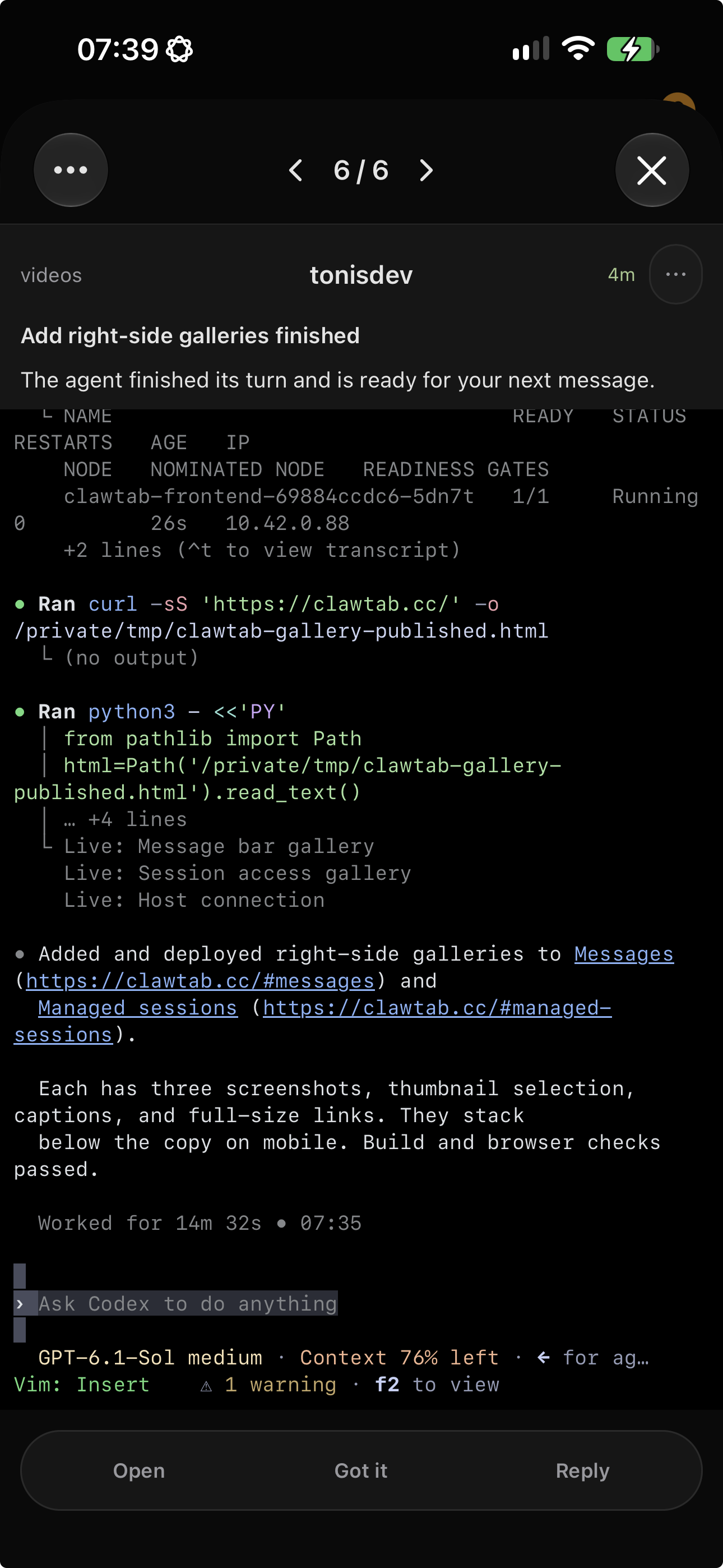
A scheduled opencode run client also needs a way to handle an approval request. A job can start successfully yet stop making progress at its first decision. For an unattended task, decide in advance which operations should run, stop, or wait for you. Then repeat the same acceptance checks through the real scheduler.
V2 approval choices include once, always, and reject. “Always” saves project approval patterns; it can affect later runs. Begin validation with a single approval and inspect saved approvals before comparing two runs.
Validate ClawTab jobs and remote replies separately
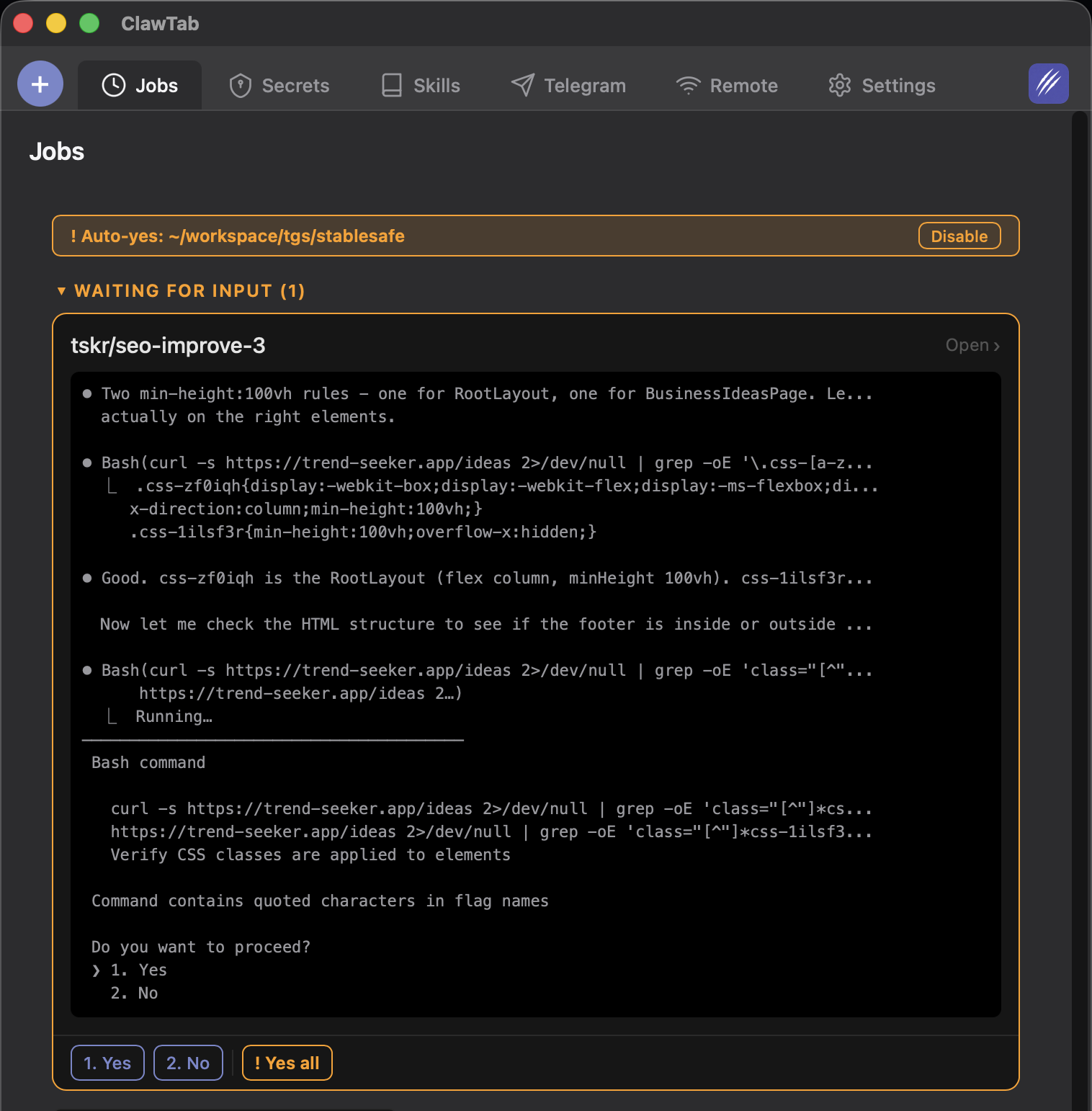
ClawTab's current job creation code requires both --provider and --model and creates agent jobs with auto-yes enabled. Turn that off in the job settings before testing prompts. The OpenCode scheduling guide has complete creation examples.
ClawTab's OpenCode session reader resolves sessions using process details and the local OpenCode database. That makes session identity worth testing alongside permissions when moving to a shared server.
- Start two disposable sessions with different visible prompts.
- Open each pane through ClawTab Remote and verify its project and conversation.
- Make each session wait for a harmless decision.
- Reply to one, then confirm only the intended session proceeds.
- Repeat with a manually triggered scheduled job before enabling its recurring schedule.
Other terminal integrations have encountered this boundary too. The ccmux project documents different OpenCode V2 approval keys and withholds V2 notification approval buttons pending support. That is evidence to test the displayed prompt and response mapping for your integration.
Leave the job unattended after its checks pass
Keep the working configuration, exact CLI version, and a short record of the allow, ask, deny, and remote reply results with the job instructions. Enable the recurring schedule after a manual run produces the expected output. If a task still asks, decide whether to narrow its scope, add a specific permission, or keep a person available to answer.
For the broader approval options, read OpenCode auto mode and ClawTab auto-yes. Use the native V2 rules above when converting configuration, and verify the installed CLI's help before copying version-specific auto-mode flags.